Note
Access to this page requires authorization. You can try signing in or changing directories.
Access to this page requires authorization. You can try changing directories.
Use Restore Database from File in the Connections tree when you want to restore a PostgreSQL archive backup into an existing database or recreate content in another environment. The webview builds the pg_restore command for you, shows the effective restore scope, and requires a preflight confirmation before it starts.
Prerequisites
- A connected server in the PostgreSQL extension.
- The backup and restore interface enabled (
pgsql.enablePgDumpRestoreUIistrueby default). - PostgreSQL client tools installed on the extension host, including a
pg_restoreversion compatible with the archive and target server. Use the same major client version as thepg_dumpthat created the archive, or a newer supported version. An older client can reject a newer archive format. If the extension can't locate the installed binary, configurepgsql.pgBinaryDirsand restart the editor. This setting doesn't install the tools. - A database role with the privileges and ownership needed for the selected restore operations, including
CREATEDBwhen Create database is enabled. - A backup in a
pg_restore-supported archive format such as custom, tar, or directory. Plain SQL files are detected, but the page warns that they should be restored withpsqlinstead.
When restoring on another server, create or migrate any roles referenced by the archive before restoring ownership and grants. Per-database archives don't contain global role definitions. Missing target roles can cause ownership or permission-restoration errors. See Migrate users and roles with dump and restore.
Warning
Restore only archives from trusted sources. A restore can execute SQL chosen by superusers on the source server, including during partial restores. The command preview shows command-line arguments, not all SQL in the archive. To inspect that SQL before restoring, use the --file option described in the pg_restore reference.
Restore a database
- In the Connections tree, right-click the target server or database.
- Select Backup and Restore > Restore Database from File.
- In Restore Your Database, choose the Target Database and Backup File.
- Select a Restore mode:
- Full restores the archive contents.
- Schema-only restores structure without data.
- Data-only restores data without schema objects.
- Review the detected Format and Database (stored in archive) fields after you select the backup file.
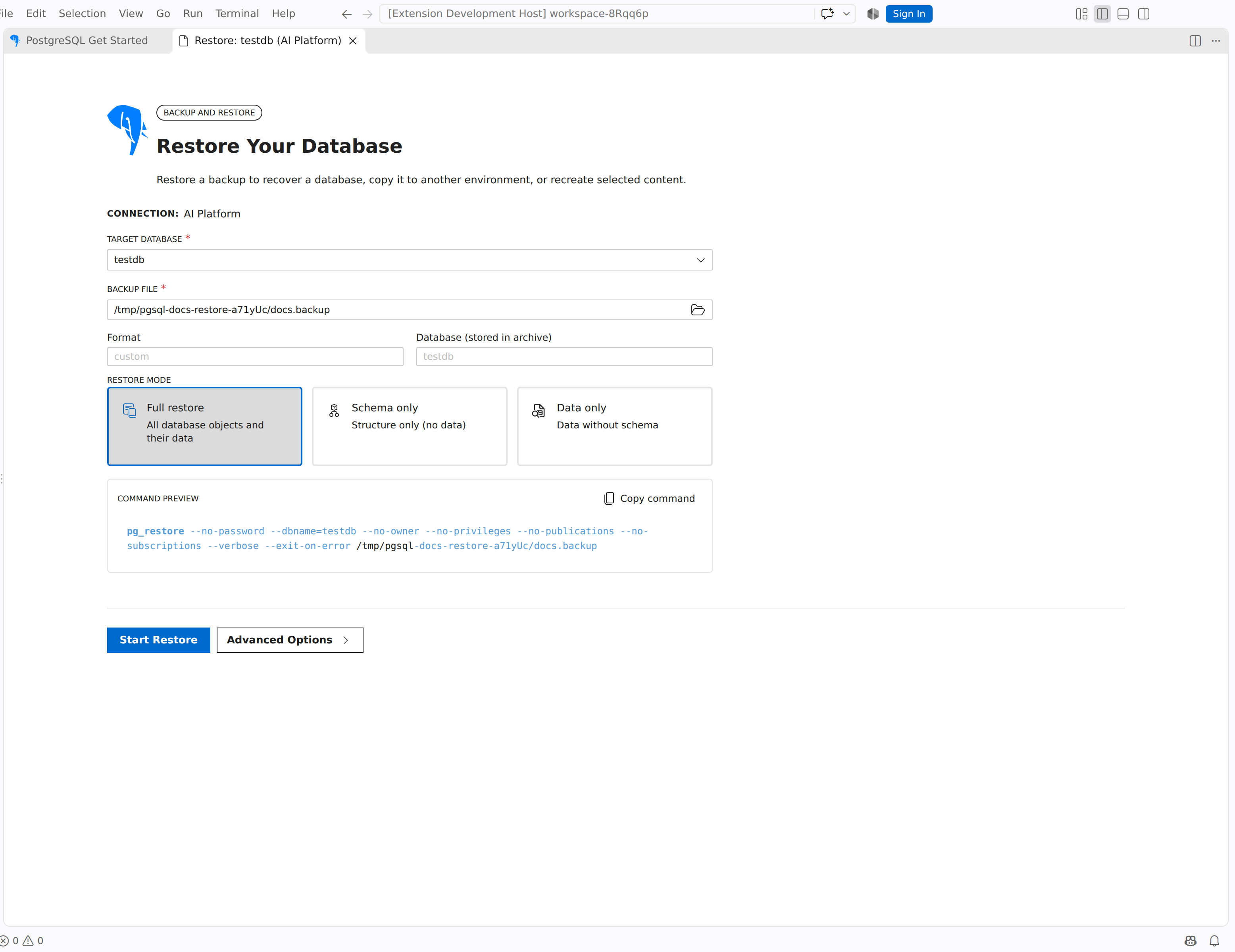
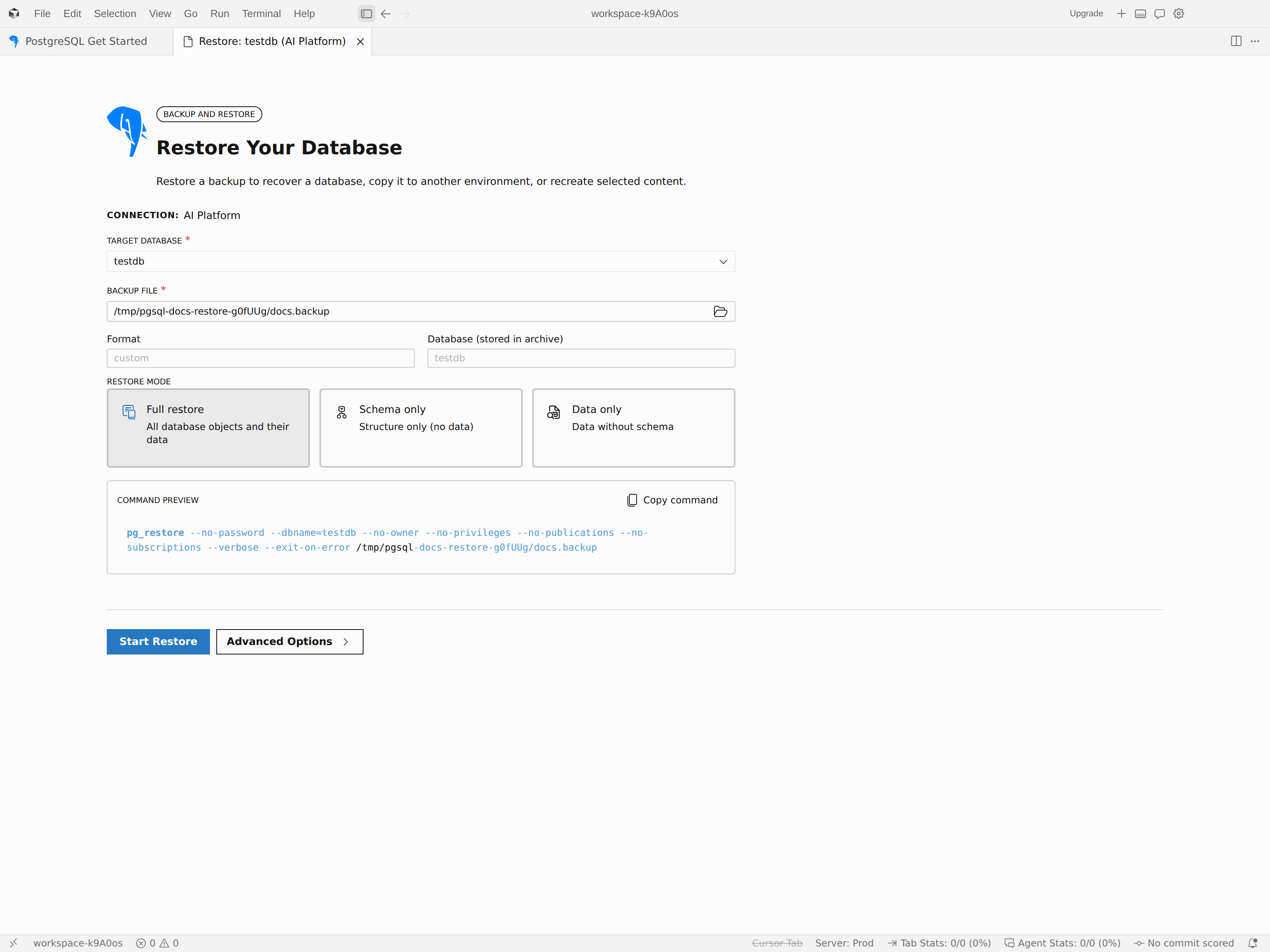
Use Advanced Options to refine the restore command. The drawer groups settings into Scope, Restore Behavior, Performance and Logs, Output, Database-level settings, and Security. Depending on the selected mode and archive format, some options become unavailable and explain why.
When the page starts, it also shows a command preview so you can review the generated pg_restore arguments before running them.
Confirm the restore operation
Warning
When Create database is enabled, the database name stored in the archive is the restore destination. In this mode, the selected connection/database is used only for the initial maintenance commands. If Clean is also enabled, pg_restore drops and recreates the entire archive-named database, deleting its existing objects and data, including anything absent from the backup. Verify the server and archive database name, and keep a recoverable backup before continuing.
Select Start Restore to open Confirm Restore Operation. The preflight modal summarizes the restore target before the extension runs anything:
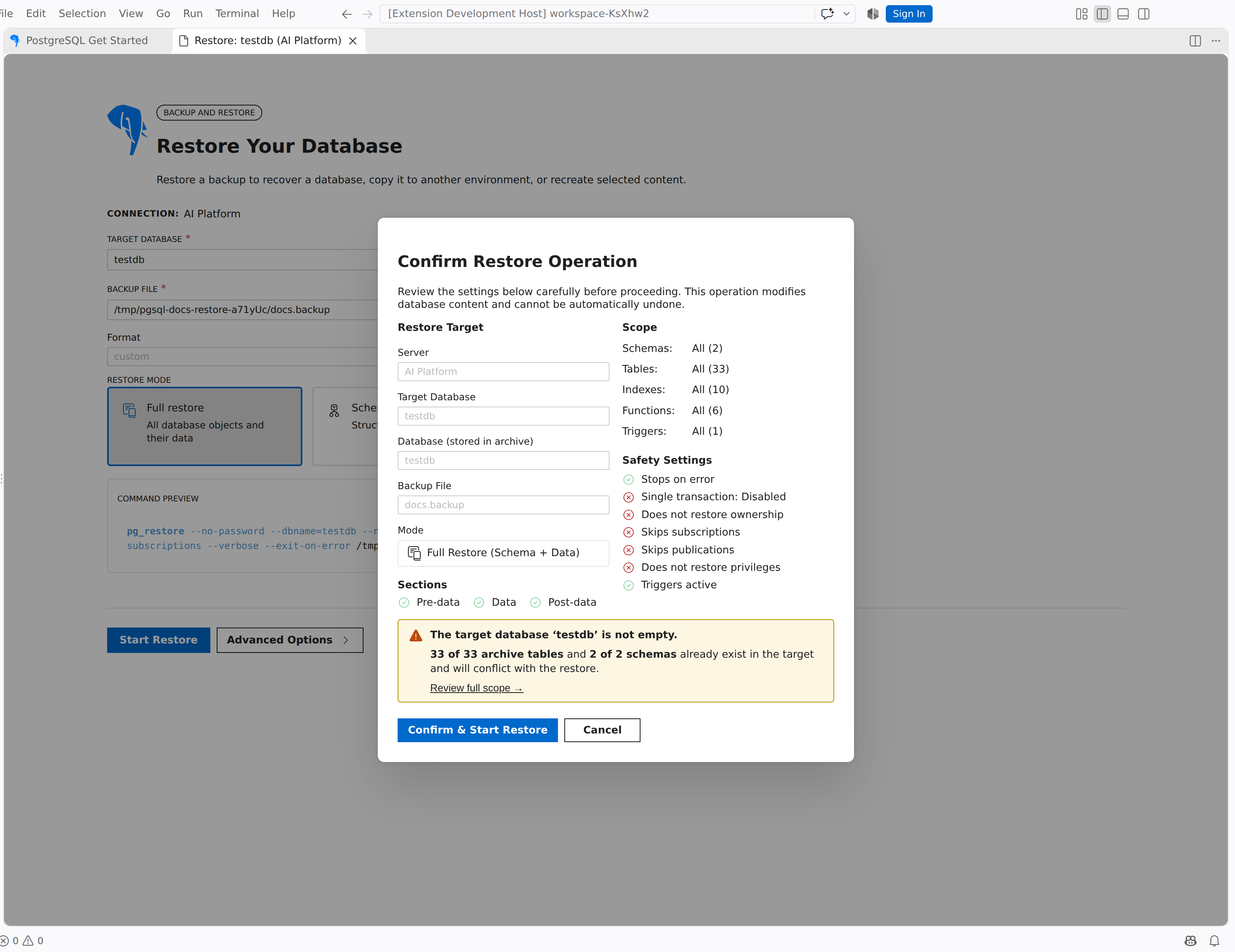
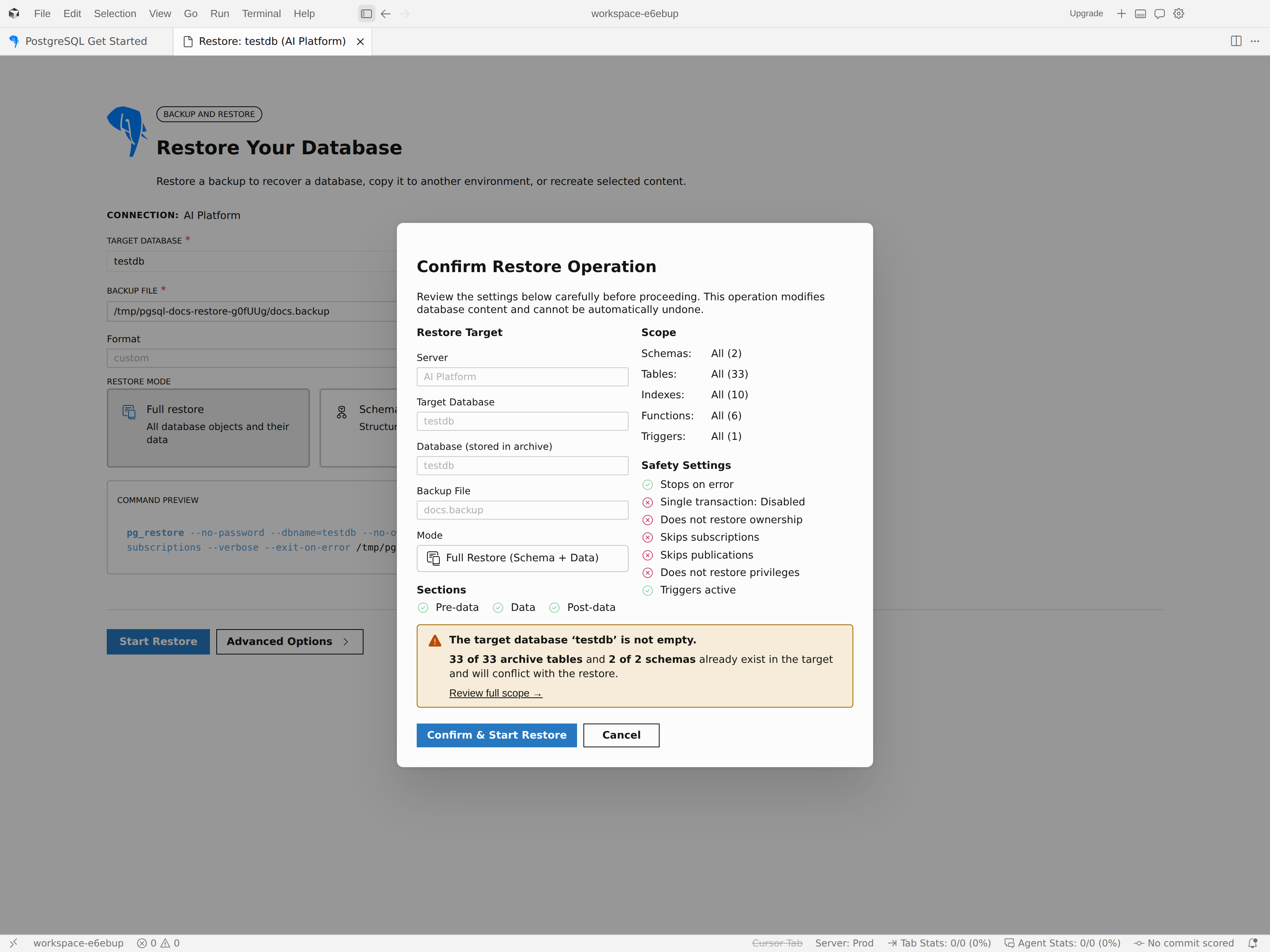
- Restore Target shows the server, target or maintenance connection, database stored in the archive, backup file, restore mode, and enabled sections.
- Scope shows how many schemas, tables, indexes, functions, and triggers are included.
- Safety Settings summarizes options such as stopping on error, single-transaction mode, ownership restoration, subscriptions, publications, privileges, and trigger behavior.
If the restore is destructive, the modal adds stronger warnings. For example:
- Without Create database, restoring with Clean warns that matching restore objects can be dropped and recreated.
- Restoring with Create database checks whether the archive database already exists. If it does and Clean isn't enabled, the extension blocks the restore instead of allowing a merge into the existing database.
- When typed confirmation is required, you must enter the database name exactly before Confirm & Start Restore becomes available.
After you confirm, the status view shows progress and logs. If the restore fails, the page keeps the command preview and collected output available so you can review the error or use Debug with Copilot.