Note
Access to this page requires authorization. You can try signing in or changing directories.
Access to this page requires authorization. You can try changing directories.
If you have an Azure Quantum workspace, then you can connect to your workspace and submit your code with the qdk.azure Python module. The qdk.azure module provides a Workspace class that represents an Azure Quantum workspace.
Prerequisites
To connect to your workspace with the qdk.azure module, you must have the following:
An Azure account with an active subscription. If you don’t have an Azure account, then you can register for free and sign up for a pay-as-you-go subscription.
An Azure Quantum workspace. If you don't have a workspace, then see Create an Azure Quantum workspace.
The latest version of the
qdkpython library with theazureextra.pip install --upgrade "qdk[azure]"
If you use Azure CLI, then you must have the latest version. For installation instructions, see:
Connect with a connection string
You can use a connection string to specify the connection parameters to an Azure Quantum workspace. Connection strings are useful in the following scenarios:
- You want to share access to your workspace with others who don't have an Azure account.
- You want to share access to your workspace with others for a limited time.
- You can't use Microsoft Entra ID because of company policies.
Tip
Every Azure Quantum workspace has a primary key and a secondary key, and each key has its own connection string. To allow others to access your workspace, share the secondary key and use the primary key only for your own services. You can replace the secondary key without causing downtime in your own services. For more information about sharing access to your workspace, see Share your workspace access.
Copy the connection string
- Log in to the Azure portal.
- Go to your Azure Quantum workspace.
- In the workspace panel, expand the Operations dropdown and choose Access Keys.
- You must enable access keys for you workspace. If the Access Keys slider is set to Disabled, then set the slider to Enabled.
- Choose the Copy icon for that connection string that you want to copy. You can choose either the primary or secondary connection string.
Warning
It's a security risk to store your account access keys or connection strings in clear text. It's a best practice to store your account keys in an encrypted format, or migrate your applications to use Microsoft Entra authorization for access to your Azure Quantum workspace.
Use the connection string to access your Azure Quantum workspace
You can use the connection string that you just copied to connect to your Azure Quantum workspace with the qdk.azure module or with Visual Studio Code (VS Code).
Create a Workspace object to connect to your Azure Quantum workspace. There are two options to identify your Azure Quantum workspace when you create a Workspace object.
Call the
from_connection_stringfunction when you create aWorkspaceobject.# Create a new Workspace object from a connection string from qdk.azure import Workspace connection_string = "[Copy connection string]" workspace = Workspace.from_connection_string(connection_string) print(workspace.get_targets())If you don't want to copy your connection string in your code, then store your connection string in an environment variable and use
Workspace().# Use an environment variable to connect with your connection string connection_string = "[Copy connection string]" import os os.environ["AZURE_QUANTUM_CONNECTION_STRING"] = connection_string from qdk.azure import Workspace workspace = Workspace() print(workspace.get_targets())
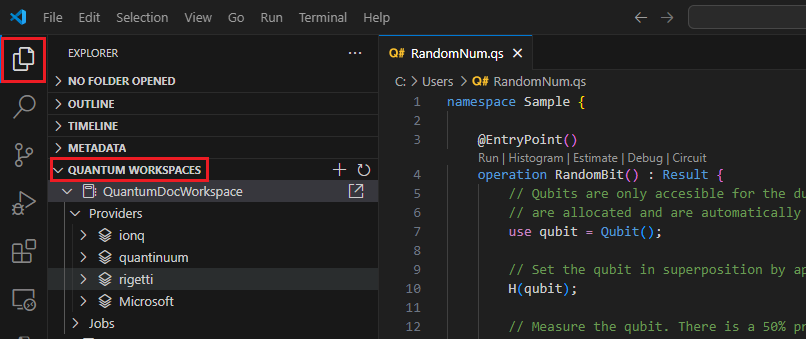
For more information about how to work with keys, see Manage your Access Keys.
Important
If you disable access keys for your workspace, then you can't use connection strings to connect to your workspace. But you can still use workspace parameters to connect to your workspace.
Connect to your workspace with workspace parameters
Every Azure Quantum workspace has a unique set of parameters that you can use to connect to the workspace. You can use the following parameters to connect to your Azure workspace:
| Parameter | Description |
|---|---|
subscription_id |
The Azure subscription ID. |
resource_group |
The Azure resource group name. |
name |
The name of your Azure Quantum workspace. |
resource_id |
The Azure resource ID of the Azure Quantum workspace. |
To find your workspace parameters, follow these steps:
- Log in to the Azure portal.
- Go to your Azure Quantum workspace.
- From your workspace panel, choose Overview.
- Expand the Essentials dropdown.
- Copy the parameters in their corresponding fields.
Note
Make sure that you log into the correct tenant before you connect to your workspace. For more information about tenants, see How to manage Azure subscriptions with the Azure CLI.
Use workspace parameters to connect to your Azure Quantum workspace
To stay logged in when you run your Python scripts, before you use workspace parameters to connect to your workspace, open a terminal and run the following Azure CLI command to set the subscription for your workspace. Replace <subscriptionId> with your subscription ID.
az account set --subscription <subscriptionId>
You can use your workspace parameters to connect to your Azure Quantum workspace with the qdk.azure module or with Azure CLI.
Create a Workspace object to connect to your Azure Quantum workspace. There are three options to identify your Azure Quantum workspace when you create a Workspace object.
Specify the resource ID (recommended):
from qdk.azure import Workspace

workspace = Workspace(resource_id="") # Add the resource ID of your workspace
Specify the subscription ID, resource group, and workspace name:
from qdk.azure import Workspace

workspace = Workspace(
    subscription_id="", # Add the subscription ID of your workspace
    resource_group="", # Add the resource group of your workspace
    name="" # Add the name of your workspace
    )
Specify just the workspace name. This option might fail when you have multiple workspaces that have the same name in the same tenant.
from qdk.azure import Workspace
workspace = Workspace(name="") # Add the name of your workspace