Note
Access to this page requires authorization. You can try signing in or changing directories.
Access to this page requires authorization. You can try changing directories.
The Ground-State Molecular Energies with QPE course in QDK Learning shows how classical computational chemistry and quantum algorithms work together to estimate the ground-state electronic energy of a molecule. The Microsoft Quantum Development Kit (QDK) extension for Visual Studio Code (VS Code) includes QDK Learning.
In this course, you use the QDK for chemistry (QDK/Chemistry) library and quantum phase estimation (QPE) to estimate the energy of a stretched nitrogen molecule. The course uses Python notebooks to build and run Q# circuits on a local QDK simulator.
The course is appropriate for people with introductory knowledge of quantum computing and quantum chemistry.
What you learn
The course has seven units that guide you through the workflow.
| Unit | What you learn |
|---|---|
| Tutorial Overview | Review the course workflow, required environment, and quantum chemistry background. |
| Energy and Accuracy | Define the target energy and the accuracy comparisons used in the course. |
| Describing the Molecule | Define the stretched nitrogen molecule and construct a Hartree-Fock starting point. |
| Choosing the Active Space | Select the electrons and molecular orbitals for the correlated model. |
| Mapping the Problem to Qubits | Map the active-space Hamiltonian to qubits. |
| Preparing the Trial State | Prepare an approximation of the target ground state. |
| Iterative Quantum Phase Estimation | Estimate the energy with iterative QPE and compare the result with a classical reference. |
The course uses a compact molecular model that also has a classical solution. This approach lets you compare each quantum step's output with the corresponding classical result.
Prerequisites
To work through the quantum chemistry course, you need:
- The latest version of VS Code.
- The QDK extension for VS Code.
- The Python extension for VS Code.
- The Python Environments extension for VS Code.
- The Jupyter extension for VS Code.
- Python 3.11, 3.12, or 3.13.
- QDK/Chemistry version 2.2.0 or later.
- A folder where QDK Learning can store your notebooks and progress.
To use the AI-assisted learning features, sign in to GitHub Copilot in VS Code.
You don't need an Azure subscription or an Azure Quantum workspace. The course runs locally on the QDK quantum simulators.
Create a Python environment
The QDK extension includes a command to create a Python virtual environment and install the packages required to run the quantum notebooks in this course. Install the Python Environments extension in VS Code to use the command.
To create the environment, follow these steps:
- In VS Code, open the folder where you want to complete the course.
- Select View > Command Palette.
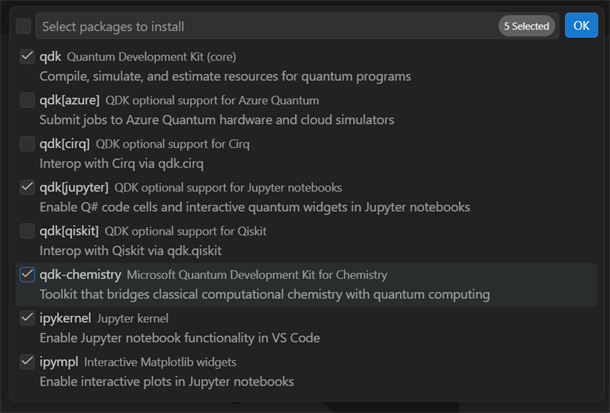
- Enter and select QDK: Create a Microsoft Quantum Python virtual environment.
- Keep the default package selections, and select qdk-chemistry.
- Confirm the package selection.
The command creates a virtual environment named .venv in the current workspace. If the workspace already has a virtual environment, the command offers to update it.
Note
The course requires qdk-chemistry>=2.2.0. The command installs an appropriate version in the new virtual environment.
Start the quantum chemistry course
To start the course, follow these steps:
- On the Activity Bar, select the Microsoft Quantum icon.
- If the workspace isn't set up for QDK Learning, select Start learning.
- In the Learning view, find Ground-State Molecular Energies with QPE and select the Switch Course icon.
- Expand the course to see its units.
- Select Tutorial Overview.
QDK Learning creates an editable Jupyter notebook and opens it in the Jupyter notebook editor. The QDK attempts to set the notebook kernel to your Python virtual environment for the course.
Complete a notebook unit
Each unit uses a separate Jupyter notebook. To complete a unit, follow these steps:
- Run the environment check near the beginning of the notebook. If the check reports missing packages, see Troubleshoot the Python environment.
- Read the notebook and run the code cells in order.
- Complete each exercise in the indicated code cell and run the cell to check your solution.
- At the end of the notebook, select the link to the next unit or select another unit in the Learning view.
The exercise code includes automatic validation. If your solution is correct, the cell runs successfully, and QDK Learning marks the exercise as complete. If your solution is incorrect, the cell output explains that your solution doesn't work.
QDK Learning tracks the code cells that you successfully run, including cells that aren't exercises. The course and unit progress indicators update as you work.
Note
The final circuit simulation in the Iterative Quantum Phase Estimation unit takes longer than the other required examples.
Get help from Copilot
The quantum chemistry notebooks include actions that send the current cell and course context to the QDK Learning agent.
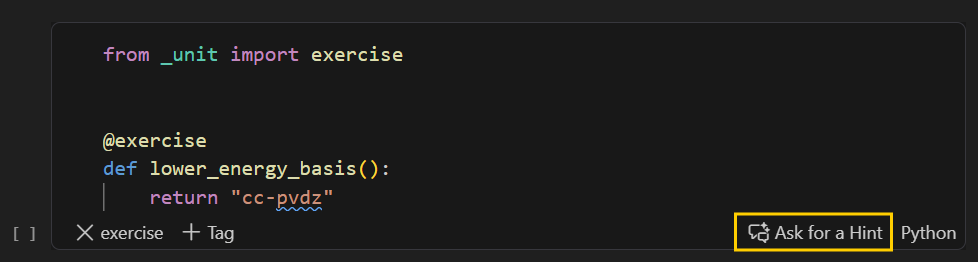
For an exercise cell, select Ask for a Hint in the cell status bar.
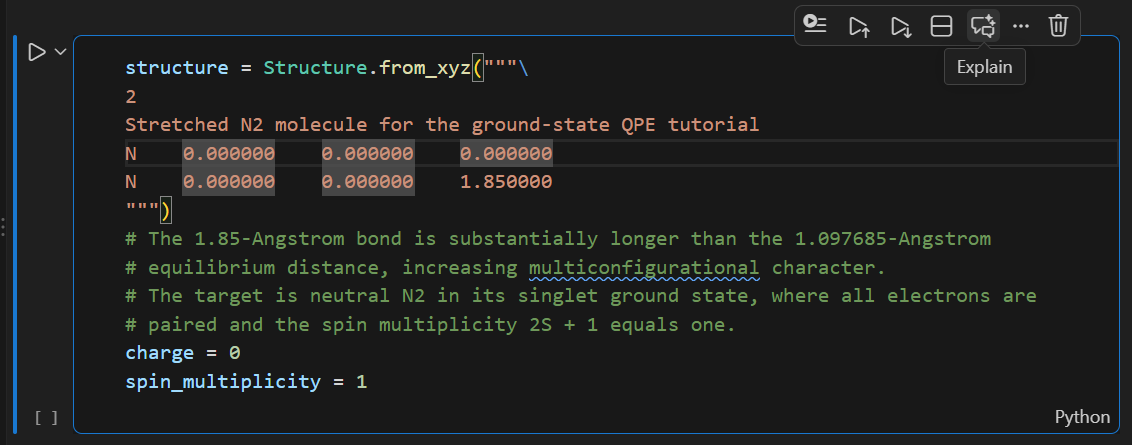
To learn more about a notebook concept, select Explain in the cell toolbar.
Enter your own question in Copilot Chat while the QDK Learning agent is active.
Try these example prompts:
Why does the active-space selection affect the number of qubits?
Give me a hint for this exercise without showing the complete solution.
Explain how the trial state affects quantum phase estimation.
Reset a notebook unit
QDK Learning gives you an editable working copy of each notebook. The original course notebook remains available so that you can reset your work.
To reset a unit, follow these steps:
- In the Learning view, open the shortcut menu for the unit that you want to reset.
- Select Reset Unit.
- In the confirmation message, select Reset.
You can select Reset Unit on the notebook toolbar instead.
Resetting a unit replaces the working notebook with a new copy, resets the unit's completion status, and deletes all your changes to the notebook.
Troubleshoot the Python environment
Use the following table to resolve issues with your Python environment.
| Problem | Resolution |
|---|---|
The environment check can't import qdk_chemistry. |
Run QDK: Create a Microsoft Quantum Python virtual environment again. Choose Update existing environment, and select qdk-chemistry. |
| The notebook uses the wrong Python kernel. | In the notebook toolbar, select the kernel name, and then choose the Python interpreter from the workspace .venv environment. |
| VS Code can't open or run the notebook. | Install and enable the Python and Jupyter extensions. |
| The installed QDK/Chemistry version is too old. | Update the workspace environment and confirm that it contains qdk-chemistry version 2.2.0 or later. |
For more information about QDK/Chemistry requirements, see Install QDK for chemistry.
Save and resume your progress
QDK Learning stores your editable notebooks in the qdk-learning/courses folder and saves your progress in the qdk-learning.json file in the workspace root.
To resume the course, follow these steps:
- Open the same workspace folder.
- Select the Microsoft Quantum icon.
- Select the unit where you want to continue.