Note
Access to this page requires authorization. You can try signing in or changing directories.
Access to this page requires authorization. You can try changing directories.
In this article, you use the Azure portal to configure route maps on an existing dual-stack Azure Route Server. You filter an IPv6 prefix, summarize IPv4 and IPv6 prefixes, replace an autonomous system (AS) path, and add a BGP community. You apply the route maps in the outbound direction to an ExpressRoute connection, two VPN connections, and a BGP peering with a network virtual appliance (NVA).
Important
Azure Route Server IPv4/IPv6 dual-stack mode is in preview. See the Supplemental Terms of Use for Microsoft Azure Previews for legal terms that apply to Azure features in preview.
Route maps control route advertisements, not data packets. The verification steps in this article show the resulting advertisements; they don't verify end-to-end packet delivery. For route-map concepts and limitations, see About route maps for Azure Route Server.
Regional availability
Azure Route Server IPv4/IPv6 dual-stack mode is available in preview only in the following Azure regions:
| Region | Programmatic name |
|---|---|
| East US 2 EUAP | eastus2euap |
| Central US EUAP | centraluseuap |
| West Central US | westcentralus |
| East Asia | eastasia |
| UK South | uksouth |
| Central US | centralus |
| Australia Central | australiacentral |
| Korea Central | koreacentral |
| Central India | centralindia |
| Brazil South | brazilsouth |
| Malaysia West | malaysiawest |
Prerequisites
- An Azure account with an active subscription where Route Server dual-stack preview access is enabled. Use a region listed in Regional availability.
- Permissions to configure Route Server and route maps. For more information, see Roles and permissions.
- An existing dual-stack virtual network with the following resources:
- Azure Route Server with dual-stack mode enabled.
- An ExpressRoute gateway and a VPN gateway in the same virtual network as Route Server.
- An ExpressRoute connection and two site-to-site VPN connections that exchange the example routes.
- An NVA in the hub virtual network with established BGP peering to Route Server and the example route advertisements configured.
- Route exchange with virtual network gateways enabled on Route Server.
- Familiarity with BGP peers, autonomous system numbers (ASNs), route advertisements, and BGP communities.
To prepare Route Server, see Enable IPv4/IPv6 dual-stack mode. For an example deployment and NVA peering, see Configure dual-stack Azure Route Server with PowerShell. That tutorial doesn't deploy the ExpressRoute or VPN gateways required for this example.
Review the route-map considerations and limitations, including charges and the restriction on point-to-site VPN configurations. Record existing route-map associations and expected routes before you make changes. Use an isolated test environment to evaluate these example policies before applying them to production connections.
Understand the example
The following diagram shows the dual-stack hub virtual network, gateways, and NVA. The dashed green lines represent BGP sessions. The solid green arrow shows the routes that the NVA advertises to Route Server.
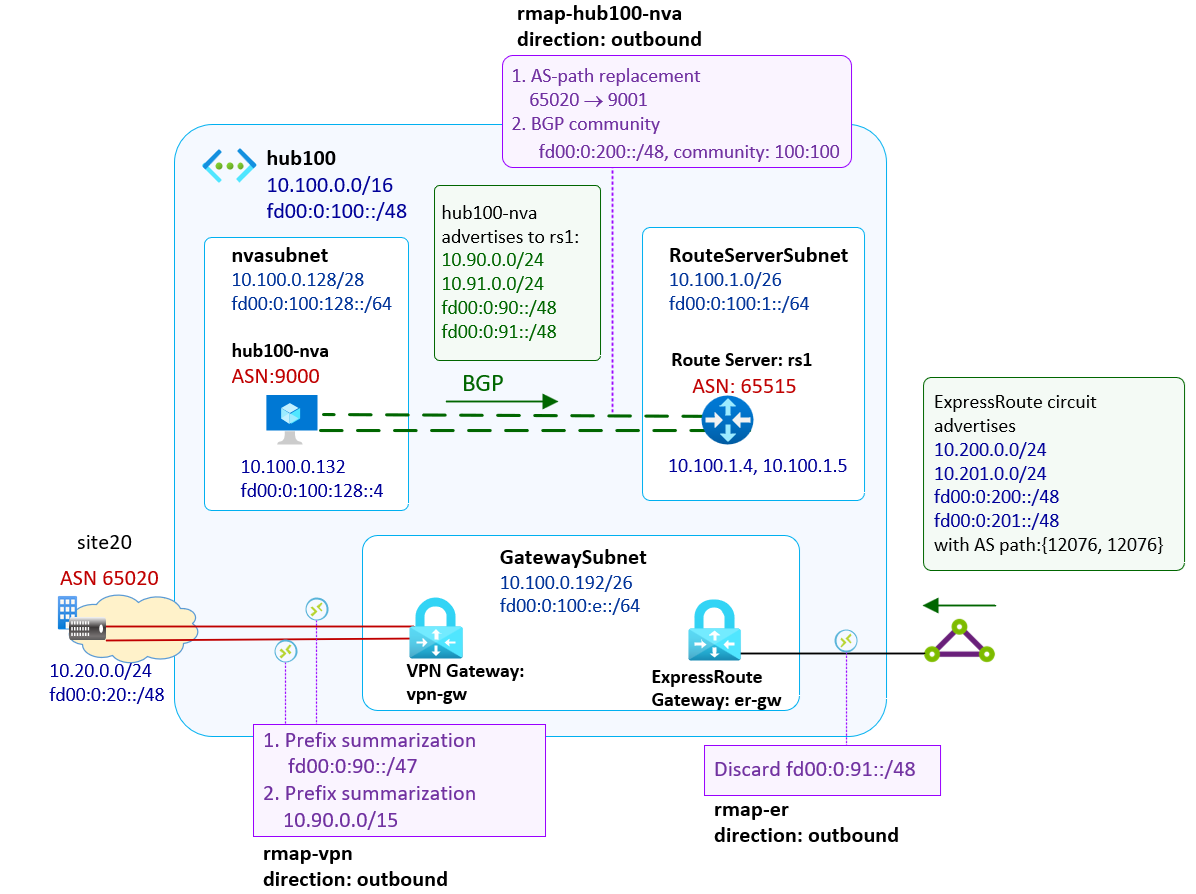
Resources and address spaces
| Resource | Example name | Address space |
|---|---|---|
| Hub virtual network | hub100 |
10.100.0.0/16, fd00:0:100::/48 |
| Route Server | rs1 |
Uses RouteServerSubnet |
| Route Server subnet | RouteServerSubnet |
10.100.1.0/26, fd00:0:100:1::/64 |
| Gateway subnet | GatewaySubnet |
10.100.0.192/26, fd00:0:100:e::/64 |
| NVA subnet | nvasubnet |
10.100.0.128/28, fd00:0:100:128::/64 |
| NVA BGP peering | hub100-nva |
NVA ASN 9000 |
| ExpressRoute connection | er-conn100 |
Routes from the ExpressRoute remote site |
| VPN connections | vpn-gw-to-site20-1, vpn-gw-to-site20-2 |
Routes from site20, ASN 65020 |
Replace these example names and prefixes with the values for your environment.
Route advertisements before applying route maps
| Source | IPv4 prefixes | IPv6 prefixes | Example AS path |
|---|---|---|---|
| NVA | 10.90.0.0/24, 10.91.0.0/24 |
fd00:0:90::/48, fd00:0:91::/48 |
9000 |
| ExpressRoute remote site | 10.200.0.0/24, 10.201.0.0/24 |
fd00:0:200::/48, fd00:0:201::/48 |
12076-12076 in the supplied example |
| VPN remote site, site20 | 10.20.0.0/24 |
fd00:0:20::/48 |
65020 |
Confirm these routes are available before you apply the example policies. If your baseline differs, the verification results also differ.
Route-map policies
| Route map | Outbound connection | Intended change |
|---|---|---|
rmap-er |
er-conn100 |
Drop the NVA prefix fd00:0:91::/48. |
rmap-vpn |
Both VPN connections | Summarize the NVA's IPv4 and IPv6 prefixes. |
rmap-hub100-nva |
rs1/hub100-nva |
Replace AS path 65020 with 9001, and add community 100:100 to fd00:0:200::/48. |
Each connection supports one route map per direction. The example changes only outbound associations. Preserve the existing inbound association when you save each connection. If an outbound route map already exists, review its rules before replacing it.
Configure the ExpressRoute route map
Create a route map that filters one IPv6 prefix from the routes advertised toward ExpressRoute.
In the Azure portal, open your Azure Route Server resource.
Under Routing, select Route Maps, and then select Add Route-map.
Enter
rmap-erfor the route-map name, and then select Add rule.Configure the rule with the following settings:
Setting Value Name discard-ipv6Next step Continue Match conditions: Property Route prefix Match conditions: Criterion Equals Match conditions: Value fd00:0:91::/48Action on matched routes Drop 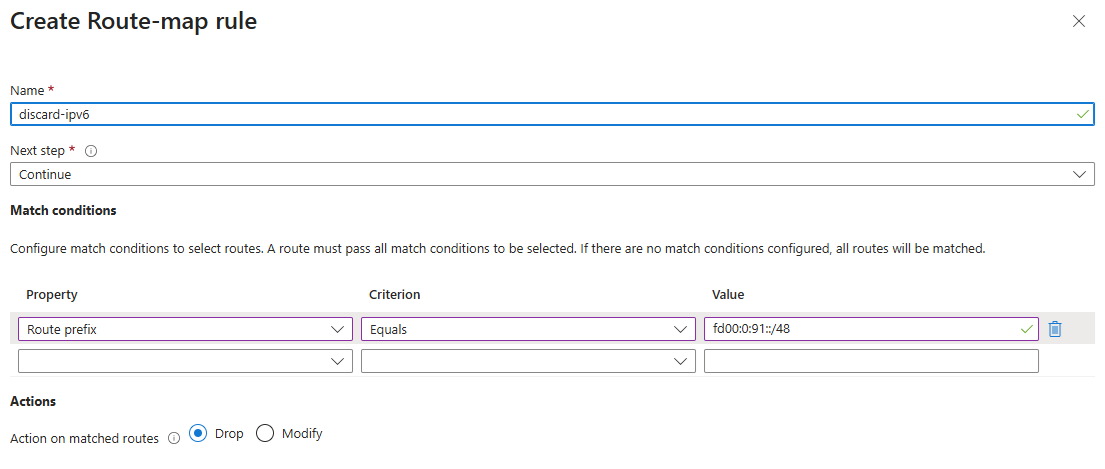
Select Add to add the rule, and then select Save to save the route map.
Wait until Provisioning state shows Succeeded. Select Refresh if needed.
The first route-map creation can trigger a Route Server upgrade. Wait for provisioning to complete before applying the map.
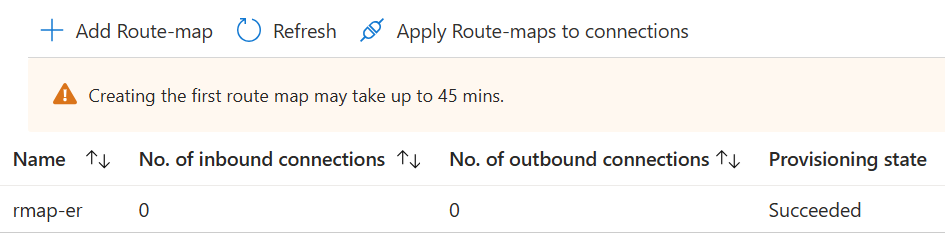
Apply the route map to ExpressRoute
On Route Maps, select Apply Route-maps to connections.
For Outbound Route-map, select rmap-er. Preserve the existing Inbound Route-map selection. If no inbound policy is configured, leave it set to None.
Select er-conn100. The Connection type column identifies ExpressRoute connections as Exr.
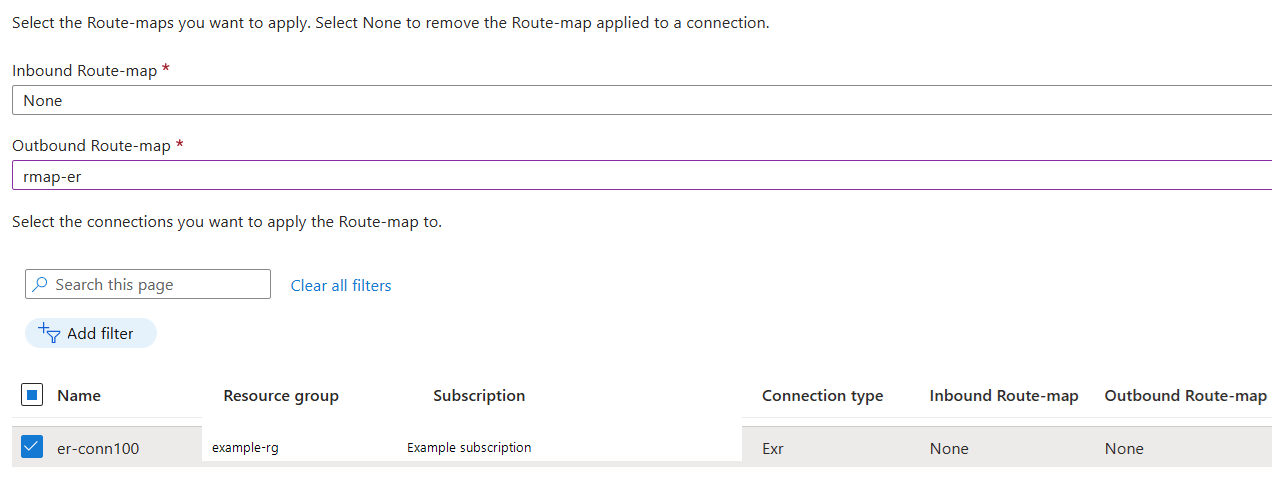
Select Save. After the operation completes, select Refresh and confirm that
rmap-erhas one outbound connection.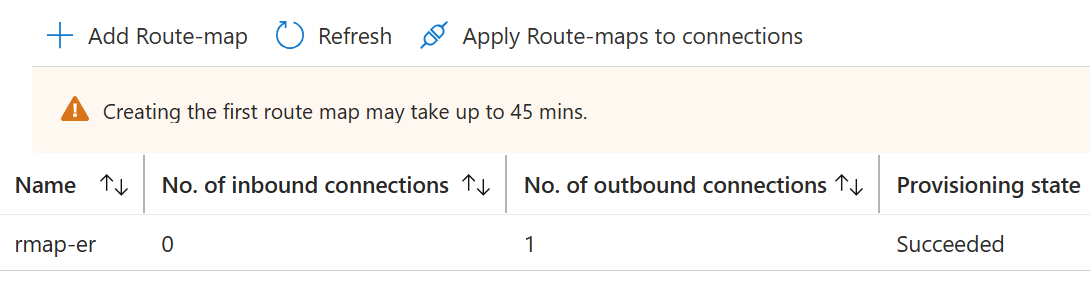
Configure the VPN route map
Create a route map with two rules: one for IPv6 summarization and one for IPv4 summarization.
Important
A summary prefix can cover more address space than the original routes. In this example, 10.90.0.0/15 covers more than the two advertised /24 prefixes, and fd00:0:90::/47 covers both advertised /48 prefixes. Confirm that advertising these summaries is appropriate for your network. Summarization doesn't create connectivity to every address in a summary.
Route summarization strips the original AS path and BGP community attributes. Don't expect the summaries to retain the NVA's ASN or original communities.
On Route Maps, select Add Route-map, enter
rmap-vpn, and then select Add rule.Configure the IPv6 rule:
Setting Value Name summ-ipv6Next step Continue Match conditions: Property Route prefix Match conditions: Criterion Equals Match conditions: Value fd00:0:90::/48,fd00:0:91::/48Action on matched routes Modify Route modifications: Property Route prefix Route modifications: Action Replace Route modifications: Value fd00:0:90::/47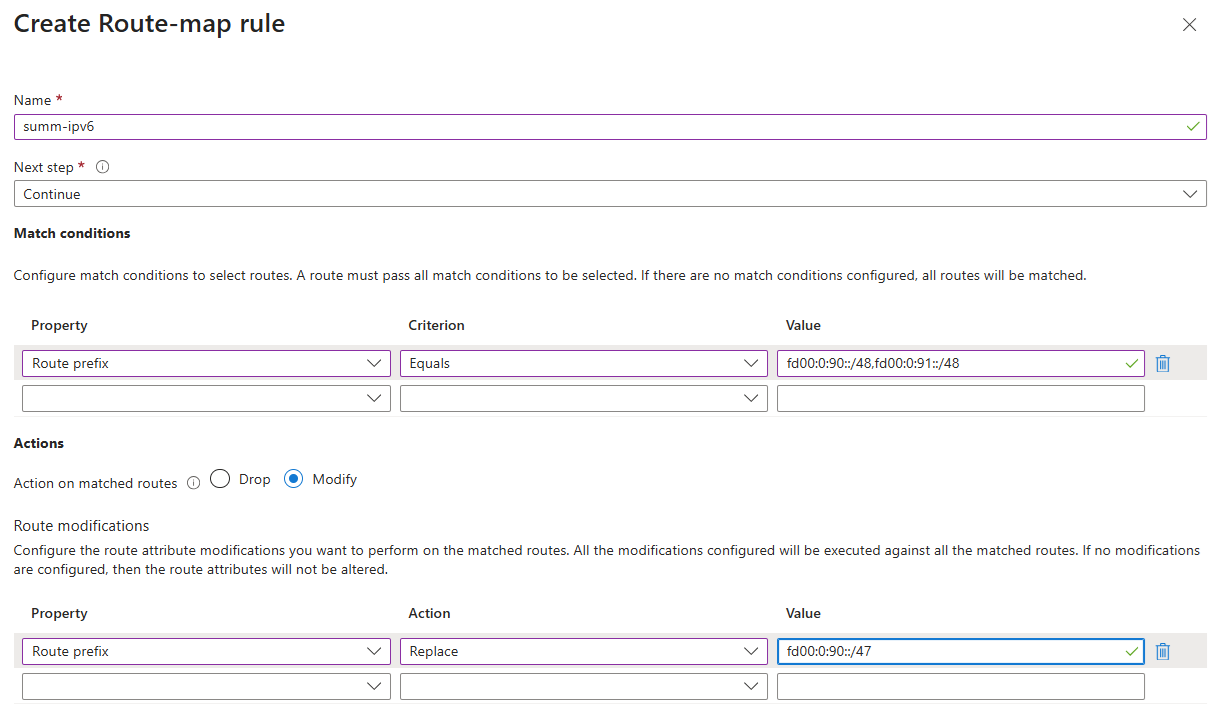
Select Add, and then select Add rule to configure the IPv4 rule:
Setting Value Name summ-ipv4Next step Continue Match conditions: Property Route prefix Match conditions: Criterion Equals Match conditions: Value 10.90.0.0/24,10.91.0.0/24Action on matched routes Modify Route modifications: Property Route prefix Route modifications: Action Replace Route modifications: Value 10.90.0.0/15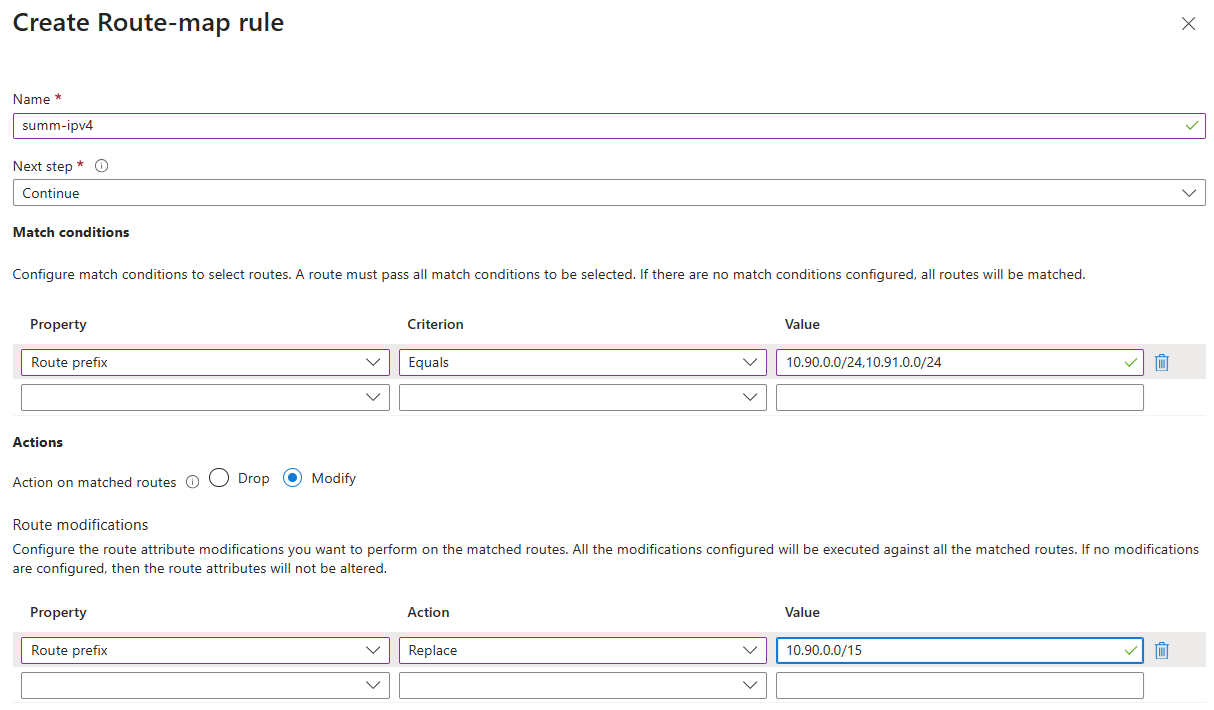
Select Add. Confirm that
summ-ipv6is the first rule andsumm-ipv4is the second rule.Select Save, and then wait until Provisioning state shows Succeeded.
Apply the route map to both VPN connections
Select Apply Route-maps to connections.
For Outbound Route-map, select rmap-vpn. Preserve the existing inbound policy.
Select vpn-gw-to-site20-1 and vpn-gw-to-site20-2. Their Connection type is VPN.
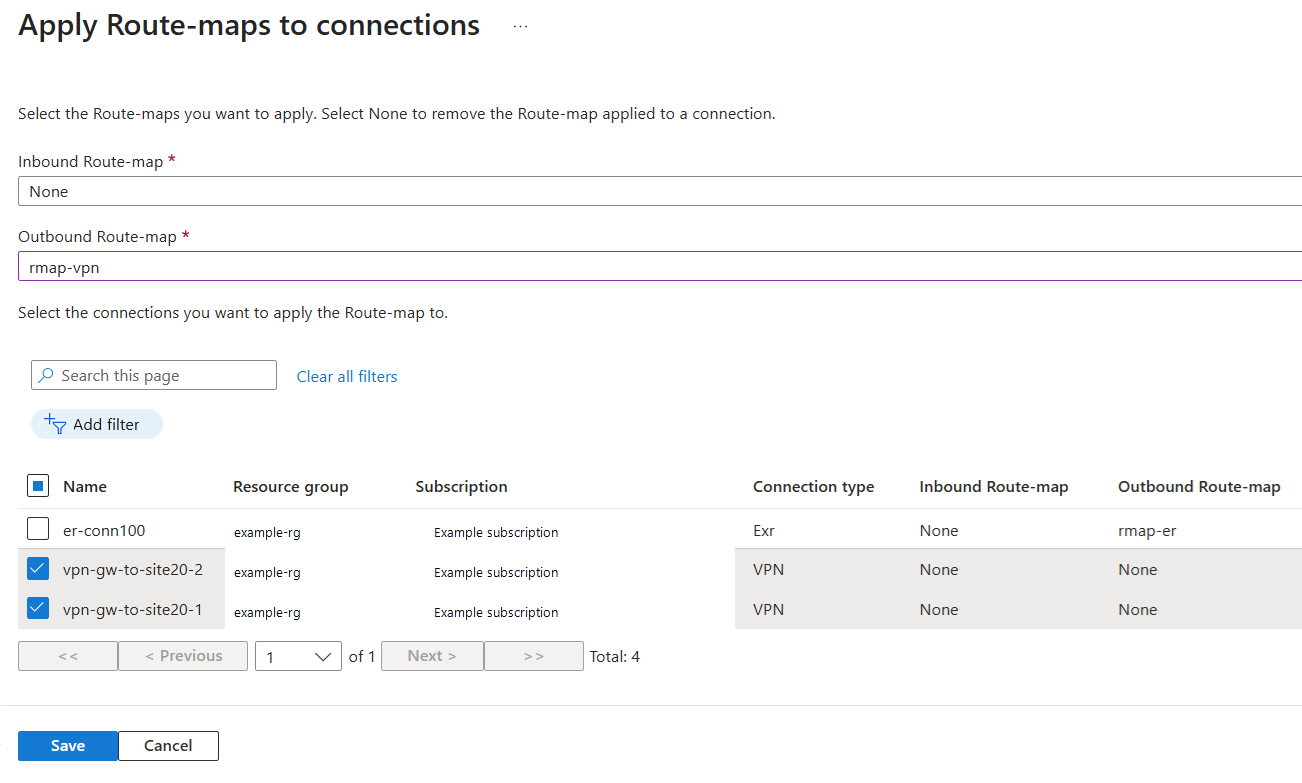
Select Save. After saving finishes, select Refresh and confirm that both VPN connections use
rmap-vpnin the outbound direction.
Configure the NVA route map
Create a route map with two rules. The first rule replaces the AS path for routes learned from site20. The second rule adds a community to an IPv6 prefix learned through ExpressRoute.
On Route Maps, select Add Route-map, enter
rmap-hub100-nva, and then select Add rule.Configure the AS-path rule:
Setting Value Name as-replaceNext step Continue Match conditions: Property AS Path Match conditions: Criterion Equals Match conditions: Value 65020Action on matched routes Modify Route modifications: Property AS Path Route modifications: Action Replace Route modifications: Value 9001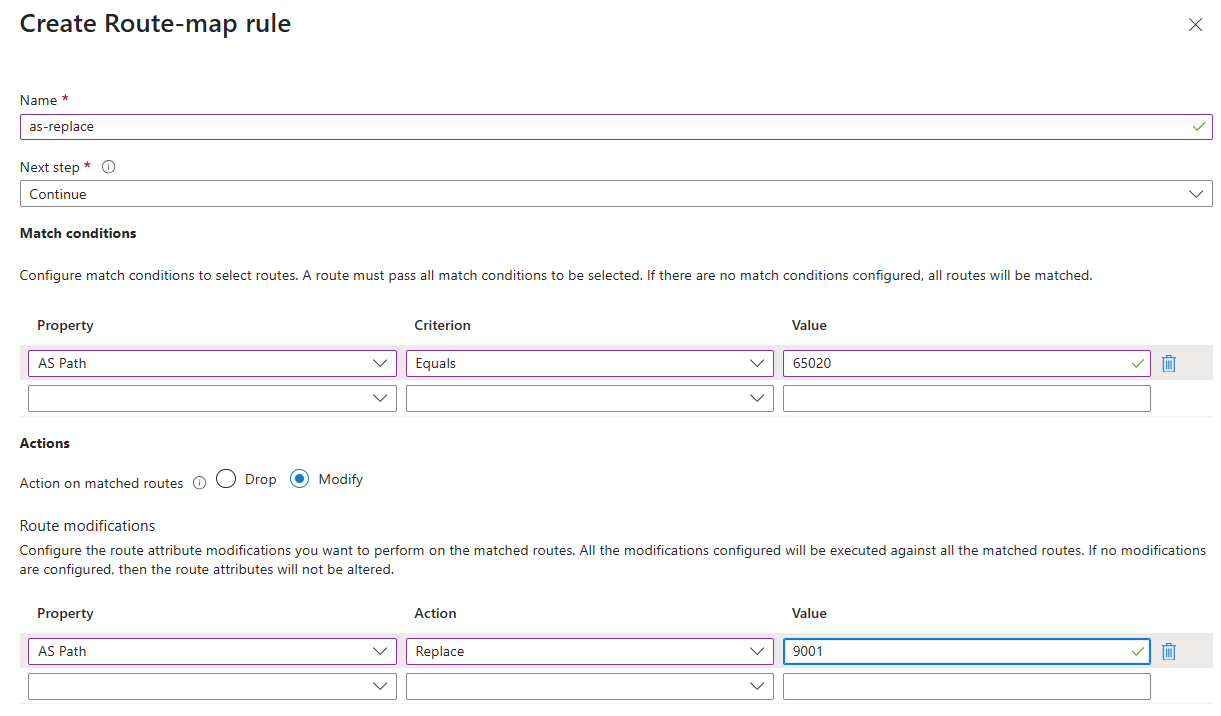
This rule matches routes whose complete AS path is
65020and sets that path to9001. Routes with a longer AS path don't match this rule.Select Add, and then select Add rule to configure the community rule:
Setting Value Name set-bgp-communityNext step Continue Match conditions: Property Route prefix Match conditions: Criterion Equals Match conditions: Value fd00:0:200::/48Action on matched routes Modify Route modifications: Property Community Route modifications: Action Add Route modifications: Value 100:100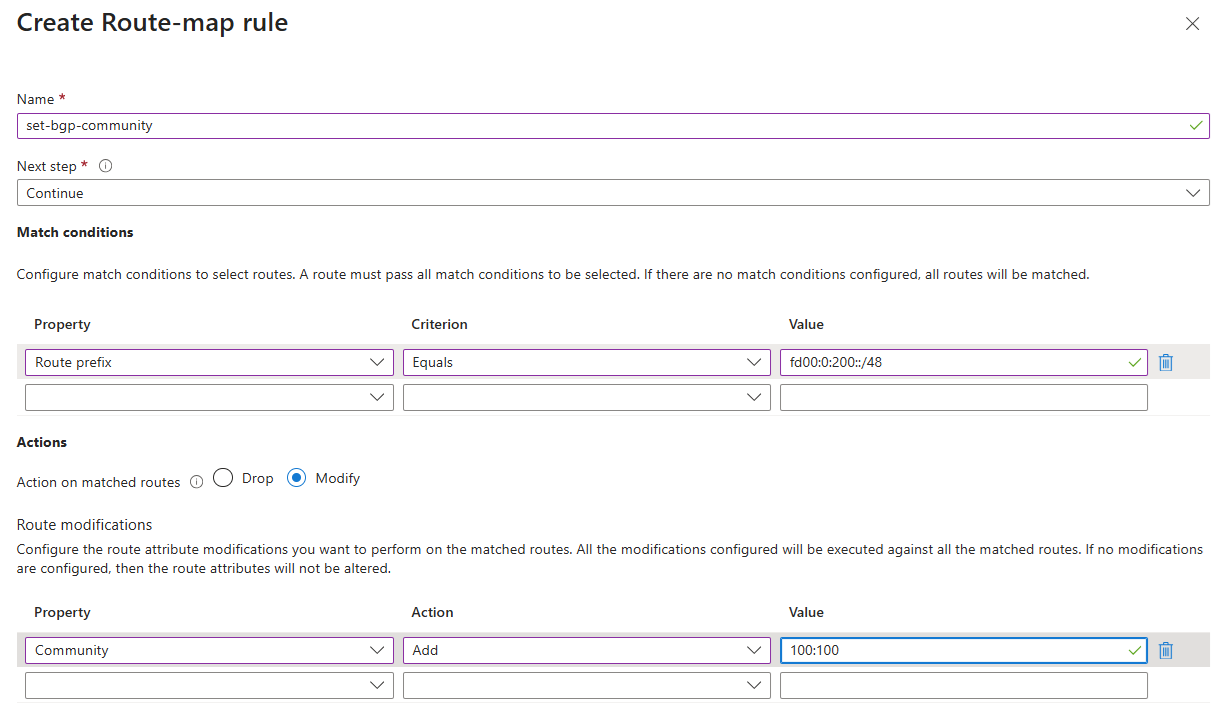
Select Add, and then select Save. Wait until Provisioning state shows Succeeded.
Apply the route map to the NVA peering
The NVA is in the same virtual network as Route Server, so apply the route map to the existing BGP peering. You don't need to create a virtual network connection.
Select Apply Route-maps to connections.
For Outbound Route-map, select rmap-hub100-nva. Preserve the existing inbound policy.
Select rs1/hub100-nva. Its Connection type is Hub BGP Peering.
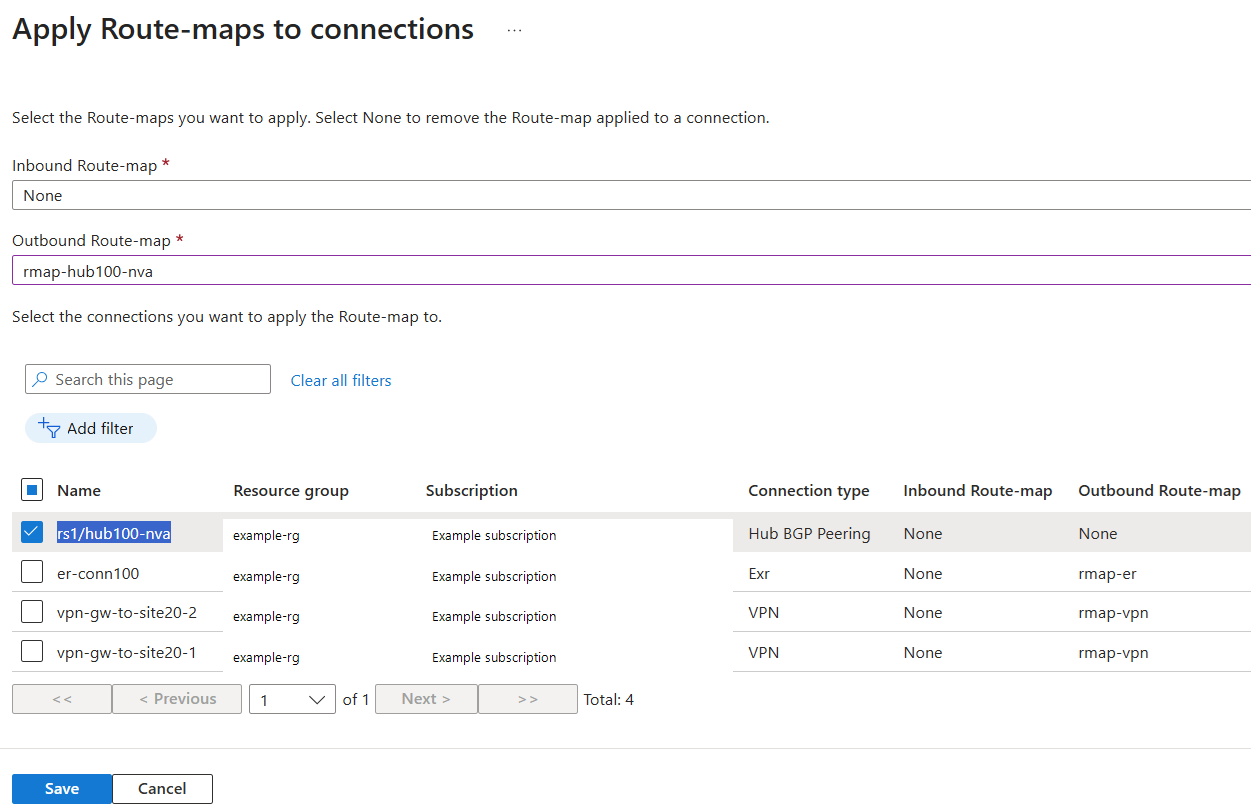
Select Save. After the operation completes, refresh the page and confirm the outbound association.
Verify the route advertisements
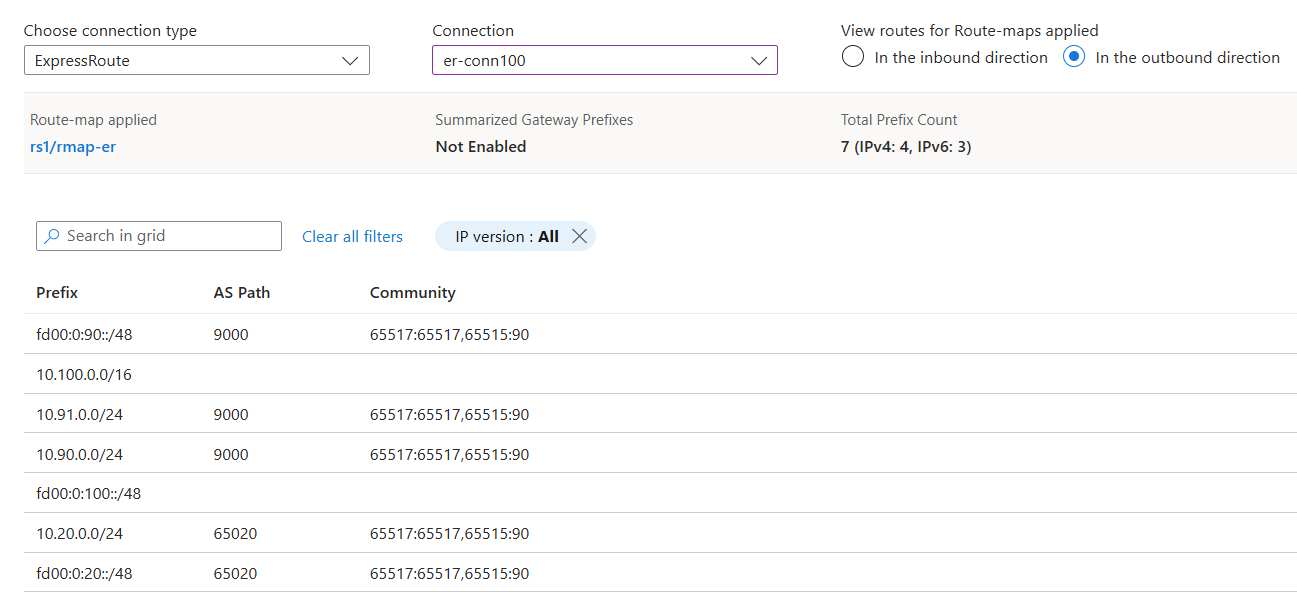
Under Routing, open Connections Dashboard. For each connection, select In the outbound direction under View routes for Route-maps applied. Display both IP versions, and compare the results with the baseline routes.
ExpressRoute connection
Select ExpressRoute for the connection type and er-conn100 for the connection.
| Route | Expected result |
|---|---|
fd00:0:91::/48 |
Absent because rmap-er drops it. |
fd00:0:90::/48 |
Present with the NVA AS path 9000. |
10.90.0.0/24, 10.91.0.0/24 |
Present and unchanged by the route map. |
10.20.0.0/24, fd00:0:20::/48 |
Site20 routes remain unchanged by the route map. |
VPN connections
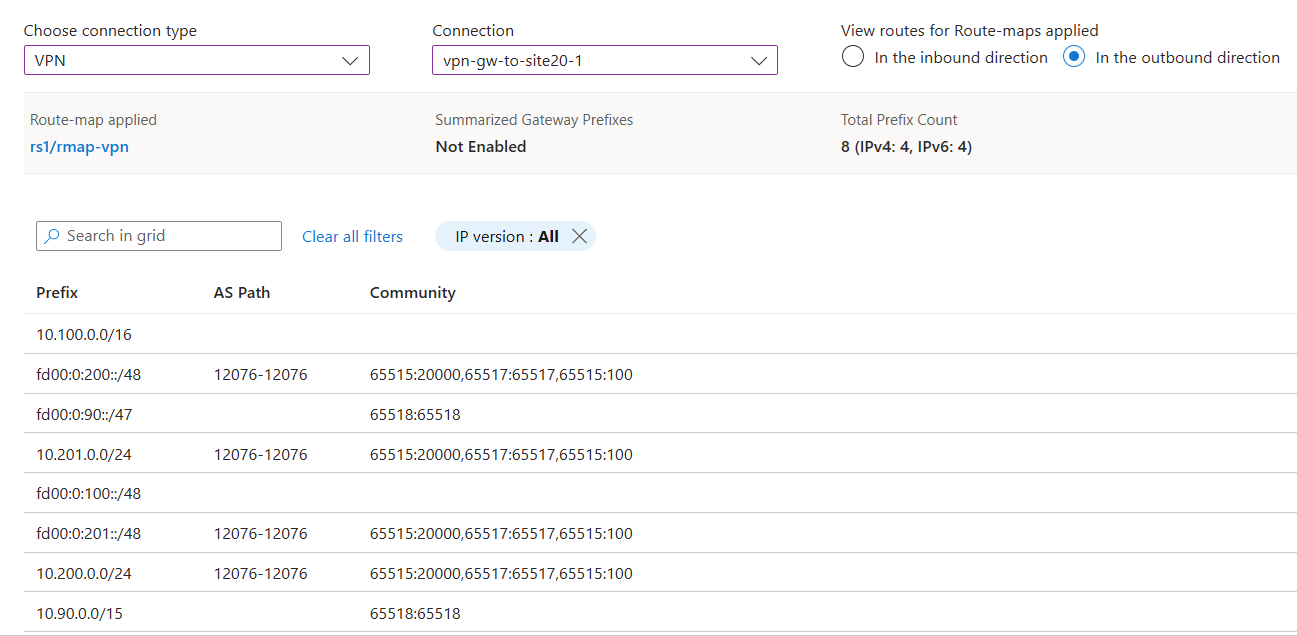
Select VPN for the connection type. Select vpn-gw-to-site20-1, and then repeat the checks for vpn-gw-to-site20-2.
| Route | Expected result |
|---|---|
10.90.0.0/15 |
Present instead of the two NVA /24 prefixes. |
fd00:0:90::/47 |
Present instead of the two NVA /48 prefixes. |
| Original NVA AS path | Not retained on either summary. |
| ExpressRoute remote-site prefixes | Unchanged by these summarization rules. |
The following example shows the first VPN connection. Other routes, such as the hub virtual network prefixes, can also appear.
NVA BGP peering
Select the hub BGP peering connection type, shown as Hub Bgp Peers in the dashboard, and then select hub100-nva.
| Route | Expected result |
|---|---|
10.20.0.0/24, fd00:0:20::/48 |
AS path is 9001 instead of 65020. |
fd00:0:200::/48 |
Community list includes 100:100. Its ExpressRoute AS path is unchanged by the AS-path rule. |
| Other ExpressRoute remote-site prefixes | Unchanged by these rules. |
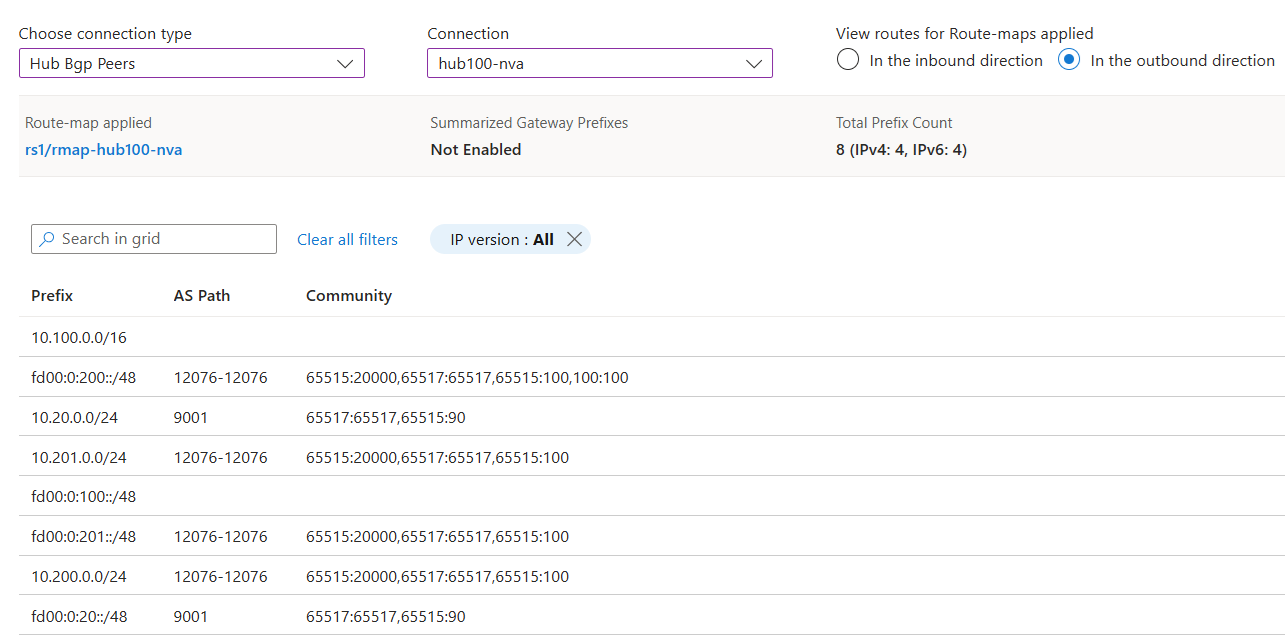
If a result differs, check the selected connection and direction, provisioning state, rule order, and baseline route advertisements. For more information, see Troubleshoot route maps. Check routes at the receiving peer when you need to verify propagation beyond Route Server.
Restore the previous route-map associations
If you applied these policies only for testing, restore the outbound route-map association you recorded for each connection. On Apply Route-maps to connections, select the previous outbound route map, or None if there was no previous association. Preserve the inbound policy, select the intended connection, and save. Repeat for connections with different previous policies.
Verify the resulting advertisements after restoring the associations. Don't delete the existing gateways, NVA, or Route Server to remove an example policy.