Note
Access to this page requires authorization. You can try signing in or changing directories.
Access to this page requires authorization. You can try changing directories.
In this article, learn about the steps required to configure SAP source system with Azure Data Factory. This document contains steps on prerequisites needed in your Azure environment and details on how to set up the connection in your Business Process Solution item.
Prerequisites
Required SAP Notes
Before implementing Business Process Solutions, review the following SAP Notes to help prevent common issues during data extraction.
- 2930269 - ABAP CDS CDC : Common issues, troubleshooting and components (all notes listed in the point 9 of this SAP Note).
- 3077184 - Use new CDS-Views for SAP S/4HANA SD and Billing Document Data.
- 3031375 - Customer specific setting for bucket size in CDC extraction.
Collect information about your source SAP system
To create a source system and establish connectivity, you'll need the following information:
- Hostname or the IP address of the SAP system
- System number
- System ID (SID)
- Credentials
Register services in Azure Subscription
For Business Process Solutions, register the following providers:
- Storage Account (Microsoft.Storage)
- Key Vault (Microsoft.KeyVault)
- Data Factory (Microsoft.DataFactory) Follow the steps to complete the registration:
- Sign in to the Azure portal.
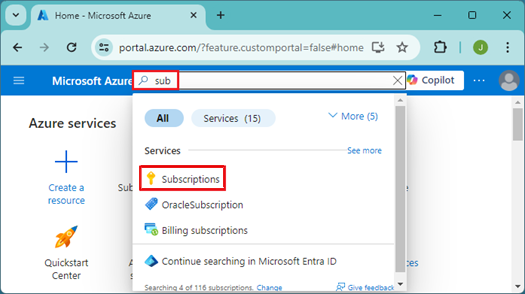
- On the Azure portal menu, search for Subscriptions. Select it from the available options.
- Select the subscription you want to view.
- On the left menu and under Settings, select Resource providers.
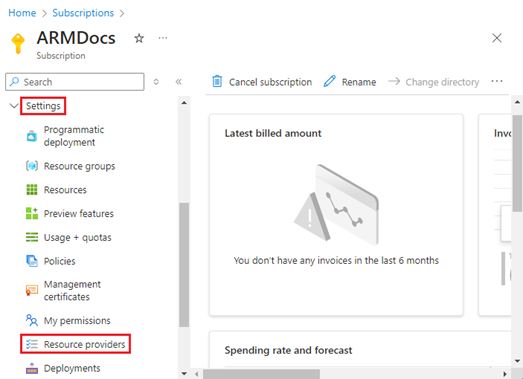
- Choose the Microsoft.KeyVault resource provider.
- Select the resource provider and select register.
Repeat the above steps for Microsoft.Storage and Microsoft.DataFactory.
Required permissions in Azure Subscriptions
To deploy the required Azure resources for Business Process Solutions, your user account must have specific permissions. These can be assigned at either the subscription level or the resource group level. If you choose to assign permissions at the resource group level, you must first create the resource group manually and then provide its name in the source system configuration within Business Process Solutions. The following permissions are required:
- Key Vault Secrets Officer Access: Assign Key Vault Secrets Officer access to the subscription for the user operating Enterprise Insights. Make sure its Permanent access and not Time bound.
- Owner Role Assignment: Assign the Owner role on the subscription for the user operating Enterprise Insights. Make sure its either Permanent access or if its Time bound, activate it before running the configured source system operation.
Create Service Principal
In this section, you'll set up the service principal, which enables Azure Data Factory to access object metadata within Business Process Solutions. Follow the steps below to complete the setup. We create the following resources using the following processes:
- Create a new service principle.
- Create a new secret for the service principle.
Follow the steps:
Open Azure portal by navigating to Azure portal.
From the left menu, choose Microsoft Entra ID.
Navigate to app registrations and click on New Registration. Provide the name of the Service Principal.

Click register to confirm.
To create a client secret, in App registrations, select your application.
In the Service Principal blade, navigate to Certificates & secrets section. Choose +New client secret. Provide the description of the client secret and choose validity time. Confirm by clicking Add.
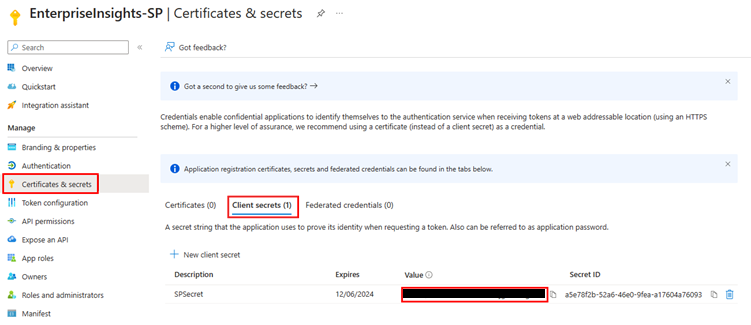
Copy the value of the secret. We store it in the Key Vault. Notice that as you navigate out of this screen you won’t be able to retrieve the secret value again.
Navigate to the Microsoft Fabric workspace and add the created service principal as a Contributor in the workspace by clicking on the Manage Access button.

Configure SAP source system in Business Process Solution
First step of configuration is setting up the source system; this step deploys the common artifacts required to get started. Follow the steps to configure your source system:
On the home screen, click on Configure source system button.
Click on the New source system button.

Provide the inputs for the fields.
In the connection type, select Azure Data Factory, select subscription and location from the dropdown and enter a unique name for the resource group.
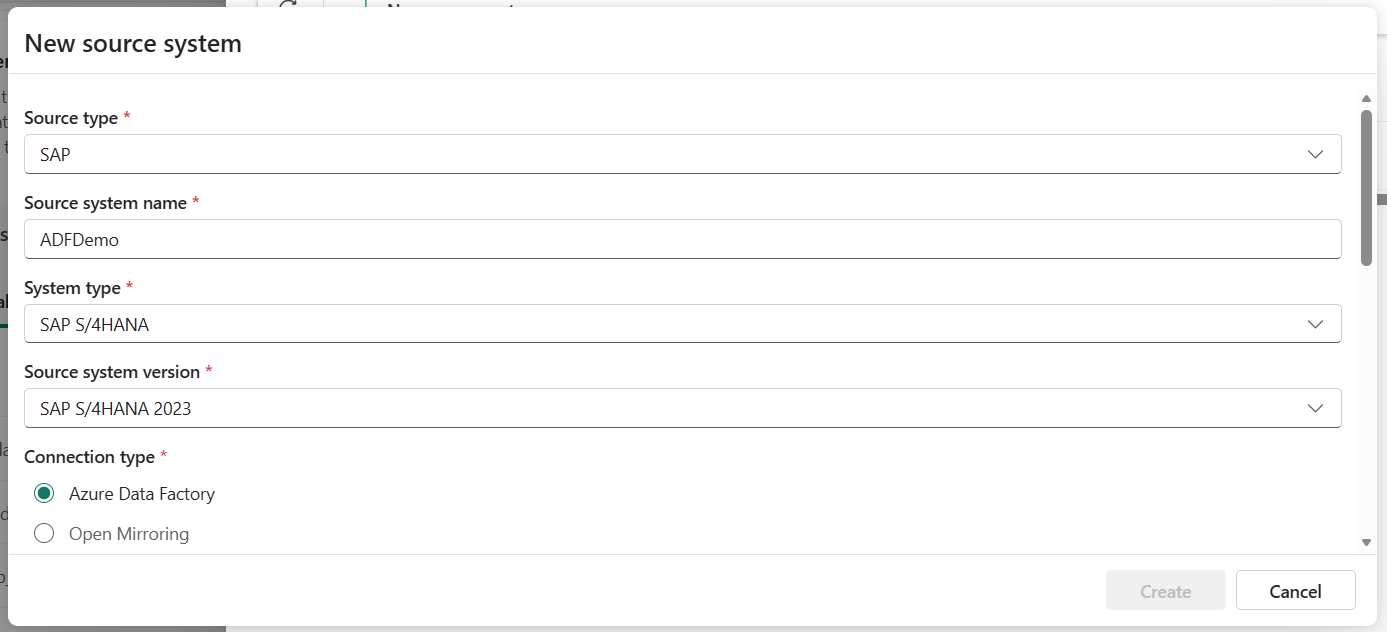
Now in the System Connection section, enter the connection details for your SAP system. Here you need to enter the service principle secret we create as a part of prerequisites.
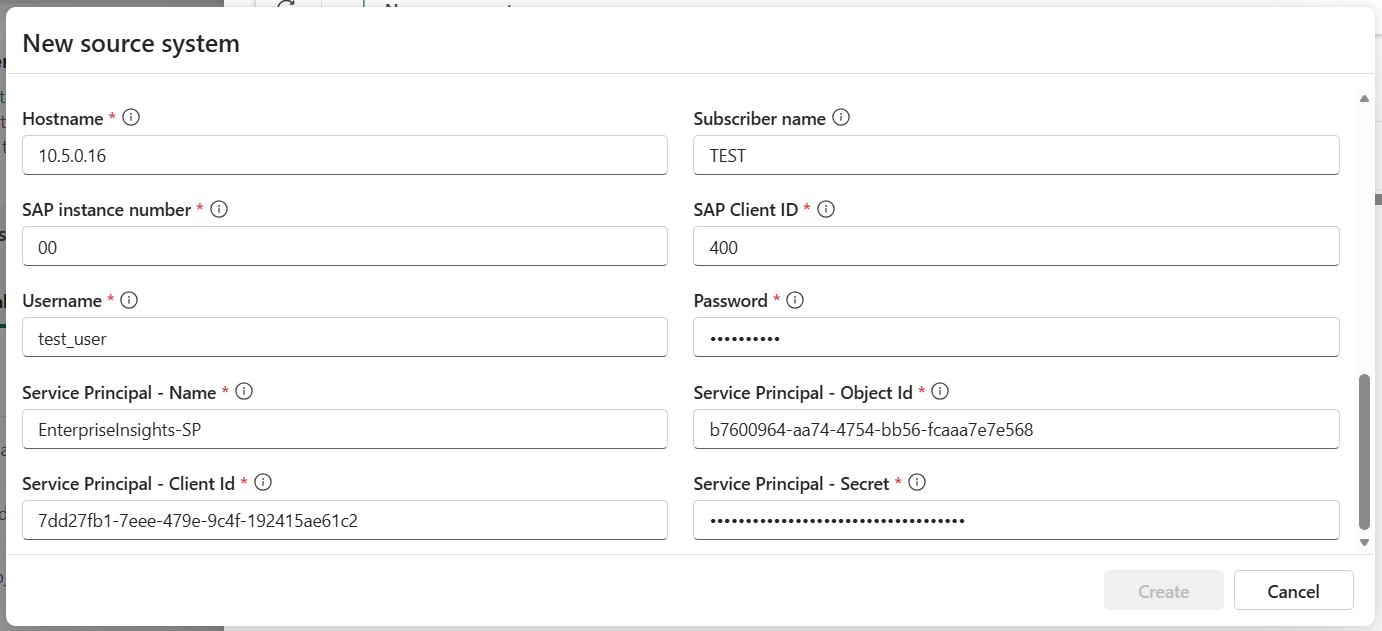
Once done, click on Create Button. You can monitor the deployment status by refreshing the page using the refresh button.
Once the deployment is done, you should be able to see the resources deployed to your workspace and also the resources deployed in your Azure resource group.
Deploy self-hosted integration runtime on Azure virtual machine (VM)
In this section, we will deploy the self-hosted integration runtime on an Azure virtual machine. You can follow detailed instructions on how to deploy and configure Self-Hosted Integration Runtime in the article - Shared Integration Runtime. This article covers detailed steps on how to prepare your virtual machine and how to perform connectivity tests. You can also use the following steps to configure your virtual machine:
- Deploy Azure virtual machine in the same network / subnet as your SAP system. Direct connectivity between Self-Hosted Integration Runtime and SAP system is required to extract data.
- Install SAP .NET Connector.
- Install the Java Runtime: Download Java runtime.
- Ensure that the JAVA_HOME system environment variable is set to the JDK folder (not just the JRE folder) you may also need to add the bin folder to your system's PATH environment variable.
- Install self-hosted integration runtime. Stop at the registration step.
- Open the Azure Data Factory and navigate to Manage -> Integration Runtimes.
- Select integration runtime – SAP-IR.
- Use the Authentication Key to continue with the Self-Hosted Integration Runtime installation process. Copy the key to and complete the set-up for integration runtime on your virtual machine.
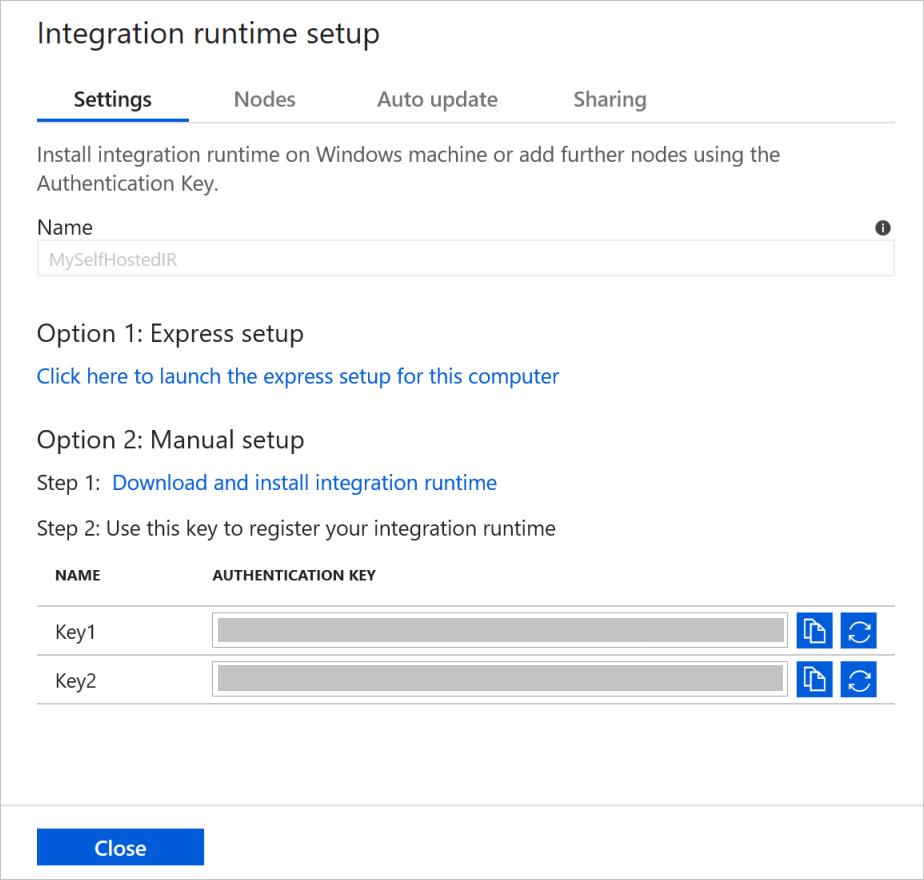
- Once the registration completes, the status of the self-hosted integration runtime should change to running in the Azure Data Factory.
Next steps
Now that you have configured SAP source system with Azure Data Factory in your Business Process Solution item, you can proceed to configure dataset and relationships.