Note
Access to this page requires authorization. You can try signing in or changing directories.
Access to this page requires authorization. You can try changing directories.
This article describes how to configure SAP S/4HANA source systems with SAP Datasphere. In this scenario, Business Process Solutions processes the extracted data, and non-Microsoft tools handle data ingestion. Configure data extraction directly within the extraction solution that you chose.
Prerequisites
Setup Azure storage account
SAP Datasphere uses an Azure storage account to store the extracted data. You must create this storage account before you configure source system connections. To set up the storage account, follow these steps: Create an Azure storage account
Set up a Fabric storage account connection
Business Process Solutions uses a storage account connection to read and process data from Azure storage account. You must create the connection before deploying source system. To set up connection, follow these steps:
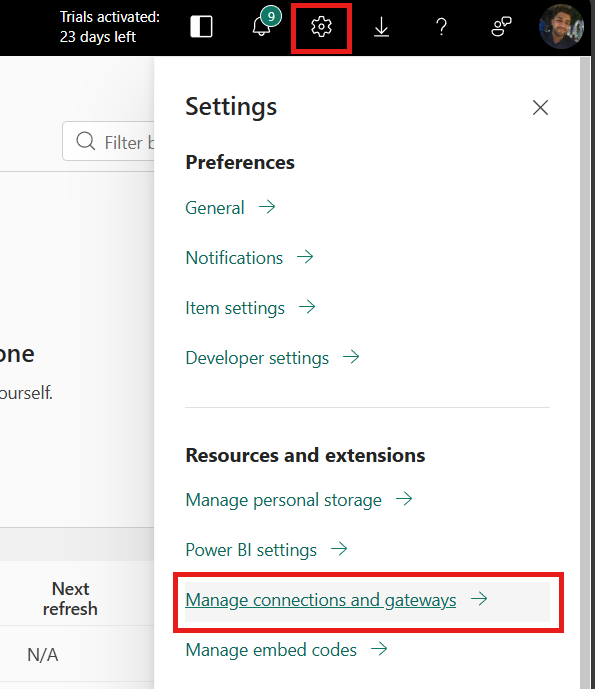
To create a new connection, go to your workspace and select Settings in the upper-right corner.
Select Manage connections and gateways.
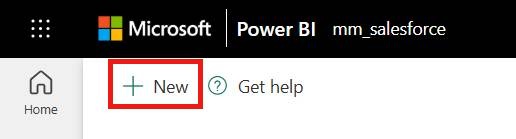
Select New.
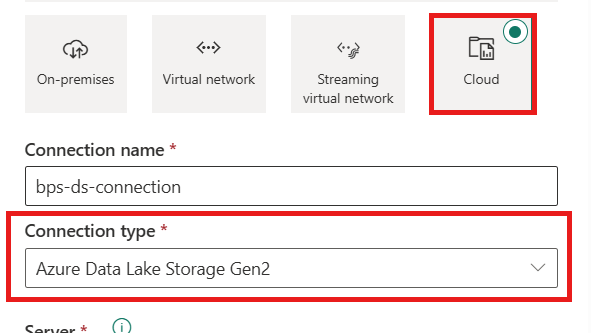
In the new connection input, select Cloud as the type.
Enter the connection name.
For the connection type, select Azure Data Lake Storage Gen2.
Enter storage account path and blob container path.
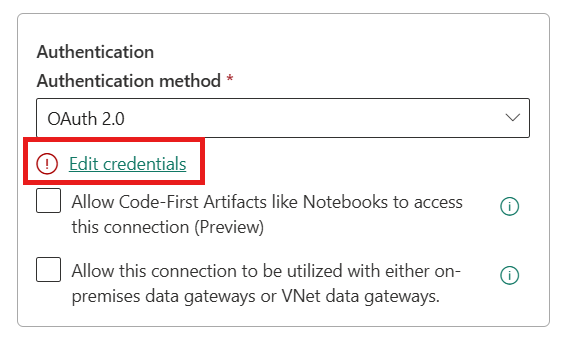
For the authentication method, select OAuth > Edit Credentials and enter the details.
Select Create to create the connection.
Set up a Fabric SQL Database connection
Business Process Solutions uses a Fabric SQL Database connection to read and orchestrate data processing. You must create this connection before you configure source system connections. To set up the connection, follow these steps:
To create a new connection, go to your workspace and select Settings in the upper-right corner.
Select Manage connections and gateways.
Select New.
In the new connection input, select Cloud as the type.
Enter the connection name.
For the connection type, select SQL database in Fabric.
For the authentication method, select OAuth > Edit Credentials and enter the details.
Select Create to create the connection.
Prepare CDS Views for DD03ND in SAP system
SAP Datasphere doesn't support extraction of a subset of CDS views required by Business Process Solutions. To work around this limitation, create a custom CDS view in your SAP system and replicate it into SAP Datasphere.
ZDD03ND_CDS – Custom CDS View for extraction of the data types (mandatory)
Business Process Solutions uses this view to map SAP data types during transformation. Replication is required for transformations to work. When you replicate the view, set the target name to DD03ND.
@AbapCatalog.sqlViewName: 'ZIDD03ND'
@AbapCatalog.compiler.compareFilter: true
@AccessControl.authorizationCheck: #NOT_REQUIRED
@EndUserText.label: 'CDS View for DD03ND - Field Definitions'

@ObjectModel.usageType: {
  serviceQuality: #D,
  sizeCategory:   #XL,
  dataClass:      #MIXED
}

@Analytics: {
  dataCategory: #FACT,
  dataExtraction.enabled: true
}

define view ZDD03ND_CDS as select from dd03nd
{
  key strucobjn  as STRUCOBJN,
  key fieldname  as FIELDNAME,
      datatype   as DATATYPE,
      leng       as LENG,
      decimals   as DECIMALS
}
ZI_GLACCOUNTTEXT - Custom CDS View for extraction of GL Account texts (optional)
Business Process Solutions uses this view to populate GL account names in the Power BI report. Replication is optional but recommended, as missing data might require more manual changes in the Power BI dashboard. During replication, set the target name to I_GLACCOUNTTEXT.
Create the CDS view by copying the I_GLACCOUNTTEXT CDS view and adding the missing data extraction annotation:
@Analytics.dataExtraction.enabled: true
Configure source system with SAP Datasphere
To configure your SAP source system with SAP Datasphere, follow these steps to create a new source system connection for your SAP S/4HANA.
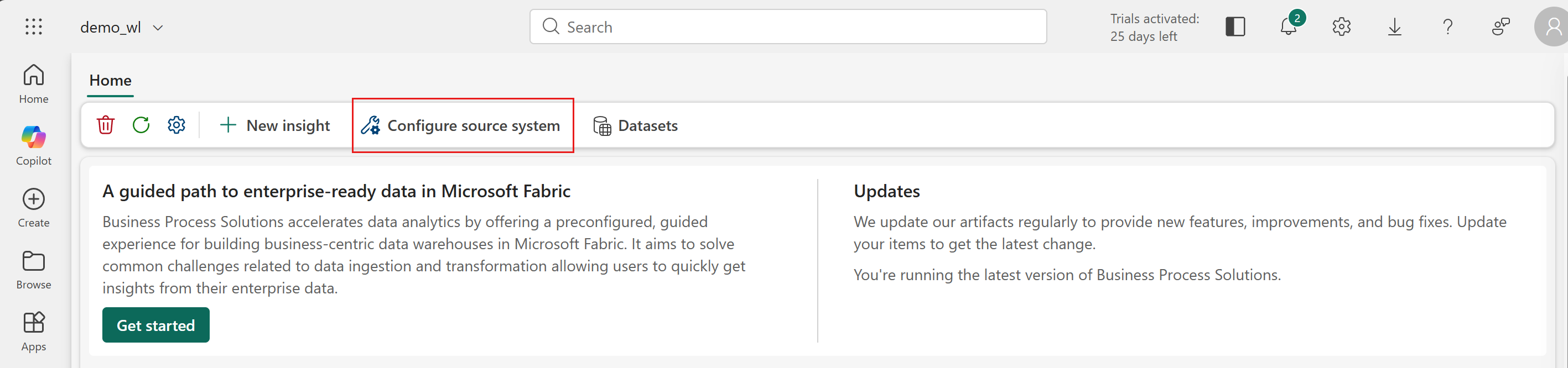
On the home screen, select Configure source system.
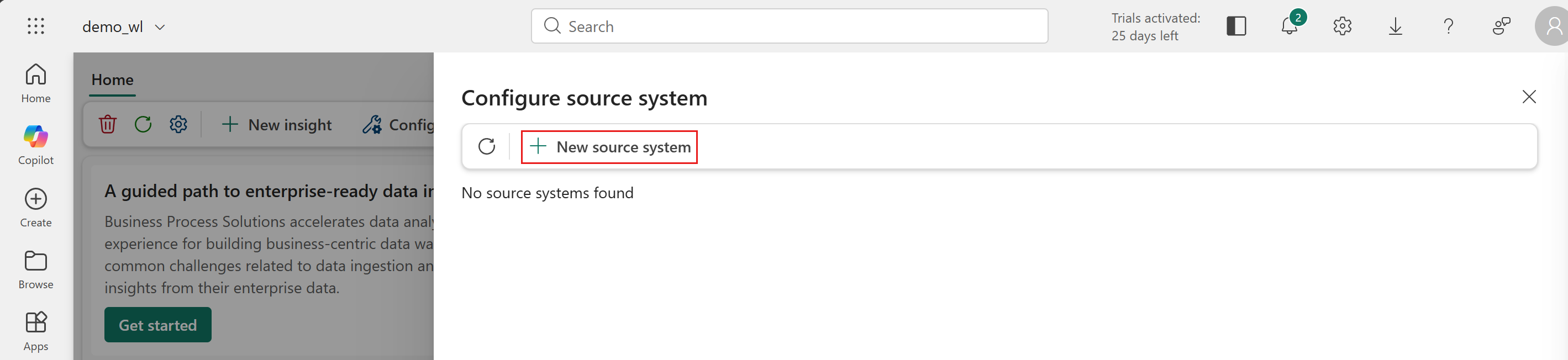
Select New source system.
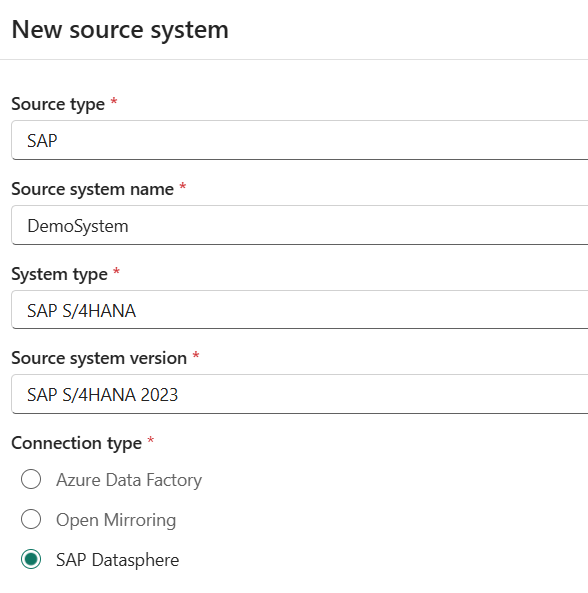
Enter the inputs for the fields.
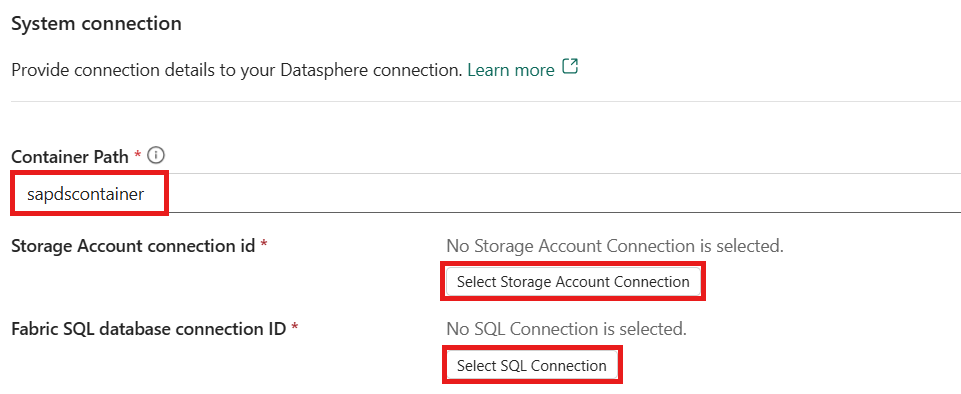
In the System connection section, enter the container path where you copied the SAP data using Datasphere.
Select the Storage account connection ID and Fabric SQL Database connection ID that you created in the prerequisites.
Select Create to start the deployment.
Monitor the deployment status by using the refresh button to refresh the page.
After the deployment finishes, you can see the resources that are deployed to your workspace.
