Note
Access to this page requires authorization. You can try signing in or changing directories.
Access to this page requires authorization. You can try changing directories.
Azure supports several ways to connect to private networks. The best approach depends on your requirements for latency, bandwidth, security, cost, and operational complexity.
- Azure ExpressRoute - Private, dedicated connectivity that doesn't traverse the public internet.
- Site-to-site IPsec VPN - Encrypted tunnels over the public internet (typically using Azure VPN Gateway).
- SD-WAN via network virtual appliances (NVAs) - Third-party appliances provide VPN/firewall features and can terminate tunnels instead of using native gateways.
In general, ExpressRoute is preferred for the highest bandwidth and lowest latency. When ExpressRoute isn't available, use site-to-site VPN or an SD-WAN/NVA-based design.
Key concepts
ExpressRoute: Private connectivity to Azure through a connectivity provider; typically used for predictable latency and higher throughput.
Azure VPN Gateway SKU: The gateway size/SKU affects tunnel counts and throughput; choose based on required bandwidth and resiliency.
IPsec/IKE policy: Cryptographic algorithms and parameters used to establish and secure VPN tunnels (for example, AES and SHA families, DH/PFS groups).
BGP (Border Gateway Protocol): Dynamic routing that exchanges prefixes between networks; commonly used for active/active tunnels and route failover.
Network virtual appliance (NVA): A third-party virtual network device (such as firewall/SD-WAN) deployed in Azure; often used for advanced inspection, policy, and routing.
UDR (user-defined routes): Custom routes in Azure that steer traffic to a specific next hop (for example, an NVA).
AWS Transit Gateway (TGW) / Virtual Private Gateway (VGW): AWS routing endpoints for VPN/Direct Connect; TGW is commonly preferred for hub-and-spoke and scale.
AWS VPC endpoint (VPCE) for Amazon S3: Private connectivity from a VPC to S3; often paired with private DNS and endpoint/bucket policies.
S3 bucket policy and VPCE policy: Resource-based policies that can allow/deny access, including restrictions to a specific VPCE via aws:SourceVpce.
Azure Private Link Service Direct Connect: Azure capability to create outbound private connectivity to a destination IP (for example, an AWS VPCE IP) for services such as Storage Mover private connections.
Private connection approval: Private connections might require explicit approval before they can be used by workloads/jobs.
Regional alignment: Some resources (for example, AWS VPCEs and certain Azure service constructs) are region-scoped and must be deployed in compatible regions.
When to use each option
ExpressRoute: Choose when you need predictable performance, private connectivity, and higher throughput for hybrid connectivity.
Site-to-site VPN: Choose for faster setup, lower cost, or as a backup path; performance depends on internet conditions and gateway SKU.
SD-WAN/NVAs: Choose when you need vendor-specific routing, security inspection, or an existing SD-WAN operational model.
| Option | Connectivity path | Typical strengths | Common tradeoffs |
|---|---|---|---|
| ExpressRoute | Private circuit via provider/colocation | Low latency, high throughput, predictable performance | Lead time, cost, provider dependencies |
| Site-to-site IPsec VPN | Encrypted tunnels over public internet | Quick to deploy, good for backup/DR | Variable performance; throughput limits per gateway/SKU |
| SD-WAN / NVAs | Tunnels terminate on third-party appliances | Advanced policy, inspection, vendor features | More components to manage; appliance sizing/licensing |
Connectivity options in Azure
ExpressRoute
Learn more: ExpressRoute documentation
Routing: BGP is commonly used over private circuits to exchange prefixes between Azure and your network.
Connectivity providers: ExpressRoute is typically provisioned through a colocation or connectivity provider (for example, Equinix, Megaport).
Site-to-site IPsec VPN (Azure VPN Gateway)
Overview: Use Azure VPN Gateway for encrypted site-to-site IPsec tunnels over the public internet. For higher throughput and resiliency, select an appropriate gateway SKU (for example, Generation2 and zone-redundant SKUs where available).
Learn more: Tutorial - Create an S2S VPN connection
Routing: Use BGP to exchange routes and support active/active tunnels across multiple connections.
For a detailed walkthrough of multi-tunnel BGP between Azure VPN Gateway and AWS, see: Tutorial - Configure a BGP-enabled connection between Azure and AWS.
Implementation tips (VPN performance)
Example custom IPsec/IKE settings (validate against your device compatibility): GCMAES256 for IPsec encryption/integrity, SHA256 for IKE integrity, DHGroup14, PFS2048.

Learn more: Configure custom IPsec/IKE connection policies.
SD-WAN with network virtual appliances (NVAs)
SD-WAN and firewall NVAs can terminate VPN tunnels, perform inspection, and apply centralized routing and security policy. This approach is useful when you need vendor-specific capabilities or you already operate an SD-WAN platform across sites.
Fortinet: FortiGate Next-Generation Firewall
Cisco: Catalyst SD-WAN, Meraki SD-WAN
HPE (Aruba Networks): EdgeConnect SD-WAN
Palo Alto Networks: Prisma SD-WAN
Arista (VMware): VeloCloud SD-WAN Virtual Edge
SD-WAN NVAs are commonly licensed as either pay-as-you-go (PAYG) or bring-your-own-license (BYOL). Vendor support varies by deployment option.
Example deployment (FortiGate NVA in Azure)
Select a topology (single VM, active/passive, or active/active) based on availability and throughput requirements.
Choose a suitable VM size (often F or D-series with higher vCPU) and enable accelerated networking where supported.
Network design: place interfaces in WAN/LAN (and protected) subnets and configure NSG rules for required management and VPN ports (for example, UDP 500/4500 for IPsec).
Routing: use UDRs to steer Azure-to-AWS prefixes through the NVA next hop.
Vendor documentation: For example steps to configure IPsec between FortiGate devices, see the Fortinet Community article below.
How to configure VPN site-to-site between FortiGate devices (Fortinet Community)
AWS connectivity to Azure
AWS Direct Connect to Azure ExpressRoute
AWS Direct Connect can be paired with Azure ExpressRoute through a colocation/provider to create a private, high-throughput path between AWS and Azure.
Routing: BGP over private circuits
Connectivity: Typically via a colocation/connectivity provider
What is Direct Connect? - AWS Direct Connect
Create an Direct Connect gateway - AWS Direct Connect
AWS site-to-site VPN (BGP)
For AWS-to-Azure VPN, use dynamic routing (BGP) and prefer AWS Transit Gateway (TGW) for scale and performance when applicable.
Learn more: Tutorial - Configure a BGP-enabled connection between Azure and AWS.
AWS SD-WAN with NVAs
If you operate an SD-WAN platform in AWS (for example, FortiGate on EC2), you can terminate tunnels in AWS and connect to Azure using the same SD-WAN policy model used on-premises.
- Launch the NVA from AWS Marketplace and size the instance for required throughput.
- Attach WAN/LAN interfaces, associate an Elastic IP to the WAN interface, and disable source/destination checks if required by the appliance routing model.
- Configure security groups and route tables to allow Azure prefixes and steer traffic through the appliance.
Implementation details for AWS FSx private access (VPC endpoints)
Configure an AWS VPC endpoint (VPCE) for Amazon FSx
An AWS VPC endpoint (VPCE) for FSx provides a private endpoint to an S3 service that allows your VPC to reach FSx privately. To create your FSx share and attach it to a VPC, see the AWS documentation. Make sure your share is within a VPC that has AWS connectivity and that FSx security allows secure traffic on port 445 by default.
Implementation details for S3 private access (VPC endpoints)
Configure an AWS VPC endpoint (VPCE) for Amazon S3
An AWS VPC endpoint (VPCE) for S3 lets your VPC reach S3 privately. For this design, you typically enable private DNS and then constrain access using VPCE and bucket policies.
High-level steps
- Verify your VPC has DNS support and DNS hostnames enabled.
- Create an interface VPCE for Amazon S3 in the target VPC and subnets, and enable private DNS.
- Configure VPCE and bucket policies to allow only required S3 actions and (optionally) restrict access to the specific endpoint using aws:SourceVpce.
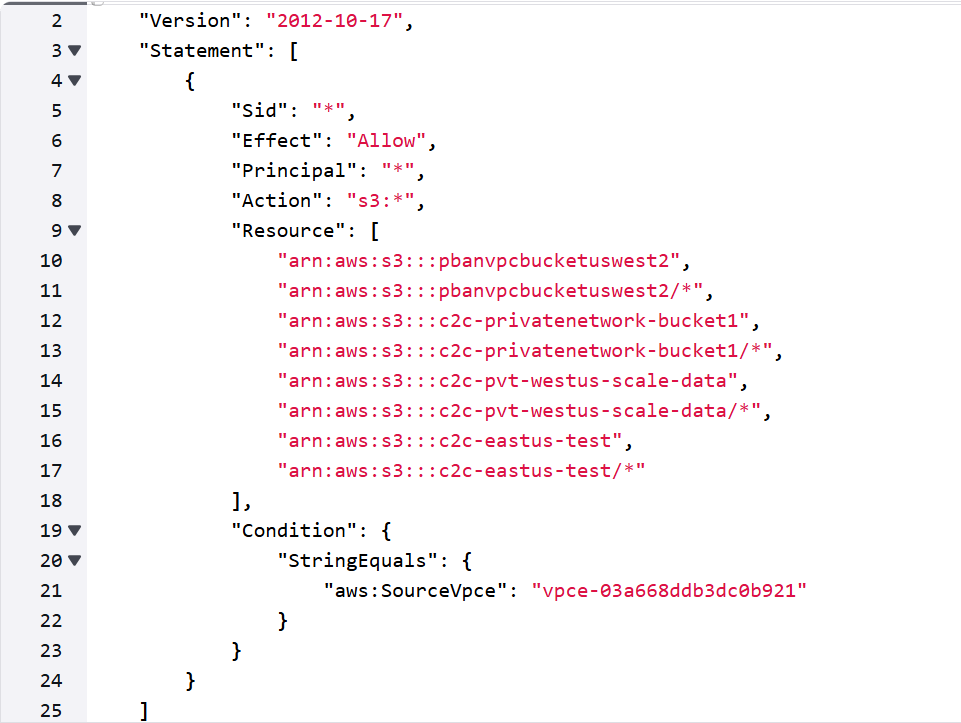
Example: S3 bucket policy restricted to a specific VPCE.
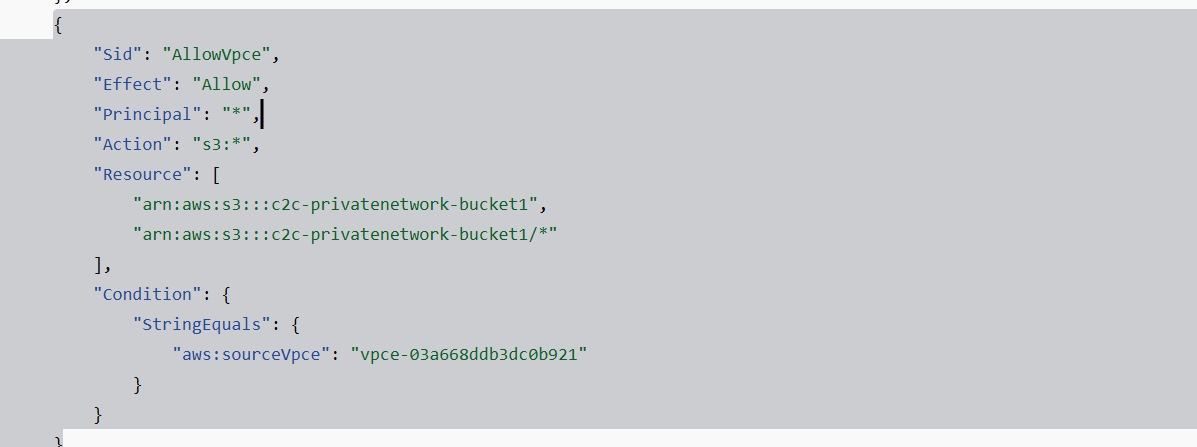
Note: Record the VPCE private IP address; it is used as the destination IP for Azure Private Link Service Direct Connect.
Security group considerations
Allow required traffic from Azure source prefixes to the VPCE and related AWS resources (principle of least privilege).
Azure configuration for Private Link Service Direct Connect
Create the Private Link Service Direct Connect resource
Private Link Service Direct Connect allows Azure to create outbound private connectivity to a destination IP address (for example, an AWS VPCE IP). In this scenario, it enables Storage Mover private connections to reach a private S3 endpoint over your established Azure-to-AWS network path.
- Deploy the PLS Direct Connect resource in the same Azure region as the Storage Mover resource and the Azure virtual network used to reach AWS.
- Enable the feature in the Azure portal using the provided flight link: Azure portal flight link (PLS Direct Connect).
- Ensure the Azure VNet/subnet selected for source NAT has connectivity to the AWS VPC and the VPCE IP address.
High-level steps
- Create the Private Link Service (Your Service) resource for Direct Connect in the correct region.
- Configure Outbound settings:
- Set connection method to Destination IP address and enter the AWS VPCE IP address.
- Select the source NAT virtual network and subnet that can route to AWS.
- Configure private IP address settings as required for resiliency (for example, two or more addresses in supported increments).
Create and approve private connections
After creating the Direct Connect resource, create a private connection in Storage Mover and approve it before use.
- In Storage Mover, open Storage Endpoints and then the Private Connections tab.
- Create a private connection that references the Direct Connect private link service, then approve it so it can be associated to jobs.
Use private connections for cloud-to-cloud migration
- Use the above Private connection as part of Create job operation. Select ‘Cloud to Cloud' migration type.
- When creating a cloud-to-cloud migration job, set the S3 bucket type to Private and associate the approved private connection.
- Verify the private connection is listed and in Approved state.
- Only private connections in Approved state can be selected.
- Remaining job steps are the same as a public S3-to-Blob migration.
Architecture
Cloud-to-cloud Migration flow (private networking)
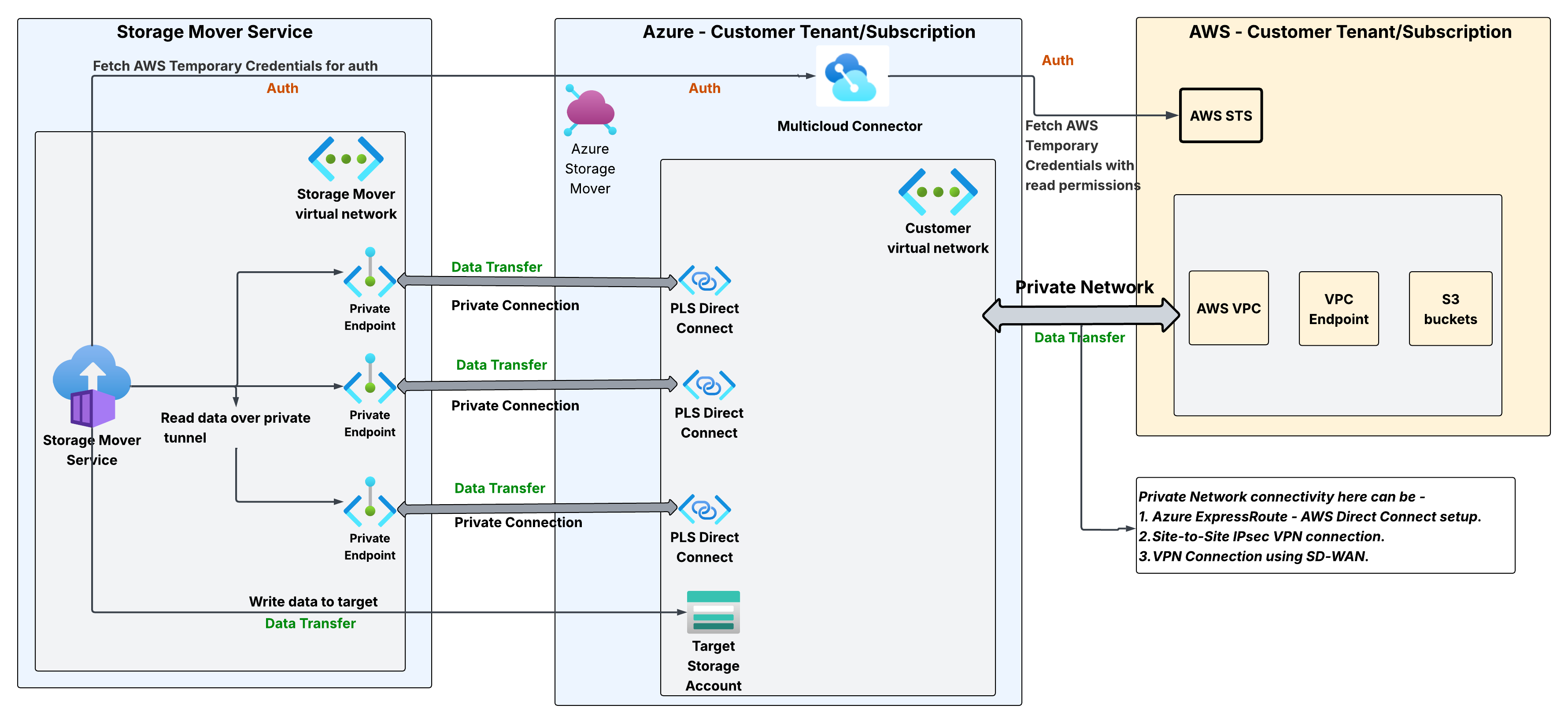
Above diagram shown with private networking to AWS but same applies for other private networking scenarios.
Cloud-to-cloud Migration flow (public S3 bucket to Azure Blob)
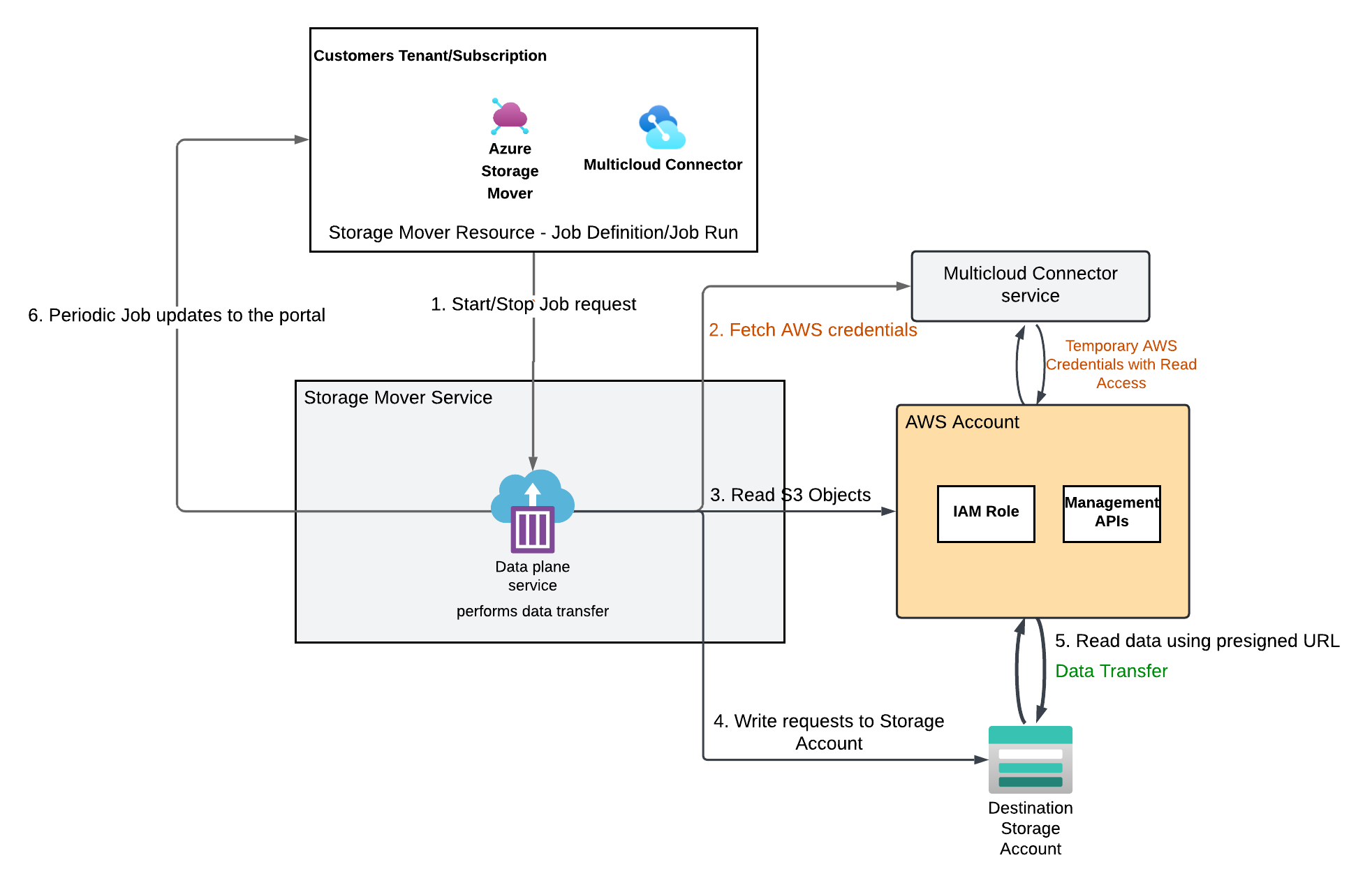
Troubleshooting
Connectivity and IP addressing
- Verify Destination IP in Azure PLS: Ensure the Azure Private Link Service is pointed specifically to the AWS VPC Endpoint's IP address. A mismatch here will prevent the initial handshake.
- Validate Network Path: Confirm that the underlying network infrastructure (e.g., VPN, ExpressRoute, or Cloud Interconnect) is established and routing traffic correctly between the Azure environment and the AWS VPC.
- Check Interface Configurations: Review the AWS VPC Endpoint configuration to ensure it is active and associated with the correct subnets and security groups.
VPCE policy configuration
- Audit Resource Permissions: Inspect the
Resourceelement in your VPCE policy. It must explicitly include the ARN of the target S3 bucket (e.g.,arn:aws:s3:::your-bucket-nameandarn:aws:s3:::your-bucket-name/*). - Audit Action Permissions: Ensure the
Actionelement in the VPCE policy permits necessary operations. At a minimum,s3:Get*ands3:List*are required for reading and browsing data. - Policy Logic: If using a custom policy, ensure there are no "Deny" statements that inadvertently override the "Allow" statements for the Azure-sourced traffic.
S3 bucket policy constraints
- VPCE allow listing: Check the S3 Bucket Policy for a
Conditionblock. If the bucket restricts access, it must explicitly allow theaws:SourceVpcecorresponding to the VPC Endpoint being used. - Principal Access: Ensure the IAM identity or the anonymous access (if applicable via VPCE) is not blocked by the bucket's Access Control List (ACL) or Public Access Block settings.
Regional alignment
- Region Scope Validation: AWS VPC Endpoints for S3 are region scoped. A VPCE in
us-westcannot route traffic to an S3 bucket located inus-east. - Remediation: If a regional mismatch is identified, the S3 bucket must be migrated to the same region as the VPCE, or a new VPCE must be established in the bucket's region (noting that this may require additional cross-region routing
Limits
- Customers can configure a maximum of 10 Private Connections/region. This includes private connection state in Approved/Pending/Disconnected state.
- PLS direct should be configured in the same region as Storage Mover Resource.
Performance
| Setup | ** Max Throughput (Apxmt)** |
|---|---|
| Azure VPN Gateway (4 IPSec Tunnels) with single Private connection | 4.5 Gbps |
| Azure VPN Gateway (4 IPsec Tunnels) with 2 Private connections | 5.6 Gbps |
| FortiGate SDWAN with a Private Connection | 2 Gbps |
| 2 FortiGate SDWANs each with VPN tunnel and Private Connection | 2 Gbps * 2 |
Azure Storage Mover supports secure, large-scale data migration across cloud environments, including scenarios that require strict network isolation. By using Azure Private Link and Private Endpoints, data transfers stay within trusted boundaries between your Google Cloud VPC and Azure virtual network.
This article explains how to set up private network connectivity between Google Cloud Storage (GCS) and Azure, configure private connections in Storage Mover, and create a migration job that keeps data off the public internet.
Prerequisites
Azure prerequisites
- An active Azure subscription with permissions to create and manage Azure Storage Mover resources.
- A Storage Mover resource deployed in your Azure subscription.
- An Azure Key Vault to store your GCS HMAC credentials (Access Key and Secret Key).
- Familiarity with the Azure Storage Mover resource hierarchy.
Google Cloud prerequisites
- A Google Cloud account with access to the GCS bucket you want to migrate.
- HMAC keys generated for a GCS service account (Access Key ID + Secret Key).
- A Google Cloud VPC with connectivity to Azure (via Cloud VPN or Cloud Interconnect).
- Confirm that the GCS service account has minimum Storage Legacy Bucket Reader and Storage Legacy Object Reader roles on the target bucket.
- A Private Service Connect (PSC) endpoint for Google APIs configured in your GCP VPC, providing a stable private IP for Cloud Storage access.
Private networking prerequisites
- A Private Link Service Direct Connect resource configured in Azure with the GCP PSC endpoint IP as the destination.
- Familiarity with Azure Private Link networking documentation.
Private network connectivity options
To migrate data from a VPC-restricted GCS bucket, you first need a private network path between your Google Cloud VPC and Azure. Azure supports several connectivity options:
| Option | Connectivity path | Strengths | Tradeoffs |
|---|---|---|---|
| ExpressRoute + Cloud Interconnect | Private circuit via provider (Equinix, Megaport) | Low latency, high throughput, predictable performance | Lead time, cost, provider dependencies |
| Site-to-site IPsec VPN (Azure VPN Gateway + Cloud HA VPN) | Encrypted tunnels over public internet | Quick to deploy, lower cost | Variable performance; throughput limits per gateway SKU |
For most scenarios, site-to-site VPN provides a good balance of cost and performance. For highest throughput, use ExpressRoute paired with Google Cloud Interconnect.
Connectivity options in Azure
ExpressRoute
Learn more: ExpressRoute documentation Routing: BGP is commonly used over private circuits to exchange prefixes between Azure and your network. Connectivity providers: ExpressRoute is typically provisioned through a colocation or connectivity provider (for example, Equinix, Megaport).
Site-to-site IPsec VPN (Azure VPN Gateway)
Overview: Use Azure VPN Gateway for encrypted site-to-site IPsec tunnels over the public internet. For higher throughput and resiliency, select an appropriate gateway SKU (for example, Generation2 and zone-redundant SKUs where available). Learn more: Tutorial - Create an S2S VPN connection Routing: Use BGP to exchange routes and support active/active tunnels across multiple connections.
For a detailed walkthrough of HA VPN between Google Cloud and Azure, see Create HA VPN connections between Google Cloud and Azure.
Implementation tips (VPN performance)
Example custom IPsec/IKE settings (validate against your device compatibility): GCMAES256 for IPsec encryption/integrity, SHA256 for IKE integrity, DHGroup14, PFS2048.
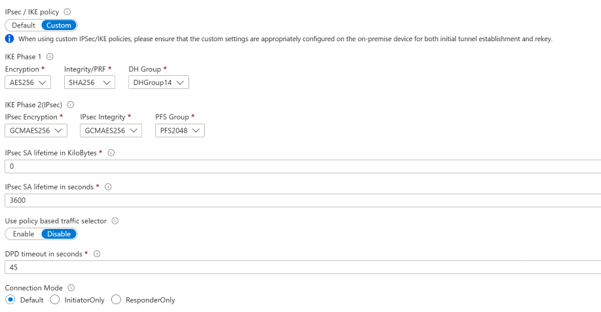
Learn more: Configure custom IPsec/IKE connection policies.
Configure site-to-site VPN between Azure and Google Cloud
On the Google Cloud side:
- Create an HA VPN Gateway on your VPC. Note the two auto-assigned external IP addresses.
- Create a Cloud Router in the same region to manage BGP sessions.
- Create VPN tunnels pointing to the Azure VPN Gateway public IP addresses.
- Configure BGP sessions on Cloud Router using the BGP peer IPs exchanged with Azure.
- Ensure that the PSC endpoint subnet is reachable from Azure via the VPN tunnel. Cloud Router advertises routes for your VPC subnets to Azure automatically via BGP.
Learn more:
Note: No specific cipher configuration is required on the Google Cloud side. Google Cloud HA VPN auto-negotiates IPsec settings based on what it receives from the Azure VPN Gateway.
Configure private access to GCS
Private Service Connect (PSC) creates a private endpoint with a stable RFC 1918 IP address inside your Google Cloud VPC for accessing Google APIs, including Cloud Storage. This IP address is the destination you configure in Azure Private Link Service Direct Connect.
In the Google Cloud Console, navigate to Network services > Private Service Connect.
Select Connect an endpoint and choose Google APIs as the target.
Select either All Google Cloud APIs or VPC-SC values in the Bundle type field, depending on your security requirements.
Assign a private IP address from your VPC subnet.
Record this private IP address. You need it when configuring the Azure PLS Direct Connect resource.
Restrict GCS bucket access (optional)
To further restrict your GCS bucket to VPC-only access, you can use GCS bucket IP filtering:
Restrict access to your specific GCP VPC network or IP ranges.
Limits: max 200 CIDR blocks, 25 VPC networks per bucket.
Create the private link service direct connect resource
Private Link Service (PLS) Direct Connect creates outbound private connectivity from Azure to a destination IP address. For GCS, the destination IP is the PSC endpoint IP in your Google Cloud VPC, reachable via your VPN or Interconnect tunnel.
- In the Azure portal, navigate to Home > Network foundation > Private Link services.
- Select Create a private link service.
- On the Basics tab, select the same Azure region as your Storage Mover resource.
- On the Outbound settings tab:
- Connection method: select Destination IP address
- IP address: enter the GCP Private Service Connect (PSC) endpoint IP address that you recorded earlier.
- Source NAT Virtual network: select the VNet containing your Azure VPN Gateway
- Source NAT subnet: select the subnet with VPN connectivity to GCP
- Private IP address settings: configure at least 2 NAT IPs (even number required)
- On the Access security tab: Select the appropriate visibility setting (Role-based access control only is most restrictive)
- Select Review + create.
Create and approve private connections
After creating the PLS Direct Connect resource, create a private connection in Storage Mover and approve it before use.
Create a private connection
- Navigate to your Storage Mover resource in the Azure portal.
- Under Resource management, select Storage endpoints.
- Select the Private connections (Preview) tab.
- Select Add private connections.
- Enter a name for the private connection.
- Select the Private Link Service Direct Connect resource you created.
- Select Create. Provisioning takes 20-30 seconds. Refresh to see the connection in the grid.
Tip
Create multiple private connections (each backed by a separate PLS Direct Connect resource) to maximize bandwidth and avoid single-connection throughput limits.
Approve the private connection
- Select the checkbox next to your newly created private connection.
- Select Approve.
- Wait for the Private link service connection status to change to Approved.
Important
Only private connections in Approved state can be used for migration jobs. Connections in pending, rejected, or disconnected states do not appear as options.
Create a migration job with private connections
Basics tab
| Field | Value |
|---|---|
| Migration type | Multicloud migration |
| Source type | GCS Object Storage - S3 (Preview) |
| S3 bucket type | Private (Preview) |
| Name | A meaningful name for the job |
| Description | (Optional) Up to 1024 characters |
In the Source section:
- Source endpoint: select an existing GCS S3-compatible source endpoint, or select Add source endpoint to create one.
- Source sub-path: (optional) specify a sub-folder to migrate only part of your bucket.
In the Target section:
- Target Endpoint: select an existing Azure Blob Storage target endpoint, or select Add target endpoint.
- Target sub-path: (optional) specify a target sub-folder.
In the Private connections (Preview) section:
Note
Private buckets require private connections. You can only add private connections in an approved state.
- Select Add to associate approved private connections with this job.
- You can associate multiple private connections for load balancing.
- Only connections in Approved state can be added.
- Remaining job steps are the same as a public GCS-to-Blob migration.
Troubleshooting
Connectivity and IP addressing
- Verify Destination IP in Azure PLS: ensure PLS Direct Connect points to your GCP PSC endpoint IP address. Mismatch prevents connectivity.
- Validate network path: confirm Cloud VPN tunnels show Established status in Google Cloud Console > Hybrid Connectivity > VPN.
- Check BGP: confirm Cloud Router BGP sessions are Active, and your VPC subnets (including the PSC endpoint subnet) are advertised to Azure.
- Verify PSC endpoint: confirm the PSC endpoint status is Connected in Google Cloud Console > Network services > Private Service Connect.
- Check region alignment: PLS Direct Connect and Storage Mover must be in the same Azure region. Authentication (HMAC)
- Verify HMAC Access Key and Secret Key in Azure Key Vault are active and not expired.
- Confirm the source endpoint managed identity has Key Vault Secrets User role on your Key Vault.
- Confirm that the GCS service account has minimum Storage Legacy Bucket Reader and Storage Legacy Object Reader roles on the target bucket.
- HMAC keys work with GCS XML API only (not JSON API).
- After creating a new HMAC key, wait up to 60 seconds before it becomes active. Private connections
- Only connections in Approved state appear in the job wizard. Check the status in Storage endpoints > Private connections (Preview).
- If the status is Pending: select the connection and select Approve.
- If status is Disconnected: the PLS Direct Connect resource may have been deleted or modified. Issue Resolution Migration job failed Check Copy and Job logs for error messages. Common causes: invalid credentials, network connectivity. Authentication error Verify HMAC keys in Key Vault are correct and active. Verify Key Vault Secrets User role is assigned. Permission error on target Verify target endpoint managed identity has Storage Blob Data Contributor role on the Blob container. Data transfer is slow Check network bandwidth. GCS may rate-limit S3-compatible API requests. Add more private connections. Objects missing after sync GCS timestamps have second-level granularity. Objects modified in the same second as last sync may not be detected until the next run. Source URL rejected Ensure URL uses HTTPS, no query parameters or fragments. Use a valid fully-qualified domain name.
Known limits
- Maximum 10 private connections per subscription per region (Approved + Pending + Disconnected combined). For more information, see Configure Private Link Service Direct Connect.
- PLS Direct Connect must be configured in the same region as the Storage Mover resource.
- Scheduling is not available for GCS source type. Jobs must be run manually.
- Each migration job supports transfer of up to 500 million objects.
- Only HTTPS access to the S3-compatible source is supported.
- The S3-compatible source must support AWS Signature Version 4 (SigV4) authentication.
- Maximum 10 HMAC keys per GCS service account.
Performance
The following benchmarks were measured using Azure VPN Gateway with multiple IPsec tunnels combined with Storage Mover private connections:
| Setup | Approximate maximum throughput |
|---|---|
| Azure VPN Gateway - 4 IPsec tunnels + 1 private connection (PSC) | ~700-800 MB/s |
| Azure VPN Gateway - 4 IPsec tunnels + 4 private connections | ~950 MB/s (~7-8 Gbps) |
Next steps
- Review ExpressRoute concepts and planning in the ExpressRoute documentation.
- Create a site-to-site VPN connection in Azure: Tutorial - Create an S2S VPN connection.
- For BGP between Azure and AWS, follow: Tutorial - Configure a BGP-enabled connection between Azure and AWS.