Note
Access to this page requires authorization. You can try signing in or changing directories.
Access to this page requires authorization. You can try changing directories.
Important
Advanced platform metrics for Azure Blob Storage is currently in preview. See the Supplemental Terms of Use for Microsoft Azure Previews for legal terms that apply to Azure features that are in beta, preview, or otherwise not yet released into general availability.
Advanced platform metrics provides container-level capacity insights for Azure Blob Storage. This feature extends Azure Monitor's platform metrics to include per-container storage size and object count, helping you optimize performance, manage costs, and support operational planning.
About advanced platform metrics
Advanced platform metrics provides deeper visibility into Azure Storage by adding granular telemetry beyond standard account-level metrics. By using advanced platform metrics, you get container-level capacity metrics, including per-container storage size and object count.
These insights help you:
- Optimize performance by understanding storage distribution across containers.
- Manage costs by identifying containers that consume the most capacity.
- Support operational planning with detailed capacity data at the container level.
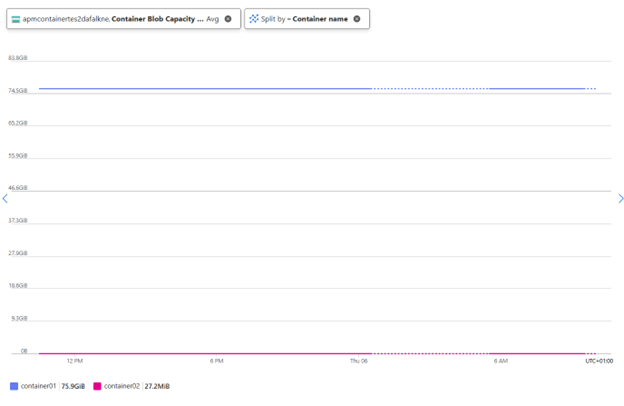
Once you enable advanced platform metrics, you consume the metrics the same way you do with existing Azure platform metrics. Querying, dashboarding, and alerting work just like platform metrics today.
Available metrics
The following container-level metrics are available with advanced platform metrics:
| Metric | Description | Unit |
|---|---|---|
| Container Blob Capacity | The amount of storage used by a container. | Bytes |
| Container Blob Count | The number of blob objects in a container. | Count |
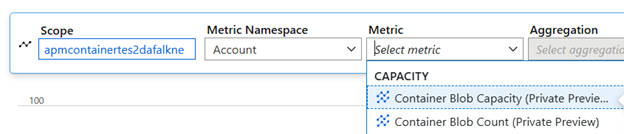
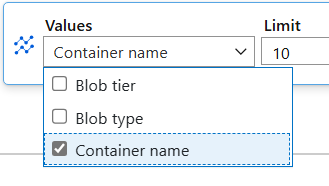
Both metrics support the ContainerName dimension, which you use to split and filter results by individual containers.
Prerequisites
An Azure subscription. If you don't have one, create a free account.
An Azure Storage account with Blob Storage. If you need to create one, see Create a storage account.
PowerShell 5.1 or later, or Azure CLI installed.
Install the Az.Storage preview PowerShell module (with admin privileges):
Install the latest PowerShellGet:
Install-Module PowerShellGet -Repository PSGallery -ForceClose and reopen the PowerShell console.
Install Az.Storage preview module:
Install-Module Az.Storage -Repository PsGallery -RequiredVersion 9.6.3-preview -AllowClobber -AllowPrerelease -Force
Enable advanced platform metrics
To use advanced platform metrics, create a rule on your storage account. Rules define which containers emit capacity metrics.
Note
Depending on the size of the storage account, it can take up to six hours for changes to container level capacity metric settings to be reflected. This delay includes enabling, updating, and disabling these metrics.
Authenticate
Connect-AzAccount
Create a rule for all containers
To enable container-level capacity metrics for all containers in a storage account, run the following command:
Set-AzStorageAdvancedPlatformMetric `
  -ResourceGroupName <resource-group-name> `
  -AccountName <storage-account-name> `
  -RuleConfigFilterType AllContainersFilter `
  -Enabled
Create a rule for specific containers
To enable metrics only for specific containers, use the ContainerListFilter filter type:
Set-AzStorageAdvancedPlatformMetric `
  -ResourceGroupName <resource-group-name> `
  -AccountName <storage-account-name> `
  -RuleConfigFilterType ContainerListFilter `
  -RuleConfigFilterValue "container1","container2" `
  -Enabled
Create a rule by container prefix
To enable metrics for containers that match a prefix, use the ContainerPrefixFilter filter type:
Set-AzStorageAdvancedPlatformMetric `
  -ResourceGroupName <resource-group-name> `
  -AccountName <storage-account-name> `
  -RuleConfigFilterType ContainerPrefixFilter `
  -RuleConfigFilterValue "logs-","data-" `
  -Enabled
View and manage advanced platform metrics rules
After you create a rule, you can view and update rules for a storage account.
View enabled rules
Get-AzStorageAdvancedPlatformMetric `
  -ResourceGroupName <resource-group-name> `
  -AccountName <storage-account-name>
Update an existing rule
You can update a rule to change the filter type, filter values, or enabled state. For example, to change to a container list filter and disable the rule:
Set-AzStorageAdvancedPlatformMetric `
  -ResourceGroupName <resource-group-name> `
  -AccountName <storage-account-name> `
  -RuleConfigFilterType ContainerListFilter `
  -RuleConfigFilterValue "container1","container2" `
  -Enabled:$false
View advanced platform metrics
Note
If no metrics appear, make sure the Microsoft.Insights resource provider is registered on your subscription. To register it, run az provider register -n Microsoft.Insights by using Azure CLI.
To query container-level capacity metrics by using PowerShell, use the Get-AzMetric cmdlet:
$resourceId = "/subscriptions/<subscription-id>/resourceGroups/<resource-group-name>/providers/Microsoft.Storage/storageAccounts/<storage-account-name>"

Get-AzMetric -ResourceId $resourceId `
  -MetricName "ContainerUsedSize" `
  -TimeGrain 01:00:00 `
  -AggregationType Average
Pricing
Azure Monitor bills advanced platform metrics as advanced platform metrics. For pricing details, see the metrics section of Azure Monitor pricing.
Data points calculation example
Container-level capacity metrics expose data points for each container and access tier combination. Multiple dimensions per hour contribute to the total billable data points.
For example, consider a storage account with the following configuration:
- Blob access tiers: 5 (Hot, Cool, Cold, Smart, Archive)
- Blob types: 2 (Block blob, Append blob)
- Data points per container per hour: 5 tiers × 2 types = 10 data points
- Metrics enabled: 2 (Container Blob Capacity and Container Blob Count)
- Total data points per container per hour: 2 metrics × 10 = 20 data points
If you have 50 containers in your storage account:
- Data points per hour: 50 containers × 20 = 1,000 data points
- Data points per day: 1,000 × 24 hours = 24,000 data points
- Data points per month (30 days): 24,000 × 30 = 720,000 billable data points
The actual number of data points depends on your specific configuration, including the number of containers, enabled metrics, and the blob types and access tiers in use.
Limits and considerations
The following limit applies when using advanced platform metrics:
| Limit | Value |
|---|---|
| Maximum containers per storage account | 10,000 |