Note
Access to this page requires authorization. You can try signing in or changing directories.
Access to this page requires authorization. You can try changing directories.
Azure Virtual Desktop Hybrid lets you keep session host compute on your existing on-premises infrastructure while the Azure Virtual Desktop control plane, identity, and management remain in Azure. This article describes how to pair that deployment with Azure Files and Azure File Sync to provide a cloud-managed file system that delivers local performance for on-premises sessions.
When you adopt Azure Virtual Desktop Hybrid, compute stays on-premises and the control plane moves to Azure. A common follow-on question is where the data should live. By default, organizations keep file servers on-premises, which leads to fragmented data, costly file-server scaling, and difficulty modernizing identity and security. Azure Files combined with Azure File Sync resolves this problem by making Azure the single source of truth for file data while a local Windows Server continues to serve hot data at LAN speed.
Note
Review the current supported operating systems, licensing requirements, and limitations in Azure Virtual Desktop Hybrid overview before you deploy. For deployment prerequisites, see Deploy Azure Virtual Desktop Hybrid.
Prerequisites
- An Azure subscription.
- An Azure Virtual Desktop Hybrid deployment with on-premises session hosts. The session host machines are surfaced as Azure Virtual Desktop-managed session hosts through Azure Arc.
- A Windows Server (physical or virtual) on-premises to act as the file server and Azure File Sync cache. For supported versions, see Azure File Sync system requirements.
- An Azure storage account with an SMB Azure file share to act as the cloud endpoint.
- Microsoft Entra ID for Azure Virtual Desktop identity, with the appropriate identity and authentication configuration for your session hosts and file shares. Configure Windows Server SMB share permissions and NTFS permissions for access to the local file server. Azure File Sync doesn't replace the local server's authentication or authorization. If users also access Azure Files directly, configure Azure Files identity-based authentication.
How the solution works
The architecture separates identity, session orchestration, and file storage responsibilities, with Azure File Sync acting as the bridge that preserves on-premises performance:
| Component | Responsibility |
|---|---|
| Microsoft Entra ID | Identity, authentication, and policy |
| Azure Virtual Desktop | Session orchestration and brokering |
| Azure Files | Centralized cloud file system and single source of truth |
| Azure File Sync | Caches Azure Files data on the local Windows file server |
When a user signs in to an Azure Virtual Desktop session running on an on-premises session host:
- The local Windows Server cache serves frequently used files with low, LAN-level latency.
- The system recalls infrequently used files on demand from Azure Files. The full namespace remains visible and browsable locally, even when file data is tiered to the cloud.
This pattern supports the common Azure Virtual Desktop data workloads, including FSLogix user profiles, shared application data, and collaboration or departmental shares.
Azure Files as the central file system
Azure Files provides a fully managed SMB file share that behaves like a traditional file server and becomes the single source of truth for your organization's data. Because the data is stored in Azure, you gain cloud redundancy options, centralized management, and a foundation for modernizing backup and disaster recovery.
If on-premises sessions access Azure Files directly across the WAN, users can experience latency for frequently accessed data. Azure File Sync addresses this problem by keeping a performant local cache.
Azure File Sync as the performance bridge
Azure File Sync transforms an existing Windows Server into a cache of an Azure file share rather than replacing it. To enable it, you:
- Keep the existing Windows Server file server.
- Install the Azure File Sync agent.
- Register the server and connect it to the Azure file share through a sync group.
With cloud tiering enabled, the most frequently accessed files are cached locally while less frequently accessed files are tiered to the Azure file share. The namespace is always stored locally, so the full file and folder structure remains visible. When a user opens a tiered file, Azure File Sync seamlessly recalls the data from Azure Files. You control how much local disk is used for the cache, which reduces on-premises storage requirements.
For more information, see Cloud tiering overview.
Architecture
The following diagram shows how the Azure control plane, on-premises infrastructure, and Azure Files cloud file system connect in an Azure Virtual Desktop Hybrid deployment that uses Azure File Sync.
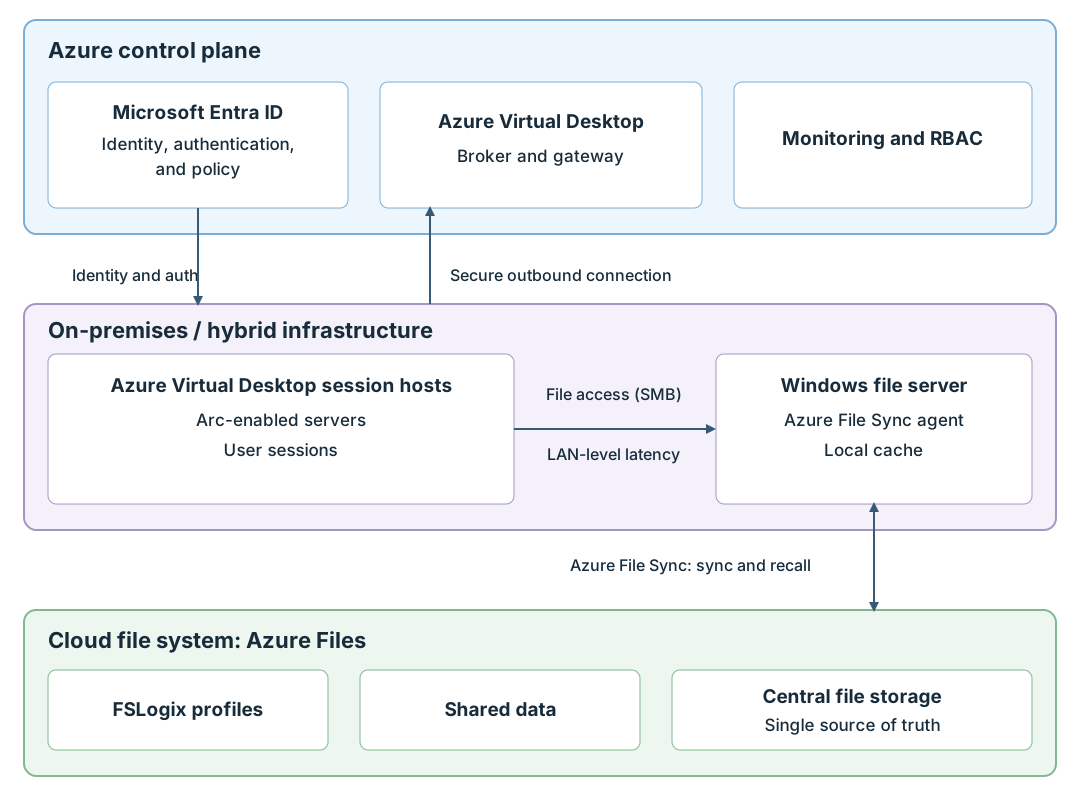
The architecture includes three main areas: the Azure control plane, the customer's on-premises or hybrid infrastructure, and the Azure Files cloud file system. Microsoft Entra ID provides identity, authentication, and policy for the on-premises session hosts. Azure Virtual Desktop provides the broker and gateway through a secure outbound connection from the session hosts. Users connect to session hosts on-premises, and those hosts access a local Windows file server running the Azure File Sync agent. Azure File Sync synchronizes the local cache with Azure Files, where FSLogix profiles, shared data, and centralized file storage are maintained as the single source of truth.
Operational benefits
Using Azure File Sync with Azure Virtual Desktop Hybrid changes how you operate the file estate:
| Capability | On-premises file server only | With Azure Files and Azure File Sync |
|---|---|---|
| Backup | Local backup infrastructure | Centralized cloud snapshots with Azure Backup |
| Disaster recovery | Restore from local backup | Reprovision and resync data that was uploaded to Azure |
| Capacity planning | Scale file-server hardware and disk | Scale cloud storage; reduce local disk with cloud tiering |
| Multi-site access | Manual replication | Multi-site sync through a central Azure hub |
You can recover data that was successfully uploaded to Azure from a failed local server by provisioning a new Windows Server, installing the Azure File Sync agent, and creating a server endpoint in the existing sync group. By using cloud tiering with the default initial download mode, Azure File Sync downloads the namespace before recalling file data. If you disable cloud tiering, recovery requires downloading all files. Changes that weren't uploaded before the failure might require recovery from the original server or another backup. For more information, see Recover an Azure File Sync server.
Important
Azure File Sync synchronizes changes; it isn't a backup solution. Configure Azure Backup separately to protect your Azure file shares. Before replacing or removing a server endpoint, verify sync health and follow Disaster recovery best practices with Azure File Sync.
Considerations for FSLogix profiles
When you store FSLogix profile containers on Azure Files in an Azure Virtual Desktop Hybrid deployment, review the recommended configuration for FSLogix profile containers and Azure Files. Test profile sign-in, sign-out, and recovery behavior before deploying to production.
If you store profile containers on the local server endpoint, configure cloud tiering exclusions for the profile container files or directories that must remain local, and provision enough local capacity for that data. For the supported exclusion settings and their effect on existing tiered files, see How to exclude files or folders from being tiered. A tiering exclusion isn't a guarantee that a container is already fully recalled or synchronized. Validate local availability and sync health before relying on the cloud copy for recovery.