Note
Access to this page requires authorization. You can try signing in or changing directories.
Access to this page requires authorization. You can try changing directories.
Applies to: ✔️ Windows VMs ✔️ Linux VMs ✔️ On-premises environment ✔️ Azure VMs ✔️ Azure Arc-enabled servers.
You can use pre-maintenance and post-maintenance events to execute user-defined actions before and after scheduled patch installation. One of the most common scenarios is to start and stop a virtual machine (VM). With pre-maintenance events, you can run a script to start the VM before initiating the scheduled patching process. After the scheduled patching is complete and the server is rebooted, you can run a script to safely shut down the VM.
This tutorial explains how to create pre-maintenance and post-maintenance events to start and stop a VM in a scheduled patch workflow by using a webhook.
In this tutorial, you:
- Create and publish an Azure Automation runbook.
- Add webhooks.
- Create an event subscription.
Prerequisites
Ensure that you're using a PowerShell 7.4 runbook.
Assign permissions to the appropriate managed identity. The runbook can use the Automation account's system-assigned managed identity or a user-assigned managed identity.
The following script examples (starting and stopping VMs) require the Virtual Machine Contributor role or a custom role with these specific permissions:
- Microsoft.Compute/virtualMachines/start/action
- Microsoft.Compute/virtualMachines/deallocate/action
- Microsoft.Compute/virtualMachines/restart/action
- Microsoft.Compute/virtualMachines/powerOff/action
You can use either the Azure portal or Azure PowerShell cmdlets to assign permissions to each identity:
To assign permissions, follow the steps in Assign Azure roles using the Azure portal.
- Import the
Az.ResourceGraphmodule. Ensure that the module is updated to ThreadJob with the module version 2.0.3.
Create and publish an Automation runbook
Sign in to the Azure portal and go to your Azure Automation account.
If you used runbooks for pre-maintenance and post-maintenance tasks in Azure Automation Update Management, it's critical that you use the following steps to avoid an unexpected impact to your machines and failed maintenance runs:
For your runbooks, parse the webhook payload to ensure that it's triggering on
Microsoft.Maintenance.PreMaintenanceEventorMicrosoft.Maintenance.PostMaintenanceEventevents only. By design, webhooks are triggered on other subscription events if any other event is added with the same endpoint.See the Azure Event Grid event schema.
See the Event Grid schema specific to maintenance configurations.
See the following code:
param
(
  [Parameter(Mandatory=$false)]
  [object] $WebhookData

)
$notificationPayload = ConvertFrom-Json -InputObject $WebhookData.RequestBody
$eventType = $notificationPayload[0].eventType

if ($eventType -ne "Microsoft.Maintenance.PreMaintenanceEvent" -and $eventType –ne "Microsoft.Maintenance.PostMaintenanceEvent" ) {
Write-Output "Webhook not triggered as part of pre or post patching for maintenance run"
return
}
The SoftwareUpdateConfigurationRunContext parameter contains information about lists of machines in the update deployment. It won't be passed to the scripts when you use them for pre-maintenance or post-maintenance events while using an Automation webhook. You can either query the list of machines from Azure Resource Graph or have the list of machines coded in the scripts.
Ensure that proper roles and permissions are granted to the managed identities that you're using in the script, to execute Resource Graph queries and to start or stop machines.
See the permissions related to Resource Graph queries.
See the Virtual Machine Contributor role.
See the webhook payload.
See the following code:
param
(
    [Parameter(Mandatory=$false)]
    [object] $WebhookData
)

Connect-AzAccount -Identity

# Install the Resource Graph module from PowerShell Gallery
# Install-Module -Name Az.ResourceGraph

$notificationPayload = ConvertFrom-Json -InputObject $WebhookData.RequestBody
$maintenanceRunId = $notificationPayload[0].data.CorrelationId
$resourceSubscriptionIds = $notificationPayload[0].data.ResourceSubscriptionIds

if ($resourceSubscriptionIds.Count -gt 0) {

    Write-Output "Querying ARG to get machine details[MaintenanceRunId=$maintenanceRunId][ResourceSubscriptionIdsCount=$($resourceSubscriptionIds.Count)]"
    $argQuery = @"maintenanceresources
    | where type =~ 'microsoft.maintenance/applyupdates'
    | where properties.correlationId =~ '$($maintenanceRunId)'
    | where id has '/providers/microsoft.compute/virtualmachines/'
    | project id, resourceId = tostring(properties.resourceId)
    | order by id asc
"@

Write-Output "Arg Query Used: $argQuery"
$allMachines = [System.Collections.ArrayList]@()
$skipToken = $null
$res = Search-AzGraph -Query $argQuery -First 1000 -SkipToken $skipToken -Subscription $resourceSubscriptionIds
$skipToken = $res.SkipToken
$allMachines.AddRange($res.Data)
} while ($skipToken -ne $null -and $skipToken.Length -ne 0)

if ($allMachines.Count -eq 0) {
Write-Output "No Machines were found."
break
}
}
To customize, you can either use your existing scripts with the preceding modifications or use the following scripts.
Sample scripts
param
(
    [Parameter(Mandatory=$false)]
    [object] $WebhookData
)
Connect-AzAccount -Identity

# Install the Resource Graph module from PowerShell Gallery
# Install-Module -Name Az.ResourceGraph

$notificationPayload = ConvertFrom-Json -InputObject $WebhookData.RequestBody
$eventType = $notificationPayload[0].eventType

if ($eventType -ne "Microsoft.Maintenance.PreMaintenanceEvent") {
    Write-Output "Webhook not triggered as part of pre-patching for maintenance run"
    return
}

$maintenanceRunId = $notificationPayload[0].data.CorrelationId
$resourceSubscriptionIds = $notificationPayload[0].data.ResourceSubscriptionIds

if ($resourceSubscriptionIds.Count -eq 0) {
    Write-Output "Resource subscriptions are not present."
    break
}

Write-Output "Querying ARG to get machine details [MaintenanceRunId=$maintenanceRunId][ResourceSubscriptionIdsCount=$($resourceSubscriptionIds.Count)]"

$argQuery = @"
    maintenanceresources
    | where type =~ 'microsoft.maintenance/applyupdates'
    | where properties.correlationId =~ '$($maintenanceRunId)'
    | where id has '/providers/microsoft.compute/virtualmachines/'
    | project id, resourceId = tostring(properties.resourceId)
    | order by id asc
"@

Write-Output "Arg Query Used: $argQuery"


$allMachines = [System.Collections.ArrayList]@()
$skipToken = $null

do
{
    $res = Search-AzGraph -Query $argQuery -First 1000 -SkipToken $skipToken -Subscription $resourceSubscriptionIds
    $skipToken = $res.SkipToken
    $allMachines.AddRange($res.Data)
} while ($skipToken -ne $null -and $skipToken.Length -ne 0)

if ($allMachines.Count -eq 0) {
    Write-Output "No Machines were found."
    break
}

$jobIDs= New-Object System.Collections.Generic.List[System.Object]
$startableStates = "stopped" , "stopping", "deallocated", "deallocating"
$allMachines | ForEach-Object {
    $vmId =  $_.resourceId
    $split = $vmId -split "/";
    $subscriptionId = $split[2];
    $rg = $split[4];
    $name = $split[8];

    Write-Output ("Subscription Id: " + $subscriptionId)
    $mute = Set-AzContext -Subscription $subscriptionId
    $vm = Get-AzVM -ResourceGroupName $rg -Name $name -Status -DefaultProfile $mute
    $state = ($vm.Statuses[1].DisplayStatus -split " ")[1]
    if($state -in $startableStates) {
        Write-Output "Starting '$($name)' ..."
        $newJob = Start-ThreadJob -ScriptBlock { param($resource, $vmname, $sub) $context = Set-AzContext -Subscription $sub; Start-AzVM -ResourceGroupName $resource -Name $vmname -DefaultProfile $context} -ArgumentList $rg, $name, $subscriptionId
        $jobIDs.Add($newJob.Id)
    } else {
        Write-Output ($name + ": no action taken. State: " + $state)
    }
}

$jobsList = $jobIDs.ToArray()
if ($jobsList)
{
    Write-Output "Waiting for machines to finish starting..."
    Wait-Job -Id $jobsList
}
foreach($id in $jobsList)
{
    $job = Get-Job -Id $id
    if ($job.Error)
    {
        Write-Output $job.Error
    }
}
Add webhooks
Add webhooks to the preceding published runbooks and copy the webhook URLs.
Note
Be sure to copy the URL after you create a webhook. You can't retrieve the URL again.
Create an event subscription
Sign in to the Azure portal and go to Azure Update Manager.
Under Manage, select Machines > Maintenance Configuration.
On the Maintenance Configuration pane, select the configuration.
Under Settings, select Events.

Select +Event Subscription to create a pre-maintenance or post-maintenance event.
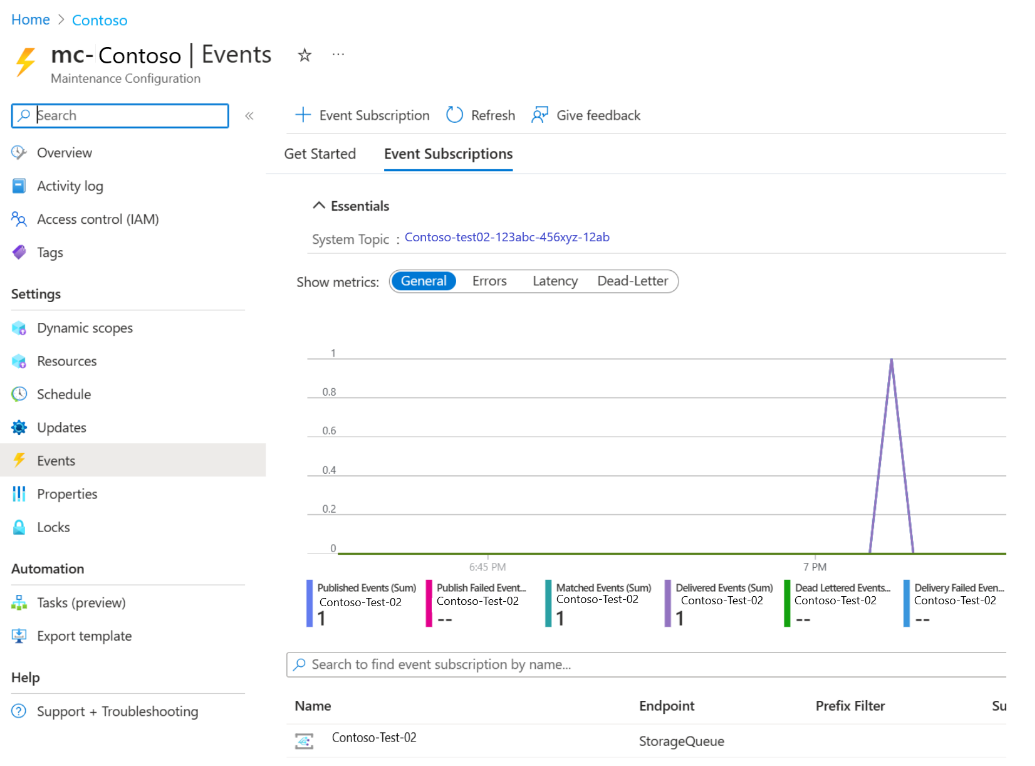
On the Create Event Subscription pane, in the Event Subscription Details section, provide an appropriate name. Keep the schema as Event Grid Schema.
In the Event Types section, for Filter to Event Types, select Pre Maintenance Event or Post Maintenance Event.
In the Endpoint Details section, select the Web Hook endpoint, and then select Configure an endpoint.
Provide the appropriate details, such as the pre-maintenance or post-maintenance event's webhook URL to trigger the event.
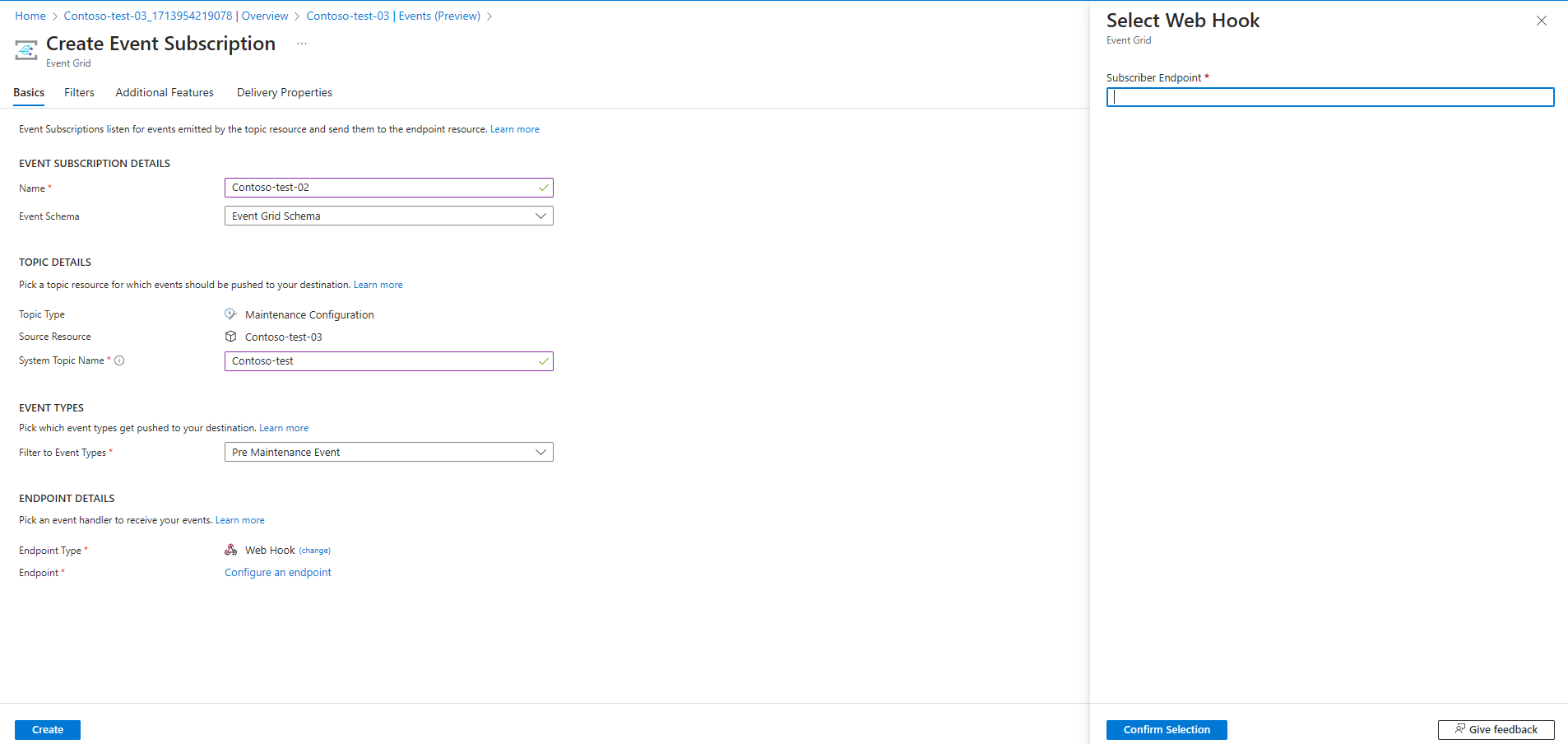
Select Create.

Related content
- Get an overview of pre-maintenance and post-maintenance events in Azure Update Manager.
- Learn more about how to create pre-maintenance and post-maintenance events.
- Learn how to manage pre-maintenance and post-maintenance events or to cancel a scheduled run.
- Learn how to create pre-maintenance and post-maintenance events by using Azure Functions.