Note
Access to this page requires authorization. You can try signing in or changing directories.
Access to this page requires authorization. You can try changing directories.
Zone resilience for Azure VMs lets you initiate failover of an eligible zonal Azure virtual machine (VM) to another availability zone in the same region. Failover changes the zone placement of the existing VM without creating a replacement. The VM retains its resource ID and VM ID, attached network interface (NIC) and its IP configuration, supported zone-redundant storage (ZRS) managed disks, and other supported resource settings. The zone placement changes; the supported configuration remains associated with the VM.
Zone failover is customer-initiated. See Limitations. For high availability across zones, deploy multiple VMs across availability zones and distribute traffic between them.
Important
Zone resilience for Azure VMs is in preview. Use this preview only for evaluation and testing with nonproduction VMs. Don't use it for production VMs. For more information, see Supplemental Terms of Use for Microsoft Azure Previews.
Because ZRS synchronously replicates managed disk data across availability zones, zone resilience provides a near-zero recovery point objective (RPO) for data committed to supported ZRS disks.
How zone failover works
For an eligible VM affected by a zone failure, the failover workflow moves the VM to a healthy zone in the same region. See Limitations.
Important
Zone resilience for Azure VMs is in preview. Use this preview only for evaluation and testing with nonproduction VMs. Don't use it for production VMs. For more information, see Supplemental Terms of Use for Microsoft Azure Previews.

Confirm the VM is affected and select a healthy zone in the same region. Force-deallocate the VM, which stops the workload. Update the zone placement of the existing VM and reuse its supported ZRS disks. Start the VM in the target zone, subject to available capacity. Verify the VM, disks, network, and workload before restoring traffic.
The workload is unavailable while the VM is deallocated and started in the target zone. Active requests, in-memory data, and runtime state aren't preserved.
The target zone must support the VM size and have enough capacity when you start the VM.
Requirements
Before you enable zone resilience for Azure VMs, confirm that your configuration meets these requirements:
| Resource | Requirement |
|---|---|
| VM placement | Use a new or existing VM deployed in a specific availability zone. |
| OS disk | Use a Premium SSD ZRS or Standard SSD ZRS managed disk. |
| Data disks | Use Premium SSD ZRS or Standard SSD ZRS for every attached data disk. |
| Private IP address | Use a static or dynamic private IP address. |
| Public IP address | If used, configure a zone-redundant Standard SKU public IP address. |
| Network appliance | If used, configure a zone-redundant Standard SKU load balancer or supported gateway. |
| Management tool | Use the Azure portal, Azure CLI version 2.87.0 or later, Azure PowerShell with zone movement and force deallocation support, or Compute REST API version 2026-03-01. |
For current ZRS disk types and regional availability, see Redundancy options for managed disks. To create ZRS disks, see Deploy a managed disk that uses zone-redundant storage.
Limitations
Important
Zone resilience for Azure VMs is in preview. Use this preview only for evaluation and testing with nonproduction VMs. Don't use it for production VMs. For more information, see Supplemental Terms of Use for Microsoft Azure Previews.
The following limitations result from the requirement to use ZRS managed disks:
- Locally redundant storage (LRS) OS and data disks aren't supported. Every attached OS and data disk must use Premium SSD ZRS or Standard SSD ZRS.
- Ephemeral OS disks aren't supported because they use local VM storage.
- Premium SSD v2, Ultra Disks, and Standard HDD managed disks aren't supported because these disk types don't offer ZRS. See ZRS limitations.
- Data disks that use write acceleration aren't supported.
To prepare a zone VM with LRS disks, follow Convert a disk from LRS to ZRS to create ZRS disks from snapshots of the OS and data disks. You can't change a zone LRS disk's redundancy in place, but you can keep the existing VM if its disks meet the OS disk swap requirements. Swap in the ZRS OS disk, then detach the LRS data disks and attach the corresponding ZRS disks. Plan for downtime, and confirm the OS and every attached data disk use a supported ZRS type before you enable zone movement. The regional disk conversion procedure doesn't apply to zone disks.
The following limitations apply to zone movement and its supported VM configurations:
- Failover is limited to another availability zone in the same region. It doesn't protect against a regional outage or an outage that affects multiple zones.
- Failover can fail when the VM size has insufficient capacity in the target zone.
- VM scale sets, availability set VMs, and Spot VMs aren't supported.
- Azure Site Recovery isn't supported for VMs with zone resilience enabled.
- On-demand capacity reservations, dedicated hosts, and proximity placement groups aren't supported.
- The feature doesn't provide automatic failover, application-level consistency, traffic failover, recovery plans, or failback orchestration.
Prepare a VM for zone failover
Create a VM that meets every requirement before you enable zone movement. Enablement must occur while the source availability zone is healthy.
- In the Azure portal, create a VM in a specific availability zone.
- On the Disks tab, select Premium SSD ZRS or Standard SSD ZRS for the OS disk and every data disk.
- Configure only supported zone-redundant Standard SKU network resources.
- Create the VM.
Enable zone movement
Enable zone movement when you create a VM or on an eligible existing zonal VM. You must deallocate an existing VM before you can enable zone movement; a new VM doesn't need a separate deallocation step. Enable zone movement while the source zone is healthy.
To enable zone movement when you create a VM:
Sign in to the Azure portal, and start creating a VM.
On the Basics tab, select a region that supports availability zones. Set Availability options to Availability zone, and select a specific Availability zone.
Under Availability zone, select Protect VM from zonal-failure with Zone resilience (Preview).
In the Zone resilience (Preview) pane, select Enable Zone resilience (Preview). Review the configuration requirements, and select Save.
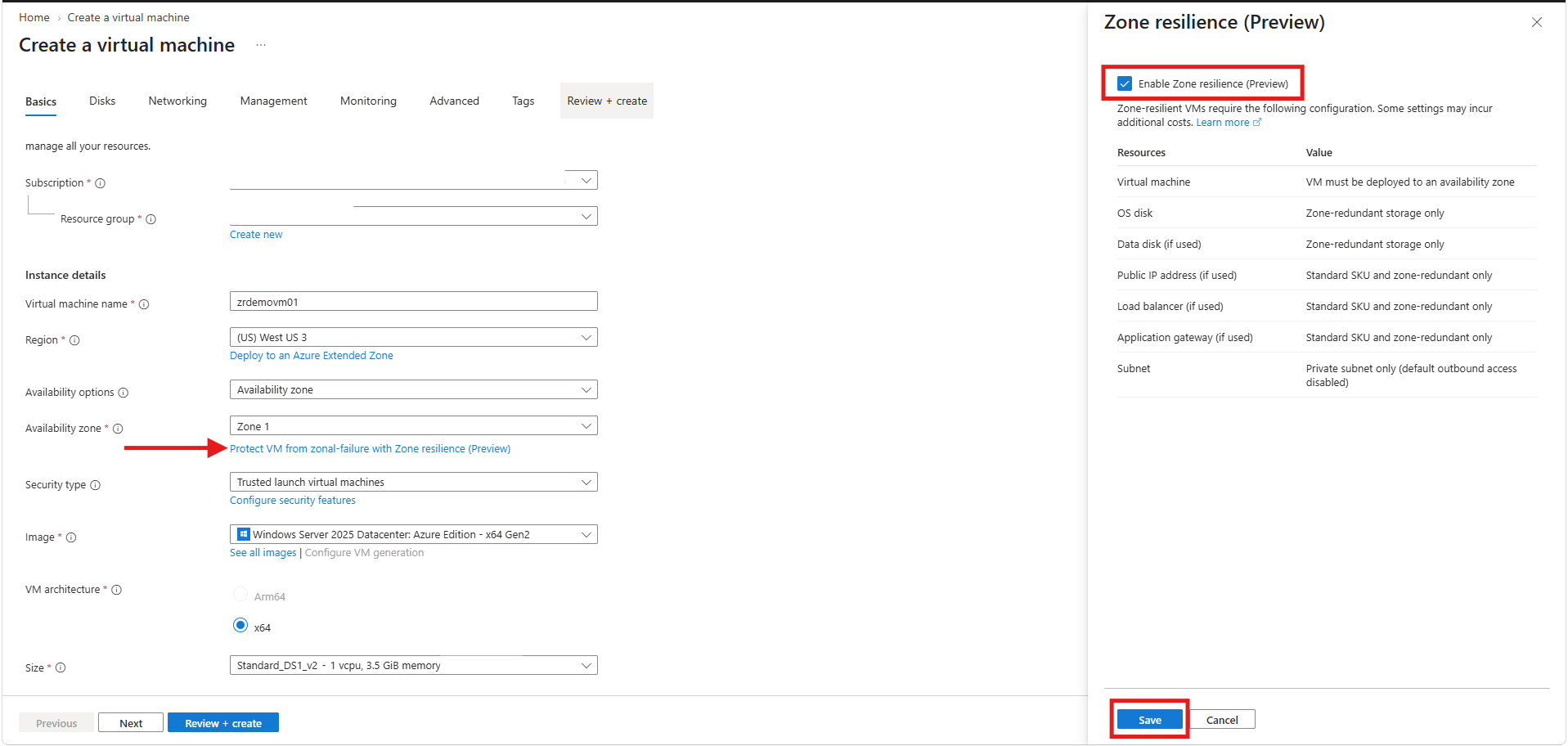
On the Disks tab, confirm that the OS disk and every data disk use Premium SSD ZRS or Standard SSD ZRS. Configure supported network resources and the remaining VM settings.
Select Review + create, and then select Create after validation succeeds.
To enable zone movement on an eligible existing zonal VM:
In the Azure portal, open the VM, and select Overview.
Select Stop, confirm the operation, and wait until the VM status is Stopped (deallocated). Stopping the VM interrupts the workload.
On Overview, under Availability + scaling, select the current value of Zone Resilience (Preview).
In the Zone resilience (Preview) pane, select Enable Zone resilience (Preview), review the configuration requirements, and select Save.
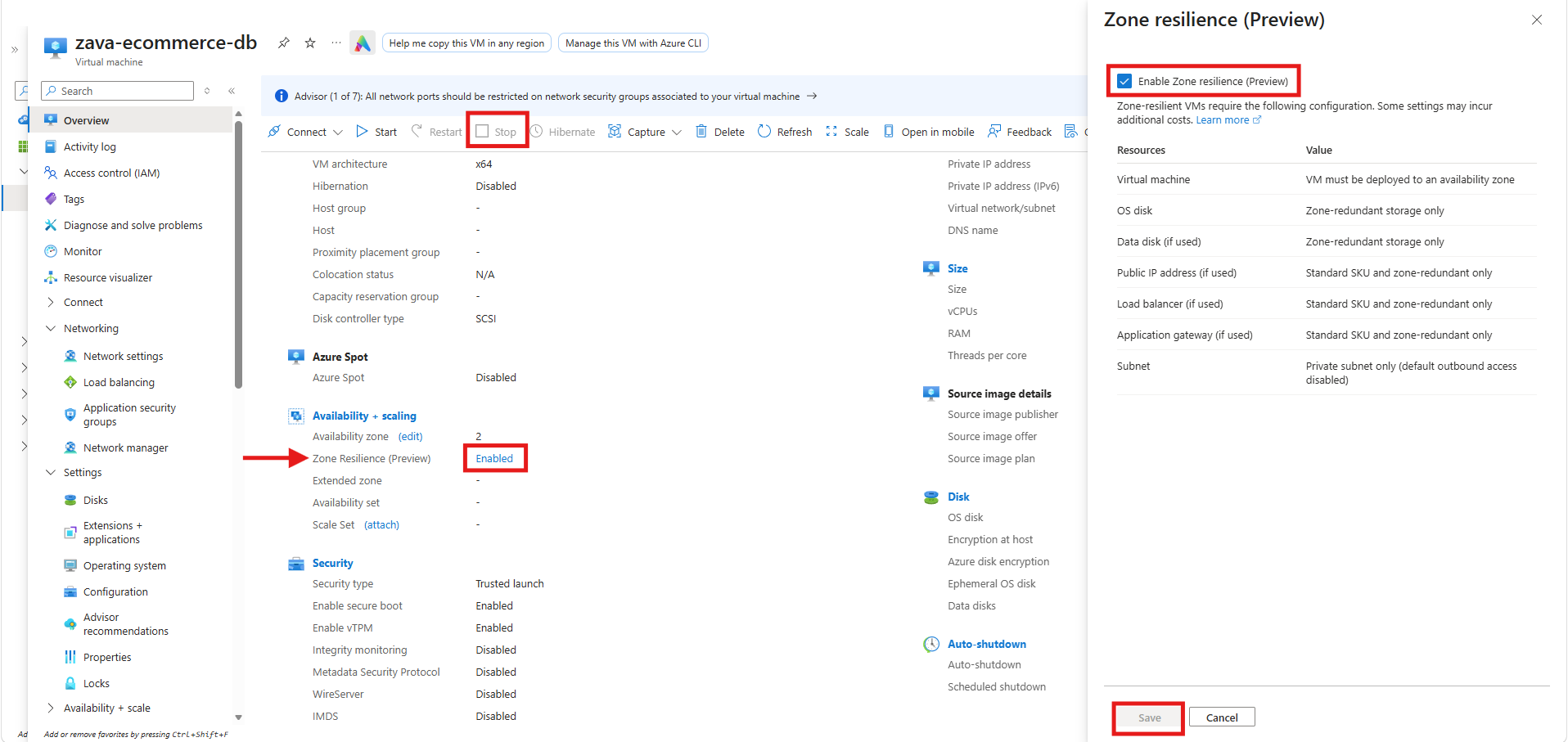
After the update succeeds, select Start on Overview.
Confirm that Zone Resilience (Preview) shows Enabled.
Fail over a VM to another zone
Important
Zone resilience for Azure VMs is in preview. Use this preview only for evaluation and testing with nonproduction VMs. Don't use it for production VMs. For more information, see Supplemental Terms of Use for Microsoft Azure Previews.
See Limitations. For eligible nonproduction VMs, first confirm that an availability zone failure affects the VM. Monitor individual VM health with Azure Resource Health, and monitor broader service issues with Azure Service Health.
Choose a target zone that supports your VM size and has sufficient capacity.
Warning
Force deallocation stops the VM and discards its in-memory state. Start failover only after you confirm the impact on your workload and its dependencies.
Use Azure CLI to orchestrate failover. With the Azure portal, Azure PowerShell, or Bicep, perform each failover operation in order.
Use the portal when the VM is already deallocated or can be stopped normally. If normal deallocation can't complete, use the Azure CLI, Azure PowerShell, or Bicep procedure for force deallocation.
In the Azure portal, open the VM, and select Overview.
If the VM isn't already deallocated, select Stop, confirm the operation, and wait until its status is Stopped (deallocated). Don't continue if deallocation fails.
Under Availability + scaling, next to Availability zone, select (edit).
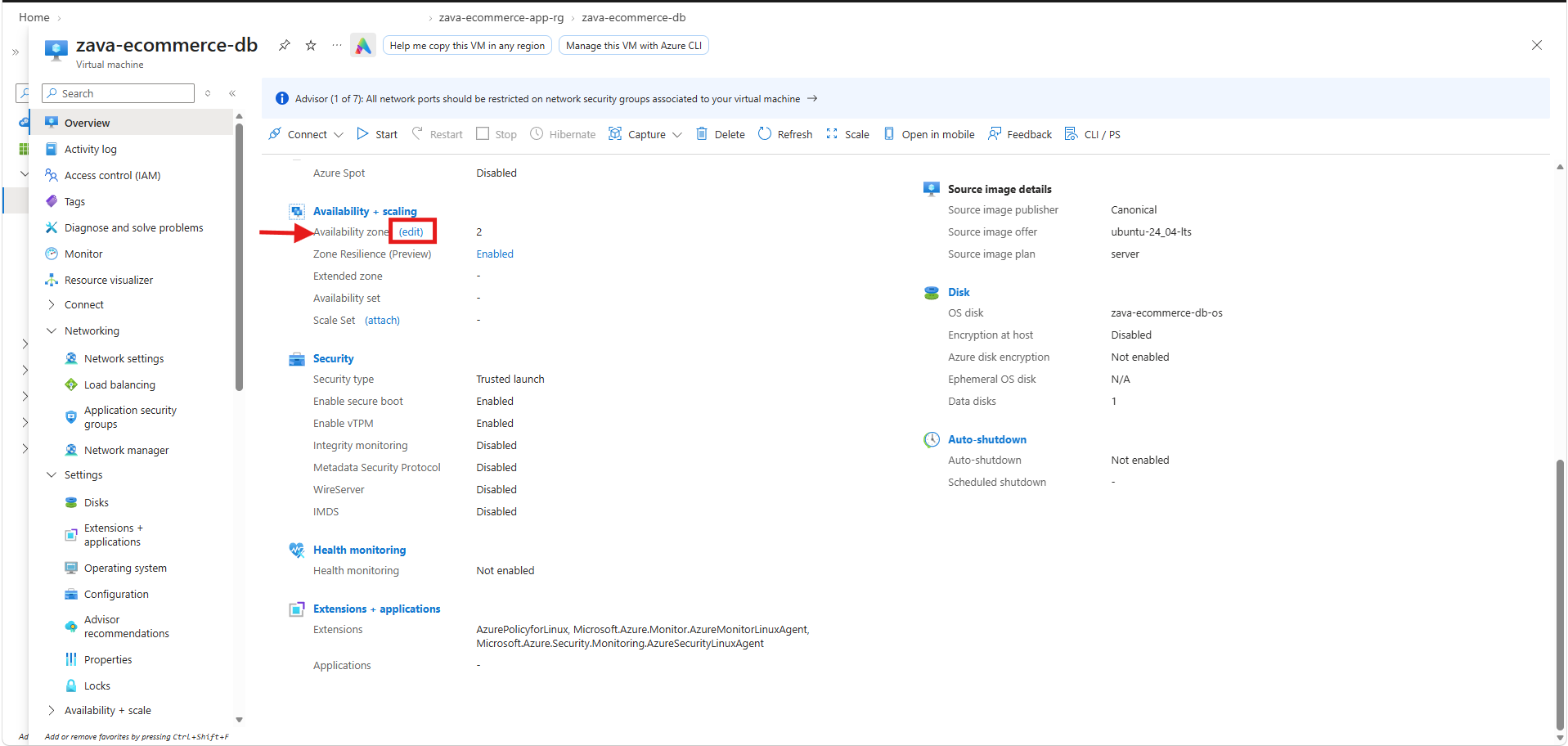
On the Availability Zones tab, select the target Availability zone, and select Apply.
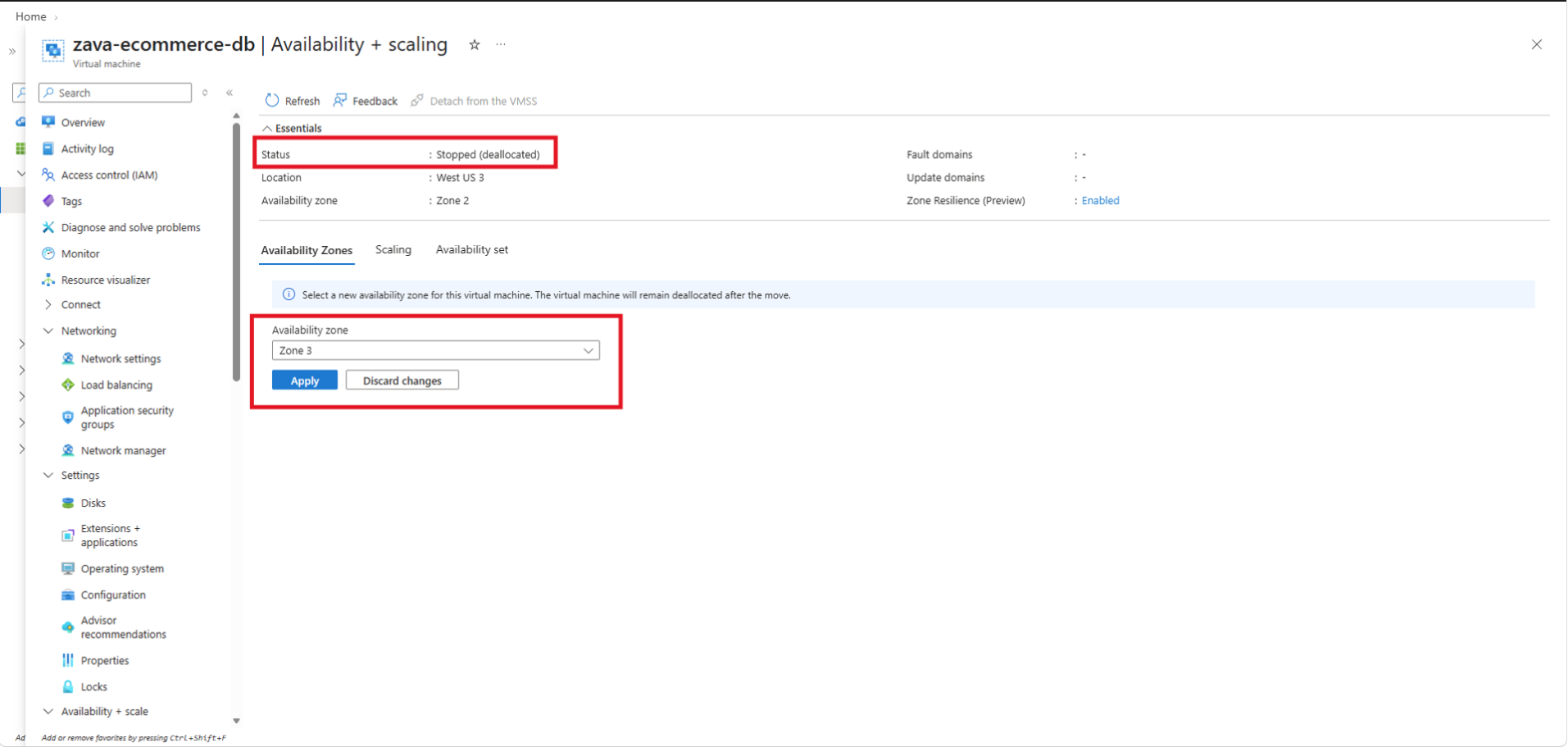
Wait for the update to succeed, and confirm that Availability zone reports the target zone. If the update fails, review the error and VM state before continuing.
Return to Overview, and select Start.
Complete the checks in Verify failover succeeded before restoring traffic.
The VM remains deallocated after you apply the zone change. Start the VM in target zone post zone change operation completes successfully to resume normal operations by selecting Start in the Azure portal.
Verify failover succeeded
After failover finishes, verify the VM and the workload before you restore traffic:
- Confirm that the VM power state is Running.
- Confirm that the VM reports the selected target availability zone.
- Confirm that the expected OS and data disks are attached.
- Confirm that the NIC, subnet, network security group, load balancer, and public IP associations are correct for your configuration.
- Confirm that VM extensions and management settings are present and healthy.
- Connect to the VM and verify operating system and application health.
- Run workload-specific data consistency checks.
- Restore traffic only after your health checks succeed.
Use the Azure portal, Azure CLI, or Azure PowerShell to check the VM state and zone:
- In the Azure portal, open the VM, and select Overview.
- Confirm that Status is Running.
- Under Availability + scaling, confirm that Availability zone is the target zone and Zone Resilience (Preview) is Enabled.
Troubleshoot failover
Match the error identifier or its message to the operation you attempted:
| Error identifier | When it occurs | What to do |
|---|---|---|
ZoneMovementUpdateRequiresDeallocatedVM |
Enabling or disabling zone movement on a VM that isn't deallocated. | Deallocate the VM, retry the enable or disable update, and start the VM after it succeeds. |
OperationNotAllowedForNonZRSDisks |
The OS disk or an attached data disk doesn't use supported ZRS storage. | Use Premium SSD ZRS or Standard SSD ZRS for every disk before enabling zone movement. |
ForceDeallocateVMNotAllowedForNonResilientVM |
Force deallocation was requested for a VM without zone movement enabled. | If the source zone is healthy, deallocate normally and enable zone movement before retrying. If the source zone is unavailable, contact Azure support. |
OperationNotAllowedOnNullCurrentPowerStateForZonePatch |
A zone update was attempted before the affected VM reached Deallocated. | Force-deallocate the enabled VM, confirm it reaches Deallocated, and retry the zone update. |
OperationNotAllowedForNonZonalVM |
A zone update was requested for a regional VM without a pinned zone. | Confirm that the VM is zonal. This zone-update workflow applies only to zonal VMs. |
VMZoneMigrationNotCompleted |
The VM was started before zone migration finished or after migration failed. | Wait for the zone update to succeed, then retry the start. If the error persists, open an Azure support request. |
If the VM can't start because the target zone lacks capacity, select another supported zone. If the VM starts but the workload is unhealthy, complete the checks in Verify failover succeeded before restoring traffic. For other errors, review Azure service health and the operation details. If failover remains blocked, open an Azure support request.
Disable zone movement
You must deallocate the VM before you disable zone movement. Deallocation interrupts the workload. Complete each operation before continuing, and start the VM only after the update succeeds:
- In the Azure portal, open the VM, and select Overview.
- Select Stop, confirm the operation, and wait until the VM status is Stopped (deallocated).
- Under Availability + scaling, select Enabled next to Zone Resilience (Preview).
- In the Zone resilience (Preview) pane, clear Enable Zone resilience (Preview), and select Save.
- After the update succeeds, confirm that Zone Resilience (Preview) shows Disabled, and select Start.
Frequently asked questions
Does failover happen automatically or keep the workload running?
No. You must initiate failover for a VM with zone resilience enabled. The workload is unavailable while the VM is force-deallocated and started in the target zone. Zone resilience doesn't provide automatic failover, uninterrupted service, or application-level recovery orchestration. For high availability across zones, deploy multiple VMs across availability zones and distribute traffic between them.
What data does the near-zero RPO cover?
The near-zero RPO applies to data committed to supported ZRS disks. It doesn't apply to active requests, in-memory data, temporary disks, or application state that isn't written to those disks.
When should I use zone resilience instead of Azure Site Recovery for zonal failover?
Important
Zone resilience for Azure VMs is in preview. Use this preview only for evaluation and testing with nonproduction VMs. Don't use it for production VMs. For more information, see Supplemental Terms of Use for Microsoft Azure Previews.
See Limitations. Both options support customer-initiated failover to another zone in the same region, but they use different disk and VM recovery models:
| Decision factor | Zone resilience for Azure VMs (Preview) | Azure Site Recovery zone-to-zone disaster recovery |
|---|---|---|
| Managed disks | Requires Premium SSD ZRS or Standard SSD ZRS for the OS disk and every data disk. Data committed to these disks has a near-zero RPO. | Supports eligible LRS disks through replication. ZRS-managed disks aren't supported for zone-to-zone disaster recovery. There's no defined RPO SLA. |
| Failover model | Changes the zone of the existing VM and reuses its supported disks and configuration. | Replicates the VM before an outage and creates a recovery VM in a different resource group during failover. Supports failback. |
| Choose this option when | You need to retain the existing VM resource and its supported configuration, and you can use ZRS disks. | You need zone-to-zone disaster recovery for a VM with supported LRS disks in a supported region, and you can set up replication in advance. |
For supported regions, disk restrictions, and networking behavior for Azure Site Recovery, see Enable Azure VM disaster recovery between availability zones and the Azure Site Recovery support matrix.
Which advanced capabilities aren't supported?
Zone resilience doesn't provide application-level consistency, traffic failover, recovery plans, or failback orchestration. Azure Site Recovery, on-demand capacity reservations, dedicated hosts, and proximity placement groups aren't supported for VMs with zone resilience enabled. Review Limitations before you enable the feature.
Cost
Important
There's no feature charge for zone resilience for Azure VMs during preview. It will be a paid feature at general availability. Pricing details will be published with the general availability release.
Standard charges apply for VMs, ZRS managed disks, and network resources. For managed disk pricing, see Azure managed disks pricing.