Note
Access to this page requires authorization. You can try signing in or changing directories.
Access to this page requires authorization. You can try changing directories.
You can assign users connecting to your point-to-site (P2S) VPN gateway IP addresses from specific address pools based on their identity or authentication credentials by creating policy groups (user groups). This article helps you configure policy groups, group members, and prioritize groups by using Azure PowerShell.
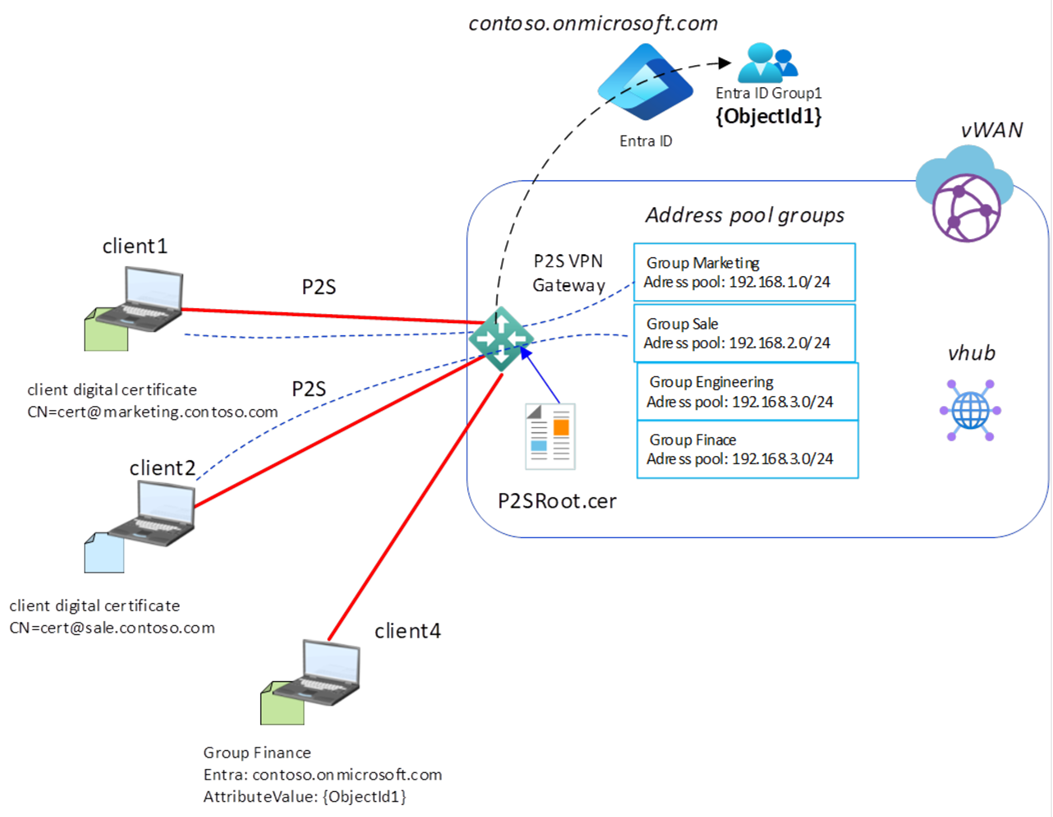
For more information about working with policy groups and group members for P2S connections, including considerations and limitations, see the following articles:
- About address pools and multi-pool/user groups
- About user groups and IP address pools for P2S User VPNs
- Configure user groups and IP address pools for P2S User VPNs
Prerequisites
This article assumes that you have already generated the root and leaf digital certificates used for P2S connections. For steps, see Generate and export certificates for P2S using PowerShell.
Workflow
This article uses the following workflow to help you set up user groups and IP address pools for your P2S VPN gateway connection:
- Consider configuration requirements.
- Choose an authentication mechanism.
- Create a user group.
- Configure gateway settings.
Consider configuration requirements
This section lists configuration requirements and limitations for user groups and IP address pools.
- Maximum groups: A single P2S VPN gateway can reference up to 90 groups.
- Maximum members: The total number of policy/group members across all groups assigned to a gateway is 390.
- Multiple assignments: If a group is assigned to multiple connection configurations on the same gateway, the group and its members are counted multiple times. For example, a policy group with 10 members assigned to three VPN connection configurations counts as three groups with 30 members, not as one group with 10 members.
- Concurrent users: The total number of concurrent users is determined by the gateway's scale unit and the number of IP addresses allocated to each user group. It isn't determined by the number of policy/group members associated with the gateway.
- After a group is created as part of a VPN server configuration, the name and default setting of the group can't be modified.
- Group names must be distinct.
- Groups that have a lower numerical priority are processed before groups with a higher numerical priority. If a connecting user is a member of multiple groups, the gateway considers them a member of the group with the lower numerical priority for purposes of assigning IP addresses.
- Groups that are being used by existing point-to-site VPN gateways can't be deleted.
- You can reorder group priorities by using the up/down arrow buttons next to each group.
Address pool considerations:
- Address pools can't overlap with address pools used in other connection configurations (same or different gateways).
- Address pools can't overlap with virtual network address spaces, virtual hub address spaces, or on-premises addresses.
- Address pools can't be smaller than /24. For example, you can't assign a range of /25 or /26.
Choose an authentication mechanism
The following sections list the authentication mechanisms you can use when you create user groups.
Microsoft Entra groups
To create and manage Microsoft Entra groups, see Manage Microsoft Entra groups and group membership.
- The Microsoft Entra user group object ID (not the group name) must be specified as part of the point-to-site configuration. For this example, the Finance group is referenced as {ObjectId1}.
- Microsoft Entra users can be assigned to multiple Microsoft Entra groups. The VPN gateway considers a user to be part of the policy group with the lowest numerical priority among the groups they belong to.
RADIUS - NPS vendor-specific attributes
For Network Policy Server (NPS) vendor-specific attribute configuration information, see Configure NPS for vendor-specific attributes.
Certificates
To generate self-signed certificates, see Generate and export certificates for point-to-site using PowerShell. To generate a certificate with a specific Common Name, change the Subject parameter to the appropriate value (for example, xx@domain.com) when you run the New-SelfSignedCertificate PowerShell command. For example, you can generate certificates with the following Subject values:
| Digital certificate field | Value | Description |
|---|---|---|
| Subject | CN=cert@marketing.contoso.com |
Digital certificate for the Marketing department |
| Subject | CN=cert@sale.contoso.com |
Digital certificate for the Sale department |
| Subject | CN=cert@engineering.contoso.com |
Digital certificate for the Engineering department |
The multiple-address-pool feature with digital certificate authentication applies to a specific user group based on the Subject field. The selection criteria don't work with Subject Alternative Name (SAN) certificates.
If you specify a SAN in your certificate, it must match the Subject for the multi-pool feature to function correctly. A discrepancy between the Subject and the SAN results in issues.
Example scenario
This article describes a scenario with four user groups: three user groups that use digital certificate authentication and one user group that uses Microsoft Entra ID authentication:
- Three groups of client certificates with these Common Names:
yourServiceName@marketing.contoso.comyourServiceName@sale.contoso.comyourServiceName@engineering.contoso.com
- One group created in Microsoft Entra ID (replace
ObjectId1with your Microsoft Entra object ID value):- Finance:
{ObjectId1}
- Finance:
1. Create the virtual WAN, virtual hub, and P2S VPN server configuration
Declare your variables
# Declare the variables used in the deployment.
# $rgName: name of the resource group
# $location: name of the Azure region to deploy the virtual WAN
# $vwanName: name of the virtual WAN
# $vhubName: name of the virtual hub
# $vhubAddressPrefix: address prefix of the virtual hub
# $vpnServerConfigName: name of the VPN server configuration for P2S
# $p2svpnGatewayName: name of the P2S VPN gateway
# $p2SvpnGatewayScaleUnit: number of scale units associated with the P2S VPN gateway
# $aadTenant: Microsoft Entra ID authentication endpoint
# $aadIssuer: URL to the Security Token Service (STS) issuer for a Microsoft Entra ID tenant
# $aadAudience: audience ID

$rgName = 'vwan-multipool'
$location = 'uksouth'
$vwanName = 'vwan1'
$vhubName = 'vhub1'
$vhubAddressPrefix = '10.0.0.0/23'
$vpnServerConfigName = 'VpnSrvConfig1'
$p2svpnGatewayName = 'P2SVpnGateway1'
$p2SvpnGatewayScaleUnit = 1
$aadTenant = 'https://login.microsoftonline.com/{TenantID}'
$aadIssuer = 'https://sts.windows.net/{TenantID}/'
$aadAudience = 'c632b3df-fb67-4d84-bdcf-b95ad541b5c8'
In the preceding commands, replace the following values:
- {TenantID} with your Microsoft Entra tenant ID (without curly brackets).
- In
$aadIssuer, don't omit the trailing/in the URI. The trailing slash is mandatory. $aadAudienceis the value for the Microsoft-registered Azure VPN Client app ID. You can also use a custom audience in this field.
For more information about P2S Microsoft Entra ID authentication values, see Configure P2S User VPN for Microsoft Entra ID authentication.
Connect to your account
Open your PowerShell console and connect to your account. For more information, see Using Windows PowerShell with Azure Resource Manager.
Connect-AzAccount
Select-AzSubscription -SubscriptionName <YourSubscriptionName>
Create the resource group and virtual WAN
# Create a resource group to deploy the virtual WAN.
$rg = @{
    Name     = $rgName
    Location = $location
}
New-AzResourceGroup @rg

# Create the virtual WAN.
$vwanVar = @{
    Name              = $vwanName
    ResourceGroupName = $rgName
    Location          = $location
    VirtualWANType    = 'Standard'
}
$vwan = New-AzVirtualWan @vwanVar

# Get the virtual WAN object.
$vwan = Get-AzVirtualWan -Name $vwanName -ResourceGroupName $rgName
Create the virtual hub
After the virtual WAN deployment is complete, create the virtual hub.
$vhubVar = @{
    Name              = $vhubName
    ResourceGroupName = $rgName
    AddressPrefix     = $vhubAddressPrefix
    Location          = $location
    VirtualWanId      = $vwan.Id
}
$vhub = New-AzVirtualHub @vhubVar
Create the VPN server configuration
A VPN server configuration is required to define groups that use certificate-based authentication and Microsoft Entra authentication.
For IKEv2 certificate-based authentication, the public portion of the root X.509 certificate must be available in the local folder in Base64-encoded PEM (.cer) format. In this example, the public data of the root certificate is exported to a .cer file named P2SRoot.cer.
# Full path to the P2SRoot.cer file.
$fullPath = Join-Path -Path (Get-Location).Path -ChildPath "P2SRoot.cer"

# List of digital certificates.
$listOfCerts = New-Object "System.Collections.Generic.List[String]"
$listOfCerts.Add($fullPath)
The collected information can now be used to build the hash table that defines the P2S VPN server configuration.
# Define the parameters for the VPN server configuration:
# - VpnProtocol: OpenVPN only
# - VpnAuthenticationType: Certificate (for marketing, sale, and engineering groups) and AAD (for the finance group)
# - VpnClientRootCertificateFilesList: list of root certificate file paths used to authenticate VPN clients

$vpnServerConfigVar = @{
    Name                              = $vpnServerConfigName
    ResourceGroupName                 = $rgName
    VpnProtocol                       = @('OpenVPN')
    VpnAuthenticationType             = @('Certificate', 'AAD')
    VpnClientRootCertificateFilesList = $listOfCerts
    Location                          = $location
    AadAudience                       = $aadAudience
    AadIssuer                         = $aadIssuer
    AadTenant                         = $aadTenant
}

# Create the VPN server configuration.
$vpnServerConfig = New-AzVpnServerConfiguration @vpnServerConfigVar
When the P2S VPN server deployment is complete, verify the configuration:
Get-AzVpnServerConfiguration -ResourceGroupName $rgName -Name $vpnServerConfigName
2. Create policy group members
Define the variables used for the group names:
# Assign a name to each user group.
$group1Name = 'marketing'
$group2Name = 'sale'
$group3Name = 'engineering'
$group4Name = 'finance'
Create the policy group for Marketing and assign it as the default policy group (DefaultPolicyGroup = $true):
# Create a policy member that identifies a VPN client by its certificate subject name (CertificateGroupId).
# - Name: a label for this policy member
# - AttributeType: 'CertificateGroupId' matches clients whose certificate subject (CN) contains the specified value
# - AttributeValue: the certificate subject string used to identify members of this group

$policyGroupMember1 = New-Object -TypeName Microsoft.Azure.Commands.Network.Models.PSVpnServerConfigurationPolicyGroupMember -Property @{
    Name           = 'Marketing'
    AttributeType  = 'CertificateGroupId'
    AttributeValue = 'marketing.contoso.com'
}

# Create PolicyGroup1 with the following parameters:
# - Priority: lower value means higher precedence when matching clients
# - DefaultPolicyGroup: marks this as the fallback group for clients that don't match any other group
# - PolicyMember: the member object that defines the client matching criteria

$policyGroup1var = @{
    Name                    = $group1Name
    ResourceGroupName       = $rgName
    ServerConfigurationName = $vpnServerConfigName
    Priority                = 1
    DefaultPolicyGroup      = $true
    PolicyMember            = $policyGroupMember1
}

$policyGroup1 = New-AzVpnServerConfigurationPolicyGroup @policyGroup1var
After the policy group is deployed, you can verify the setting:
Get-AzVpnServerConfigurationPolicyGroup -ResourceGroupName $rgName -ServerConfigurationName $vpnServerConfigName -Name $group1Name
Create the policy member and policy group for the Sale group:
$policyGroupMember2 = New-Object -TypeName Microsoft.Azure.Commands.Network.Models.PSVpnServerConfigurationPolicyGroupMember -Property @{
    Name           = 'Sale'
    AttributeType  = 'CertificateGroupId'
    AttributeValue = 'sale.contoso.com'
}

$policyGroup2Var = @{
    Name                    = $group2Name
    ResourceGroupName       = $rgName
    ServerConfigurationName = $vpnServerConfigName
    Priority                = 2
    PolicyMember            = $policyGroupMember2
}

$policyGroup2 = New-AzVpnServerConfigurationPolicyGroup @policyGroup2Var
Create the policy member and policy group for the Engineering group:
$policyGroupMember3 = New-Object -TypeName Microsoft.Azure.Commands.Network.Models.PSVpnServerConfigurationPolicyGroupMember -Property @{
    Name           = 'Engineering'
    AttributeType  = 'CertificateGroupId'
    AttributeValue = 'engineering.contoso.com'
}

$policyGroup3Var = @{
    Name                    = $group3Name
    ResourceGroupName       = $rgName
    ServerConfigurationName = $vpnServerConfigName
    Priority                = 3
    PolicyMember            = $policyGroupMember3
}

$policyGroup3 = New-AzVpnServerConfigurationPolicyGroup @policyGroup3Var
Create the policy member and policy group for the Finance group, which uses Microsoft Entra authentication:
$policyGroupMember4 = New-Object -TypeName Microsoft.Azure.Commands.Network.Models.PSVpnServerConfigurationPolicyGroupMember -Property @{
    Name           = 'Finance'
    AttributeType  = 'AADGroupID'
    AttributeValue = '{ObjectId1}'
}

$policyGroup4Var = @{
    Name                    = $group4Name
    ResourceGroupName       = $rgName
    ServerConfigurationName = $vpnServerConfigName
    Priority                = 4
    PolicyMember            = $policyGroupMember4
}

$policyGroup4 = New-AzVpnServerConfigurationPolicyGroup @policyGroup4Var
Note
AttributeType = 'AADGroupID'specifies that the group is based on Microsoft Entra authentication.- Curly brackets
{}indicate placeholders. Replace{ObjectId1}with the actual value and don't include the curly brackets in the final value.AttributeValueis a string.
3. Associate the policy groups with the address pools
At this stage, the groups are created, but an address pool must be associated with each group.
To associate the address pool 192.168.1.0/24 with the Marketing group:
# Create P2SConnectionConfig1.
# Associates the 'marketing' policy group (the default group) with the P2S connection configuration.
# $resourceId1 holds the resource ID of policyGroup1 and is wrapped in a typed PSResourceId array,
# which is required by the ConfigurationPolicyGroupAssociations property.
# VpnClientAddressPool defines the IP range assigned to clients matched by this policy group.

$resourceId1 = [Microsoft.Azure.Commands.Network.Models.PSResourceId]::new()
$resourceId1.Id = $policyGroup1.Id
$psp2sConnectionConfig1 = New-Object -TypeName Microsoft.Azure.Commands.Network.Models.PSP2SConnectionConfiguration -Property @{
    Name                                 = 'P2SConnectionConfig1'
    EnableInternetSecurity               = $true
    VpnClientAddressPool                 = @{ addressPrefixes = '192.168.1.0/24' }
    ConfigurationPolicyGroupAssociations = [Microsoft.Azure.Commands.Network.Models.PSResourceId[]]@($resourceId1)
}
To associate the address pool 192.168.2.0/24 with the Sale group:
$resourceId2 = [Microsoft.Azure.Commands.Network.Models.PSResourceId]::new()
$resourceId2.Id = $policyGroup2.Id
$psp2sConnectionConfig2 = New-Object -TypeName Microsoft.Azure.Commands.Network.Models.PSP2SConnectionConfiguration -Property @{
    Name                                 = 'P2SConnectionConfig2'
    EnableInternetSecurity               = $true
    VpnClientAddressPool                 = @{ addressPrefixes = '192.168.2.0/24' }
    ConfigurationPolicyGroupAssociations = [Microsoft.Azure.Commands.Network.Models.PSResourceId[]]@($resourceId2)
}
To associate the address pool 192.168.3.0/24 with the Engineering group:
$resourceId3 = [Microsoft.Azure.Commands.Network.Models.PSResourceId]::new()
$resourceId3.Id = $policyGroup3.Id
$psp2sConnectionConfig3 = New-Object -TypeName Microsoft.Azure.Commands.Network.Models.PSP2SConnectionConfiguration -Property @{
    Name                                 = 'P2SConnectionConfig3'
    EnableInternetSecurity               = $true
    VpnClientAddressPool                 = @{ addressPrefixes = '192.168.3.0/24' }
    ConfigurationPolicyGroupAssociations = [Microsoft.Azure.Commands.Network.Models.PSResourceId[]]@($resourceId3)
}
To associate the address pool 192.168.4.0/24 with the Finance group:
$resourceId4 = [Microsoft.Azure.Commands.Network.Models.PSResourceId]::new()
$resourceId4.Id = $policyGroup4.Id
$psp2sConnectionConfig4 = New-Object -TypeName Microsoft.Azure.Commands.Network.Models.PSP2SConnectionConfiguration -Property @{
    Name                                 = 'P2SConnectionConfig4'
    EnableInternetSecurity               = $true
    VpnClientAddressPool                 = @{ addressPrefixes = '192.168.4.0/24' }
    ConfigurationPolicyGroupAssociations = [Microsoft.Azure.Commands.Network.Models.PSResourceId[]]@($resourceId4)
}
4. Deploy the P2S VPN gateway
# Define the parameters for the P2S VPN gateway:
# - VpnGatewayScaleUnit: number of scale units that determines the gateway capacity
# - VirtualHubId: resource ID of the virtual hub this gateway is attached to
# - VpnServerConfiguration: the VPN server configuration that defines authentication and protocol settings
# - P2SConnectionConfiguration: list of connection configurations, each associating a policy group with a client address pool

$p2sVpnGatewayVar = @{
    Name                       = $p2svpnGatewayName
    ResourceGroupName          = $rgName
    VpnGatewayScaleUnit        = $p2SvpnGatewayScaleUnit
    VirtualHubId               = $vhub.Id
    VpnServerConfiguration     = $vpnServerConfig
    P2SConnectionConfiguration = $psp2sConnectionConfig1, $psp2sConnectionConfig2, $psp2sConnectionConfig3, $psp2sConnectionConfig4
}

# Create the P2S VPN gateway.
New-AzP2sVpnGateway @p2sVpnGatewayVar
Important
It can take about 45 minutes or longer to create the VPN gateway.
To get the configuration of the P2S VPN gateway:
Get-AzP2sVpnGateway -ResourceGroupName $rgName -Name $p2svpnGatewayName
The VPN gateway is configured with the following settings:
| Group name | Default policy | Priority | Group setting | Group setting name | Authentication | Value | VpnClientAddressPool |
|---|---|---|---|---|---|---|---|
| marketing | true | 0 | P2SConnectionConfig1 | Marketing | CertificateGroupId | marketing.contoso.com |
192.168.1.0/24 |
| sale | false | 1 | P2SConnectionConfig2 | Sale | CertificateGroupId | sale.contoso.com |
192.168.2.0/24 |
| engineering | false | 2 | P2SConnectionConfig3 | Engineering | CertificateGroupId | engineering.contoso.com |
192.168.3.0/24 |
| Finance | false | 4 | P2SConnectionConfig4 | Finance | AADGroupID | {ObjectId} |
192.168.4.0/24 |
5. Update the address pool of a group
To update the address pool assigned to the Marketing group from 192.168.1.0/24 to 192.168.5.0/24 and 192.168.6.0/24, use the following steps.
# For the first $psp2sConnectionConfig1, change VpnClientAddressPool from "192.168.1.0/24" to "192.168.5.0/24","192.168.6.0/24".
$resourceId1 = [Microsoft.Azure.Commands.Network.Models.PSResourceId]::new()
$resourceId1.Id = $policyGroup1.Id
$psp2sConnectionConfig1 = New-Object -TypeName Microsoft.Azure.Commands.Network.Models.PSP2SConnectionConfiguration -Property @{
    Name                                 = 'P2SConnectionConfig1'
    EnableInternetSecurity               = $true
    VpnClientAddressPool                 = @{ addressPrefixes = @('192.168.5.0/24','192.168.6.0/24') }
    ConfigurationPolicyGroupAssociations = [Microsoft.Azure.Commands.Network.Models.PSResourceId[]]@($resourceId1)
}
$p2sVpnGatewayVar = @{
    Name                       = $p2svpnGatewayName
    ResourceGroupName          = $rgName
    VpnGatewayScaleUnit        = $p2SvpnGatewayScaleUnit
    VpnServerConfiguration     = $vpnServerConfig
    P2SConnectionConfiguration = $psp2sConnectionConfig1, $psp2sConnectionConfig2, $psp2sConnectionConfig3, $psp2sConnectionConfig4
}

# Update the configuration of the P2S VPN gateway.
Update-AzP2sVpnGateway @p2sVpnGatewayVar
If things go wrong
The following sections describe common issues you might encounter when you configure policy groups and IP address pools for P2S connections, along with troubleshooting steps to help you resolve them.
- Verify packets have the right attributes. Wireshark or another packet capture can be run in NPS mode and decrypt packets by using the shared key. You can validate that packets are sent from your RADIUS server to the point-to-site VPN gateway with the right RADIUS VSA configured.
- Users are getting the wrong IP assigned. Set up and check NPS event logging for authentication to determine whether users are matching policies.
- Issues with address pools. Every address pool is specified on the gateway. Address pools are split into two address pools and assigned to each active-active instance in a point-to-site VPN gateway pair. These split addresses should appear in the effective route table. For example, if you specify
10.0.0.0/24, you should see two/25routes in the effective route table. If they don't appear, try changing the address pools defined on the gateway. - P2S client can't receive routes. Make sure all point-to-site VPN connection configurations are associated with the
defaultRouteTableand propagate to the same set of route tables. This is configured automatically if you use the portal, but if you use REST, PowerShell, or the Azure CLI, make sure all propagations and associations are set appropriately. - Can't enable multi-pool with the Azure VPN Client. Make sure the Azure VPN Client installed on user devices is the latest version. You need to download the client again to enable this feature.
- All users are assigned to the default group. If you use Microsoft Entra authentication, make sure the tenant URL in the server configuration (
https://login.microsoftonline.com/<tenant ID>) doesn't end with a\. If the URL ends with\, the gateway can't properly process Microsoft Entra user groups, and all users are assigned to the default group. To resolve this issue, modify the server configuration to remove the trailing\and modify the address pools configured on the gateway to apply the changes. This is a known issue. - Inviting external users to use the multi-pool feature. If you use Microsoft Entra authentication and plan to invite external users (users who aren't part of the Microsoft Entra domain configured on the VPN gateway) to connect to the VPN gateway, make sure the user type of the external user is Member and not Guest. Also, make sure the Name of the user is set to the user's email address. If the user type and name of the connecting user aren't set correctly, or if you can't set an external user to be a Member of your Microsoft Entra domain, the connecting user is assigned to the default group and gets an IP from the default IP address pool.