Note
Access to this page requires authorization. You can try signing in or changing directories.
Access to this page requires authorization. You can try changing directories.
Important
Some information in this article relates to a prereleased product which may be substantially modified before it's commercially released. Microsoft makes no warranties, express or implied, with respect to the information provided here.
Tools (skills) are the capabilities that the agent can use to perform specialized tasks or interact with external systems. Microsoft Security Copilot enables developers to configure agents with a set of predefined tools. Developers can author their own tools using the agent builder or the tools provided by Security Copilot in the Tool catalog. See, Create Security Copilot Agent.
This article provides guidance to developers on how to create a tool using the agent builder. The tool can then be added to your agent to perform tasks.
Supported tool types in agent builder
Developers can use the agent builder to author the following tools:
GPT: Write a Generative-AI prompt to use Large Language Models (LLMs) capabilities to reason over natural language or data.
KQL: Query a Kusto database with custom, parameterized Kusto Query Language (KQL) queries to return data.
To build custom plugins using API and MCP:
Create tool
You can create the following tools on the Configure your tool page:
On the Tool details section:
Choose the tool Type from the dropdown.
Enter a unique Display name and Description to reference the tool.
Note
The Display name is the name referenced in the portal for display.
Create a GPT tool
Write a Generative-AI prompt to use LLM capabilities to reason over natural language or data.
On the Inputs section:
- Enter a Name, Description and a Default value as input data for the tool.
On the Settings section:
Choose the LLM Model from the dropdown.
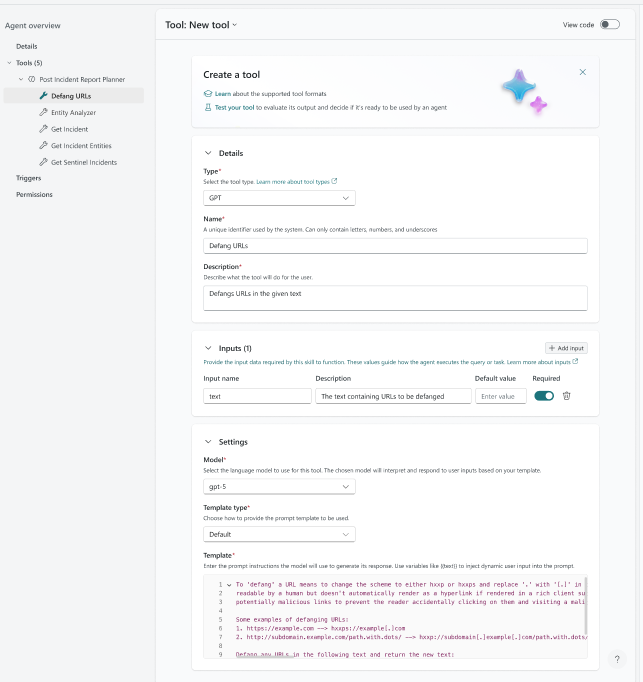
Choose the prompt template to be used for Template type:
Default: Enter the prompt instructions in the Template section. For your prompt, you can reference the inputs defined in Inputs field using double curly braces:
{{InputParameterName}}.Template URL: Enter a URL to a
.txtfile containing the prompt template.Package URL: Enter the file path to a
.zipfile containing one or more template files and the path to the Package template file inside the package that defines the prompt.
Create a KQL tool
Query a Kusto database with custom, parameterized Kusto Query Language (KQL) queries to return data.
On the Inputs section:
- Enter a Name, Description, and a Default value as input data for the tool.
On the Settings section:
- For the Environment field, select the system or environment where the query is executed.
The following fields are populated for each of the environment type:
Defender:
Enter your KQL query in the Template type section. Alternatively, you can enter the Template URL link or a Package URL, which links to a zip file containing one or more KQL query template files and the path to the Package template file inside the package.
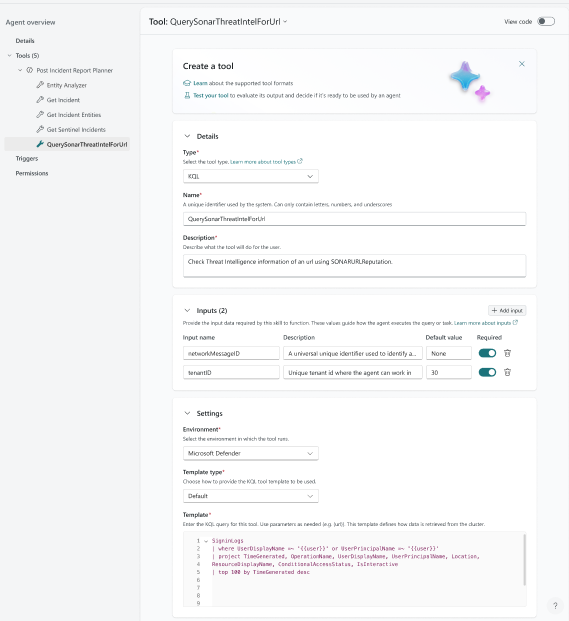
In your template, you can reference the inputs defined in the Inputs section using double curly braces:
{{InputParameterName}}.
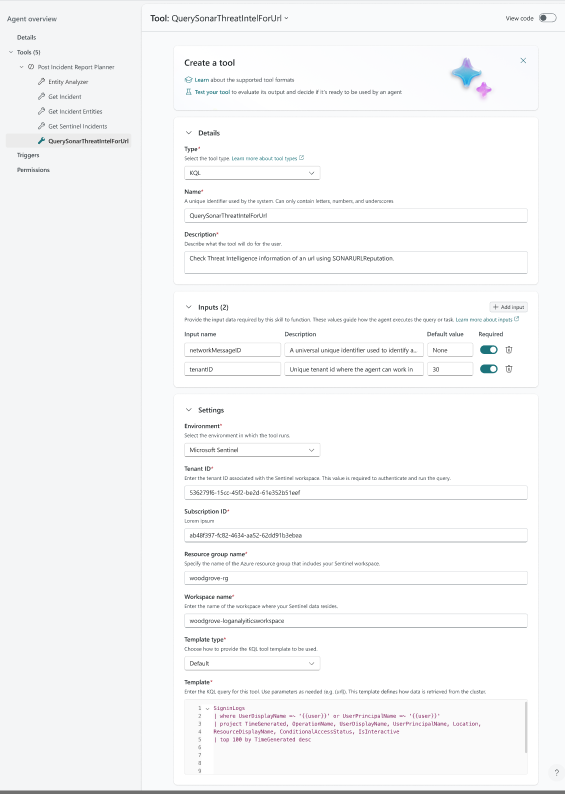
Sentinel:
Enter the Tenant ID associated with the Microsoft Sentinel workspace. This value is required to authenticate and run the query.
Enter the Subscription ID associated with the Sentinel workspace. This value is required to authenticate and run the query.
Specify the name of the Azure resource group that includes your Sentinel workspace.
Enter the name of the workspace where your Sentinel data resides.
The Template type is covered under Defender.
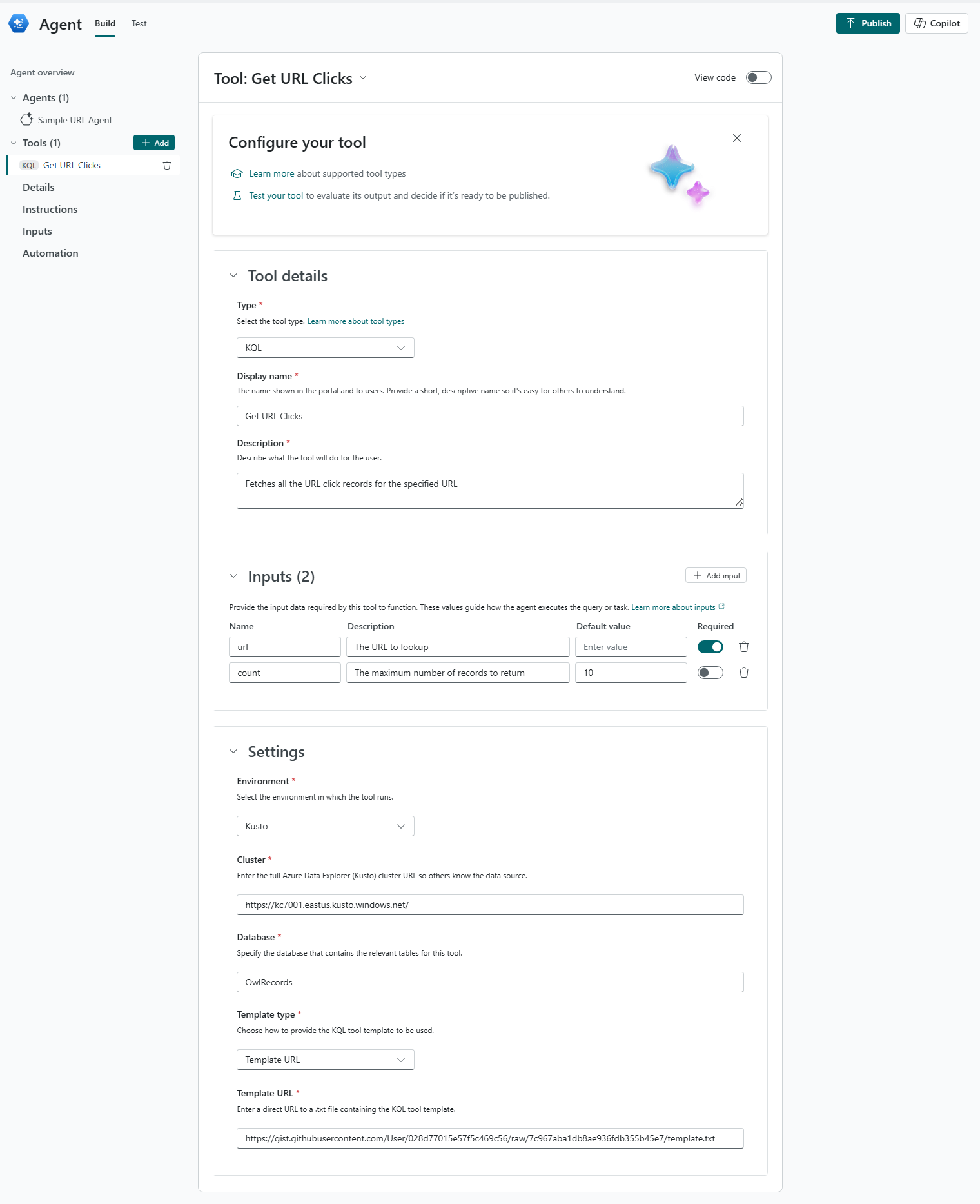
Kusto:
Enter the full Azure Data Explorer (Kusto) cluster URL.
Specify the database that contains the relevant tables for this tool.
The Template type is covered under Defender.
See also
- Reference the agent manifest schema for the supported fields. See, Agent Manifest