Note
Access to this page requires authorization. You can try signing in or changing directories.
Access to this page requires authorization. You can try changing directories.
Profile-Guided Optimization (PGO) uses runtime data to help the compiler make better optimization decisions. By using execution profile data collected from representative workloads, PGO enables the compiler to make smarter decisions about inlining, code layout, and hot/cold code separation. These decisions are impossible to make from static analysis alone.
SPGO takes a different approach. Instead of instrumenting your binary and running it through synthetic training scenarios, SPGO uses hardware performance counter sampling collected from your actual release binaries. Modern processors provide hardware sampling capabilities. You can collect these samples with negligible runtime overhead, making it practical to gather runtime profiles directly from production code.
Because SPGO profiles release bits instead of instrumented builds, it enables much more flexibility in where and how you collect data. You can gather runtime profiles from production servers, developer machines, performance labs, or any combination. The result is a binary that runs hot paths more efficiently, with a typical performance speedup of 5-15% depending on the quality of the profile data.
For more information about Sample Profile‑Guided Optimization (PGO) in MSVC and how it improves performance using sampling‑based profiling, see Introducing Sample Profile Guided Optimization in MSVC
In this tutorial, you walk through the complete SPGO workflow: build a sample app, profile it by using xperf, prepare the profile data, and rebuild with the profile data. When you finish, you can apply the same process to your own projects.
Prerequisites
Before you start, make sure you have the following software and hardware.
Software
- MSVC build tools for x64/x86/ARM64 v14.51 or later—Install them through the Visual Studio Installer. Under Individual Components, search for "MSVC build tools."
- Windows Performance Toolkit (xperf.exe)—The
xperfprofiler collects sample data during your program's execution. Download the Windows Assessment and Deployment Kit (ADK) from ADK install. When you run the ADK installer, select the Windows Performance Toolkit component to getxperf. You don't need to install the full ADK. - War and Peace text file—Used as the sample workload to generate profiling data. Download it from Project Gutenberg: https://www.gutenberg.org/ebooks/2600. Save it as a plain text file in your working directory.
Hardware requirements
The tutorial has three profiling paths. Which path you use depends on your hardware. You run detection commands in Choose your profiling method to find out which path your machine supports. For now, use this table to confirm you meet at least one of the requirements.
| Path | CPU requirement | Notes |
|---|---|---|
| LBR (best results) | Last Branch Records (LBR) are performance counters provided on Intel Haswell CPUs (4th gen Core, 2013) or later; AMD Zen 4 (2022) or later, ARM64 ARMv9.2-A (2020) or later | Provides the best branch data. For more information about LBR, see An introduction to last branch records |
| PMC/IP mode (good results) | Performance Monitoring Counters (PMC) are supported on any x64 CPU with a performance monitoring unit (PMU) | Works on most modern CPUs where LBR is unavailable. For more information about PMC, see Recording Hardware Performance (PMU) Events and Recording Hardware Performance (PMU) Events with Complete Examples |
| OS timer (works everywhere) | Any x64 or ARM64 CPU, including Azure VMs and virtual machines | Lower-fidelity samples, but always available |
Most developers on modern x64 desktop hardware have LBR support. VMs and some older hardware have PMC or an OS timer.
How SPGO works
SPGO collects profile data from your running binary and feeds it back to the compiler when you next build. The compiler uses that data to make better decisions about inlining, code layout, and branch prediction. A convenience is that no instrumentation is required.
The workflow is:
- Build your binary with the /spgo linker flag. This step creates an empty sample profile database (
.spdfile). - Profile the binary by using
xperfto produce an ETL trace file. - Convert the ETL to an SPT file by using
SPTAggregate.exe, then convert the SPT to an SPD file by usingSPDConvert.exe. - Rebuild with the /spdin linker flag pointing to the populated sample profile database (SPD). The linker applies SPGO optimizations.
The optimizer uses the SPD to answer questions like: which branches are taken most often? Which functions are called in hot loops? This process produces better code layout and inlining decisions than static analysis alone.
SPGO works with both C and C++. The workflow and flags are identical for both languages.
Best candidates for SPGO: Large, branch-filled C/C++ applications with tight inner loops. Gains scale with codebase size and branch complexity. The small sample in this tutorial shows around 7% improvement. Larger production codebases often see more improvement.
Build Process Comparison
This section covers how SPGO fits into the build pipeline if you want to understand the mechanics.
Normal build process
In a standard C/C++ release build:
- Inputs: Source code files (
.cpp,.h) and release-mode compiler flags (/O2,/GL, and so on). - Process: The compiler applies standard optimizations such as inlining heuristics, branch prediction assumptions, and code layout decisions based on static analysis alone. It has no data about how the program actually behaves when it runs.
- Output: Executable (
.exe), DLL files (.dll), debug information (.pdb).
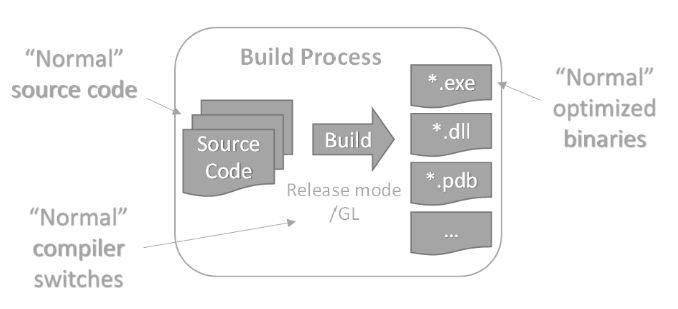
Without runtime data, hot paths and cold paths receive similar treatment.
SPGO-enabled build process
SPGO adds profiling data as a new input to the build pipeline:
- Inputs: Source code, the
.spdprofile file (sample counts from a profiling run), release-mode compiler flags,/link /spgo, and/spdin:<path>to specify an input SPD file (if not specified, defaults to a .spd using the binary name and located in the obj folder). - Process: The linker reads the SPD alongside the intermediate code. It uses branch-frequency data to make better inlining, code layout, and branch-ordering decisions. Hot functions get laid out for fast access; cold code moves out of the critical path.
- Output: Optimized executable (
.exe), optimized DLL files (.dll), debug information (.pdb), and a new.spdfile for future profiling iterations.
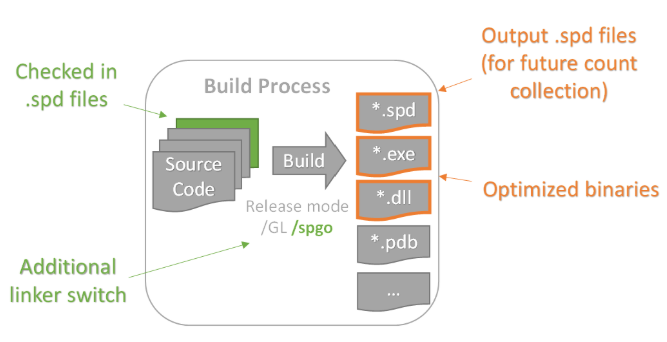
The key insight: SPGO moves optimization decisions from compiler and linker heuristics to data-driven choices based on real execution.
Key flags
| Flag | Type | Purpose |
|---|---|---|
/spgo |
Linker | Enables SPGO. Embeds SPGO metadata in the binary and creates an empty .spd output file unless /spdin is specified, in which case the specified .spd file is used as input. |
/spdin:<path> |
Linker | Input SPD - provides profile data to the linker for optimization |
/spd:<path> |
Linker | Output SPD path - specifies where the new SPD is written (optional; defaults to the same directory as the binary). Serves as the input SPD path if /spdin isn't specified. |
/GL |
Compiler | Whole-program optimization-required for SPGO to work across translation units |
/O1, /O2 (Minimize Size, Maximize Speed) |
Compiler | Optimize for speed; enables aggressive optimizations that SPGO can enhance |
How SPGO differs from PGO
PGO (Profile-Guided Optimization) requires you to compile your binary with instrumentation flags (/GENPROFILE), run the slower instrumented binary to collect .pgc execution count files, then relink with /USEPROFILE. The compiler gets exact execution counts but you have to instrument the code first. For more information about this process, see Profile-guided optimizations.
SPGO uses hardware CPU performance counters to collect statistical samples from your uninstrumented release binary. Run your existing binary, profile it by using xperf, convert the trace to an SPD file, and rebuild. There's no instrumented build and no slowdown during profiling. The compiler gets statistical sampling data instead of exact counts, which is less precise but easier to get and requires no code changes. It also allows profiling of system components or realtime components that are difficult to collect data for with an instrumented approach. You can also profile final/shipping binaries.
This tutorial covers three profiling methods: LBR, PMC, and OS timer. You choose your method in Choose your profiling method. For a detailed comparison of the normal build process versus the SPGO build process, including a flag reference table, see Build Process Comparison.
Configure perfcore.ini
⚠️ Required: Without this step,
xperfdoesn't provide the necessary profiling data. Complete this step before runningxperf.
The Windows Performance Toolkit (WPT) uses perfcore.ini, located if you installed the WPT in the default location at C:\Program Files (x86)\Windows Kits\10\Windows Performance Toolkit\perfcore.ini, to register the DLL providers it needs for SPGO.
Open Windows Notepad as Administrator. Then open perfcore.ini. Find the DLL list section and add the following entries, one per line:
perf_lbr.dll
perf_spt.dll
perf_hv.dll
If xperf.exe isn't installed, see General issues to install it.
Save and close perfcore.ini. The DLL files already ship in the same directory as xperf.exe so you don't need to copy them anywhere. You're only registering them in perfcore.ini. Ensure that xperf is in your path.
Create the sample app
The sample app for this tutorial is a C++ program that reads text from standard input and produces a line count, word count, total character count, a character frequency table, and elapsed time to process the file in milliseconds. It's written in C++, but SPGO also works with C. The workflow is identical for C projects.
Create a file named textCount.cpp in your working directory and add the following source code:
// textCount.cpp : Text Statistics Counter
// Counts words, lines, and character frequencies from standard input
// Usage: textCount < file.txt

#include <iostream>
#include <string>
#include <map>
#include <cctype>
#include <chrono>

int main()
{
    auto start = std::chrono::steady_clock::now();

    std::map<unsigned char, int> charFrequency;
    int wordCount = 0;
    int lineCount = 0;
    int totalChars = 0;

    std::string line;
    bool inWord = false;

    while (std::getline(std::cin, line))
    {
        lineCount++;

        for (char c : line)
        {
            totalChars++;
            unsigned char uc = static_cast<unsigned char>(c);
            charFrequency[uc]++;

            if (std::isspace(static_cast<unsigned char>(c)))
            {
                inWord = false;
            }
            else
            {
                if (!inWord)
                {
                    wordCount++;
                    inWord = true;
                }
            }
        }

        inWord = false;
    }

    std::cout << "\n=== TEXT STATISTICS ===" << std::endl;
    std::cout << "Lines: " << lineCount << std::endl;
    std::cout << "Words: " << wordCount << std::endl;
    std::cout << "Total Characters: " << totalChars << std::endl;

    std::cout << "\n=== CHARACTER FREQUENCIES ===" << std::endl;

    std::cout << "\nLetters:" << std::endl;
    for (unsigned char ch = 'a'; ch <= 'z'; ch++)
    {
        unsigned char upperCh = static_cast<unsigned char>(std::toupper(ch));
        int count = charFrequency[ch] + charFrequency[upperCh];
        if (count > 0)
        {
            std::cout << static_cast<char>(ch) << ": " << count << std::endl;
        }
    }

    std::cout << "\nDigits:" << std::endl;
    for (unsigned char ch = '0'; ch <= '9'; ch++)
    {
        if (charFrequency[ch] > 0)
        {
            std::cout << static_cast<char>(ch) << ": " << charFrequency[ch] << std::endl;
        }
    }

    std::cout << "\nSpecial Characters:" << std::endl;
    for (const auto& pair : charFrequency)
    {
        unsigned char ch = pair.first;
        if (!std::isalnum(ch))
        {
            std::string displayChar;
            switch (ch)
            {
                case ' ': displayChar = "[space]"; break;
                case '\t': displayChar = "[tab]"; break;
                case '\n': displayChar = "[newline]"; break;
                case '\r': displayChar = "[return]"; break;
                default:
                    if (ch >= 32 && ch < 127)
                    {
                        displayChar = std::string(1, static_cast<char>(ch));
                    }
                    else
                    {
                        displayChar = "[byte:" + std::to_string(static_cast<int>(ch)) + "]";
                    }
                    break;
            }
            std::cout << displayChar << ": " << pair.second << std::endl;
        }
    }

    auto end = std::chrono::steady_clock::now();

    auto elapsed = std::chrono::duration<double, std::milli>(end - start);
    std::cout << "Elapsed time: " << std::fixed;
    std::cout.precision(3);
    std::cout << elapsed.count() << " ms\n";

    return 0;
}
Build and run the sample to get a baseline
Before applying SPGO, build textCount and run it against a large text file, such as War and Peace (you can download it from Project Gutenberg), to see how fast it runs. This step shows you the performance before you optimize it by using SPGO:
Build:
cl /Zi /EHsc /GL /O2 textCount.cpp /link /debug
Run:
textCount.exe < warAndPeace.txt
You see output similar to:
=== TEXT STATISTICS ===
Lines: 66041
Words: 566333
Total Characters: 3227531

=== CHARACTER FREQUENCIES ===

Letters:
a: 202719
...

Elapsed time: 512.000 ms
Record the Elapsed time value. You'll compare it to the SPGO-optimized time in Measure the results.
Build textCount with /spgo
Now build textCount with SPGO enabled. This step lays the groundwork to gather profiling data.
cl /Zi /EHsc /GL /O2 textCount.cpp /link /debug /spgo
When the build finishes, you see a message like:
SPD textCount.spd not found, compiling without profile guided optimizations
This message appears on the first /spgo build. The linker creates the SPD file but it's still empty, so it doesn't apply any SPGO optimizations yet. After you run the binary, collect profile data, and convert it to SPD, you won't see this message.
Flag explanations:
| Flag | Purpose |
|---|---|
/Zi |
Generate complete debugging information. This is necessary for SPGO to map profiling samples to source code. |
/EHsc |
Enable C++ exception handling |
/GL |
Whole-program optimization — required for SPGO. Defers final optimization to link time, enabling cross-module inlining, code layout, and dead code elimination decisions. |
/O2 |
Optimize for speed — enables aggressive inlining, loop optimization, dead code removal, and related transforms. |
/link /debug |
Pass /debug to the linker to generate debug information (.pdb), which xperf uses to map profiling samples to source code. |
/spgo |
SPGO linker flag—embeds SPGO metadata in the binary and creates an empty textCount.spd file alongside the executable. |
Note
/spgo is a linker flag. Pass it to the linker via /link /spgo in the cl command.
The /spgo flag doesn't optimize the binary yet. It prepares it for profiling. The optimization happens in Rebuild textCount with /spdin after the SPD is populated with real runtime data.
Note
To write the SPD to a specific location, add the optional /spd:<path> linker flag. For example: /link /debug /spgo /spd:.\profiles\textCount.spd. If you omit this flag, the SPD is created alongside the .exe.
Choose your profiling method
SPGO supports three profiling methods. Which method you use depends on your hardware.
The three profiling methods
| Method | Sample quality | Hardware requirement | Best for |
|---|---|---|---|
| LBR (Last Branch Record) | Highest—records sequences of recently taken branches, giving the optimizer rich control-flow data per sample | Intel Haswell (2013) or later; AMD Zen 4 (2022) or later; ARM64 ARMv9.2-A (2020) or later | Most modern desktop hardware |
| PMC / IP mode (Performance Monitoring Counter/Instruction pointer mode) | Good. Captures instruction-pointer samples with call stacks using the CPU's Performance Monitoring Unit (PMU), collected through Event Tracing for Windows (ETW) | Any x64 or ARM64 CPU with a PMU | Hardware without LBR support |
| OS timer | Basic—timer-based samples | Any x64 or ARM64 CPU, VMs without PMU passthrough | VMs and older hardware |
With PMC / IP mode, each hardware interrupt gives you just one data point: "the CPU was at address 0x1A2B3C4D when the interrupt fired". With LBR, each interrupt gives you a stack of the last 16–32 branches the CPU took before the interrupt fired. The optimizer gets better control-flow data and can make better inlining and layout decisions.
Detect your path
Run the following two commands to determine which profiling path your machine supports. These commands don't require an elevated prompt.
Step 1: Check for LBR support. This test works on Intel/AMD/ARM64.
Run the following from an administrator Visual Studio developer command prompt:
xperf.exe -on PMC_PROFILE -pmcprofile TotalIssues -LastBranch PmcInterrupt -setProfInt TotalIssues 2560000
xperf -stop -d lbrtest.etl
xperf -tle -i lbrtest.etl -a dumper | findstr "LBR,  TimeStamp"
- If this command finds a line containing
LBR, TimeStamp, then your machine supports LBR. Use the LBR path. - Otherwise, continue to Step 2.
Step 2: Check for PMC support (no LBR)
xperf.exe -pmcsources | findstr TotalIssues
- If this command produces output, then your machine supports PMC counters but not LBR. Use the PMC path.
- If this command produces no output, then Use the OS timer path.
For more information about PMU event collection with xperf, see Recording hardware PMU events with xperf.
Decision table
LBR, TimeStamp output |
TotalIssues output |
Your path |
|---|---|---|
| Not empty | (not checked) | LBR |
| Empty | Not empty | PMC |
| Empty | Empty | OS timer |
| ARM64 processor | N/A | PMC (if PMU available) or OS timer |
Choose your approach
Decide whether to use the LBR, PMC, or OS timer path based on the detection results. Each path has different xperf start parameters to collect the appropriate profiling data. Follow the path that matches your hardware capabilities.
Your path:
- LBR users (LBR detected in Step 1): Go to LBR path.
- PMC users (InstructionRetired detected in Step 2): Go to PMC path (no LBR).
- OS timer users (VM or hardware without PMU): Go to OS timer path.
All paths rejoin at Run the workload and stop xperf.
The commands in this section depend on the profiling path you identified in Choose your profiling method. Find the subsection that matches your path, run the xperf start command, and then continue to Run the workload and stop xperf to run the workload and stop xperf.
⚠️ Run as Administrator:
xperfrequires an elevated (Administrator) developer command prompt. Without elevation,xperfreturns"failed to configure counters".
LBR path
Start xperf with LBR collection:
xperf -on LOADER+PROC_THREAD+PMC_PROFILE -MinBuffers 4096 -MaxBuffers 4096 -BufferSize 4096 -pmcprofile BranchInstructionRetired -LastBranch PmcInterrupt -setProfInt BranchInstructionRetired 16384
Parameter explanation:
| Parameter | Purpose |
|---|---|
LOADER+PROC_THREAD+PMC_PROFILE |
Kernel providers: loader events (module mapping), process/thread events (execution context), and PMC profiling events |
-MinBuffers 4096 -MaxBuffers 4096 -BufferSize 4096 |
Large ring buffers to avoid dropped samples during a full War and Peace run |
-pmcprofile BranchInstructionRetired |
PMC event trigger: generate a sample on every Nth retired branch instruction |
-LastBranch PmcInterrupt |
Enables LBR hardware recording: on each PMC interrupt, capture the hardware last-branch record stack |
-setProfInt BranchInstructionRetired 16384 |
Sample interval: fire an interrupt every 16,384 retired branch instructions |
After starting xperf, continue to Run the workload and stop xperf.
PMC path (no LBR)
Start xperf with PMC / IP-mode collection:
xperf -on LOADER+PROC_THREAD+PMC_PROFILE+PROFILE -MinBuffers 4096 -BufferSize 4096 -pmcprofile InstructionRetired -setProfInt InstructionRetired 16384 -stackwalk profile
Parameter explanation:
| Parameter | Purpose |
|---|---|
LOADER+PROC_THREAD+PMC_PROFILE+PROFILE |
Adds PROFILE (CPU sampling) and PMC_PROFILE for PMC events; no -LastBranch |
-pmcprofile InstructionRetired |
PMC event trigger: sample on retired instructions (instruction pointer mode) |
-setProfInt InstructionRetired 16384 |
Fire an interrupt every 16,384 retired instructions |
-stackwalk profile |
Capture a call stack on each profile interrupt, providing call-chain data instead of branch sequences |
Compared to LBR: no -LastBranch flag; uses InstructionRetired instead of BranchInstructionRetired. The result is instruction-pointer samples with call stacks, not branch sequences. This path still provides effective data for the optimizer, but it's slightly less rich.
After starting xperf, continue to Run the workload and stop xperf.
OS timer path
Start xperf with OS timer-based sampling:
xperf -on LOADER+PROC_THREAD+PROFILE -MinBuffers 4096 -BufferSize 4096 -setProfInt Timer 1221 -stackwalk profile
Parameter explanation:
| Parameter | Purpose |
|---|---|
LOADER+PROC_THREAD+PROFILE |
No PMC events; CPU sampling via OS timer interrupt only |
-setProfInt Timer 1221 |
Fire on the OS timer interrupt every 1,221 timer ticks (approximately 1 kHz) |
-stackwalk profile |
Capture a call stack on each timer interrupt |
Compared to LBR and PMC, this method doesn't use hardware performance counters. The OS timer fires at roughly fixed time intervals regardless of CPU activity. Samples are less densely correlated to hot code but still provide useful control-flow data for the optimizer.
Run the workload and stop xperf (all paths)
With xperf running, run textCount against War and Peace:
textCount.exe < warAndPeace.txt
After textCount finishes, stop xperf and write the trace file. Letting other processes run during profiling dilutes sample quality. For best results, close unnecessary applications before running the workload.
xperf -stop -d textCount.etl
After stopping xperf (it can take a while to write out the etl file), confirm that textCount.etl was created in the current directory.
Convert the ETL file to SPT
This step is the same for all three profiling paths.
Run SPTAggregate.exe to process the raw ETL trace and create an SPT profile file:
SPTAggregate.exe /binary textCount.exe /etl textCount.etl textCount.spt
Parameter explanation:
| Parameter | Purpose |
|---|---|
/binary textCount.exe |
The binary to extract samples from. The ETL might contain samples from all processes that ran during profiling |
/etl textCount.etl |
Input ETL trace file |
textCount.spt |
Output SPT profile file |
SPTAggregate outputs a summary that shows how many samples it collected. This summary is your first confirmation that profiling worked.
Check the output from SPTAggregate against the path you took:
- LBR path: Look for a nonzero Used LBR Samples count.
- PMC path: Look for a nonzero PMC or stack sample count.
- OS timer path: Look for a nonzero used stack samples count.
If all counts are zero, see Troubleshooting before continuing.
Convert the SPT file to SPD
Your path:
- LBR users (use
/mode:LBR): LBR mode- PMC users (use
/mode:IP): IP mode (PMC and OS timer)- OS timer users (use
/mode:IP): IP mode (PMC and OS timer)Both PMC and OS timer paths use
/mode:IPbecause both produce instruction-pointer samples.
The next step branches by profiling path, specifically on the /mode flag passed to SPDConvert.exe.
LBR mode
SPDConvert.exe /mode:LBR textCount.spd textCount.spt
/mode:LBR tells SPDConvert to interpret the SPT as containing LBR branch sequence data.
IP mode (PMC and OS timer)
Both PMC and OS timer produce instruction-pointer samples, so both use the same conversion command:
SPDConvert.exe /mode:IP textCount.spd textCount.spt
/mode:IP tells SPDConvert to interpret the SPT as containing instruction-pointer samples.
Warning
Using the wrong mode for your data type can produce an empty or malformed SPD. If you profiled with LBR, use /mode:LBR.
If you profiled with PMC or OS timer, use /mode:IP. The SPTAggregate summary output from Convert the ETL file to SPT shows which sample types were collected and confirms the correct mode to use.
After running SPDConvert, confirm that textCount.spd was created (or updated) in the current directory.
Interpreting SPDConvert output
The command SPDConvert textCount.spd textCount.spt prints a before-and-after block coverage summary, for example:
Block coverage (before) : 33.90% ( 4507/ 13294)
Block coverage (after)  : 45.64% ( 6067/ 13294)
This summary shows the percentage of the binary's code blocks that have associated profile data. A higher percentage is better. Coverage above 70% is excellent, while coverage below 40% might limit optimization effectiveness. If coverage is low, run the profiling workload longer or combine multiple SPT files from separate runs with different workloads. For example, you could run textCount against multiple text files to exercise different code paths.
You might see a warning from SPDConvert like the following:
Compiler may be conservative on some hot functions due to sparse sample coverage.
SPGO is estimated to optimize better if sample density is increased to 5.4x of current level.
Sample density can be increased by sampling for longer period, or increasing sample rate.
This warning means your profiling run didn't collect enough samples for the optimizer to confidently optimize all hot functions. The SPD is still usable, but you can improve results by:
- Running the workload longer (for example, 5 or more minutes instead of 1 minute) or using different workloads.
- Lowering the
-setProfIntvalue in thexperfcommand to increase the sampling rate. The tradeoff is that this change produces a larger ETL file, which takes longer to process. - Combining multiple SPT files from separate profiling runs by passing them all to
SPDConvert.
The SPT file is a binary format. To inspect its contents, you can run SPTDump.exe textCount.spt. Similarly, PTDump.exe textCount.spt shows the compiled profile data after running SPDConvert. Both tools are useful for verifying nonzero samples before proceeding.
Rebuild textCount with /spdin
Rebuild textCount by using the populated SPD file. The linker reads the profile data and applies SPGO optimizations.
This step is the same for all three profiling paths.
cl /Zi /EHsc /GL /O2 textCount.cpp /link /debug /spgo /spdin:textCount.spd
New flag (compared to Build textCount with /spgo):
| Flag | Purpose |
|---|---|
/spdin:textCount.spd |
Provide the SPD profile data to the linker for optimization |
The command still includes /spgo. It generates a new SPD file alongside the optimized binary, which you can use as the starting point for subsequent profiling iterations.
Warning
The SPD file is associated with the exact binary it profiles against. If you rebuild textCount without /spdin, or rebuild from changed source, you must generate a new SPD file. The existing one doesn't match the new binary's GUID, and the linker won't use it.
After the rebuild with /spdin, the linker outputs statistics about how much of your code was optimized using profile data. For example:
221 of 221 (100.00%) profiled functions will be compiled for speed
201 of 1383 inline instances were from dead/cold paths
474 of 474 profiled functions (100.0%) were optimized using profile data
202738780 of 202738780 instructions (100.0%) were optimized using profile data
A high percentage means the SPD covers your binary well. If the percentage is low (for example, below 90%), either the profiling workload didn't exercise enough of the binary, or the binary has changed significantly since the profile was collected. In both cases, reprofile against the current binary.
What SPGO does with your profile data
SPGO uses the collected sample data to populate counts on each block and edge in the program's control flow graph. These counts drive optimizations such as:
- Profile-guided inlining: Aggressively inline hot call sites while avoiding code bloat from inlining cold paths.
- Hot/cold code separation: Move rarely executed code to separate sections of the binary, improving instruction cache utilization and paging behavior.
- Function layout: Place functions that call each other frequently near each other in the binary, reducing page faults and improving locality. Optimized functions are organized into high affinity COFF groups in the binary.
- Size/speed decisions: Compile hot functions for speed and cold functions for size. Routines with no observed profile hits might be compiled for size rather than speed, limiting optimizations like inlining and loop unrolling in those cold paths.
- Speculative devirtualization: When sampling reveals that an indirect call consistently targets the same function, SPGO can speculate on that target and inline it, with a fallback for the uncommon case.
Measure the results
Run textCount again and compare elapsed times.
textCount.exe < warAndPeace.txt
Collect multiple runs for each configuration and use the median. A single run isn't reliable because OS scheduling and system noise can skew individual measurements.
| Build | Representative elapsed time |
|---|---|
Baseline (cl /Zi /EHsc /O2 /link /debug) |
(your measurement) |
/spgo build (no profile data yet) |
(should be close to baseline) |
SPGO-optimized (/spdin) |
(should show improvement) |
In one test, SPGO using the LBR method delivered approximately 7% reduction in elapsed time. Your results might vary with your own projects because SPGO gains depend on how well the profiling workload represents typical execution. Larger, branch filled codebases tend to see more improvement within the 5–10% range. The profiling method affects optimization quality. LBR typically produces better results than PMC, which produces better results than OS timer. If you're on the OS timer path, expect smaller gains.
The LBR path followed in this tutorial was applied to the SQLite project, which is a production database library. The SPGO-optimized SQLite binary showed approximately a 7% improvement.
Apply SPGO to your own project
Use this checklist to apply SPGO to your own C or C++ application.
Add
/Zi /link /debug /spgoto your existing release build command. Modify your build script or project file:cl /Zi /EHsc /GL /O2 myapp.cpp /link /debug /spgoChoose a representative workload. Select a real usage scenario that exercises the hot paths of your application. Use production-like data. Avoid the following as your primary profiling workload: code coverage tests (they don't stress performance bottlenecks), uncommon error paths, startup and shutdown phases, and deprecated code paths. This workload drives the profile that feeds the optimizer.
Run xperf using your detected path. Use the path you identified in Choose your profiling method (LBR, PMC, or OS timer). Start
xperf, run the workload once, stopxperf, and capture the ETL file.For the PMC or OS timer path, run SPTAggregate and SPDConvert with the correct
/modeflag. Convert ETL to SPT then to SPD. Use/mode:LBRfor LBR data; use/mode:IPfor PMC or OS timer data.Rebuild with
/spdin:<your-spd-path>. Compile your application with the populated SPD:cl /Zi /EHsc /GL /O2 yourApp.cpp /link /debug /spgo /spdin:yourApp.spdMeasure before and after. Run your workload with both the nonoptimized and SPGO-optimized binaries. Collect the median of multiple runs for each configuration. A single run isn't reliable for benchmarking.
Store the
.spdfile in source control. Check the.spdfile into your source control system alongside your source code.Enable SPGO in developer Release builds. Have your team's Release builds use the same SPGO-optimized binaries as production. This helps catch performance regressions early.
Disable SPGO in Debug builds.
Watch the linker's profile completeness statistics. After each build with
/spgo, note the percentage of profiled functions optimized using profile data. If this drops significantly (below 90%), reprofile the current binary. Code changes accumulate and the SPD can become stale.
Alternative to using xperf
Another way to gather profile data is to use a sampling profiler like Windows Performance Recorder (WPR). WPR is installed by default on Windows 10 and later. It collects similar data to xperf. You can configure WPR to collect CPU samples with call stacks, and then export the data to an ETL file that you can process with SPTAggregate and SPDConvert like the xperf ETL. Here's an example of using WPR to collect profile data:
wpr -start CPU.light -filemode
textCount.exe < warAndPeace.txt
wpr -stop spgo_data.etl
For more information on using WPR, see Using Windows Performance Recorder.
SPD distribution
You can:
- Check the
.spdfile directly into source control alongside your source code. - Share the
.spdfile with teammates so they can build with SPGO optimizations without reprofiling. - Package the
.spdfile with your binaries as a versioned artifact (for example, a NuGet package) and record which version corresponds to which binary. - Regenerate the
.spdfile at any time by repeating the profiling workflow.
The SPD ties to the exact binary it was built from. After significant code changes, reprofile to generate a fresh SPD. During the /spdin build, the compiler also produces a new .spd file. Save this new SPD as a build artifact - it's the starting point for your next profiling iteration.
Reusing SPD information across builds
The "carry forward" concept in SPGO allows you to add profiling data to an existing SPD file without profiling all your scenarios over again from scratch and without losing existing profile information. You can also adjust how much weight to give to older profile data. This flexibility is useful when there might be behavioral changes over time and you don't want to completely lose the profiling information from earlier scenario runs. For instance, a DLL might see different APIs called as the application that calls it evolves. You still want the optimizations from how it used to behave, but want to mix in optimization opportunities for how it sometimes behaves differently now. You can evolve the profile over time by mixing old and new data.
When you run SPDConvert with a new SPT file, pass the name of the existing SPD file. Then use the /retire:N option to control how aggressively SPDConvert de-emphasizes older profile data when you add new SPT files:
- The default (
/retire:8) weights newer data more heavily. - Use
/retire:0to give equal weight to all runs. - Use
/retire:16to let only the newest data count.
Troubleshooting
Find your issue:
- LBR path problems: LBR path problems
- PMC path problems: PMC path problems
- OS timer problems: OS timer path problems
- Issues affecting all paths: General issues
LBR path problems
| Problem | Likely cause | Fix |
|---|---|---|
Zero LBR samples in SPTAggregate output |
CPU doesn't support LBR, or VM doesn't expose LBR | Run the detection command from Detect your path. If in a Hyper-V VM, run Set-VMProcessor MyVMName -Perfmon @("pmu", "lbr") on the host. If LBR isn't available, switch to the PMC or OS timer path. |
Processor supports LBR but SPTAggregate shows 0 LBR samples |
perfcore.ini DLL registration incomplete |
Complete the perfcore.ini setup in Configure perfcore.ini. Ensure perf_lbr.dll is registered. |
SPDConvert fails or produces an empty SPD |
Wrong /mode flag, or SPT contains only IP-mode samples |
Confirm SPTAggregate output showed LBR samples. If the output shows only IP-mode samples, switch to /mode:IP. |
PMC path problems
| Problem | Likely cause | Fix |
|---|---|---|
Zero PMC samples in SPTAggregate output |
perfcore.ini DLL registration incorrect |
Complete the perfcore.ini setup in Configure perfcore.ini. Ensure perf_spt.dll is registered. Without this DLL, xperf produces zero PMC samples without an error message.Run xperf.exe -pmcsources to see the list of Performance Counters sources available on your CPU. If you don't see entries like SPT_OP_RETIRE_INSTR or SPT_OP_RETIRE_BR_INSTR or SPT_OP_ETW_INSTR, then the DLL registration in perfcore.ini might be incomplete or your CPU might not support PMC. If you can't resolve the DLL registration, try the OS timer path, instead. |
findstr InstructionRetired returns output but xperf produces no samples |
VM masking PMC counters | Check if running in a VM. Enable PMU in Hyper-V with Set-VMProcessor, or switch to the OS timer path. |
SPDConvert fails on PMC path |
Using /mode:LBR on an IP-only SPT |
Switch to /mode:IP. |
OS timer path problems
| Problem | Likely cause | Fix |
|---|---|---|
| Less improvement than expected | Expected - OS timer is lower fidelity | This is normal. The optimizer has less branch-flow information from timer samples than from LBR or PMC. Performance gains are smaller. Consider upgrading to PMC or LBR if hardware supports it. |
| Zero timer samples | xperf wasn't run in an elevated prompt, or PROFILE provider missing |
Confirm running as Administrator. Confirm -stackwalk profile was provided to the xperf command. |
General issues (all paths)
| Problem | Likely cause | Fix |
|---|---|---|
"failed to configure counters" error |
xperf not running as administrator |
Restart the command prompt as Administrator (right-click > Run as administrator). xperf requires elevated privileges to configure hardware performance counters. |
xperf not found |
xperf.exe not on PATH |
Confirm the Windows ADK is installed. Check C:\Program Files (x86)\Windows Kits\10\Windows Performance Toolkit\. Add that directory to your PATH, or run xperf from it directly. |
textCount.etl not created |
xperf failed silently | Confirm running as administrator. Rerun the xperf start command and check for error output. |
SPTAggregate fails with "binary not found" |
textCount.exe not in current directory or wrong path |
Confirm you're in the same directory as textCount.exe, or provide the full path to the /binary parameter. |
| SPD file not created | SPDConvert failed |
Check that textCount.spt size is nonzero. Run SPTDump.exe textCount.spt to inspect its contents. |
/spdin build produces no improvement |
GUID/age mismatch between SPD and binary | The SPD was built from a different textCount.exe. Profile the current build again to generate a fresh SPD. |
MSVC version error on /spgo |
MSVC toolset earlier than v14.51 | Open the Visual Studio Installer > Individual Components > install MSVC v14.51 or later. Reopen the Developer Command Prompt. |
Next steps
After completing this tutorial, explore these capabilities to get more from SPGO:
- Profile blending: Run multiple workloads, accumulate SPT files from each run, and pass all of them to
SPDConvert. A blended SPD reflects the full range of real usage patterns and produces better optimizations than a single-scenario profile. Use the/retire:Noption to control how aggressivelySPDConvertde-emphasizes older profile data when you add new SPT files. The default (/retire:8) weights newer data more heavily. Use/retire:0to give equal weight to all runs; use/retire:16to let only the newest data count. - The best results come from blending profiles from multiple sources such as benchmarks that stress key scenarios plus real-world data (where available). Pass SPT files from all sources to
SPDConvert. Repeat an SPT file in the argument list to give it more weight (for example,SPDConvert myapp.spd critical.spt critical.spt common.sptweightscritical.spttwice as heavily ascommon.spt). - Iterative optimization: Each rebuild with
/spdinproduces a new SPD. You can repeat the run, profile, rebuild cycle. Later iterations might show diminishing returns, but a second pass can sometimes capture patterns the first missed. - Code changes: After significant source changes, recollect profile data. The existing SPD is tied to the binary it was profiled against. It won't match a substantially rebuilt binary.
- Profile freshness: The linker reports the percentage of profiled functions optimized using profile data after each
/spdinbuild. If this percentage drops significantly, it's a signal that the code has diverged from the profile. Reprofile the current binary.