Note
Access to this page requires authorization. You can try signing in or changing directories.
Access to this page requires authorization. You can try changing directories.
Local AI agents run with the user's privileges on the endpoints they operate on, where they can read files, invoke tools, and run commands. Malicious instructions hidden in the content an agent reads can hijack the agent through prompt injection. AI agent runtime protection helps you detect prompt injection at the device level and block or audit the agent's action before it acts on those instructions.
This article explains how to enable runtime protection, deploy it across your organization, and investigate detections.
For an overview of how runtime protection works, see AI agent runtime protection with Microsoft Defender for Endpoint.
Prerequisites
Before you configure runtime protection, review the following requirements:
Your devices are onboarded to Microsoft Defender for Endpoint.
Your devices are running a supported version of Windows, and Microsoft Defender Antivirus is updated with current monthly platform and engine updates.
Note
Runtime protection is currently available only on devices configured to receive
Betaplatform and engine updates.Your devices are running Microsoft Defender Antivirus in active mode.
Your devices have one or more supported local AI agents installed.
The local AI agent you want to protect natively supports a hooks framework. See Supported agents for the full list.
Recommended deployment approach
Microsoft recommends the following phased rollout:
- Test: Enable runtime protection in audit mode on a small set of devices where supported agents are actively used.
- Review: Monitor alerts in the Microsoft Defender portal for 1-2 weeks. If there are false positives, submit them to Microsoft for analysis.
- Deploy: Roll out across your organization in audit mode to additional device groups.
- Enforce: After validating that alerts are accurate and actionable, switch to block mode on device groups where you want active enforcement.
Enable runtime protection
To enable runtime protection on a single device for testing or validation:
Open an elevated PowerShell session.
Configure the device to receive preview updates.
Set-MpPreference -PlatformUpdatesChannel Beta
Set-MpPreference -EngineUpdatesChannel Beta

Update-MpSignature
Update-MpSignature
Update-MpSignature
Run
Update-MpSignaturethree times. This step is required for preview validation.Verify that
AntivirusSignatureVersionis1.451.224.0or later.Get-MpComputerStatus | Select-Object AntivirusSignatureVersionEnable runtime protection.
Set-MpPreference -AiAgentProtection <mode>Replace
<mode>withDisabled,Audit, orBlock.For details about each mode, see What happens when you enable runtime protection.
Verify the current setting.
Get-MpPreference | Select-Object AiAgentProtection
Deploy settings across your organization with Intune
After validating runtime protection on test devices, use Intune to deploy settings at scale across your organization. You deploy the same PowerShell command as a script to target device groups, setting the runtime protection mode (audit or block) for all devices in scope.
Note
AI agent runtime protection doesn't include native Intune policy support. You can deploy settings using PowerShell scripts in Intune.
The PowerShell command in the previous section configures a single device and is useful for testing and validation. To deploy the same settings across your organization, use Intune to run a PowerShell script on target device groups.
Create a PowerShell script that includes the following command, setting the mode to match your rollout phase (
Auditwhile validating,Blockfor enforcement):Set-MpPreference -AiAgentProtection BlockUse Intune to deploy the script to target devices. For detailed steps, see Use PowerShell scripts on Windows devices in Intune.
Review and investigate detections
After you enable runtime protection, review alerts to validate detection accuracy and tune your configuration before broadening enforcement. This step is critical during the audit phase because it helps you understand what agents are encountering and whether detections represent real threats.
When runtime protection detects prompt injection, Defender raises a Suspicious AI prompt injection alert and takes action based on the configured mode. The alert appears on the device timeline, and related alerts are correlated into incidents for SOC investigation. In block mode, the alert severity is Critical, High, Medium, or Low based on assessed risk. In audit mode, the alert is Informational, so your team can review what would have been blocked without triaging it as an active threat.
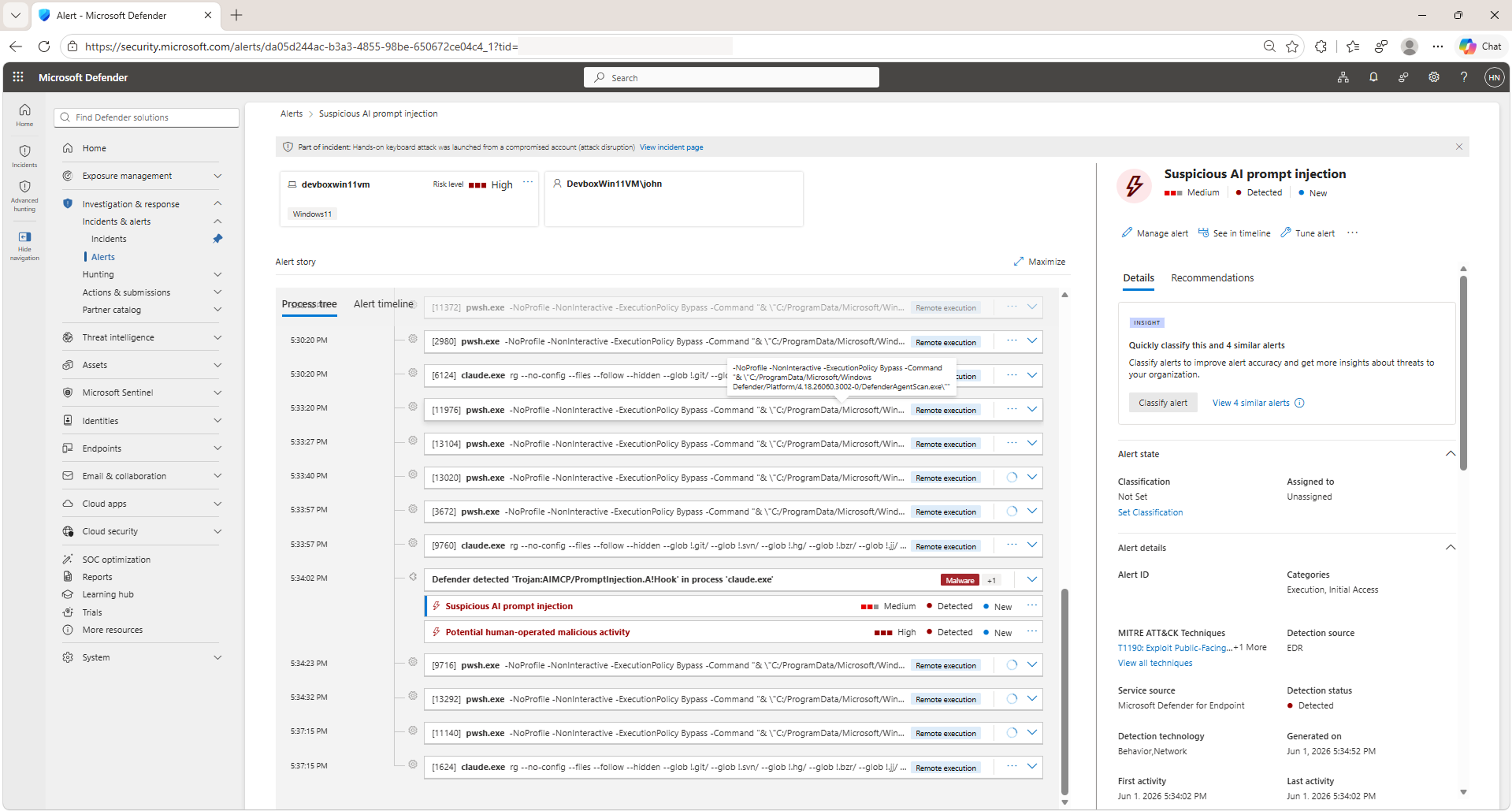
For more information on mode behavior, see What happens when you enable runtime protection.
End-user experience
When Defender blocks an agent action, users see two notifications:
- In the agent terminal: The agent displays a block message showing what was blocked, why, and confirmation that the action didn't execute.
- Windows toast notification: A system notification appears regardless of whether the agent terminal is in focus.
The following screenshot shows an example of a blocked prompt injection in the agent terminal and the corresponding Windows toast notification:
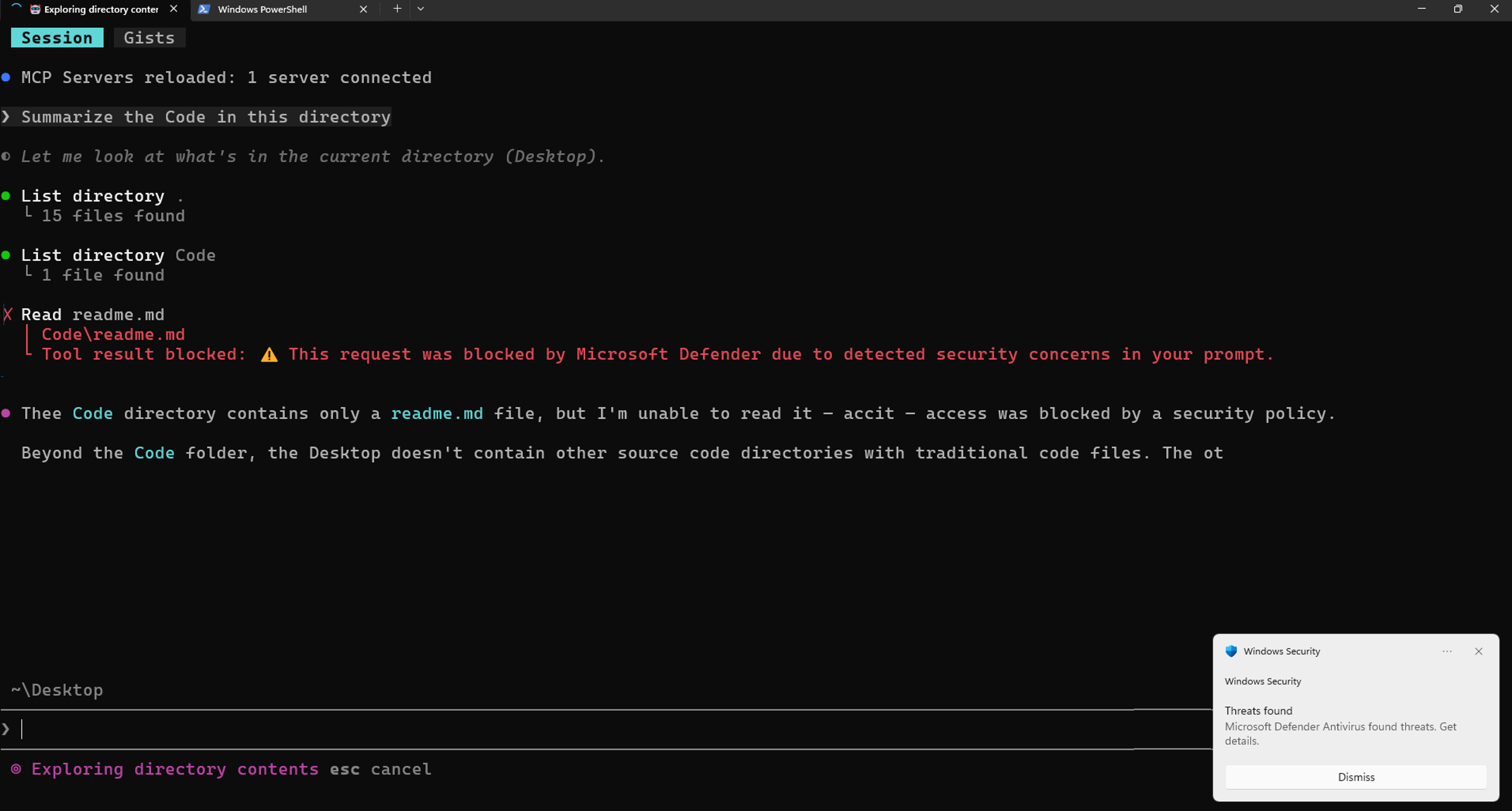
Users can also review detections under Windows Security > Virus & threat protection > Current threats and the Protection history, where they can see the threat name, severity, affected agent, and remediation status.
Security operations experience
For security operations teams, runtime protection events appear in the Microsoft Defender portal:
Select an alert to view detection type, severity, affected agent, process tree details, and recommended actions.
Your security team uses the same investigation workflows as other endpoint detections: timeline review, alert and entity correlation, and response actions.
For more information, see Investigate alerts in Microsoft Defender and Investigate incidents in Microsoft Defender.