Note
Access to this page requires authorization. You can try signing in or changing directories.
Access to this page requires authorization. You can try changing directories.
Case management activity from the Microsoft Defender portal is automatically synced to the SecurityCaseEvent table in Log Analytics when your tenant has a connected primary Microsoft Sentinel workspace. You can use KQL to review case activity, investigate changes, create visualizations and dashboards, and retain case history beyond the default 180-day retention period in Defender.
Case audit and retention supports incident cases and all other supported case types. It syncs case activity and changes to related case items, including:
- Cases
- Case tasks
- Case comments
- Case attachments
- Case relations
Note
For attachments, only attachment metadata is exported. Attachment contents aren't exported.
Each change is recorded as an event in the SecurityCaseEvent table. Events can include create, update, delete, link, and unlink operations.
Prerequisites
To access case audit and retention data, you need read access to the Log Analytics workspace to query case data.
For more information, see Manage access to Log Analytics workspaces.
How case data is synced
Case data is automatically synced to the SecurityCaseEvent table in your current primary Microsoft Sentinel workspace. You don't need to enable case sync in Defender settings, and case sync can't be turned off.
If you change the primary Microsoft Sentinel workspace, case activity automatically begins flowing to the new primary workspace. The change can take up to 15 minutes to take effect.
Query case activity
You can query case activity by using the SecurityCaseEvent table in Advanced hunting in the Microsoft Defender portal, Microsoft Sentinel, or Log Analytics. Use KQL to review case changes, investigate activity, create visualizations, and build dashboards.
For the full table schema, see SecurityCaseEvent.
If you're new to querying data in Log Analytics, see Log Analytics tutorial.
Audit cases using example queries in the Azure portal
Example queries are available for case audit and retention. You can run the queries as-is, or modify them for your investigation, reporting, auditing, or dashboard needs.
Example queries include:
- Recent changes on a case
- Cases by status
- Cases with most open tasks
- Inactive cases
- Urgent open cases
- Cases with overdue tasks
- Case tasks created daily
- All case management activity by a specific user
- Cases and tasks assigned to a specific user
- Users with most open case tasks
- Full cases snapshot
- Single case snapshot
- Point-in-time single case snapshot
- Cases by SLA status
To use an example query:
Sign in to the Azure portal.
Open your Microsoft Sentinel workspace.
Select Logs.
Select Queries hub.
Select Add filter.
Filter by Resource type: Case Management.
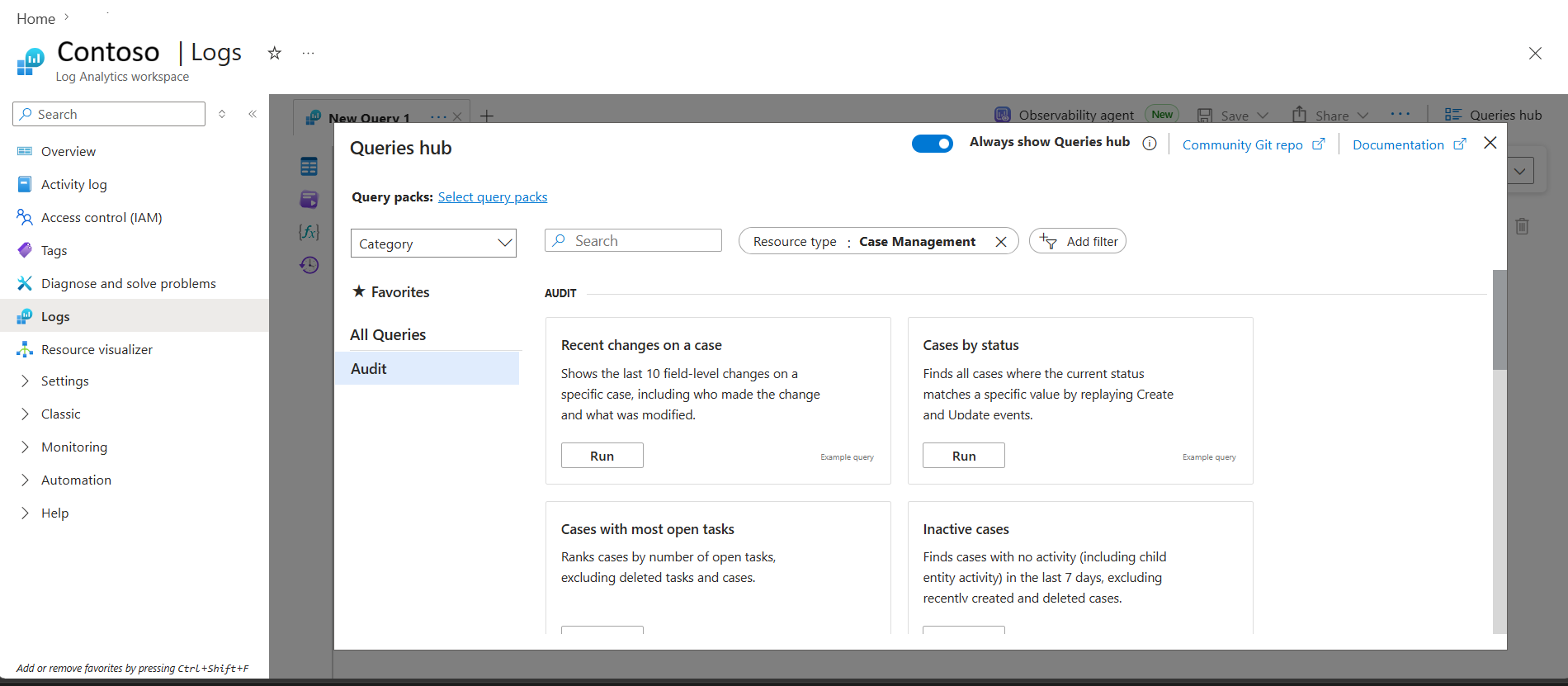
Hover over an example query.
Select Run to run the query as-is, or select Load to editor to customize the query before selecting Run.
Note
Some queries include placeholders, such as a case ID, user, or status value. To update placeholder values before running the query, select Load to editor.
Tip
To edit a query after results appear, select User Query to return to the query editor.
Audit cases using example queries in the Microsoft Defender portal
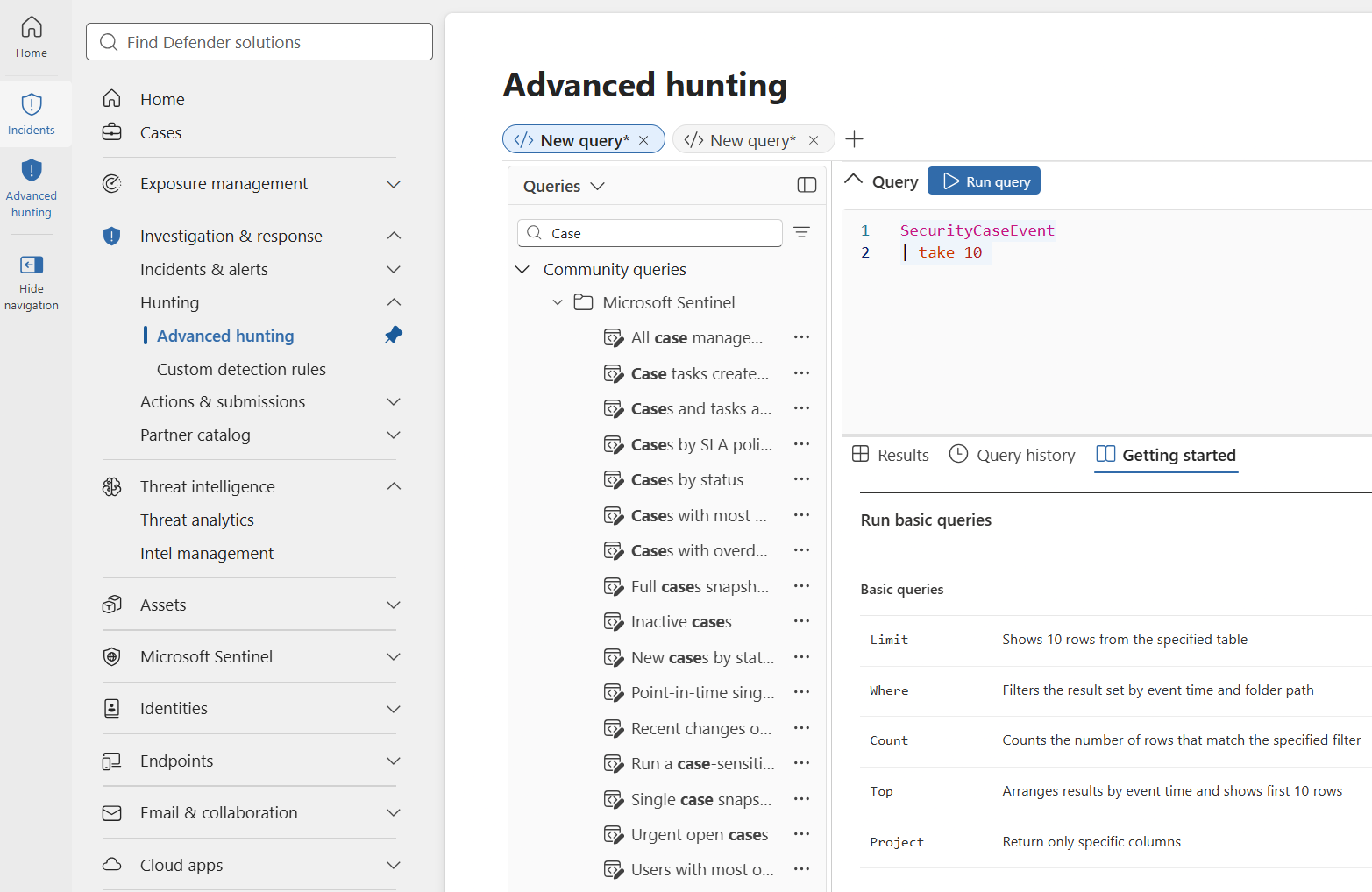
The same example queries available for case audit and retention in the Azure portal are also available in Advanced hunting in the Microsoft Defender portal.
To access the example queries:
Sign in to the Microsoft Defender portal.
Select Investigation & response > Hunting > Advanced hunting.
Select Queries from the dropdown.
Expand Community queries > Microsoft Sentinel. The case management example queries are listed there.
Manage retention
After case data is synced to Log Analytics, retention is controlled by the retention settings for the SecurityCaseEvent table and its Log Analytics workspace.
You can manage table retention directly in the Microsoft Defender portal:
Sign in to the Microsoft Defender portal.
Go to Microsoft Sentinel > Configuration > Tables.
If needed, select the Microsoft Sentinel workspace that contains the
SecurityCaseEventtable.Select the
SecurityCaseEventtable.Select Manage table.
Configure the analytics and total retention settings.
Review any warnings or messages about the effects of the changes.
Select Save.
The Tables page also provides Table insights to help you review ingestion volume, when data was last received, estimated daily ingestion costs, and unusual changes in ingestion before you modify table retention or tier settings.
For more information, see:
- Configure table settings in Microsoft Sentinel
- Manage data tiers and retention in Microsoft Sentinel
- Plan costs and understand pricing and billing for Microsoft Sentinel