Note
Access to this page requires authorization. You can try signing in or changing directories.
Access to this page requires authorization. You can try changing directories.
Microsoft Defender case management helps security operations teams manage SecOps work natively in the Microsoft Defender portal. A case is a security operations work item that brings together investigation context, collaboration, tasks, evidence, activity history, and workflow tracking so teams can manage work without leaving the Defender portal.
Case management supports the following case types:
- Incident cases (Preview): Cases created from correlated incident activity to help analysts investigate, manage, and resolve security incidents.
- Generic cases: Cases created manually to track SecOps work, collaboration, tasks, and follow-up outside the incident response workflow.
Note
Incident cases are in preview and are the recommended experience for managing incidents in the Microsoft Defender portal. The legacy incident experience remains available during this preview.
What is case management?
Case management enables you to create and manage SecOps cases in the Defender portal. Cases help security operations teams standardize work, improve collaboration, track ownership, and maintain a record of decisions and actions.
Use cases to manage work such as:
- Investigating and responding to security incidents.
- Tracking general SecOps work.
- Coordinating analyst tasks and ownership.
- Documenting investigation notes, decisions, attachments, and activity history.
- Auditing and reporting on case changes and operational outcomes.
Case management capabilities
Case management capabilities vary by case type, license, onboarding state, and preview scope.
Case management includes capabilities such as:
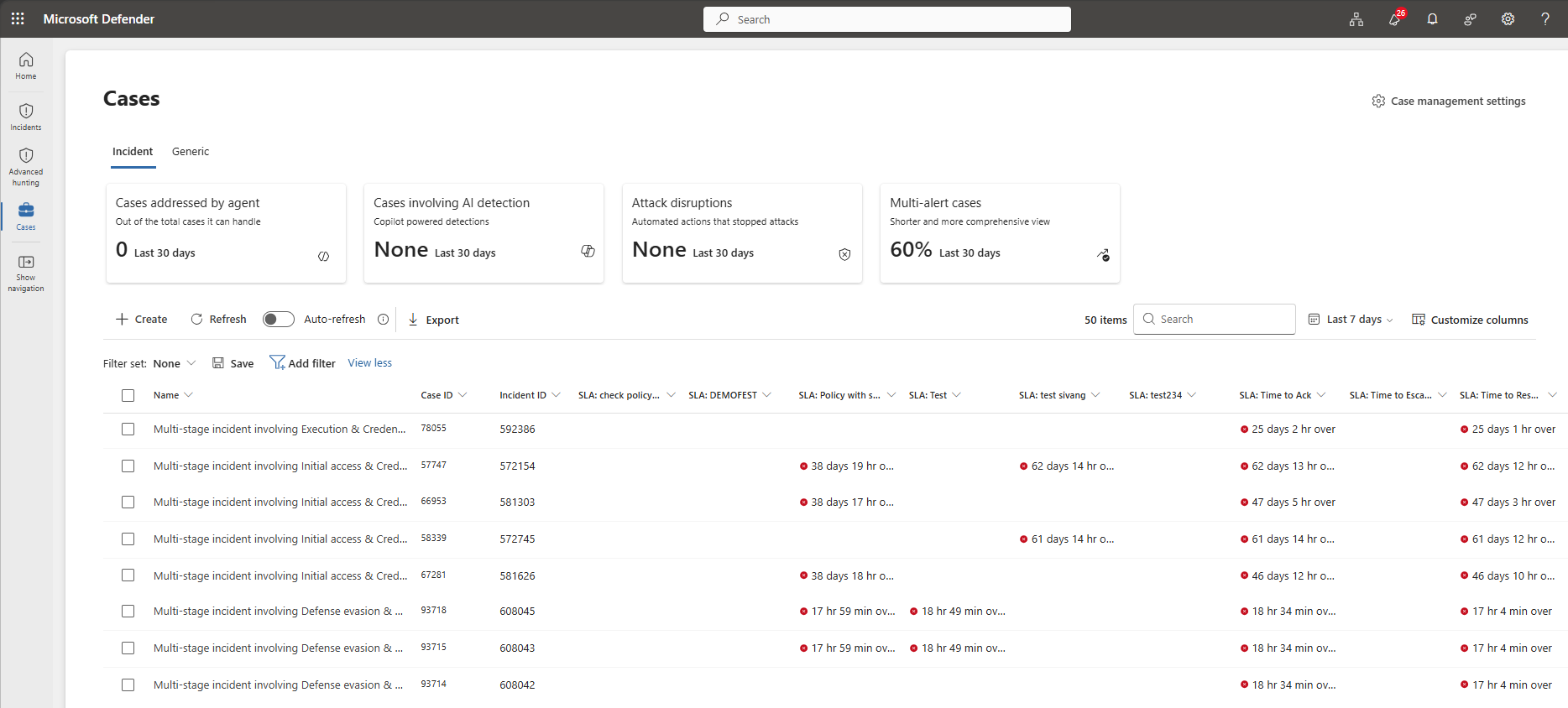
- View and manage cases on the Cases page.
- Filter, sort, search, export, and customize columns in the cases list.
- Manage case details, including status, priority, assignee, tags, description, and SLA policy.
- Add tasks to track ownership, due dates, priority, status, descriptions, and closing notes.
- Use comments and activity history to document investigation notes and audit case changes.
- Upload and review attachments.
- Review linked objects associated with a case, when available.
- Configure custom fields and SLA policies with case templates.
- Audit, retain, and report on case activity in Log Analytics with the
SecurityCaseEventtable. - Manage access to cases using RBAC.
Incident cases also include incident investigation context, such as attack story, alerts, assets, investigations, evidence, activities, and response actions.
Incident cases can also include agentic sessions. Analysts can run supported agentic playbooks from an incident case, track agent session status, and review session outputs from the case experience.
Requirements
To use case management, your tenant must be onboarded to the Microsoft Defender portal. Cases are available only in the Defender portal and aren't available in the Microsoft Sentinel experience in the Azure portal.
Case management is available to eligible Microsoft Defender and Microsoft Sentinel customers. Requirements depend on the case management scenario, case type, license, and tenant configuration.
ISOC case management
For Integrated Security Operations Center (ISOC) customers, incident cases and generic cases don't require an ISOC workspace or a connected Microsoft Sentinel workspace.
Microsoft Sentinel workspace-based case management
A connected Microsoft Sentinel workspace is required for case management scenarios that depend on Microsoft Sentinel workspace data, Sentinel-ingested data, or other Microsoft Sentinel workspace capabilities.
For Microsoft Sentinel customers, see Connect Microsoft Sentinel to the Defender portal.
Use Microsoft Defender unified role-based access control (RBAC) or Microsoft Sentinel roles to grant access to case management features.
Permissions differ by case type and tenant configuration.
Incident case permissions
Incident cases use the same permissions model as incidents in Microsoft Defender.
To work with incident cases, users need one of the following Microsoft Defender unified RBAC permissions:
| Permission | Access |
|---|---|
| Security Data Read | View incident cases. |
| Security Data Manage | View and manage incident cases. |
Incident case permissions and scoping follow the same permissions model as the legacy incident experience.
For more information, see Microsoft Defender unified role-based access control (RBAC).
Generic case permissions
| Generic case feature | Microsoft Defender unified RBAC | Microsoft Sentinel role |
|---|---|---|
| View generic cases, case details, tasks, comments, and case audits | Security operations > Security data basics (read) | Microsoft Sentinel Reader |
| Create and manage generic cases and case tasks, assign cases, and update case properties | Security operations > Alerts (manage) | Microsoft Sentinel Responder |
| Configure case templates, custom fields, SLA policies, and case workflow settings | Authorization and settings > Core security settings (manage) | Microsoft Sentinel Contributor |
Manage cases
Use the Cases page in the Defender portal to view and manage cases. From the cases list, analysts can filter, sort, search, export, customize columns, and open cases for investigation or response work.
Case management varies by case type:
- For incident response workflows, see Manage incident cases in the Microsoft Defender portal.
- For general SecOps case workflows, see Manage generic cases in the Microsoft Defender portal.
Configure case templates
Use case templates to configure case management settings for supported case types. Case templates let admins configure custom fields and SLA policies.
Template capabilities vary by case type. For step-by-step guidance, see Configure case templates in the Microsoft Defender portal.
Related content
- Manage incident cases in the Microsoft Defender portal
- Manage generic cases in the Microsoft Defender portal
- Audit and retain case data in Log Analytics
- Configure case templates in the Microsoft Defender portal
- Manage incidents in Microsoft Defender
- Investigate incidents in the Microsoft Defender portal
- Microsoft Sentinel in the Defender portal
- View and manage cases across multiple tenants in the Microsoft Defender multitenant portal