Note
Access to this page requires authorization. You can try signing in or changing directories.
Access to this page requires authorization. You can try changing directories.
Use Copilot for Workbooks with Integrated Security Operations Center (ISOC) in Microsoft Defender to create and edit workbooks by using natural-language prompts. Describe the dashboard you want, and Copilot generates the KQL, panels, parameters, and layout.
You can review the generated workbook, refine it conversationally, and save the finished workbook. You can also use the Advanced Editor to manually update generated KQL.
Prerequisites
Before you begin, make sure the following requirements are met:
- Your tenant is eligible for ISOC.
- Microsoft Security Copilot is enabled for your tenant and has available Security Compute Units (SCUs).
- You have permission to create and save workbooks in Microsoft Defender.
Note
During this preview, Copilot for Workbooks supports Advanced Hunting tables as the data source. Log Analytics data isn't supported.
Create a workbook with Copilot
Sign in to the Microsoft Defender portal.
Go to Workbooks.
Select Add Workbook.
Select Edit > Edit with Copilot.
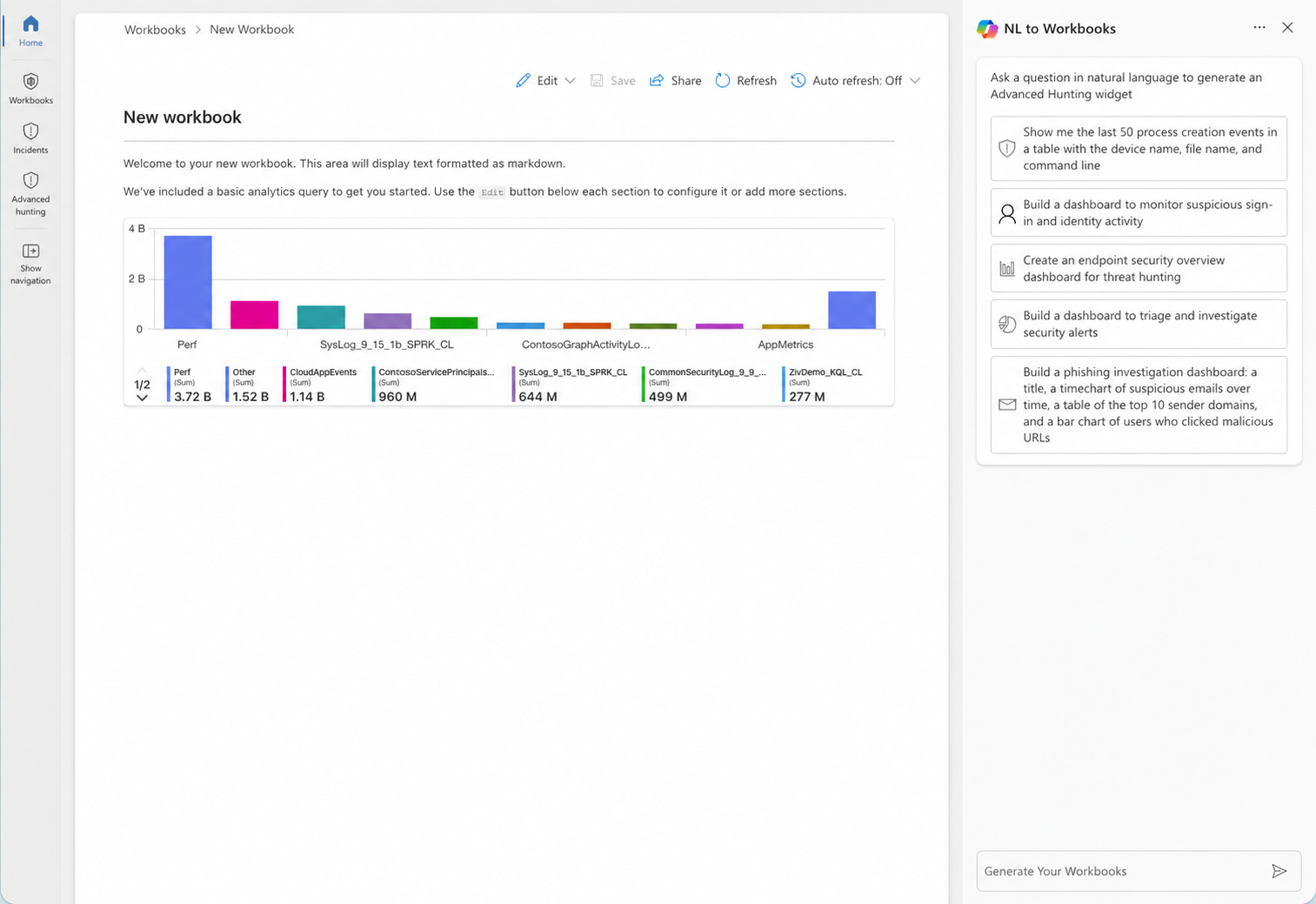
In the Copilot panel, describe the dashboard you want to create.
Submit the prompt.
Copilot generates a draft workbook on the canvas. The draft can include a descriptive header, parameters, and one or more visualizations.
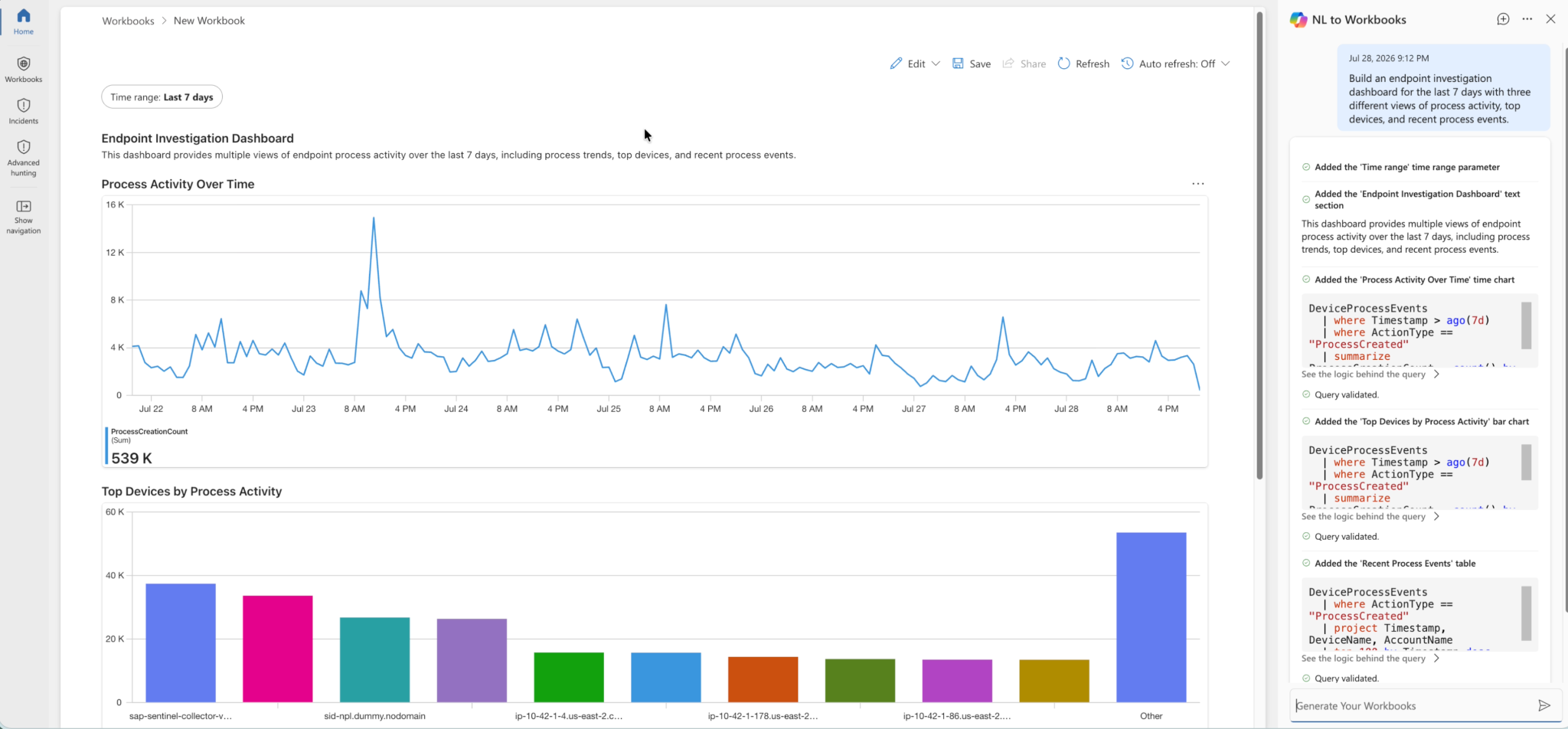
Review the generated workbook.
Refine the workbook as needed.
Save the workbook.
Refine a workbook with Copilot
After Copilot generates a workbook, continue the conversation to update specific parts of the workbook.
In the Copilot panel, describe the change you want to make.
For example:
Group by tenant.Add a stat card with the total volume.Turn this into a bar chart.Filter to Windows devices only.
Submit the prompt.
Copilot updates the workbook based on your request.
Review the updated workbook.
Continue refining the workbook as needed.
Copilot updates the workbook as you continue the conversation.
Review and undo workbook changes
Copilot automatically updates the workbook based on your prompts. You can use Undo or Redo as you refine the workbook.
| Action | Description |
|---|---|
| Undo | Reverts the most recent Copilot change. |
| Redo | Restores a change that you previously undid. |
| Save | Saves the workbook to your account. |
| Advanced Editor | Opens the workbook definition and KQL for manual editing. |
Tip
Make changes incrementally so that you can use Undo and Redo predictably as you refine the workbook.
Edit generated KQL manually
You can manually edit Copilot-generated KQL by using the workbook Advanced Editor.
Open the workbook panel you want to modify.
Open the Advanced Editor.
Review the generated KQL.
Make the required changes.
Apply the changes to the workbook.
Prompting tips
Use the following guidance when creating or refining a workbook:
- Describe the goal of the dashboard instead of providing only a query.
- Specify a time range, such as
last 24 hoursorlast 7 days. - Specify the visualization you want, such as a table, bar chart, time series, stat card, or map.
- Make changes in small steps and review each update before requesting another change.
- Mention the relevant Advanced Hunting table when you know which table contains the data.
For example:
Dashboard of the top 10 signed-in users with failed sign-ins in the last 24 hours.
Or:
Timeline of Defender for Endpoint alerts by severity, grouped by device.
Troubleshoot Copilot for Workbooks
Edit with Copilot isn't shown
Verify that Microsoft Security Copilot is provisioned for your tenant.
Verify that Security Compute Units are available.
Return to the Workbooks page.
Refresh the page.
A generated workbook doesn't return results
Check the time-range parameter.
Increase the time range if needed.
Verify that the Advanced Hunting tables referenced by the generated query contain data for your tenant.
Run the underlying query in Advanced Hunting to verify that it returns results.
If needed, ask Copilot to explain why the panel is empty and suggest a correction.
A visualization doesn't display the expected results
Describe the specific change you want Copilot to make.
For example:
Show only the top 10 results.Change this to a stacked bar chart.Group the results by day.
If the change doesn't produce the expected result, use Undo to revert it.