Note
Access to this page requires authorization. You can try signing in or changing directories.
Access to this page requires authorization. You can try changing directories.
Use repositories with Integrated Security Operations Center (ISOC) in Microsoft Defender to manage and deploy custom security content to your ISOC workspace by using CI/CD.
You can manage content from the Microsoft Defender portal or an external GitHub or Azure DevOps repository. Managing content in an external repository lets you update content outside of Microsoft Defender and automatically deploy those updates to your ISOC workspace.
The CI/CD experience and supported content types for an ISOC workspace are the same as the existing Microsoft Sentinel repository experience.
Note
This feature is in preview. Capabilities and availability might change during the preview period.
Prerequisites
Before you begin, make sure the following requirements are met:
- Your tenant is eligible for ISOC.
- You have an ISOC workspace in a resource group where you have the Owner role.
- You have the Global Administrator role in Microsoft Entra ID for the initial CI/CD setup.
- Custom content files that you want to deploy to your workspace are in a supported format. For supported formats, see Plan your repository content.
- The account you use to create the connection is in your home tenant. External identities such as B2B guest accounts and delegated access aren't supported.
- (Custom detection rules only) You have a Microsoft 365 E5 license or an equivalent license that includes Microsoft Defender XDR. For more information, see Deploy custom detection rules as code.
GitHub prerequisites
Before connecting to GitHub, make sure that:
- You have Collaborator access to your GitHub repository.
- GitHub Actions is enabled.
Azure DevOps prerequisites
Before connecting to Azure DevOps, make sure that:
- You have Project Administrator access to your Azure DevOps repository.
- Third-party application access through OAuth is enabled for Azure DevOps application connection policies.
- Your Azure DevOps connection is in the same tenant as your ISOC workspace.
For more information about deployable content types, see Plan your repository content.
Connect a repository
Use this procedure to connect a GitHub or Azure DevOps repository to your ISOC workspace.
Each connection can support multiple types of custom content, including analytics rules, automation rules, custom detection rules, hunting queries, parsers, playbooks, and workbooks. For more information, see About Microsoft Sentinel content and solutions.
You can't create duplicate connections with the same repository and branch in a single ISOC workspace.
Sign in to the Microsoft Defender portal.
Make sure that you're signed in to your source control application with the credentials you want to use for the connection.
In the Defender portal, select Microsoft Sentinel > Content management > Repositories.
Select Add new.
On the Create new deployment connection page, enter a name for the connection.
Enter a description for the connection.
From Source Control, select the repository type that you want to connect.
Select Authorize.
Complete the steps for your source control provider:
Enter your GitHub credentials when prompted.
The first time you add a connection, you're prompted to authorize the connection to Microsoft Sentinel. If you're already signed in to your GitHub account in the same browser, your GitHub credentials are populated automatically.
In Repository, select the repository that you want to connect.
Select Add repository.
The first time you connect to a repository, a new browser window or tab opens and prompts you to install the Azure-Sentinel app.
In GitHub, select the repository where you want to install the Azure-Sentinel app.
Install the Azure-Sentinel app.
Return to the Create new deployment connection page.
From Branch, select the branch that you want to connect to your ISOC workspace.
From Content Types, select the content that you want to deploy.
Both parsers and hunting queries use the Saved Searches API to deploy content. If you select one of these content types and your branch contains the other type, both content types are deployed.
For other content types, only the content types that you select are deployed.
Select Create.
For example:
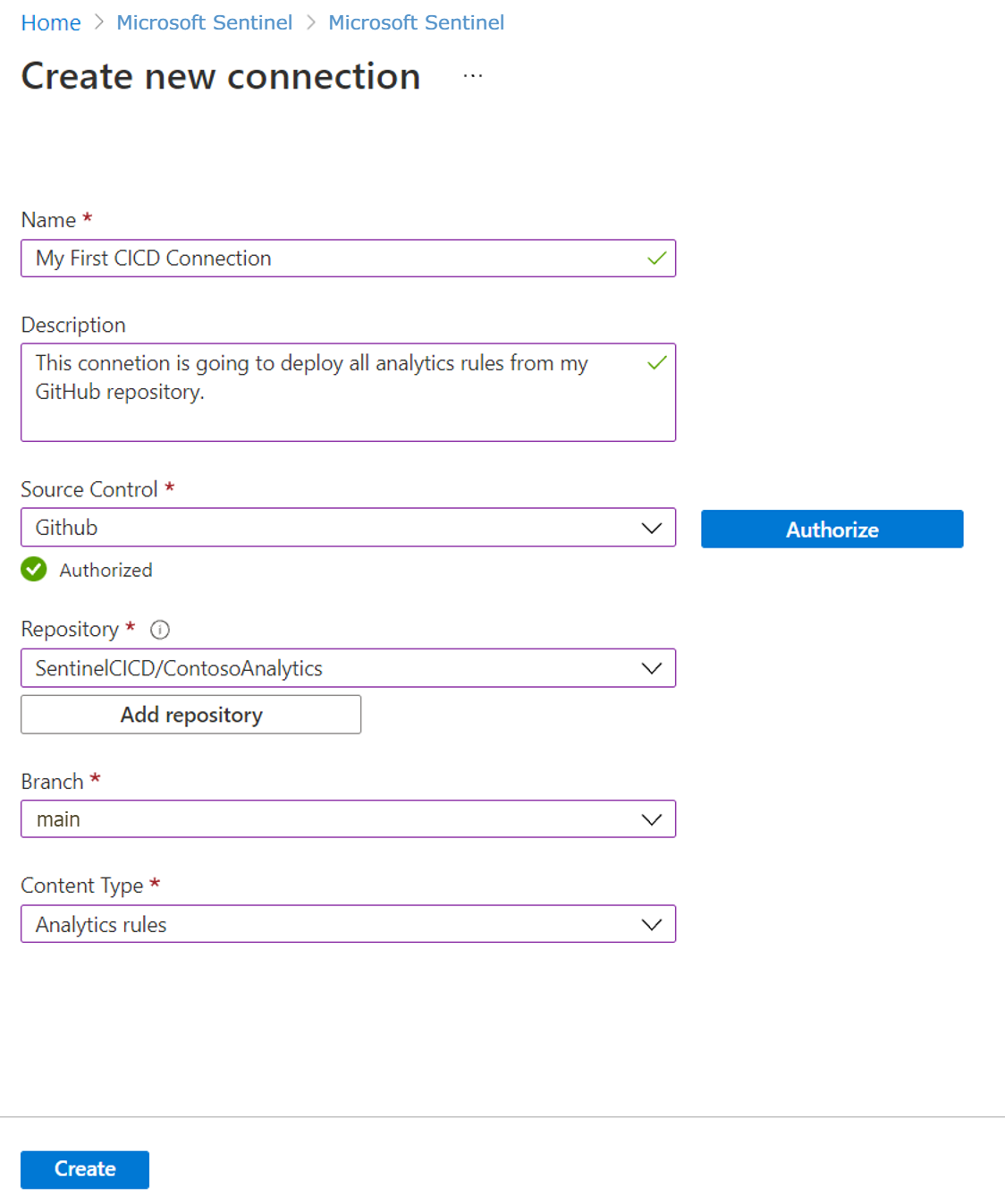
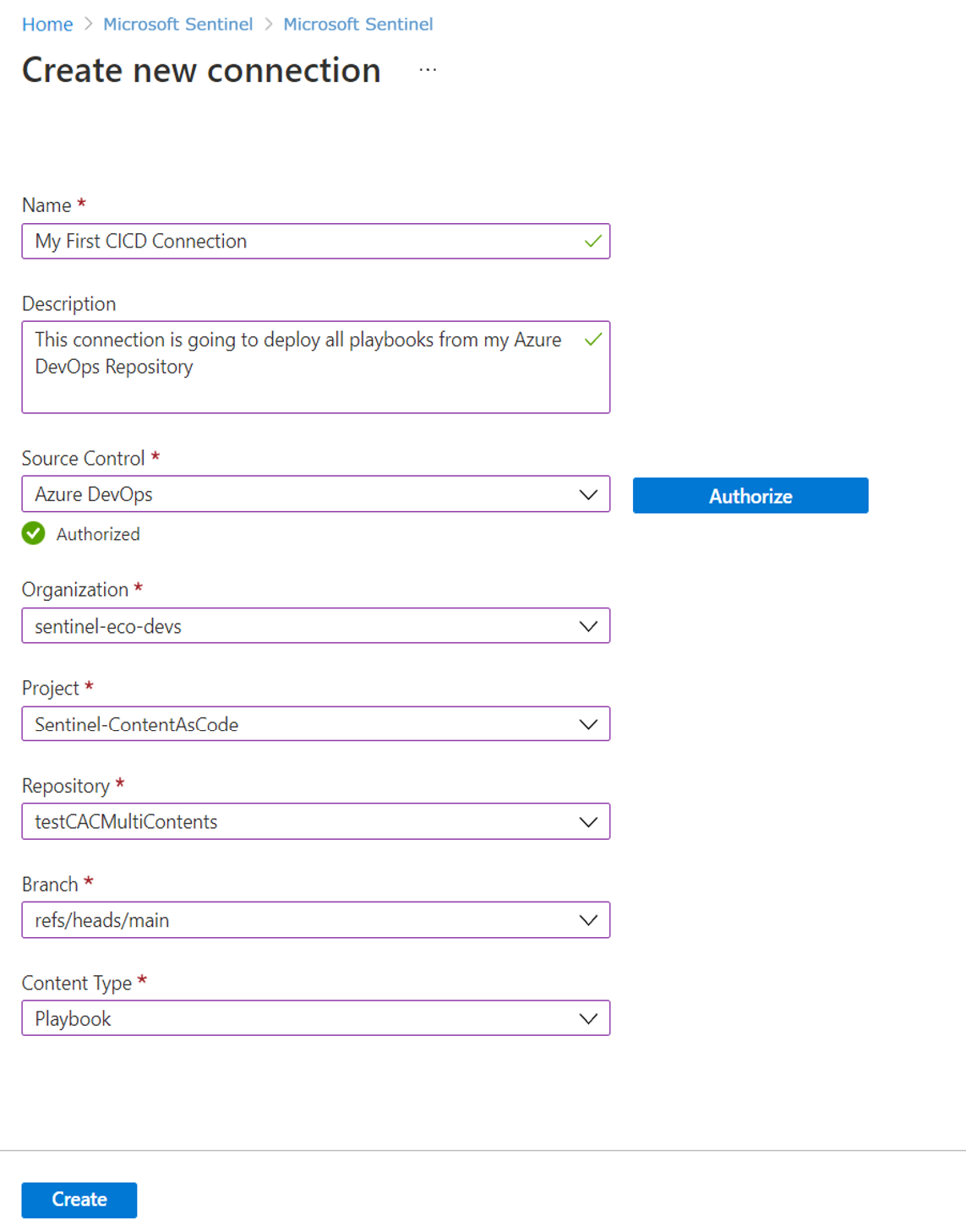
After you create the connection, a new workflow or pipeline is generated in your repository. The content stored in your repository is deployed to your ISOC workspace.
Deployment time might vary depending on the amount of content that you're deploying.
View the deployment status
To view the deployment status in GitHub:
Open your repository in GitHub.
Select the Actions tab.
Select the workflow
.yamlfile to view deployment logs and error messages.
To view the deployment status in Azure DevOps:
Open your repository in Azure DevOps.
Select the Pipelines tab.
After deployment is complete:
- The content stored in your repository appears on the corresponding Microsoft Sentinel pages in the Defender portal.
- The connection details on the Repositories page show the deployment status, time of the last deployment, and a link to the deployment logs.
For example:
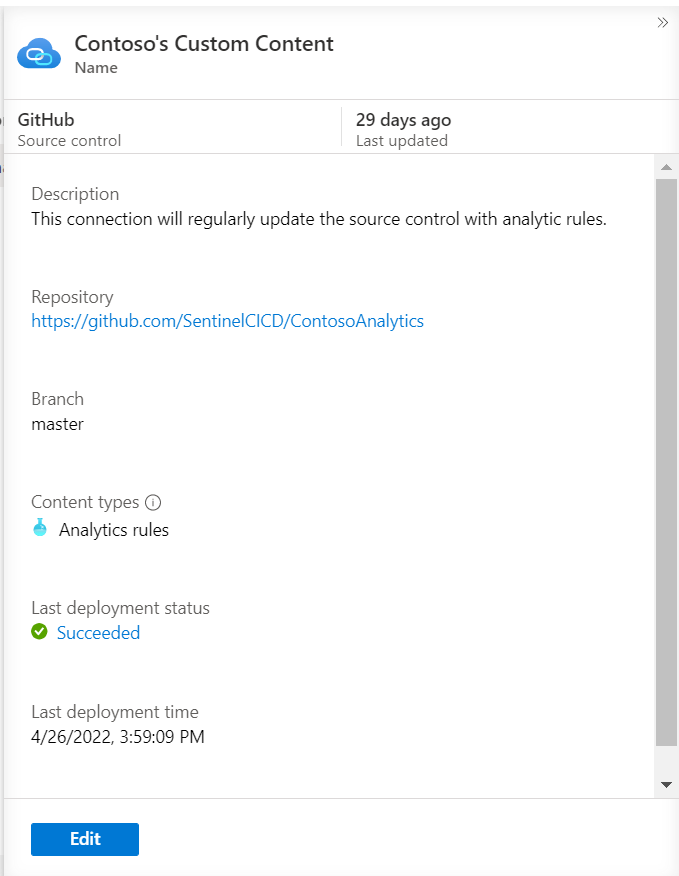
By default, the workflow deploys only content modified since the previous deployment. You can customize this behavior by changing deployment triggers, turning off smart deployments, or limiting deployments to a specific root folder.
For more information, see Customize repository deployments.
Edit content
After you create a repository connection, edit connected content in the repository instead of editing it directly in Microsoft Defender.
If you edit deployed content in Microsoft Defender, export the updated content back to your source control repository. Otherwise, your changes might be overwritten the next time content is deployed from the repository.
Delete content
Deleting content from your repository doesn't delete it from your ISOC workspace.
To remove content that was deployed through a repository:
Delete the content from your repository.
Delete the corresponding content from Microsoft Sentinel in the Defender portal.
You can filter content by its source name to help identify content deployed from repositories.
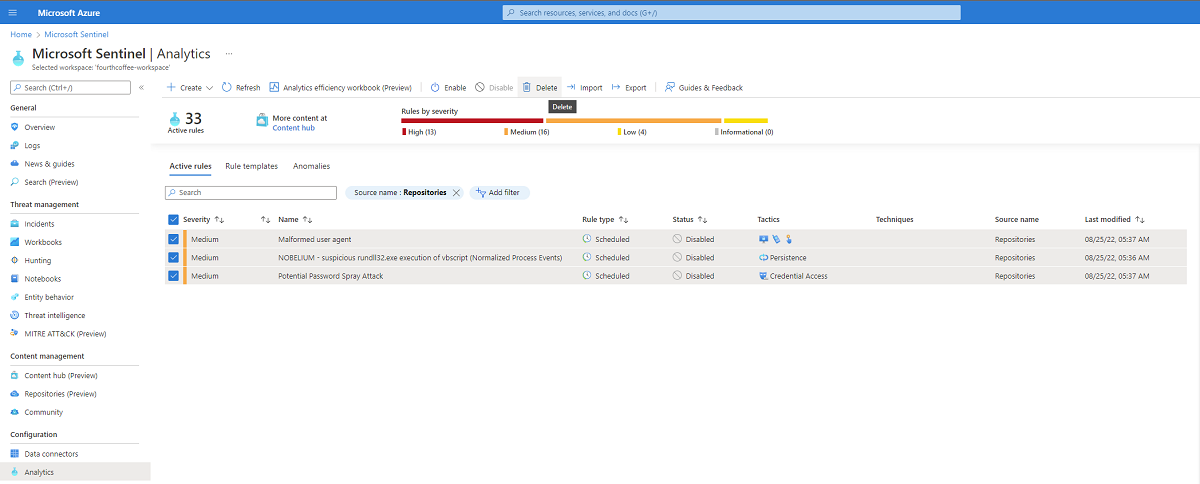
Remove a repository connection
Removing a repository connection stops future content deployments. Content that was previously deployed remains in your ISOC workspace.
To use Bicep files, your repository connection must be newer than November 1, 2024. Remove and recreate an older connection to update it.
To remove a repository connection:
Sign in to the Microsoft Defender portal.
Select Microsoft Sentinel > Content management > Repositories.
Select the connection that you want to remove.
Select Delete.
Select Yes to confirm the deletion.
After you remove the connection, content previously deployed through the connection remains in your ISOC workspace. Content added to the repository after you remove the connection isn't deployed.
If you encounter an error when removing a connection, check your source control repository and confirm that the associated GitHub workflow or Azure DevOps pipeline is deleted.
Remove the Microsoft Sentinel app from your GitHub repository
Before you remove the Microsoft Sentinel app from a GitHub repository, remove all associated connections from the Repositories page in Microsoft Defender.
Each Microsoft Sentinel app installation has a unique ID that's used when adding and removing the connection. If the ID is missing or changed, remove the connection from the Repositories page and manually remove the workflow from your GitHub repository to prevent future content deployments.