Note
Access to this page requires authorization. You can try signing in or changing directories.
Access to this page requires authorization. You can try changing directories.
This article explains how to use the Data Analysis feature to analyze project data directly from list pages and queries. You don't have to run a report or switch to another application, such as Excel. The feature provides an interactive and versatile way to calculate, summarize, and examine data. Instead of running reports using options and filters, you can add multiple tabs that represent different tasks or views on the data. Some examples are "XXX," "YYY," or any other view you can imagine. To learn more about how to use the Data Analysis feature, go to Analyze list and query data with analysis mode.
Use the following list page and query to start doing ad-hoc analysis of project-management processes:
Project ad-hoc analysis scenarios
Use the Data Analysis feature for quick fact checking and ad-hoc analysis:
- If you don't want to run a report.
- If a report for your specific need doesn't exist.
- If you want to quickly iterate to get a good overview on a part of your business.
The following sections provide examples of project analysis scenarios in Business Central.
| Area | To... | Open this page in analysis mode | Using these fields |
|---|---|---|---|
| Fixed Assets (Current value) | Track asset value, both across all assets and on a single asset. | FA Ledger Entries | Depreciation Book, FA No., FA Posting Date, FA Posting Type, and Amount |
Example: fixed assets current value
To track the value of one or more fixed assets, follow these steps:
- Open the Project Ledger Entries list, and choose
 to turn on analysis mode.
 - Go to the Columns menu and remove all columns (select the box next to the Search field on the right).
- Drag the Depreciation Book and FA No. fields to the Row Groups area.
- Choose the FA Posting Date and FA Posting Type fields.
- Drag the Amount field to the Values area.
- Rename your analysis tab to Asset overview - value, or something that describes this analysis.
The following image shows the result of these steps.
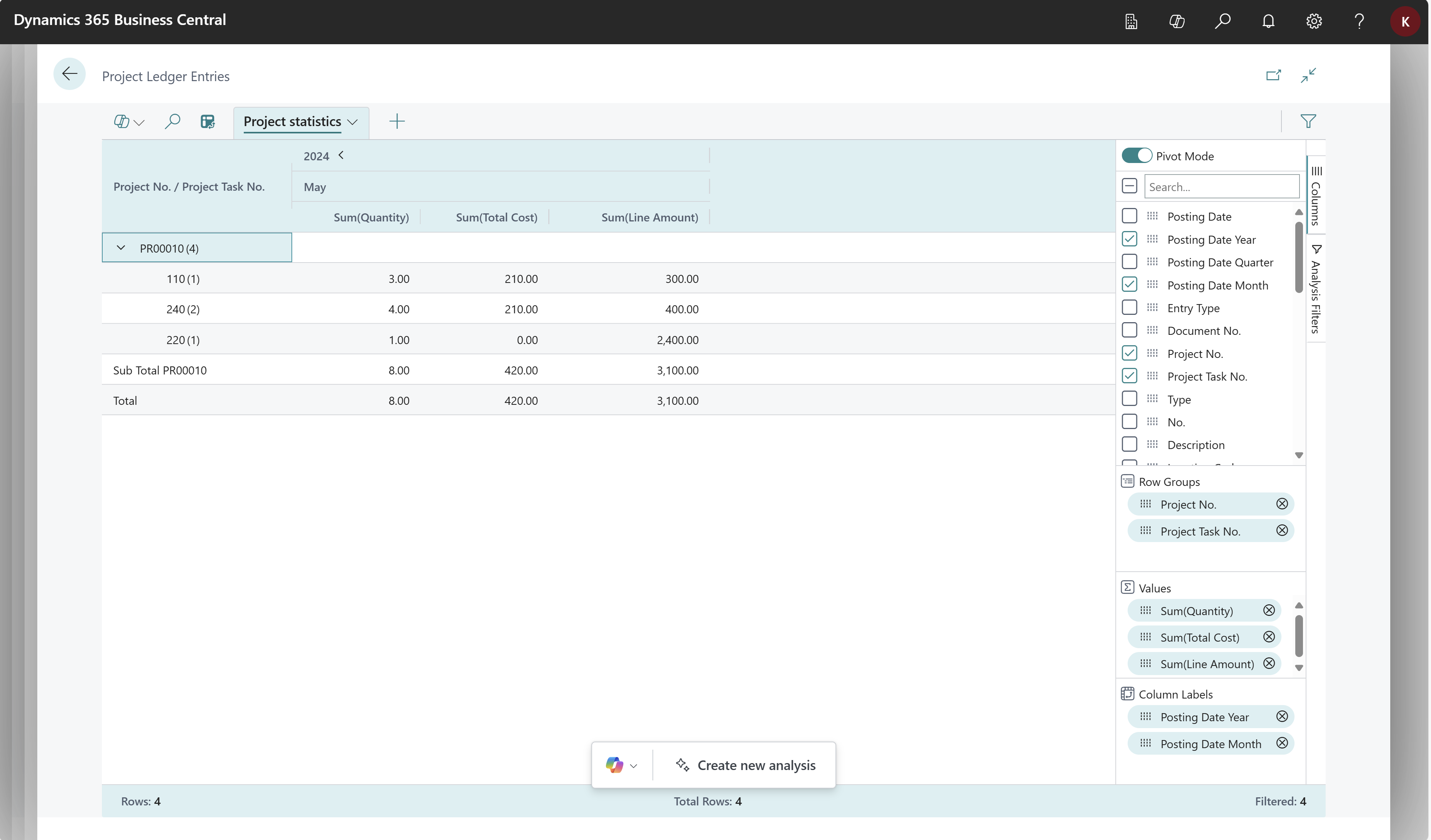
Example: asset value changes over time
To track asset value changes over time, follow these steps:
- Open the FA Ledger Entries list, and choose
to turn on analysis mode.
- Go to the Columns menu and remove all columns (select the box next to the Search field on the right).
- Turn on the Pivot Mode toggle (located above the Search field on the right).
- Drag the FA Posting Type field to the Row Groups area.
- Drag the FA Posting Year and FA Posting Month fields to the Column Labels area.
- Drag the Amount field to the Values area.
- Rename your analysis tab to Asset value changes over time, or something that describes this analysis.
The following image shows the result of these steps.

Example: fixed asset depreciations over time
To track depreciation for one or more fixed assets, follow these steps:
- Open the FA Ledger Entries list, and choose
to turn on analysis mode.
- Go to the Columns menu and remove all columns (select the box next to the Search field on the right).
- Turn on the Pivot Mode toggle (located above the Search field on the right).
- Drag the Depreciation Book and FA No. fields to the Row Groups area.
- Drag the FA Posting Year and FA Posting Month fields to the Column Labels area.
- Drag the Amount field to the Values area.
- In the FA Posting Type filter field, choose Depreciation.
- Rename your analysis tab to Depreciations over time, or something that describes this analysis.
The following image shows the result of these steps.
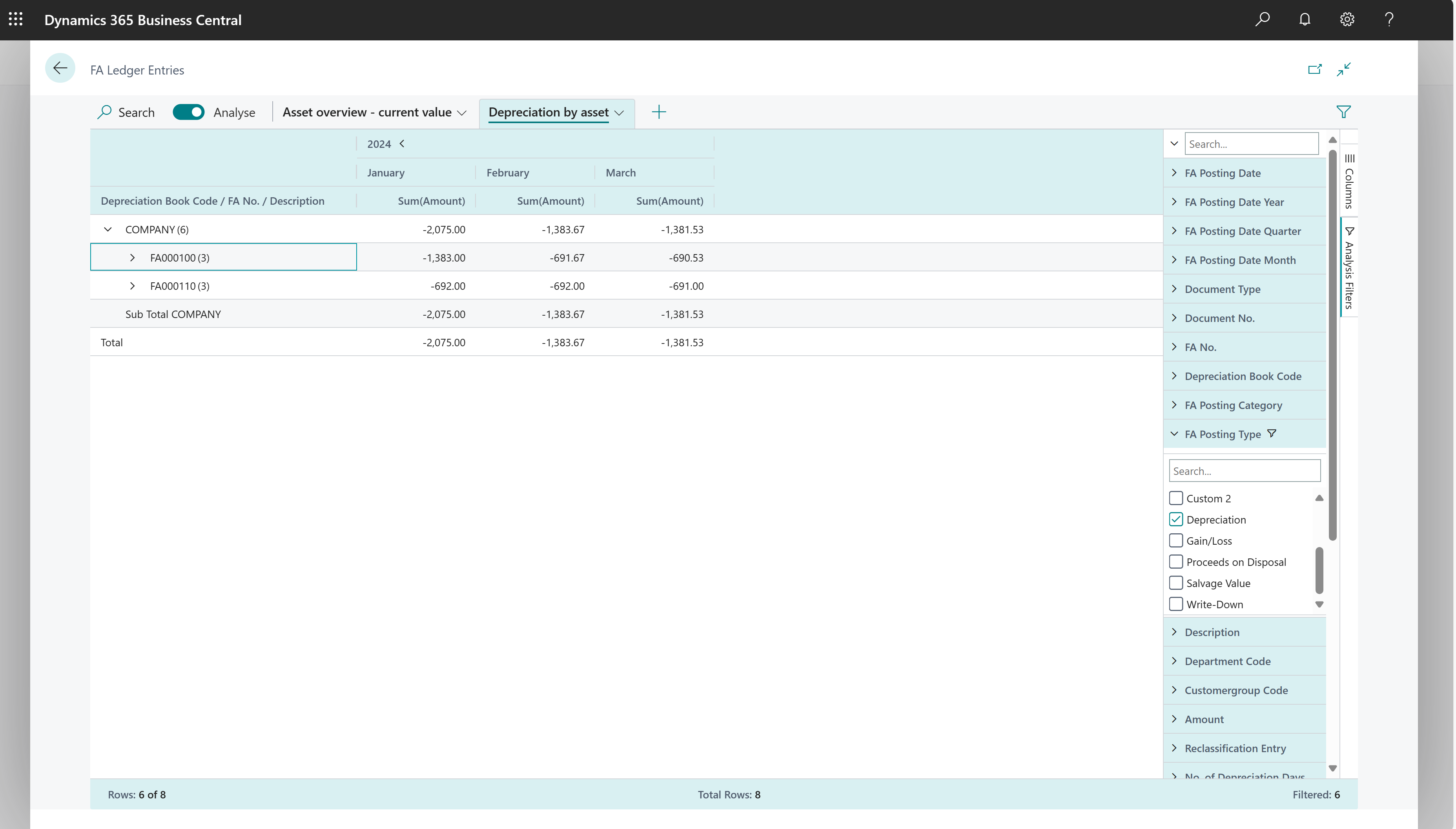
Data foundation for ad-hoc analysis on projects
When you post project journals, Business Central creates entries in the Job Ledger Entry table. Therefore, ad-hoc analysis on projects is typically done on the Project Ledger Entries page.
Related information
Analyze list and query data with analysis mode
Project management analytics overview
Analytics, business intelligence, and reporting overview
Project management overview