Note
Access to this page requires authorization. You can try signing in or changing directories.
Access to this page requires authorization. You can try changing directories.
This article describes the archival job capability within Microsoft Dynamics 365 Commerce. It helps free up space in the database by archiving, deleting, or compressing credit card payment tokens.
For every credit card authorization, the authentication binary large object (auth blob) is stored in the database. Auth blobs contain data that's related to the authorization. Over time, these auth blobs can grow and take up a significant amount of space in the database. The jobs described in this article let you archive, delete, or compress the auth blob data. Before version 10.0.49, a single batch enabled customers to select if they want to archive, delete, or compress the auth blobs. But, after version 10.0.49, the compression capability is now split into its own batch job named Compress credit card transaction data, while the archival and delete capabilities are in a single batch job named Archive credit card transaction data.
Key terms
| Term | Description |
|---|---|
| Auth blob | The response that a credit card processor returns for a payment request. This response is stored as an XML blob. Over time, it can take up a large amount of space in the database. |
| Linked refund | A refund request that references a previous transaction. Credit card processors consider linked refunds to carry lower risk, and they have lower associated fees. |
| Standalone refund | A refund request that doesn't reference a previous transaction. Standalone refunds carry higher risk and have higher processing fees. |
Archive or delete credit card related data
Archiving the auth blobs exports the data to Azure Blob storage in a ZIP file and then deletes the data from the transaction database. Thus, the archiving capability has a dependency on Document management being configured in the environment. For more information on Document management, see Configure document management.
Important
You can't easily restore data after it's archived. So, don't archive transactions that are subject to linked refunds. For example, if a merchant's returns policy allows transactions to be returned for refund to the same credit card within two years, set the Minimum transaction age in days field for the job to 730 days (two years). In this case, if a transaction is returned after 730 days, the XML required to do a linked refund isn't available. The customer then has to be refunded via a standalone refund to either a credit card, or some other payment method such as a credit memo or gift card.
Delete credit card related data
The Archive credit card transaction data batch job has a parameter named Delete data without archiving. If you enable this parameter, the batch job deletes (and doesn't archive) the payment tokens and signature capture data for all transactional records that meet the criteria of minimum transaction age in days.
Data in scope for archival or deletion
Based on the preceding configuration, the archival job archives or deletes data in the PaymentAuthorization, PaymentCaptureToken, PaymentCardToken, and SigCapData fields of the RetailTransactionPaymentTrans table. Although the archival job removes associated data in these fields, the corresponding transactions can still be returned without linked refunds.
Batch job setup
You can access the archival job in Commerce headquarters at Retail and Commerce > Retail and Commerce IT > Clean up > Archive credit card transaction data.
Note
The archival job processes all credit card payment data that meets the criterion defined by the Minimum transaction age in days value. If the job is active and, based on the defined criterion, a large number of records must be processed, job execution might take several days. However, after you archive or delete the backlog of payments, the job doesn't take as long to run.
Parameters
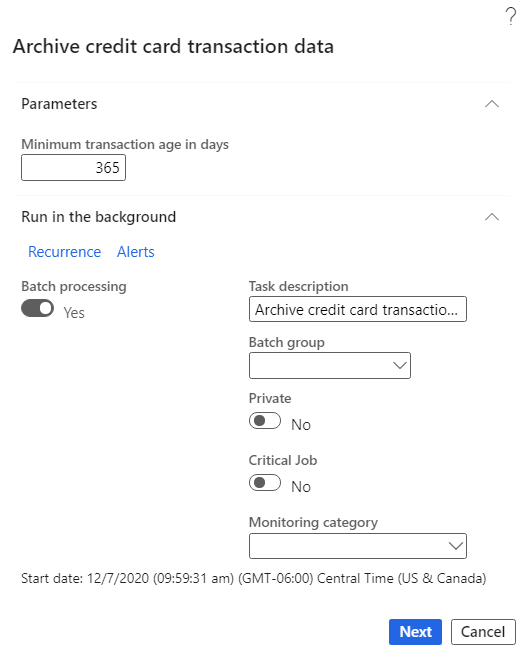
The Parameters section of the Archive credit card transaction data flyout menu contains the following parameters:
- Minimum transaction age in days: Required parameter. Enter the age, in days, of credit card authorizations that are subject to archiving or deleting. The value you enter should be the time period that customers can have refunds linked to their original credit card authorization. For example, if you set the field to 365 days, a return for a transaction that's 366 days old might still be eligible for refund, depending on the merchant's policies. However, because the data required to do a linked refund isn't available in Commerce after it's archived or deleted, any refund that's processed has to be a standalone refund. To manage the batch run times, set this parameter to a large value so that fewer transactions are processed. If the environment has millions of transactions, the batch job runs for several hours or days. Therefore, set the parameter value starting from large enough value to smaller values.
- Delete data without archiving: When you set this parameter to Yes, Commerce deletes (and doesn't archive) the payment tokens and signature capture data for all transactional records that meet the criteria of minimum transaction age in days.
- Corresponding transaction date: This parameter is a reference field that displays the date in the past that currently corresponds to the value of the Minimum transaction age in days parameter. Records older than the date shown are affected by the job.
- Use compression: When you set this parameter to Yes, Commerce compresses tokens to save on storage space. For more information, see Further storage management with token compression. This parameter is deprecated starting 10.0.49 and a dedicated batch job is introduced for compression of the tokens.
Run in the background section
The Run in the background section of the Archive credit card transaction data flyout menu controls the batch functionality and scheduling of the batch job. It contains the following parameters that you can configure for your batch job:
- Batch processing: This parameter is set to Yes by default; you can't turn it off.
- Recurrence: The parameters on the Recurrence > Define recurrence tab let you set the recurrence timing configurations to run the job.
- Alerts: The parameters on the Alerts > Batch job alerts tab let you configure alerts for different events related to the batch job.
- Task description: This parameter specifies the batch job display label.
- Batch group: This parameter specifies batch groups to distribute the workload to different servers.
- Private: When you set this parameter to Yes, Commerce restricts other users from processing your batch job. Only the user who configured the form can run the job.
- Critical Job: Setting this parameter to Yes prioritizes processing capacity for the job.
- Monitoring category: You can assign a monitoring category to make it easier to identify different types of jobs during monitoring.
The following illustration shows an example of parameter settings in the Archive credit card transaction data dialog box.
Important
The data that is subject to archiving includes personally identifiable customer information such as the name of the cardholder. Handle this sensitive data according to your local regulatory requirements.
After you select the parameters for the batch job, you're prompted to confirm that you understand that the data is being archived and can't easily be restored. After you select Yes, the archival job becomes active, and all XML data about credit card authorizations that's older than the Minimum transaction age in days value is subject to archival or deletion.
Further storage management with token compression
Dynamics 365 Commerce provides a way to systematically compress the credit card tokens before saving them in the transaction tables. Before these tokens are used in the channels, the system decompresses them and uses them accordingly. This process helps reduce the growth rate of the underlying storage tables.
To enable the Compress payment tokens feature in headquarters, follow these steps:
- Go to Workspaces > Feature management.
- Under All, search for the Compress payment tokens feature.
- Select the feature, and then select Enable now in the properties pane.
Note
When you enable the Compress payment tokens feature, the system compresses only newly created tokens. To compress existing payment tokens, see the following section.
Compress existing payment tokens
Before version 10.0.49, when you enabled the Compress payment tokens feature, the Archive credit card transaction data dialog showed a parameter named Use compression in the parameters section after seven days. You could enable this parameter and run the batch job to compress the existing tokens. But, this approach didn't allow you to compress the tokens without also archiving some transactions. Starting with version 10.0.49, you can enable a feature named Compress credit card transaction tokens from the Feature management workspace. Once enabled, you can use a new batch job named Compress credit card transaction data to independently compress the payment tokens without triggering an archival for certain transactions.
Important
The Compress credit card transaction tokens feature has a dependency on the Compress payment tokens feature.