Note
Access to this page requires authorization. You can try signing in or changing directories.
Access to this page requires authorization. You can try changing directories.
This article describes the Commerce chat with Microsoft Copilot Studio module that integrates Microsoft Copilot Studio with Dynamics 365 Commerce websites.
The Commerce chat with Microsoft Copilot Studio feature empowers Dynamics 365 e-commerce customers to use Microsoft Copilot Studio agent capabilities to handle their queries. As of the Dynamics 365 Commerce 10.0.30 release, you can incorporate this feature into e-commerce websites by using the Commerce chat with Microsoft Copilot Studio module that is part of the Commerce module library.
The Commerce chat with Microsoft Copilot Studio feature helps businesses achieve the following goals:
- Increase personalized engagement with their consumers, and improve retention.
- Increase customer service through integration of self-service chatbots.
- Increase overall customer satisfaction, and therefore increase sales.
Note
To learn about the differences between the Dynamics 365 Omnichannel for Customer Service and Microsoft Copilot Studio applications, see Commerce chat features overview.
Prerequisites for using Microsoft Copilot Studio
To use the Commerce chat with Microsoft Copilot Studio feature, you must first create a Microsoft Copilot Studio agent for your e-commerce website. For instructions, see Create and delete Microsoft Copilot Studio agents.
After you configure the agent, follow the procedures in the next section to get the bot ID and tenant ID parameter values that you use to configure the Commerce chat experience.
Find the bot ID of a Microsoft Copilot Studio agent
The Microsoft Copilot Studio user interface doesn't show the bot ID directly. To get it, request a Direct Line token for your agent and read the bot ID from that token.
To find the bot ID of a Microsoft Copilot Studio agent, follow these steps:
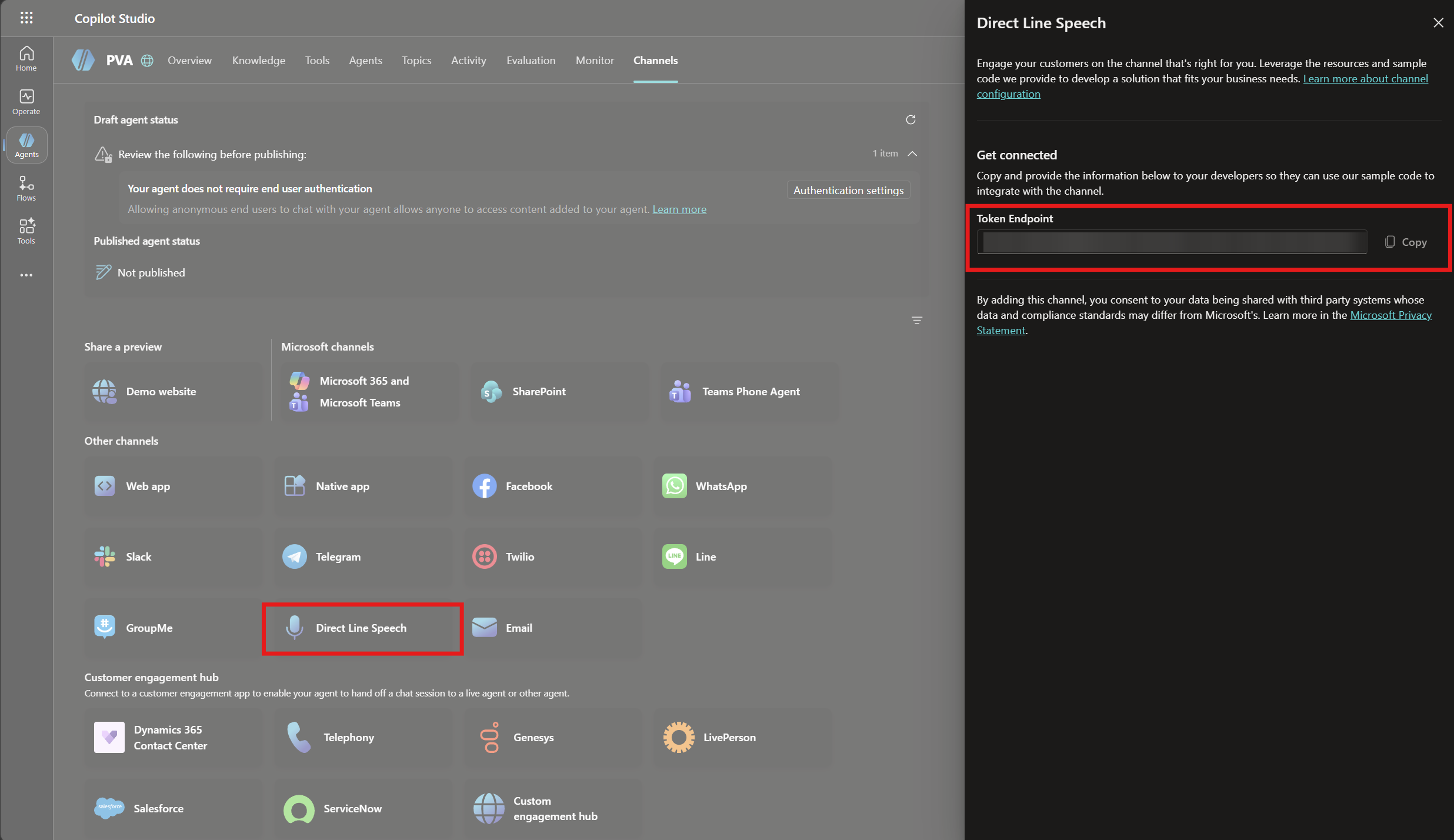
In Microsoft Copilot Studio, open your agent, and then select the Channels tab.
Under Other channels, select Direct Line Speech.
In the Direct Line Speech pane, under Get connected, select Copy next to Token Endpoint to copy the token endpoint URL.
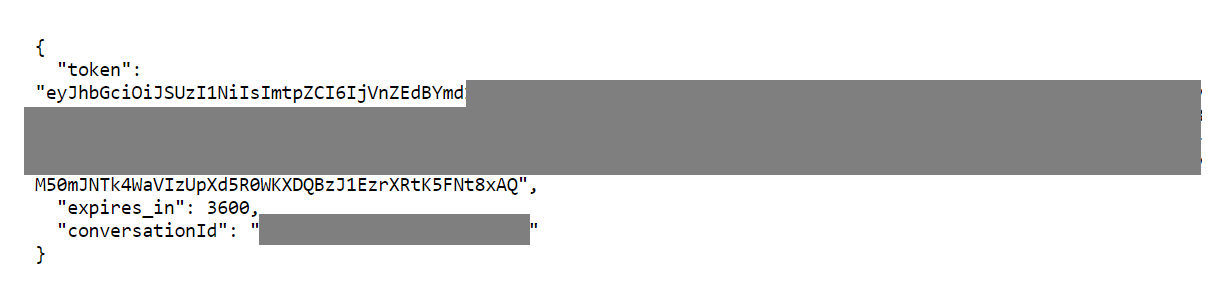
Open a new browser tab, and go to the token endpoint URL. A JSON result is displayed. Copy the value of the token property. The value is a JSON Web Token (JWT).
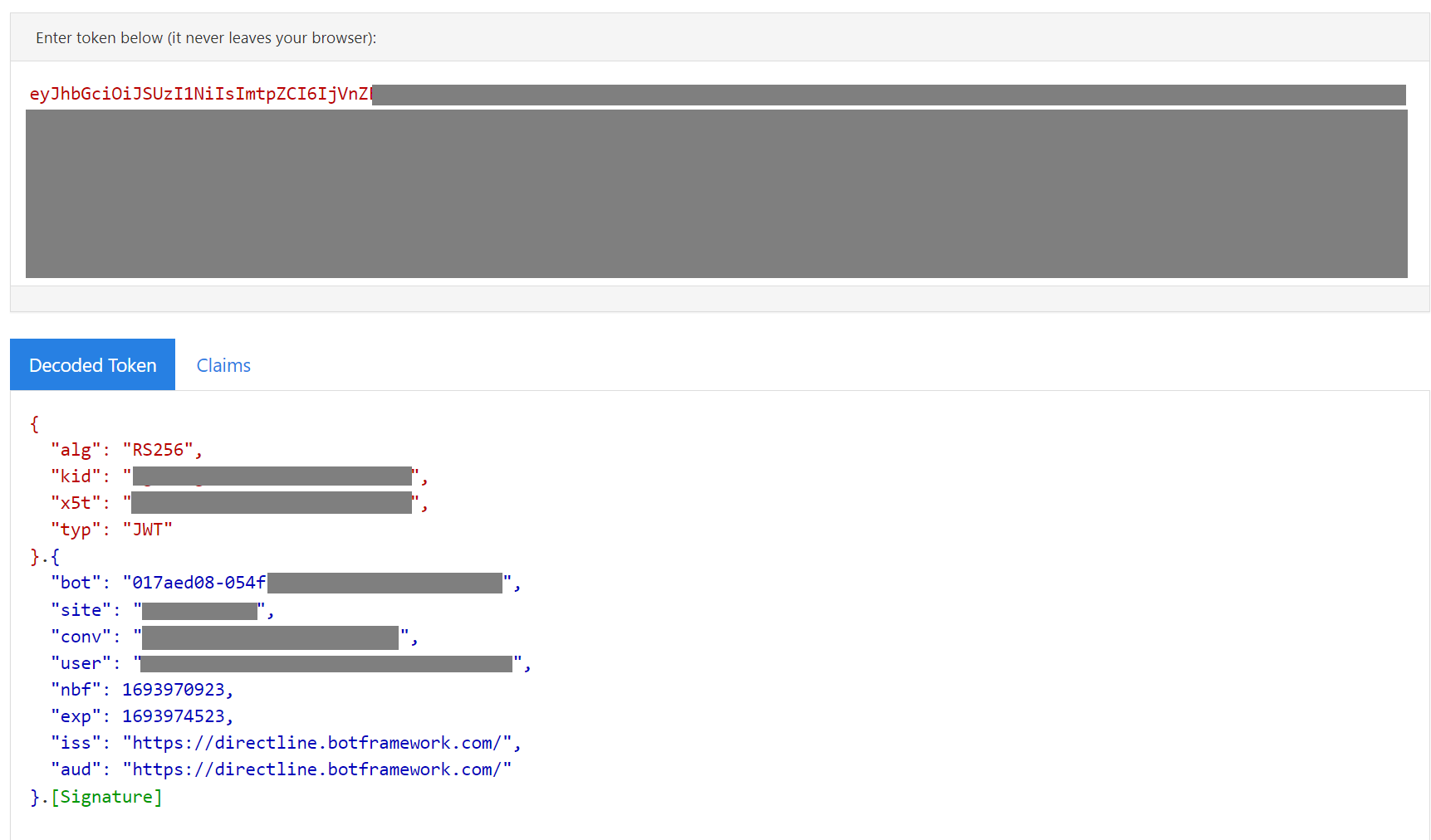
Decode the JWT. In the decoded result, the bot ID is the value of the bot claim.
Important
Microsoft Copilot Studio shows several identifiers that are easy to confuse. The Bot ID module property requires the value of the bot claim in the decoded Direct Line token. Don't use the Entra Agent ID or the Environment ID values that are shown under Settings > Advanced > Metadata. Those values are different identifiers, and the chat module won't connect if you use them.
For more information about agent parameters, see Publish an agent to mobile or custom apps.
Find the tenant ID of a Microsoft Copilot Studio agent
To find the tenant ID of a Microsoft Copilot Studio agent, follow these steps:
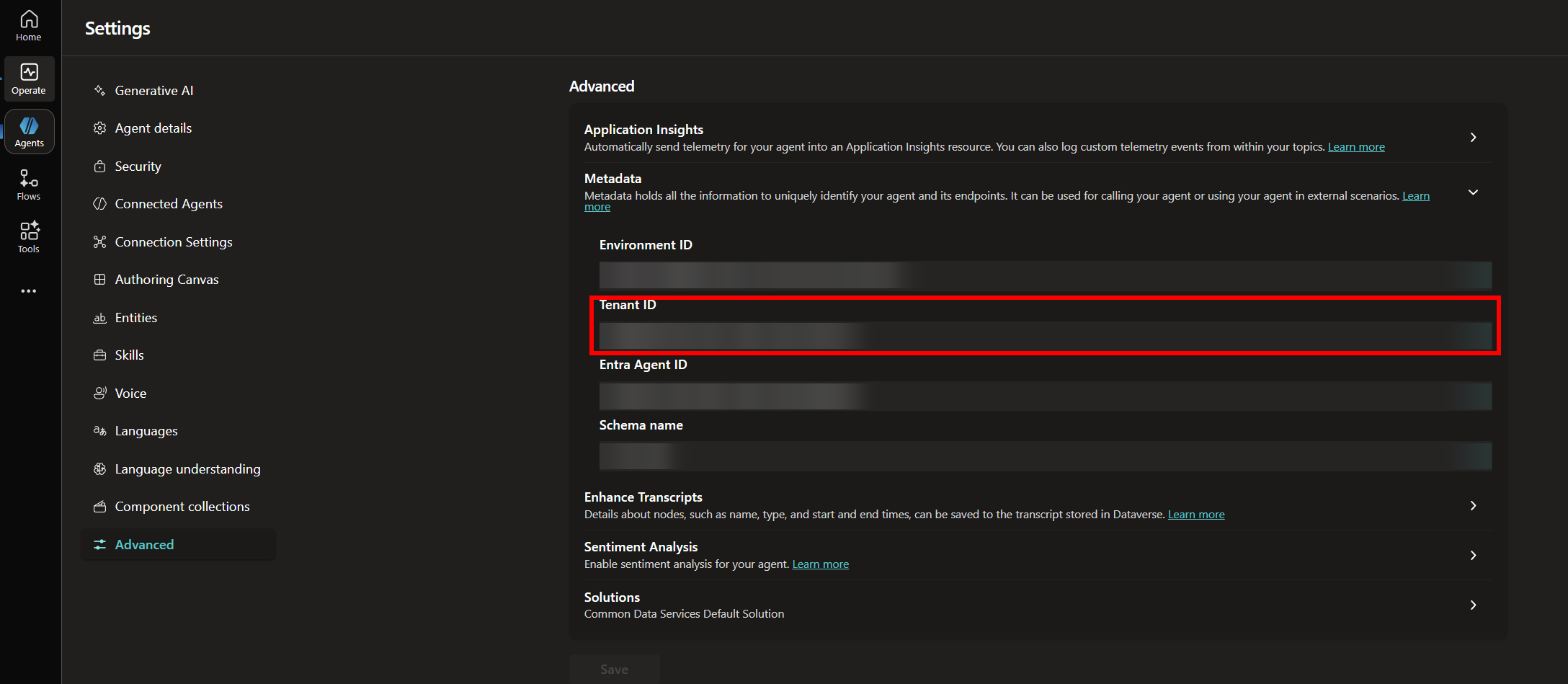
- In Microsoft Copilot Studio, open your agent, and then select Settings.
- In the settings list, select Advanced.
- Expand the Metadata section.
- Next to Tenant ID, select the copy symbol to copy the value.
Configure your e-commerce site
One recommended way to implement the chat experience for your e-commerce site is to add the Commerce Chat with Microsoft Copilot Studio module to the shared header fragment that you use on your site pages.
To add the chat module to your site's header fragment in Commerce site builder, follow these steps:
In Commerce site builder for your site, go to Fragments.
Select New.
In the Select a fragment dialog, select the Commerce Chat with Microsoft Copilot Studio module, enter a name for the fragment, and then select OK.
In the outline view, select the Msdyn365 pva chat connector slot. (The slot name still uses the module's original internal name,
msdyn365-pva-chat-connector.)In the properties pane on the right, follow these steps:
- Under Bot Parameters, in the Bot Framework Webchat Chat CDN URL field, leave the default value (for example,
https://cdn.botframework.com/botframework-webchat/latest/webchat.js). - In the Bot Framework Direct Line Authentication URL field, leave the default value (for example,
https://powerva.microsoft.com/api/botmanagement/v1/directline/directlinetoken). - In the Bot ID field, enter the Microsoft Copilot Studio bot ID value that you copied in the Prerequisites for using Microsoft Copilot Studio section.
- In the Tenant ID field, enter the Tenant ID value that you copied.
- Under Bot Parameters, in the Bot Framework Webchat Chat CDN URL field, leave the default value (for example,
Select Save, select Finish editing to check in the fragment, and then select Publish to publish it.
Go to Fragments, and open the header fragment for your site.
In the Default container slot, select the ellipsis (...), and then select Add fragment.
In the Select modules dialog, select the chat fragment that you created earlier, and then select OK.
Select Save, select Finish editing to check in the fragment, and then select Publish to publish it.
Note
You must publish your Microsoft Copilot Studio agent before the chat module can connect to it. If the agent is unpublished, or if it requires end-user authentication, the chat window fails to start a conversation on your site.
Proactive chat parameters
For a complete list of proactive chat configuration parameters, see Commerce chat module proactive chat parameters.
Note
Currently, Microsoft Copilot Studio doesn't support Microsoft Entra ID B2C (Microsoft Entra B2C) authentication. It supports only anonymous Retail Cloud Scale Unit (RCSU) calls to get product availability or interact with other anonymous APIs. Calls to authenticated APIs through Microsoft Copilot Studio agents require an explicit customer sign-in.
Additional resources
Commerce chat features overview