Note
Access to this page requires authorization. You can try signing in or changing directories.
Access to this page requires authorization. You can try changing directories.
Customer-first direct callback helps contact centers reduce representative idle time during callback processing. In the classic direct callback experience, the system assigns a callback request to a representative before it calls the customer. If the customer doesn't answer, the call reaches voicemail, or the number is unavailable, the representative waits while the call attempt completes.
With customer-first direct callback, the system calls the customer first when the callback request reaches the front of the queue. After the customer answers and completes any required verification, the system connects the customer to an available representative. This approach helps optimize representative capacity and supports custom callback experiences through callback profiles.
How customer-first direct callback works
When a customer selects the callback option from an overflowing queue:
The system keeps the callback request in the queue.
The callback request moves through the queue according to routing priority.
When the callback request reaches the front of the queue and at least one representative is available, the system initiates the callback.
The system calls the customer.
An AI agent can engage the customer, collect information, or perform verification.
The system transfers the customer to an available representative. The system displays the direct callback notification to the representative.
Callback profiles control how callbacks are handled for customers. Create multiple profiles and apply them to different queues or overflow scenarios to meet specific business requirements. For example, a profile can require customer verification before the call is connected, while another profile can play an informational message before the transfer.
The system automatically closes direct callback requests after seven days.
Prerequisites
- Provision the Microsoft Copilot Studio agent in your environment.
- Configure phone numbers with outbound calling enabled.
- Create any Copilot Studio agents that you plan to use for customer verification or information collection.
Important
- Customer-first direct callback uses AI agents. AI agent use can consume available Copilot or Microsoft service credits. Learn more in Understand usage-based billing and cost management for Copilot Credits. Licensing and usage requirements that apply to other AI agents also apply to callback agents.
- After you enable customer-first direct callback, you can't disable the feature. During initial setup, the first callback profile automatically applies to queues that already use direct callback as an overflow action.
Enable customer-first direct callback
In the site map of Copilot Service admin center, go to Routing > Callback management.
Enable Copilot AI agent for callback management.
Review the enablement information and confirm the action because the setting is irreversible. Wait for the system to provision Callback Agent and verify that it provisions the agent without errors. Learn more in Manage your agents.
After provisioning completes, select the Customer-first direct callback toggle.
Create your first callback profile. You can't enable the feature until you create at least one callback profile.
Save the profile. After you save the first profile, the system enables customer-first direct callback and makes the profile available for queue configuration.
Create callback profiles
On Create new direct callback profile, enter the following details:
Profile name
Callback flow
- Ask for alternate number: Select to call customers at a number of their choice.
- Initial callback offer: Edit the default message that the system plays when customer opts for a callback.
- Copilot AI agent: If customer opts for providing an alternative number to be called at, the AI agent takes the number. Avoid editing or deleting the AI agent that's configured for taking the alternative number. Any changes to the agent might result in callback not working as expected.
Repeat message: Select the interval for the message to be repeated until the customer responds.
Callback offering window: Turn on the toggle to define when the system can offer callback requests. For example, you can:
- Offer callbacks only between specific hours.
- Stop offering callbacks near the end of business hours.
- Limit callback requests during peak periods.
The time zone is automatically picked as per the operation hours defined for the queue. If no operating hours are defined, UTC time zone is selected by default.
Duplicate prevention: Choose the setting for the system to check for duplicates to prevent customers from creating multiple callback requests:
Within the current queue only.
Across all queues.
Choose how the system handles duplicate requests:
Inform the customer and end the call.
Inform the customer and allow the customer to remain in the queue.
The system performs duplicate detection only when the overflow action triggers a direct callback experience. It uses the customer phone number to identify existing callback requests.
Queue allocation: Specify the maximum number of active callback requests that a queue can hold. When the queue reaches the configured limit:
- The system stops offering callbacks.
- Customers continue through the standard queue experience. The system evaluates active callback conversations and automatically resumes callback offers when capacity becomes available.
On the Dialing page, in Callback number, select one of the following options to determine the number from which callback is offered.
Use dialed-in number: Uses the same number that the customer originally called. Specify the fallback number to handle cases when the customer-dialed number doesn't support outbound calling.
Always use specific number: Specify a dedicated outbound callback number.
Callback dialing mode: Configure the agent.
- AI agent: Select the Copilot Studio agent that handles customer engagement after the callback connects. Use this agent to:
- Verify customers.
- Collect information.
- Present callback context.
- Route customers to representatives after verification.
- Escalate to service representatives.
- Any other flow based on topics you configure for the agent.
- AI agent: Select the Copilot Studio agent that handles customer engagement after the callback connects. Use this agent to:
Fallback action: Select one of the following options and customize the prompt and prompt message if agent is unable to engage with the customer:
- Prompt and hang up
- Prompt and escalate
Rules: Configure rules for callback timings. Rules help organizations maintain a consistent callback experience during periods of high demand. Define an acceptable average callback wait time, for example, five minutes over the last 30 minutes. The system continuously monitors recently dialed callbacks and, when the average wait time exceeds the configured threshold, automatically delays new callback attempts. This strategy helps align callback volume with available representative capacity, reducing the likelihood that customers answer a callback only to wait for an available representative. The delay is adjusted dynamically as conditions change.
For example, you configure a target average callback wait time of five minutes over the last 30 minutes. During a busy period, recently dialed callbacks have average wait times of eight minutes before a representative is assigned. Because the current average exceeds the target by three minutes, the system temporarily delays new callback requests by three minutes before dialing customers. As staffing levels improve and the average wait time drops to six minutes, the delay is automatically reduced to one minute. When the average wait time returns to five minutes or below, callback requests are dialed immediately without any delay.
- Average wait time: Select the wait time duration.
- Allow callbacks outside operating hours: Select the option to allow callback even if queue is out of operating hours.
On the Behaviors page, in Retry Settings, select the retry options to configure the behavior for the following triggers:
- No answer
- Failed
- Answering machine
For Retry settings, do as follows:
- Number of attempts: Select the number of times the system needs to retry before closing the callback request.
- Wait time: Select the duration in minutes or hours to wait before retrying. The minimum duration is five minutes.
Select Next and save and close after verifying the settings on the summary page.
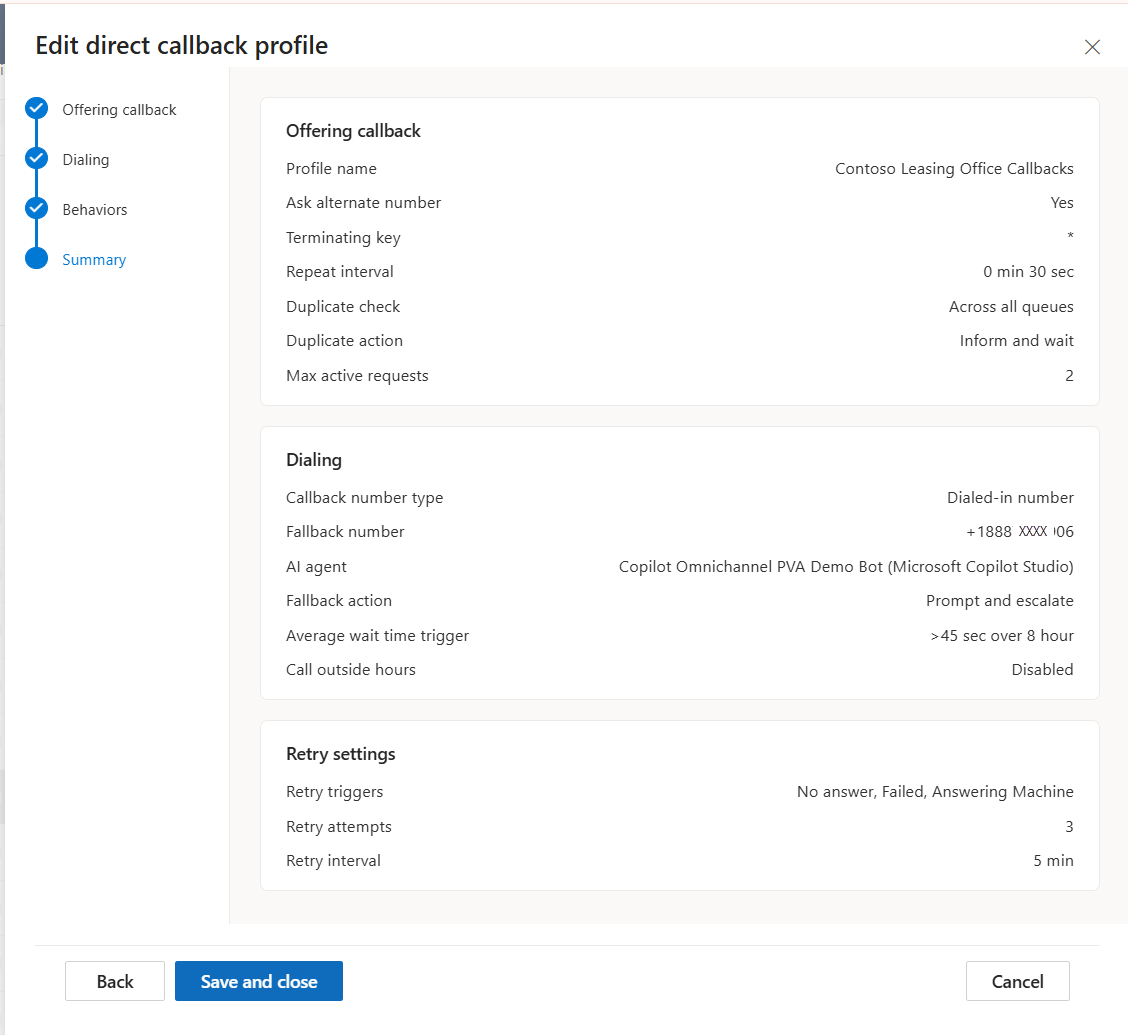
Use callback profile in overflow action
You can configure one callback profile per overflow condition for a single queue.
In Copilot Service admin center, for a voice queue, select Direct callback as the overflow action for any of the conditions. Learn more in Manage overflow of work items in queues.
In Callback profile, select a callback profile.
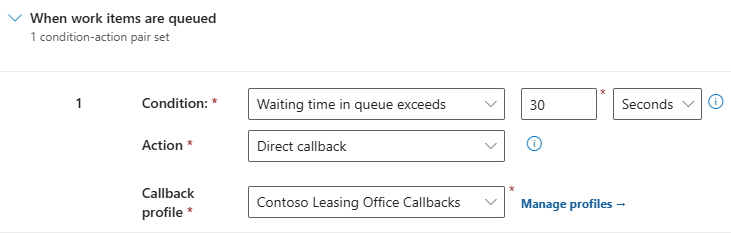
Save the changes.