Note
Access to this page requires authorization. You can try signing in or changing directories.
Access to this page requires authorization. You can try changing directories.
Applies to: Dynamics 365 Contact Center only
Quality and coaching skills help organizations consistently monitor, measure, and improve customer conversations by using AI‑powered evaluations and real‑time coaching. With a centralized quality library and flexible evaluation plans, supervisors can spot problems early, coach representatives at the right moment, and ensure AI-driven conversations meet organizational and compliance standards at scale.
Key concepts
Evaluation plans: Evaluation plans combine quality indicators and guardrails into a structured framework. The framework defines which indicators and guardrails apply, when and how often to run evaluations, which conversations to include, and triggers actions or alerts based on the results.
Quality library:
Quality indicators: Quality indicators represent measurable dimensions of conversation quality, such as empathy, greeting etiquette, or handling of sensitive information. Each indicator contains one or more questions that the AI uses to score conversations. Scored indicators contribute to an overall quality score. You can reuse indicators across multiple evaluation plans.
Guardrails: Guardrails define the allowed and prohibited behaviors in a conversation, such as providing financial advice or handling vulnerable customers. The system evaluates guardrails for violations rather than numeric scores. Each guardrail has a priority that indicates urgency. You can optionally generate a suggested next response for the representative when a violation is detected.
Important
This feature is intended to help customer service managers or supervisors enhance their team’s performance and improve customer satisfaction. This feature isn't intended for use in making—and shouldn't be used to make—decisions that affect the employment of an employee or group of employees, including compensation, rewards, seniority, or other rights or entitlements. Customers are solely responsible for using Dynamics 365, this feature, and any associated feature or service in compliance with all applicable laws, including laws relating to accessing individual employee analytics and monitoring, recording, and storing communications with end users. This responsibility also includes adequately notifying end users that their communications with representatives may be monitored, recorded, or stored and, as required by applicable laws, obtaining consent from end users before using the feature with them. Customers are also encouraged to have a mechanism in place to inform their representatives that their communications with end users may be monitored, recorded, or stored.
Prerequisites
- Omnichannel Administrator role.
- Set up Microsoft Copilot credits.
Enable quality and coaching skills
In the Copilot Service admin center, go to Customer support > Quality and Coaching.
Select one of the following tabs:
Evaluation plan: Create and manage evaluation plans.
Quality library: Manage quality indicators and guardrails.
Manage evaluation plans
The Evaluation plan page lists all the existing plans. You can create or edit an evaluation plan.
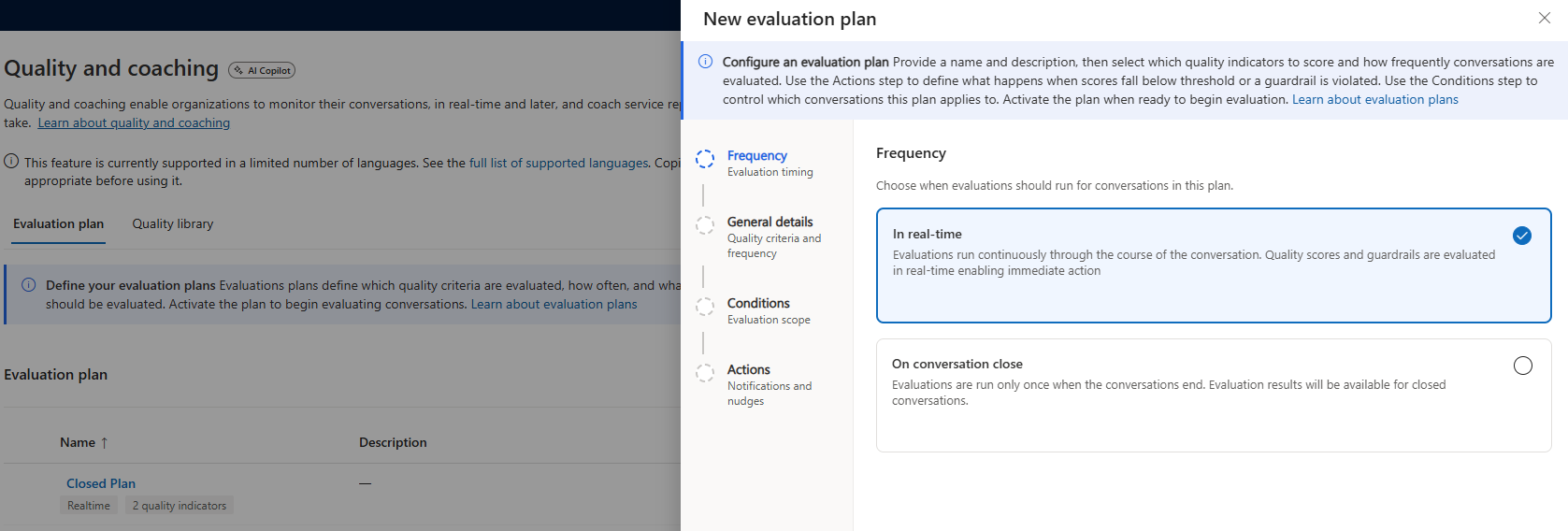
To create an evaluation plan, select Add new.
On the New evaluation plan dialog, select the Frequency as one of the following options:
- In real-time: Evaluations run continuously throughout the conversation, with quality scores and guardrails assessed in real-time to enable immediate action.
- On conversation close: Evaluations run once at the end of the conversation, with results available only after the conversation is closed.
Select Next to continue.
In General details, provide the following information:
- Plan name: A descriptive name for the evaluation plan.
- Description: Optional context for what the plan evaluates.
- Quality criteria: Select one or more quality indicators and guardrails.
Select Next to continue.
In Conditions, add conditions to control which conversations the plan evaluates. Add one or more conditions, such as:
- Queue equals a specific messaging queue
- Workstream equals a selected workstream
Select Next to continue.
In Actions, define score ranges and select whether to notify the supervisor, send a coaching nudge to the representative, or both. Nudges appear as real-time messages during the conversation.
For scored quality indicators:
- Define score ranges as Critical, Warning, or Normal.
- For each range, select whether to notify a supervisor, send a coaching nudge to the representative, or both.
Save the changes. On the Quality and coaching page, activate the plan to begin evaluations.
Manage the quality library
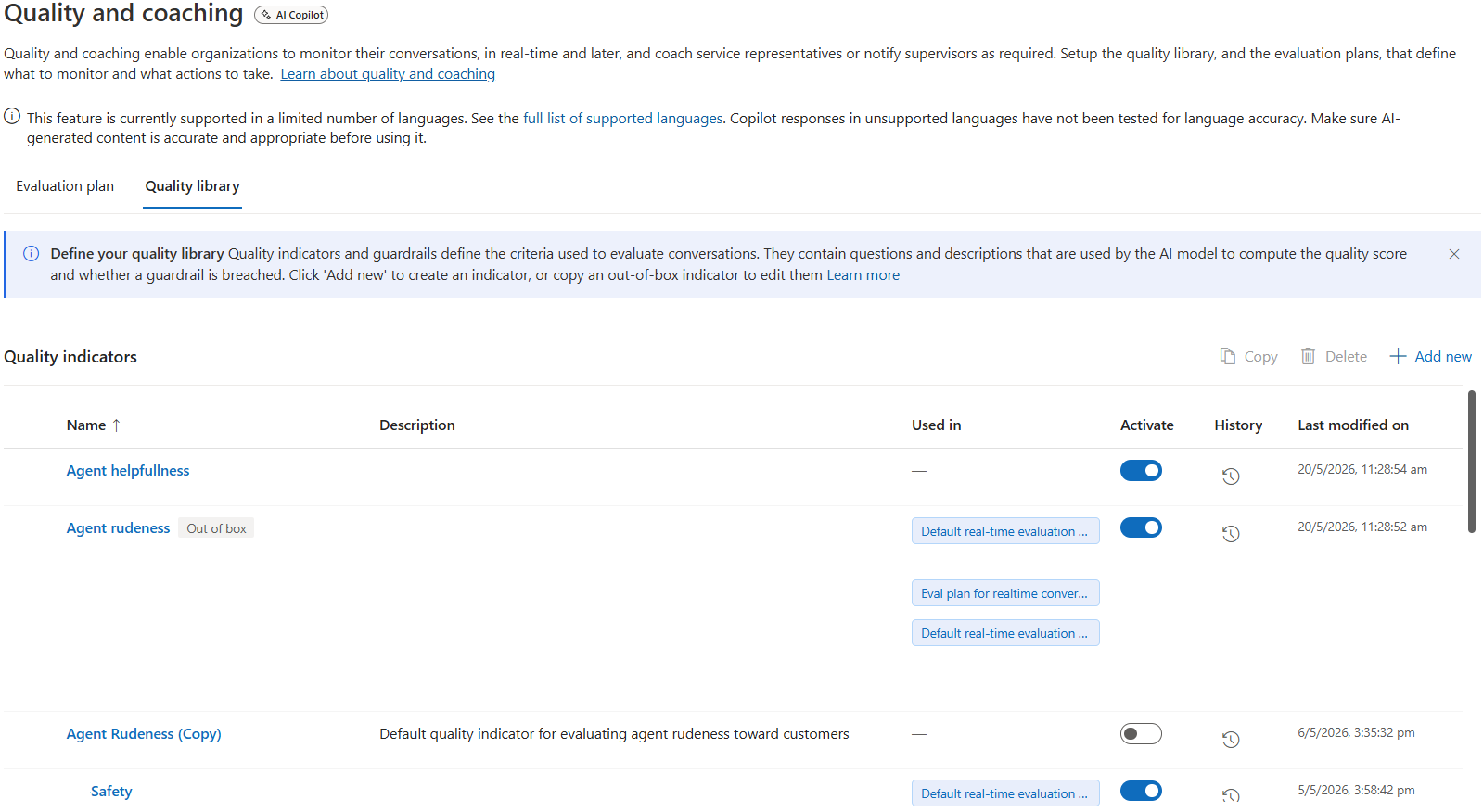
The Quality library lists all quality indicators and guardrails available in your environment. Quality indicators and guardrails define the criteria used to evaluate conversations. You can create an indicator, or copy a built-in indicator to edit and use. You can delete inactive quality indicators.
Manage a quality indicator
In Quality library, under Quality indicators, select Add new or select an existing indicator.
On Add quality indicator, provide the following information:
- Quality indicator name: Enter a name for the indicator.
- Description: (optional)
- Questions:
- Add one or more questions that the AI uses to assess conversations.
- For type of answers, select from Yes/No, Multiple choice, or Choose from the list.
- Assign scores to each answer option.
- Optionally, add instructions for the AI agent to improve evaluation accuracy.
Save the changes. On Quality and coaching, activate the quality indicator to use it in evaluation plans.
Manage a guardrail
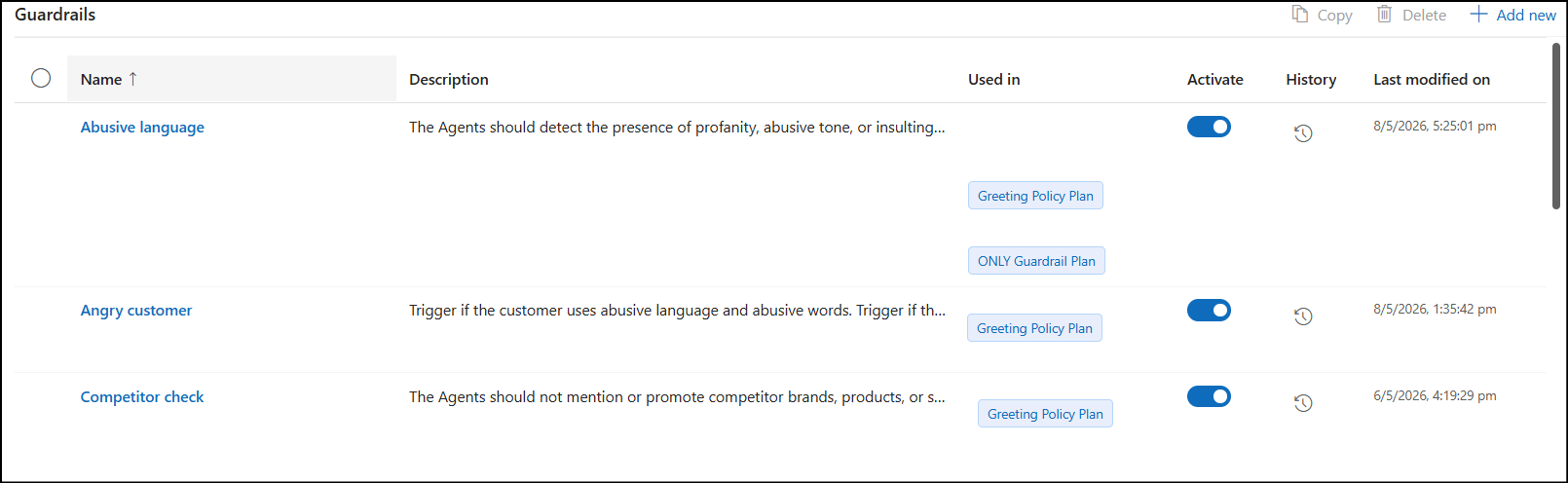
In Quality library, under Guardrails, select Add new or select an existing guardrail.
On Add quality indicator, enter the following information:
- Guardrail name: Enter a guardrail name.
- Description: Enter a description of the expected behavior.
- Priority: Select Low, Medium, or High to indicate urgency.
- Nudge text: Optionally, enter the nudge text that you can surface to representatives.
- Select Suggest next response to allow AI‑generated guidance when a violation is detected.
Save the changes. On Quality and coaching, activate the guardrail to use it in evaluation plans.
Best practices
Build your quality library first so you can reuse indicators and guardrails across plans.
Keep indicators focused on a single quality dimension for clear scoring.
Use conditions to limit real‑time evaluation to high‑value queues or workstreams.
Start with conservative actions and expand notifications or nudges based on operational readiness.
Related information
Contact center agents in Dynamics 365 Contact Center