Note
Access to this page requires authorization. You can try signing in or changing directories.
Access to this page requires authorization. You can try changing directories.
Microsoft Fabric provides inbound access protection for organizations that require enhanced control over connections to a workspace. You can connect Dynamics 365 Customer Insights - Data to a Microsoft Fabric OneLake workspace when Inbound Access Protection is enabled.
Inbound access protection helps secure Microsoft Fabric workspaces by restricting access from the public internet. When enabled, public endpoints are disabled, and services such as Customer Insights - Data must connect through Private Link.
Learn more:
- Limit inbound requests with inbound access protection
- Cross-tenant connections using workspace-level private links
When inbound access protection is on, public OneLake endpoints are blocked. To allow access, you must create and validate a workspace-level Private Link in Azure, then complete the data source connection in Customer Insights - Data.
Prerequisites
Before you connect Customer Insights - Data to a Microsoft Fabric OneLake workspace, ensure that:
The Fabric tenant setting Users can access data stored in OneLake with apps external to Fabric is enabled. For more information, go to Enable external access to OneLake data.
The Customer Insights - Data service principal is granted the required permissions to the Fabric workspace. For more information, go to Add Customer Insights - Data service principal to the Fabric workspace.
A Private Link service exists in Azure for the workspace and you have access to that resource. For more information, go to Step 2: Set up and use workspace-level Private Links.
Your organization is ready to approve pending private endpoint connections in Azure.
Create a Private Link for the workspace
To use a Microsoft Fabric workspace with inbound access protection enabled in Customer Insights - Data, create a Private Link and have an Azure administrator approve the pending private endpoint connections.
Step 1: Create a workspace Private Link
In Customer Insights - Data, go to Data > Data sources.
Select Add a data source.
Select Microsoft Fabric OneLake.
Select the Enable Azure Private Link checkbox.
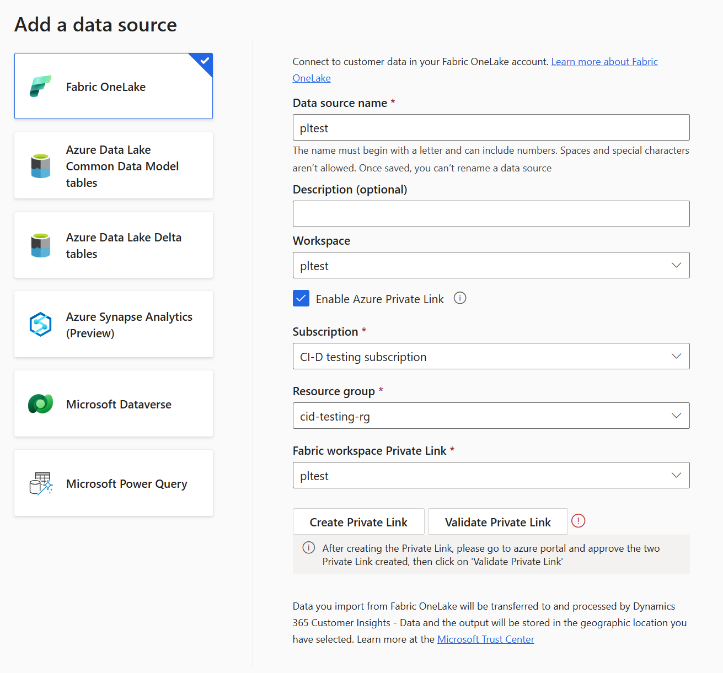
In the Fabric workspace Private Link dropdown, select the Fabric Private Link service resource in Azure that corresponds to the workspace. The Azure administrator creates and names the Private Link service specifically for each workspace, so the name should clearly associate with the workspace name.
Select Create Private Link.
Step 2: Approve pending endpoint connections
An Azure administrator must approve pending Private Link requests. Ask your Azure administrator to:
Open the Azure portal.
Go to Network Foundation.
Select Pending connections.
Find the two pending private endpoint requests.
Approve both connections.
Users can't use the Private Link until you approve both endpoint connections.
Step 3: Validate the Private Link
Return to the Fabric Private Link configuration page.
Select Validate Private Link.
Verify that validation succeeds.
Important
Changes can take several minutes to propagate after you approve the endpoint connections. If validation initially fails, wait a few minutes and try again.
Connect to the workspace in Customer Insights - Data
After the Private Link validates successfully, connect to Microsoft Fabric OneLake to ingest data from the workspace. For more information, see Connect to Microsoft Fabric OneLake.
Troubleshooting
The Fabric workspace Private Link list is empty, or the workspace isn't listed
If you don't see a Private Link service for the workspace, you might not have created the Private Link service in Azure, or you might not have access to the resource.
Contact your Azure administrator to create the Private Link service or give you access as appropriate. For more information, see Step 2: Create the Private Link service in Azure.
Private Link validation fails
Verify that:
Both pending endpoint connections are approved.
The approved connections have sufficient time to propagate.
The workspace Private Link is created successfully.
The table list appears hung during refresh, or appears empty
An empty table list indicates that Customer Insights - Data doesn't have permission to access or read the contents of the workspace. Verify that:
- The Customer Insights - Data service principal has the required workspace permissions.
- The Fabric tenant setting for external access to OneLake data is enabled.
- The Private Link is successfully validated.