Note
Access to this page requires authorization. You can try signing in or changing directories.
Access to this page requires authorization. You can try changing directories.
[This article is prerelease documentation and is subject to change.]
Connect to managed Delta tables in a Microsoft Fabric OneLake lakehouse and ingest the data into Dynamics 365 Customer Insights - Data. The Fabric OneLake connector reads Delta tables directly from your Fabric workspace, so you don't need to copy or stage data in Azure Data Lake Storage first.
Key reasons to connect to data stored in Fabric OneLake:
- Ingest Delta tables directly from a Fabric lakehouse without an intermediate storage layer.
- Reduce data movement, storage costs, and pipeline maintenance.
- Use Fabric shortcuts to bring Delta tables from other sources or workspaces into a single lakehouse, then ingest them through one connection.
Important
- This is a preview feature.
- Preview features aren't meant for production use and may have restricted functionality. These features are available before an official release so that customers can get early access and provide feedback.
Prerequisites
Before you create a Fabric OneLake data source:
- Enable external access to the OneLake data.
- Add Customer Insights - Data service principal to the Fabric workspace.
- Verify that the following workspace and data requirements are met.
Workspace prerequisites
- A Microsoft Fabric workspace that contains one or more lakehouses with the Delta tables you want to ingest. The Fabric workspace and Customer Insights - Data environment must be in the same Microsoft Entra tenant.
- Initially, the workspace name can't contain special characters. Learn more: Known issues.
- The admin who creates or updates the data source needs at least the Viewer workspace role.
Data prerequisites
- You can ingest managed Delta tables in a Fabric lakehouse. Files (such as CSV or non-Delta Parquet) and Fabric Data Warehouse tables aren't supported.
- Each Delta table must have a primary key column with unique, non-null values. String, integer, and GUID data types are supported as primary keys.
- Delta tables exposed through Fabric shortcuts are supported.
- Customer Insights - Data supports Databricks reader version 1 or 2. Customer Insights - Data doesn't support reading Delta tables with deletion vectors enabled. Deletion vectors require the Delta reader version 3, which isn't supported. Learn more: Supported Databricks features.
Preview limitations
The following limitations apply during public preview:
- One Fabric OneLake data source per workspace. To ingest from another workspace, create another data source or use a Fabric shortcut.
- Editing an existing Fabric OneLake data source isn't supported. To change the selected tables, remove the data source and create a new one. Remove any downstream dependencies first. Editing existing connections is planned before general availability (GA).
- Upgrade in place from an existing Azure Data Lake Delta tables data source to a Fabric OneLake data source isn't yet available. In-place upgrade is planned before GA.
- Private Link for Inbound Access Protection isn't yet available for Fabric OneLake connections. Private endpoint support is planned before GA. To check if Inbound Access Protection is enabled in your tenant, sign in to the Microsoft Fabric admin portal. Go to Admin Portal > Tenant Settings > Advanced Networking. Check if Azure Private Links and Block Public Internet Access are enabled.
Enable external access to OneLake data
A Fabric tenant administrator must enable external access to OneLake data once for each Fabric tenant. This setting allows the Customer Insights - Data service to read Delta tables from your Fabric lakehouses.
- Sign in to the Fabric admin portal as a Fabric administrator.
- Select Tenant settings.
- Under OneLake settings, expand Users can access data stored in OneLake with apps external to Fabric.
- Set the toggle to Enabled and apply the setting to the entire organization (or to specific security groups, as required by your tenant policy).
Note
Tenant setting changes can take up to 15 minutes to take effect.
Add Customer Insights - Data service principal to the Fabric workspace
Add the Customer Insights - Data service principal (Dynamics 365 AI for Customer Insights) to the Fabric workspace with at least the Contributor role so it can read Delta tables at runtime and write a small amount of metadata for each table. As a best practice, put the service principal in a security group.
Enable the service principal in the Fabric tenant
- Sign in to the Fabric admin portal as a Fabric administrator.
- Select Tenant settings. Scroll to Developer settings.
- Enable Service principals can call Fabric public APIs.
Add the service principal or security group to the Fabric workspace
- Open your Fabric workspace.
- Select Manage access.
- Select Add people or groups.
- Search for the service principal name or the security group that contains it.
- Assign the Contributor role.
Connect to data in Fabric OneLake
Data source names and table names must start with a letter and can contain only letters, numbers, and underscores (_). You can't use spaces or special characters. You also can't rename a data source after you save it. When you create the Fabric OneLake data source, you use the identity of the Customer Insights - Data administrator who configures it.
In Customer Insights - Data, go to Data > Data sources.
Select Add a data source.
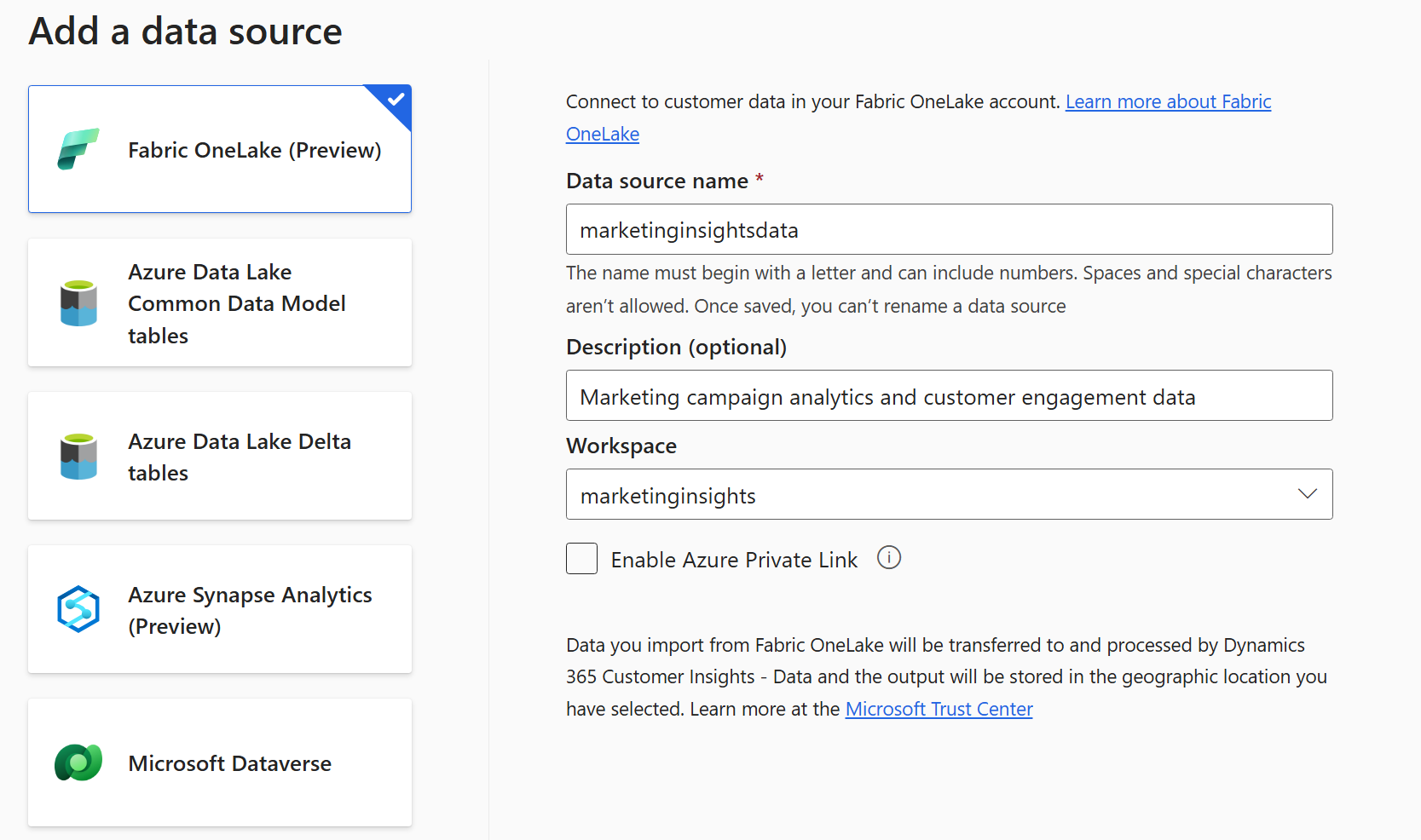
Select Microsoft Fabric OneLake (Preview).
Enter the following information:
- Data source name – A unique name for the data source. Downstream processes reference this name and you can't change it later.
- Description (optional) – A short description of the data the source contains.
- Workspace – The Fabric workspace that contains the lakehouse with the Delta tables you want to ingest. Enter the name in all lowercase. Learn more: Known issues.
Note
Each Fabric OneLake data source connects to a single workspace. To ingest tables from a different workspace, either create another data source for that workspace or use a Fabric shortcut to reference the tables from the connected workspace.
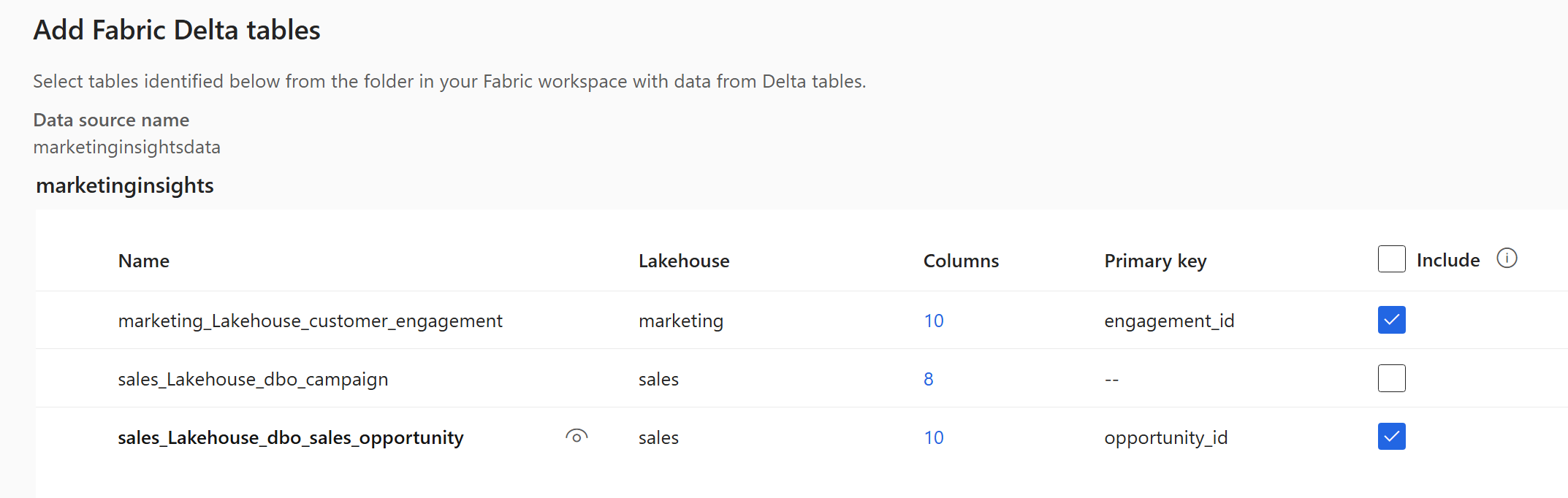
Select Next. Customer Insights - Data lists every Delta table it finds across the lakehouses in the selected workspace. Table names use the pattern
<lakehouse>_Lakehouse_<schema>_<table>.Select Include for each table you want to ingest.
Tip
If a table doesn't appear, confirm that it's a managed Delta table in a Fabric lakehouse and that the workspace contains it. Tables stored in a Fabric Data Warehouse aren't listed.
For each selected table where a primary key isn't detected, Required appears under Primary key. For each of these tables:
- Select Required. The Edit table panel opens.
- Choose the Primary key. The primary key must be unique and can't contain null or missing values.
- Select Close to save and close the panel.
To enable data profiling on a table, select the number under Columns for that table. The Manage attributes page opens.
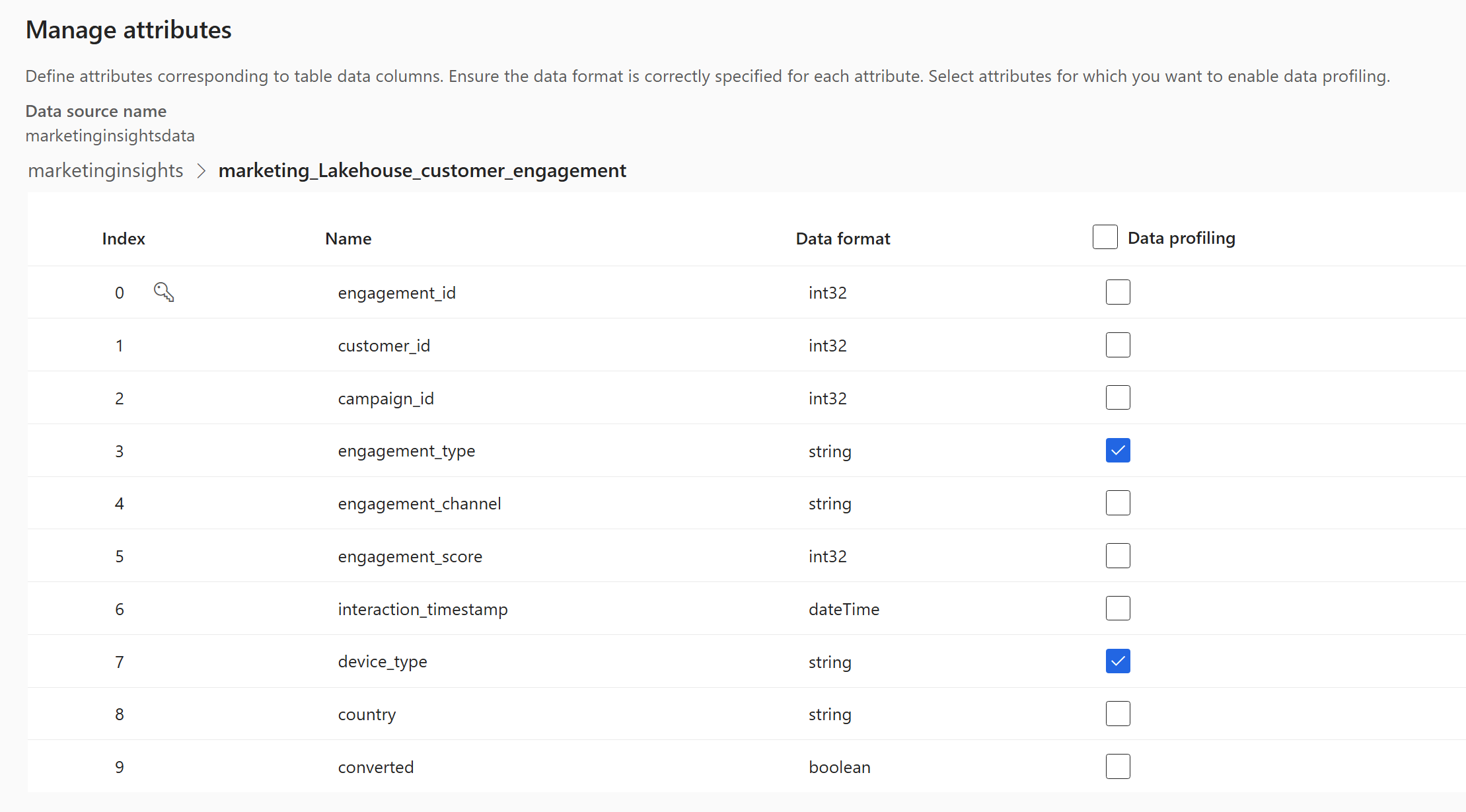
- Review the Name and Data format for each column.
- Select Data profiling for the whole table or for individual columns. By default, data profiling is off.
- Select Done.
Select Next, review the summary, and then select Save.
The Data sources page opens and shows the new data source in Refreshing status.
Loading data can take time. After a successful refresh, you can review the ingested data from the Tables page. Data ingested to Customer Insights - Data transfers and processes data in the geographic location of the Customer Insights - Data environment. Learn more at the Microsoft Trust Center.
Tip
There are statuses for tasks and processes. Most processes depend on other upstream processes, such as data sources and data profiling refreshes.
Select the status to open the Progress details pane and view the progress of the tasks. To cancel the job, select Cancel job at the bottom of the pane.
Under each task, you can select See details for more progress information, such as processing time, the last processing date, and any applicable errors and warnings associated with the task or process. Select the View system status at the bottom of the panel to see other processes in the system.
Supported capabilities
The Fabric OneLake connector supports:
- Ingestion of managed Delta tables from Fabric lakehouses.
- Delta tables exposed through Fabric shortcuts (including shortcuts to OneLake, Azure Data Lake Storage Gen2, Amazon S3, and Google Cloud Storage).
- Incremental refresh using Delta versioning.
Unsupported capabilities
The following capabilities aren't supported during preview:
- Fabric Data Warehouse tables.
- Files or tables that aren't in Delta format (for example, CSV or non-Delta Parquet).
- Connections to lakehouses across multiple Fabric workspaces from a single data source. Use shortcuts or create other data sources instead.
Manage schema changes
If a column is added or removed from the schema of a Delta table, Customer Insights - Data runs a complete refresh of the data. Full refreshes take longer to process than incremental refreshes.
If the source schema changes after the data source is created, a schema mismatch error appears and asks you to update the data source. Because editing isn't supported during preview, remove and recreate the data source to pick up the new schema. In-place schema update is planned for GA.
Delta time travel and data refreshes
Customer Insights - Data uses Delta version history when ingesting data. Customer Insights - Data needs all log versions since its last refresh. To avoid full-refresh failures caused by missing Delta versions:
- Maintain a longer Delta log version history than your longest refresh cadence. For example, if a development instance only refreshes data every two weeks, maintain at least three weeks of version history.
- In your Fabric lakehouse, set both
delta.logRetentionDurationanddelta.deletedFileRetentionDurationto an appropriate value. - Avoid aggressive
VACUUMoperations against tables that Customer Insights - Data ingests.
If Delta versions are missing (for example, after a VACUUM or after the table is recreated), recreate the data source to trigger a full refresh.
Known issues
The public preview release has the following known issues.
"Couldn't add resource" error. One or both of the following can cause this issue:
- The Fabric workspace name contains special characters. This issue will be fixed in June 2026.
- The Fabric workspace name isn't entered in all lowercase. The workspace name itself can contain uppercase letters, but you must enter the name in all lowercase. This issue will be fixed in June 2026.
No tables are shown in the Fabric workspace. One or both of the following can cause this issue:
- External access to OneLake data wasn't enabled for the Fabric tenant. Enable external access.
- The Customer Insights - Data service principal wasn't added to the Fabric workspace. Add Customer Insights - Data service principal to the Fabric workspace.