Note
Access to this page requires authorization. You can try signing in or changing directories.
Access to this page requires authorization. You can try changing directories.
Organizational units represent logical groupings of your business operations, such as departments, regions, or business divisions.
Although territories are the primary geographic construct in Field Service, organizational units can provide another layer of segmentation, like business division (HVAC vs electrical), service line (install vs repair), or internal team structure.
Organizational units and territories
Organizational units define who is responsible for the work. Use them to separate teams to control access and operations.
Territories define where the work happens. Use them to route work geographically to optimize scheduling and travel.
Combined together, they provide dispatchers with the correct resources.
For example, David is a technician who works for Contoso Services, which is an HVAC and plumbing company in the Seattle area. David's organizational unit is the HVAC division and territory is the Bellevue region.
Avery is the dispatcher for Contoso Services and uses both organizational units and territories to assign work to the appropriate technicians.
Prerequisites
- You have a Field Service - Administrator or System Administrator security role assigned.
Create an organizational unit
In Field Service, open the Settings area.
Under General, select Org Units, and then select New.
Enter a name.
(Optional) Select the Scheduling tab and enter an address. This field is required if you assign resources to the organizational unit.
Select Save & Close.
Assign resources to organizational units
Bookable resources such as field technicians, equipment, or facilities typically belong to one primary organizational unit.
Open the Resources area. Under Resource, select Resources.
Select the resource you want to assign to an organizational unit.
Select the Scheduling tab.
Select Organizational Unit Address for the start and end location.
Select the organizational unit you want to assign to the resource.
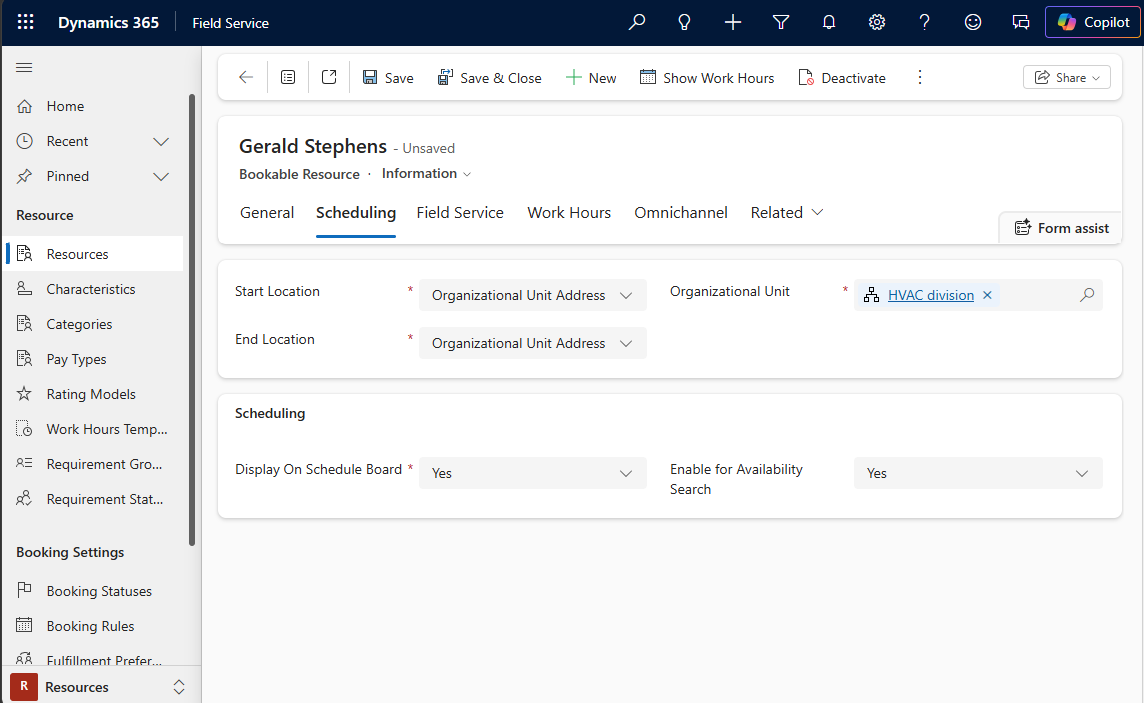
Select Save & Close.
Learn more in Set up bookable resources.