Note
Access to this page requires authorization. You can try signing in or changing directories.
Access to this page requires authorization. You can try changing directories.
Business document management is built on top of the ER framework. Complete configuring the ER parameters to start working with Business document management.
Set up the ER parameters as described in Configure the Electronic reporting (ER) framework.
Add a new configuration provider as described in Create configuration providers and mark them as active.
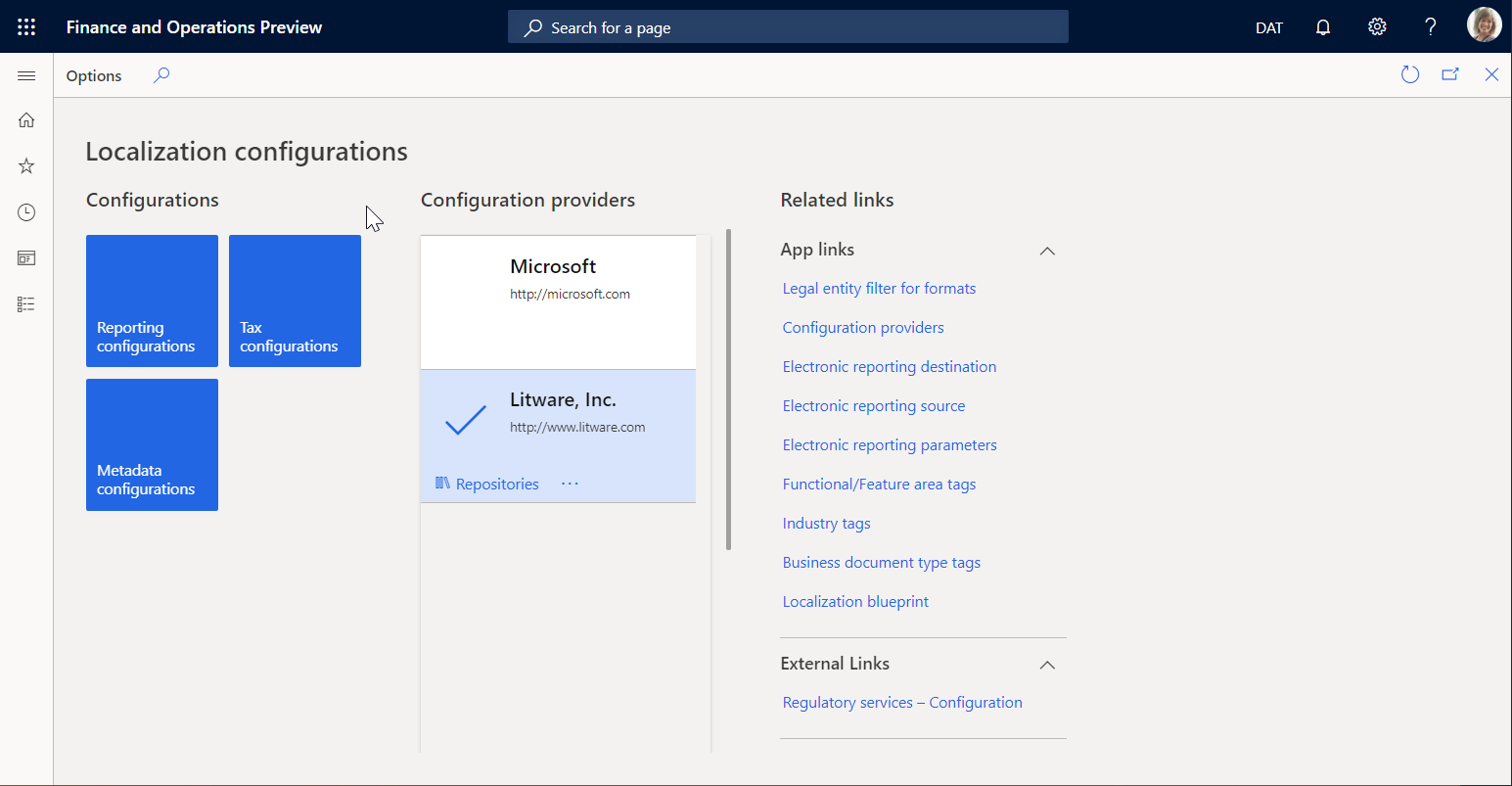
Import ER solutions
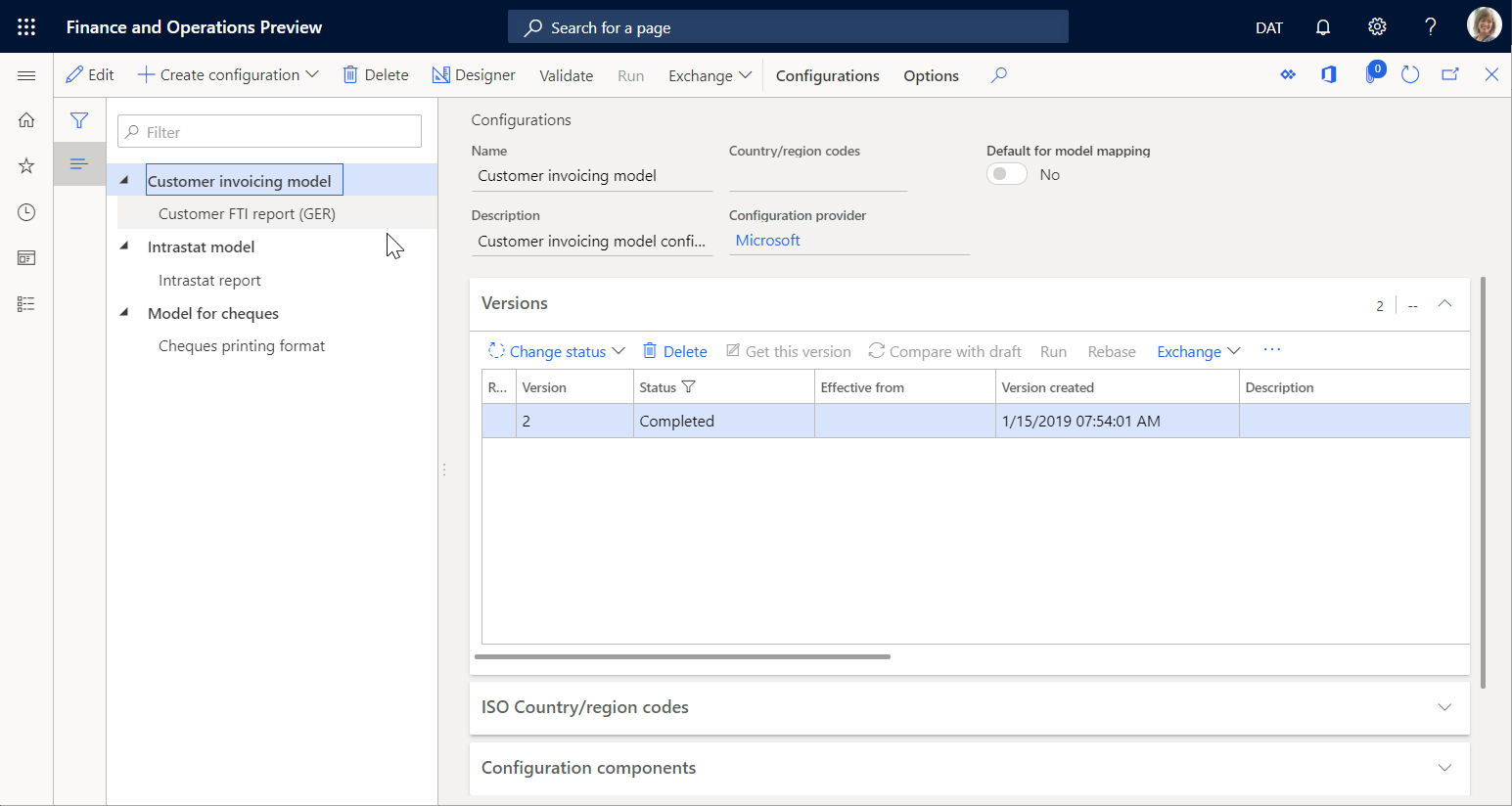
This procedure uses sample ER configurations. You must import into your current instance of Dynamics 365 Finance the ER configurations that contain the business document templates you can edit by using Business document management. To complete this procedure, download and locally store the following files.
Sample ER customer invoicing solution
| File | Content |
|---|---|
| Customer invoicing model.version.2.xml | ER data model configuration |
| Customer FTI report (GER).version.2.3.xml | Free text invoice ER format configuration |
Sample ER payment checks solution
| File | Content |
|---|---|
| Model for cheques.version.10.xml | ER data model configuration |
| Cheques printing format.version.10.9.xml | Payment cheque ER format configuration |
Sample ER foreign trade solution
| File | Content |
|---|---|
| Intrastat model.version.1.xml | ER data model configuration |
| Intrastat report.version.1.9.xml | Intrastat control report ER format configuration |
Use the following procedure to import each file. Import the ER data model configuration of each ER solution in the preceding tables before you import the corresponding ER format configuration.
- Open Organization administration > Electronic reporting > Configurations.
- At the top of the page, select Exchange.
- Select Load from XML file.
- Select Browse to load the required XML file.
- Select OK to confirm the configuration import.
Alternatively, you can import the officially published ER format configurations from Microsoft Dynamics Lifecycle Services. For example, to complete this procedure, you can import the latest version of the Free text invoice (Excel) ER format configuration. The corresponding ER data model and ER model mapping configurations are imported automatically.
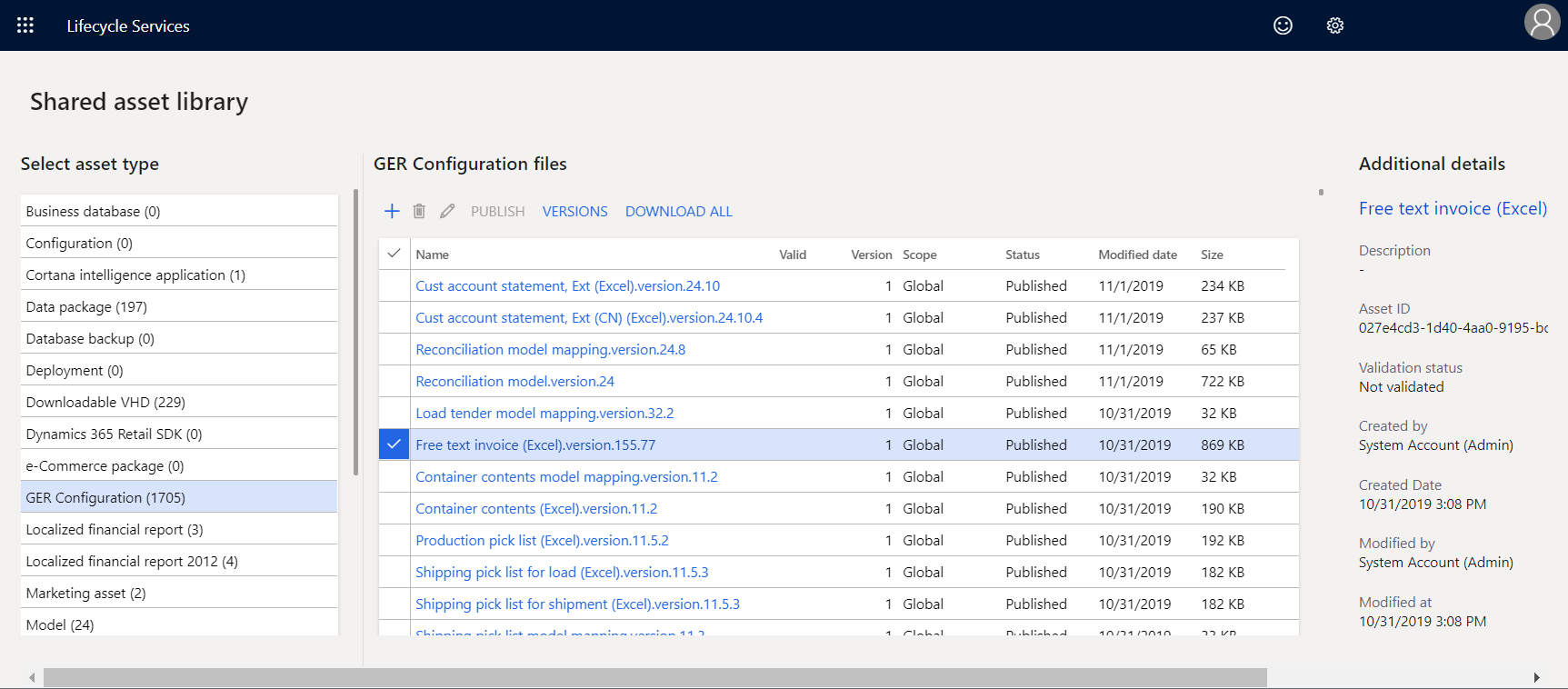
For more information about importing ER configurations, see Manage the ER configuration lifecycle.
Configure parameters
Use the information in the following sections to set up the basic parameters for Business document management.
Prerequisites for parameter setup
Before you set up Business document management, configure SharePoint storage in the Document management framework. This configuration is required so you can host templates in SharePoint for online editing in Word or Excel for the web (and for desktop editing). To edit templates online in Microsoft 365 (Word or Excel for the web), you must have a Microsoft 365 Office for the web subscription and a configured SharePoint integration to host the files during editing.
Configure SharePoint storage
On the Document management parameters page, on the SharePoint tab, enter the Microsoft SharePoint address in the SharePoint server field and select Test interactive SharePoint connection to verify valid connection with SharePoint.
Set up document type in the Document management framework
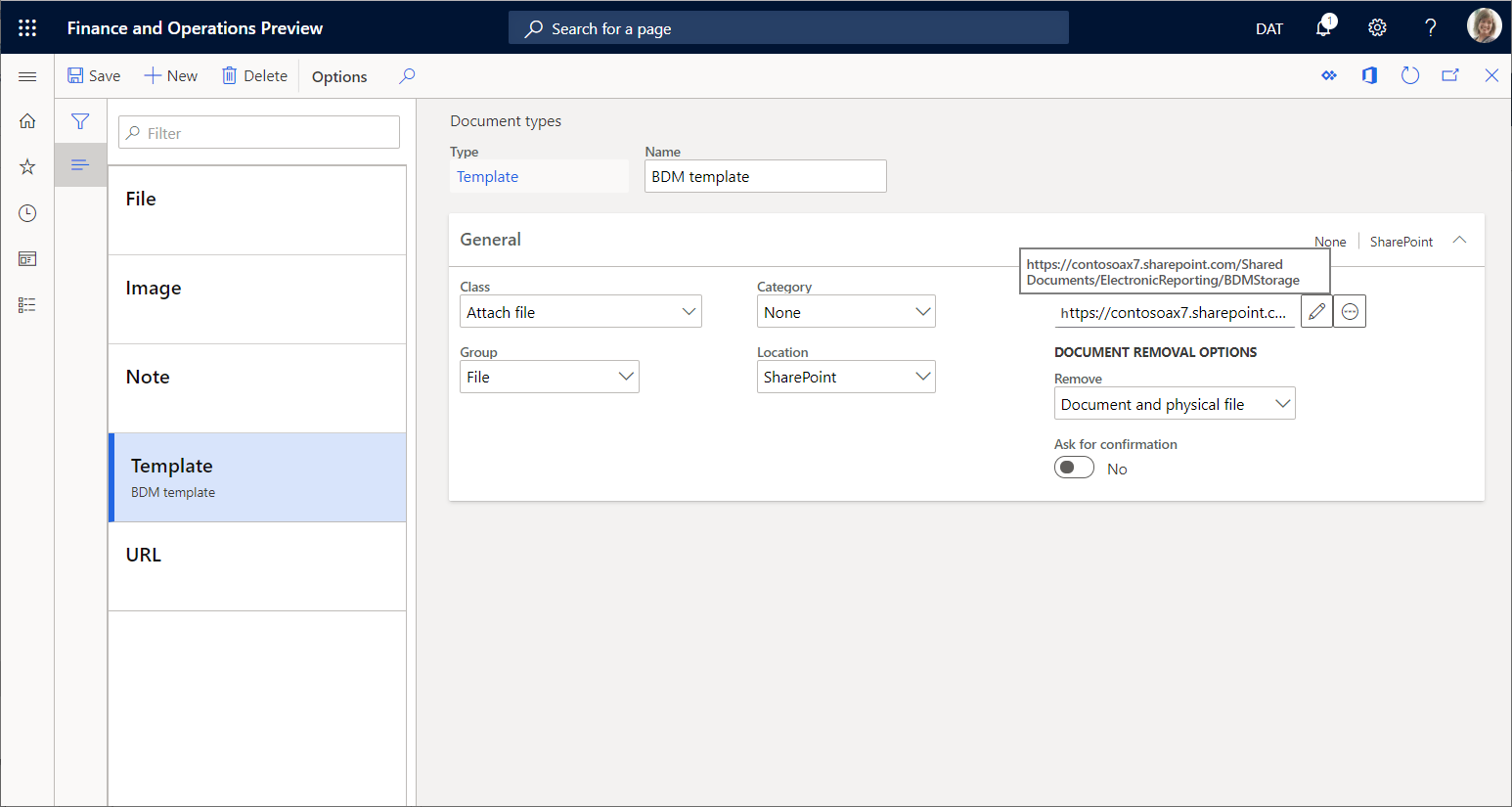
Create a document type that Business document management can use for template editing. This document type specifies a temporary storage of documents in Office formats (Excel and Word) that are used as templates for ER reports. For this document type, go to the Document types page, select the following attribute values.
| Attribute name | Attribute value |
|---|---|
| Class | Attach file |
| Group | File |
| Location | SharePoint |
For information about how to set up the required document management parameters and document types, see Configure document management.
Set up parameters
Set up basic Business document management parameters on the Business document parameters page. Only specific users can access the page. This access includes:
- Users assigned to the System administrator role.
- Users assigned to any role that is configured to perform the duty, Maintain Business document management parameters (AOT name ERBDMaintainParameters).
Use the following procedure to set up the basic parameters for all legal entities.
- Sign in as a user with access to the Business document parameters page.
- Go to Organization administration > Electronic reporting > Business document management > Business document parameters.
- On the Business document parameters page, on the Attachments tab, in the SharePoint document type field, define the document type that you want to use to temporarily store templates in Office formats while you edit them online in Microsoft 365 (Word/Excel for the web) or in the Office desktop applications.
Note
Only document types that are configured by using a SharePoint location are available for this parameter.
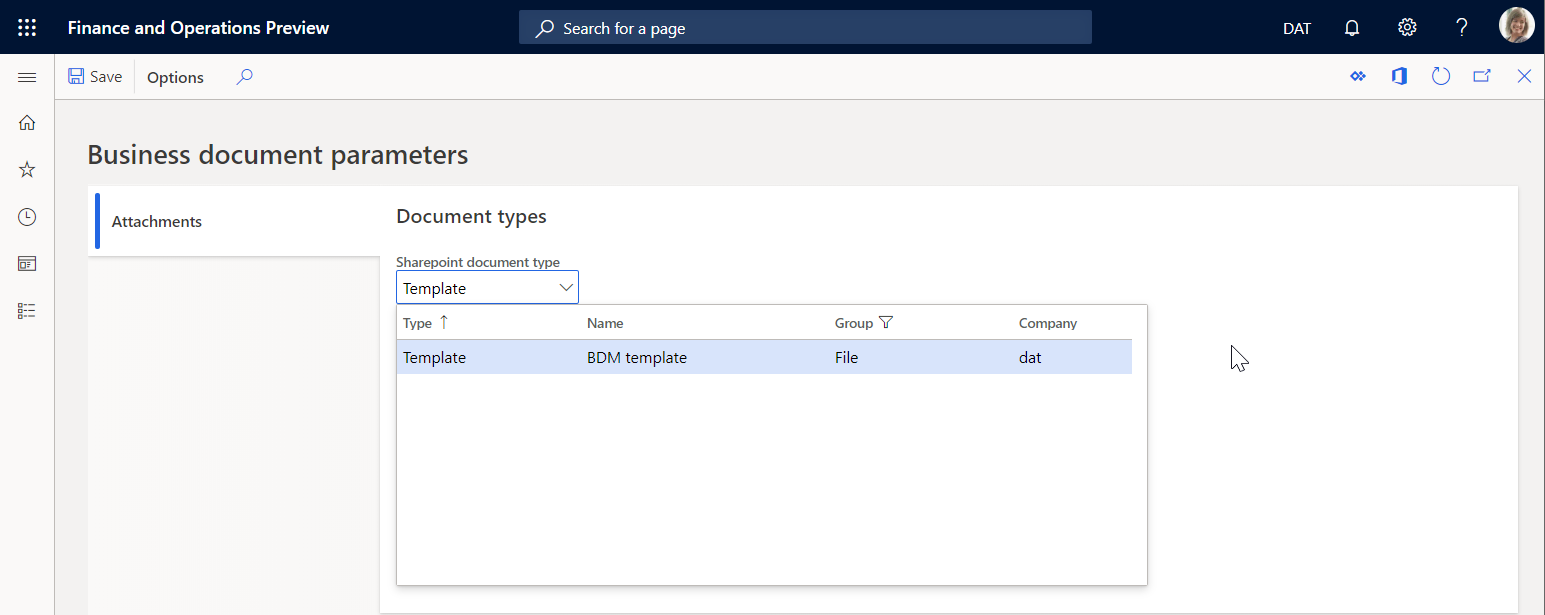
The selected document type is company-specific and is used when the user works with Business document management in the company for which the selected document type is configured. When the user works with Business document management in another company, the same selected document type is used if one isn't configured for this company. When you configure a document type, it replaces the one selected in the SharePoint document type field.
Note
The SharePoint document type parameter defines a SharePoint folder as temporary storage for templates that are editable by using either Microsoft Excel or Word. Set up this parameter if you plan to use these Office desktop applications for editing templates. For more information, see Edit a Business document template.