Note
Access to this page requires authorization. You can try signing in or changing directories.
Access to this page requires authorization. You can try changing directories.
Business users can access business document templates for editing in the Business document management workspace. Only the following users can access the Business document management workspace:
- Users assigned to the role, System administrator.
- Users assigned to any role that is configured to perform the duty, Manage Business document templates (AOT name ERBDManageTemplates).
Use the following procedure to edit free text invoice templates in the Business document management workspace. Before you complete this procedure, you must complete all of the preceding procedures described in Configure Electronic reporting parameters for business documents.
- Sign in as a user with access to the Business document management workspace.
- Open the Organization administration > Business document management workspace.
The Business document management workspace shows only the templates that the current active provider owns and that are located in the current instance of Dynamics 365 Finance.

On the Template tab, you can preview the content of the selected template. Select the Details tab to review details of the selected template as well as details of an ER format configuration this template resides in.
You can use the New document button in the Business document management workspace to create and edit a template in an Electronic reporting (ER) format configuration that another provider provides and that is located in the current Finance instance. You can also use the New document button to upload a new template from an Excel workbook. Additionally, you can use the New document button to create and edit a template in an ER format configuration that is stored in the Global repository.
Edit a template that another provider owns
This example shows how to use the New document button in the Business document management workspace to create and edit a template in an ER format configuration that another provider supplies and that is located in the current Finance instance. In this example, the active provider is Contoso, which uses the ER format configuration that Microsoft provides. After you select New document, the Select tab on the Create a new template page shows all the templates of the current Finance instance that the current provider and other providers own. Select a template to open it. You can then create a new editable copy of the template. The edited template is stored in a new ER format configuration that is automatically generated.
To edit a template that another provider owns, follow these steps:
In the Business document management workspace, select New document.
On the Create a new template page, on the Select tab, select the document to use as a template, and then select Create document.

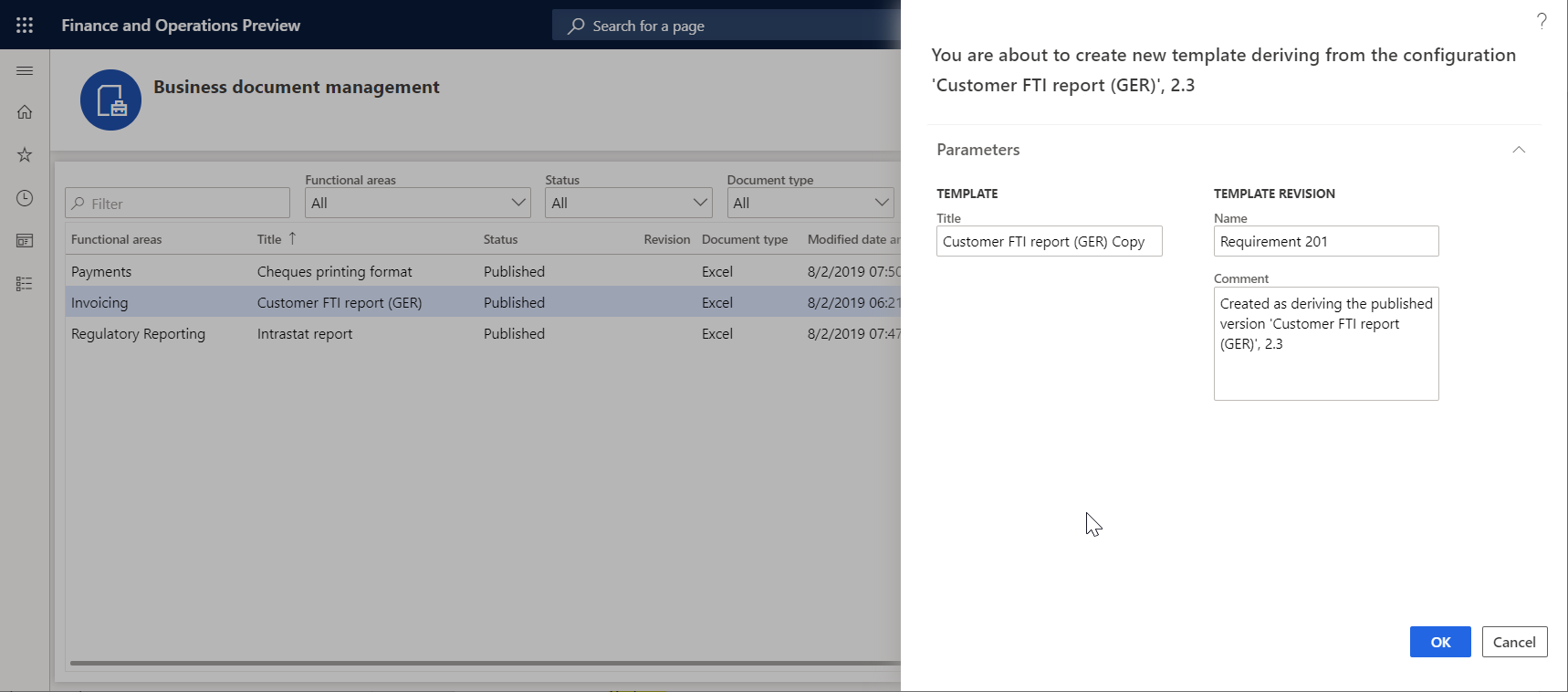
In the new dialog box, in the Title field, change the title as you require. The title text names the new ER format configuration that is automatically created. The draft version of this configuration (Customer FTI report (GER) Copy) contains the edited template and is used to run this ER format for the current user. The original template from the base ER format configuration is used to run this ER format for every other user.
In the Name field, change the name of the first revision of the editable template that is automatically created.
In the Comment field, update the remarks for the revision of the editable template that is automatically created.
Select OK to confirm the start of the editing process.

Upload a template that uses an existing Excel workbook
This example shows how to use the New document button in the Business document management workspace to create and edit a template in an ER format configuration, based on the available Excel workbook. In this example, the active provider is Contoso, and you use the ER data model and ER model mapping configurations that Microsoft provides. After you select New document, select the Upload tab on the Create a new template page. You can specify the details of an Excel workbook upload. When you upload the Excel workbook, the system transforms it into a business document template and opens it for editing. The edited template is stored in a new ER format configuration that the system automatically generates.
To provide the required information before you upload a template, follow these steps:
In the Business document management workspace, select New document.
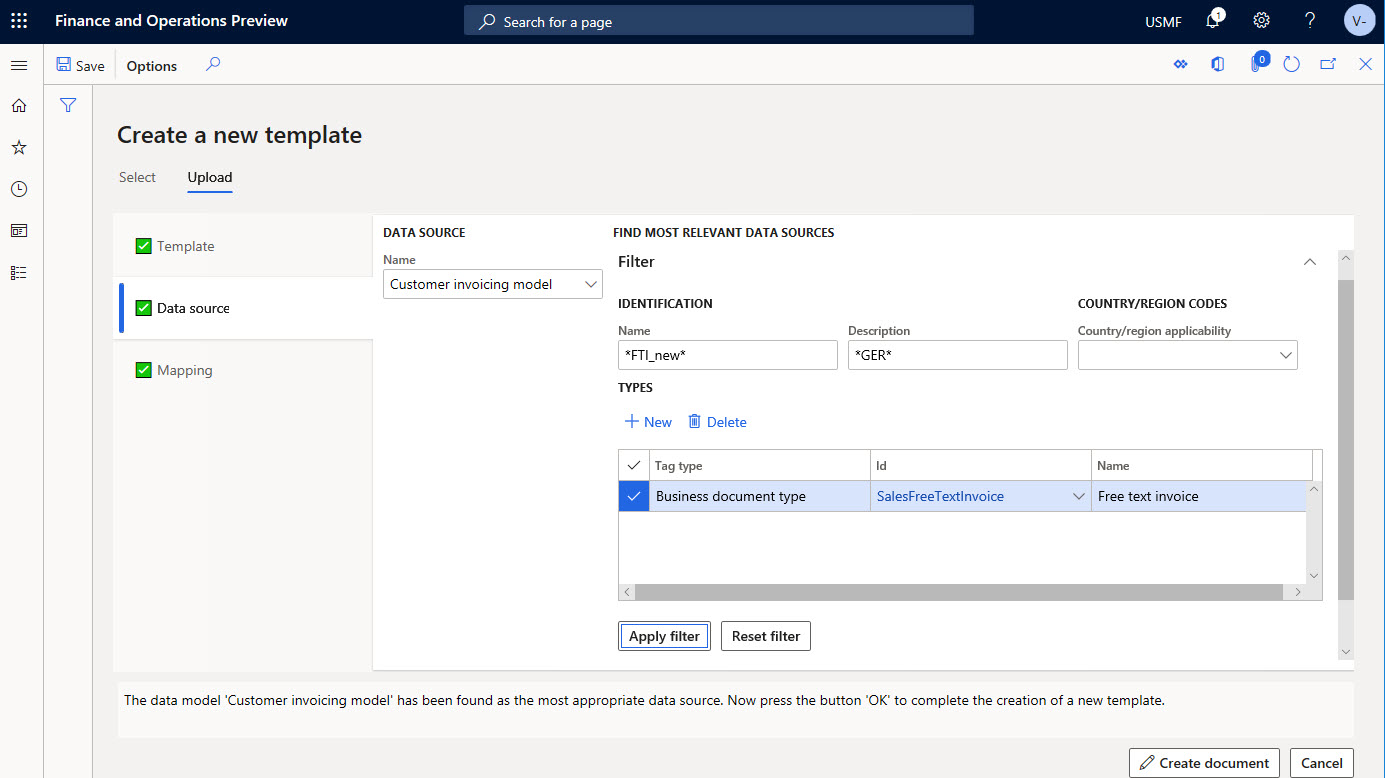
On the Create a new template page, on the Upload tab, on the Template tab, select Browse to find and select the Excel file that you want to use as a template. In the Template section, the Title and Description fields are automatically filled in. They specify the name and description of the new ER format configuration that the system automatically creates. You can edit these fields as needed.
In the Document Type section, in the Name field, specify the type of business document. This value is used to search the correct data source (that is, the ER model configuration).

On the Data source tab, on the Filter FastTab, select Apply filter. In the Data source section, the Name field is automatically filled in, or you can manually select a value. You can use the filter to search for the appropriate data source name by name, description, country/region code, and business document type.
Note
Use the Filter FastTab to search the correct data source (that is, the ER model configuration). You can edit all filter fields to find the most appropriate data source for the document that you're uploading.
The conditions on the Filter FastTab are used as OR conditions.
On the Mapping tab, select Auto detect. The Root definition field is automatically filled in, or you can manually select a value. This tab shows the end mapping for the elements from the template and the model.

Note
The mapping in the Template structure section uses the full match of the labels or descriptions in the data source in the user's language, and in the cell name in the template.
Select Create document to confirm that you want to create a template and start the editing process.
Learn more in Business document management overview.
Upload a template from the Dataverse repository
This example shows how to use the New document button in the Business document management workspace to create and edit a template in an ER format configuration that Microsoft provides and stores in the Microsoft Dataverse repository. In this example, the active provider is Contoso, which uses the ER format configuration that Microsoft provides. After you select New document, the Import from Dataverse repository tab on the Create a new template page shows all the business document templates that are stored in the Dataverse repository but missing in the current Finance instance. After you select a template, you import it from the Dataverse repository into the current Finance instance to create a new editable copy. The edited template is stored in a new ER format configuration that is automatically generated.
To upload a template from the Dataverse repository, follow these steps:
In the Business document management workspace, select New document.
On the Create a new template page, on the Import from Dataverse repository tab, select the document to use as a template, and then select Create document.

In the message box, select Yes to confirm that you want to import the selected document from the Dataverse repository into the current Finance instance. If you're prompted for authorization, follow the on-screen instructions.
In the new dialog box, in the Title field, change the title as you require. The title text is used to name the new ER format configuration that is automatically created. The draft version of this configuration (Collection letter note (Excel) Copy) contains the edited template and is used to run this ER format for the current user. The original template from the base ER format configuration is used to run this ER format for every other user.
In the Name field, change the name of the first revision of the editable template that is automatically created.
In the Comment field, update the remarks for the revision of the editable template that is automatically created.
Initiate editing templates owned by your configuration provider
To initiate editing templates owned by your configuration provider, follow these steps:
- In the Business document management workspace, select the Cheques printing format template in the list.
- Select the Details tab. The Edit option is available for the selected template. This option is always available for a template in an ER format configuration that the active ER configuration provider owns. When you select Edit for the template, the existing template from the draft version of the underlying ER format configuration is available to edit.
Initiate editing templates owned by other providers
To initiate editing templates owned by other providers, follow these steps:
- In the Business document management workspace, select the document that you want to use as a template.
- Select New document, and in the Title field, change the title of the editable template if needed. The text names the ER format configuration that is automatically created. The draft version of this configuration (Customer FTI report (GER) Copy) automatically runs this ER format for the current user. At the same time, the non-modified original template from the base ER format configuration runs this ER format for any other user.
- In the Name field, change the name of the first revision of the editable template that you create automatically.
- In the Comment field, change the comment for the automatically created revision of the editable template.
- Select OK to confirm the start of the editing process.
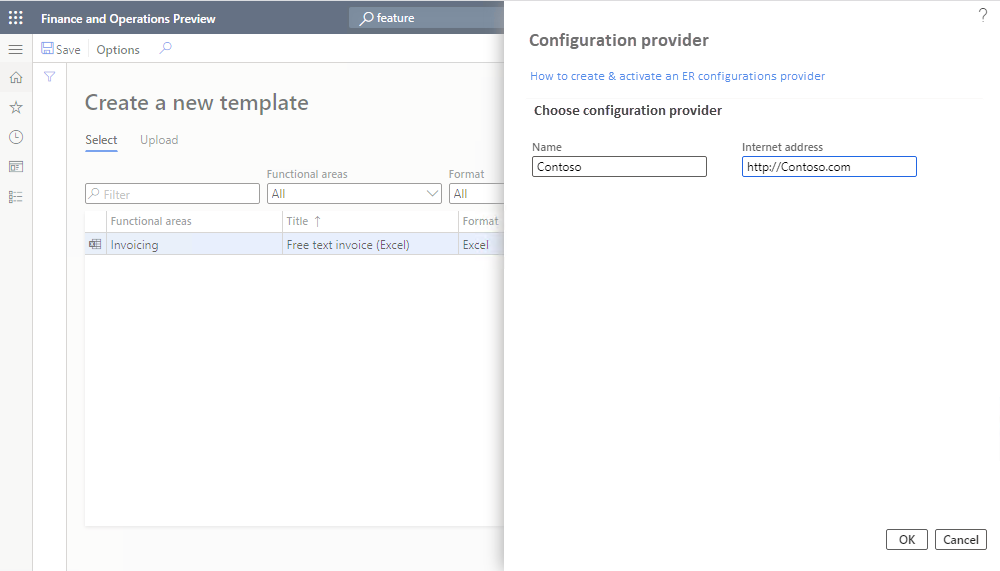
If there's no provider, the system offers to create one. If there's no active provider, the system offers to choose one for activation.
To create a provider, change the name of the provider in the Name field, update the internet address of the new provider in the Internet address field, and select OK to confirm.
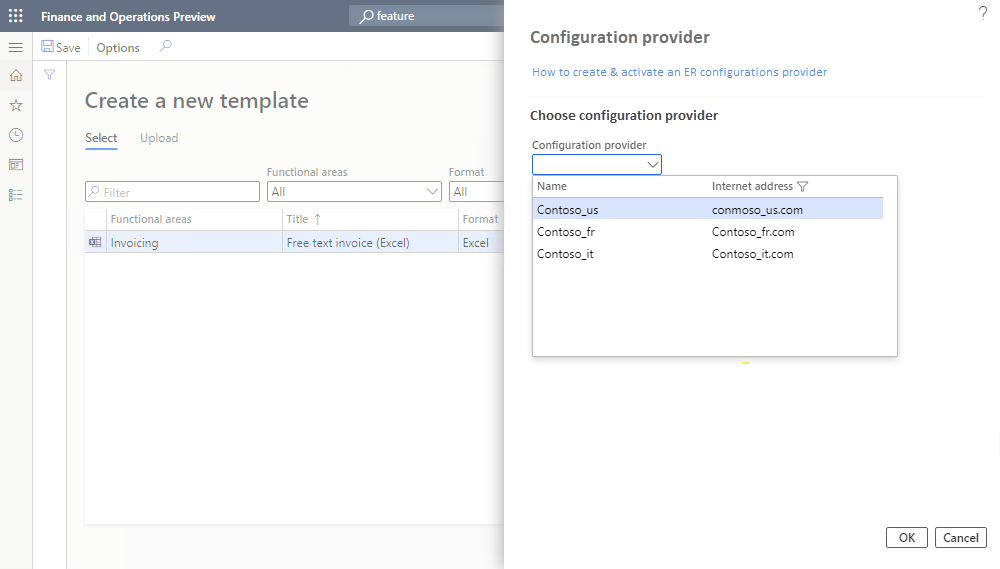
To activate an existing provider, choose the name of the provider in the Configuration provider field, and select OK to set the provider as active.
Note
Each BDM template refers to the provider as the author of the configuration. This is why an active provider is required for the template.
The New document option is always available for a template in an ER format configuration provided by current and another provider (Microsoft in this example) that doesn't have any revision. The edited template is stored in a new ER format configuration that is automatically generated.
Start editing a template
To start editing a template, follow these steps:
- Select Edit from the selected template.
- In the Name field, change the name of the first revision of the editable template that you create automatically.
- In the Comment field, enter a remark for the automatically created revision of the editable template.
- Select OK to confirm the start of the editing process. The selected template is available for online editing by using Microsoft 365. You can modify the template, for example, change the font of the field prompts in the template header from Regular to Bold.
Test the modified template
To test the modified template, follow these steps:
In the application, change to the company, USMF.
Go to Accounts receivable > Invoices > All free text invoices.
Select the FTI-00000002 invoice, and then select Print management.
Select the Module - accounts receivable > Documents > Free text invoice > Original document level to specify the scope of invoices for processing.
In the Report format field, select the Customer FTI report (GER) Copy ER format for the specified document level.
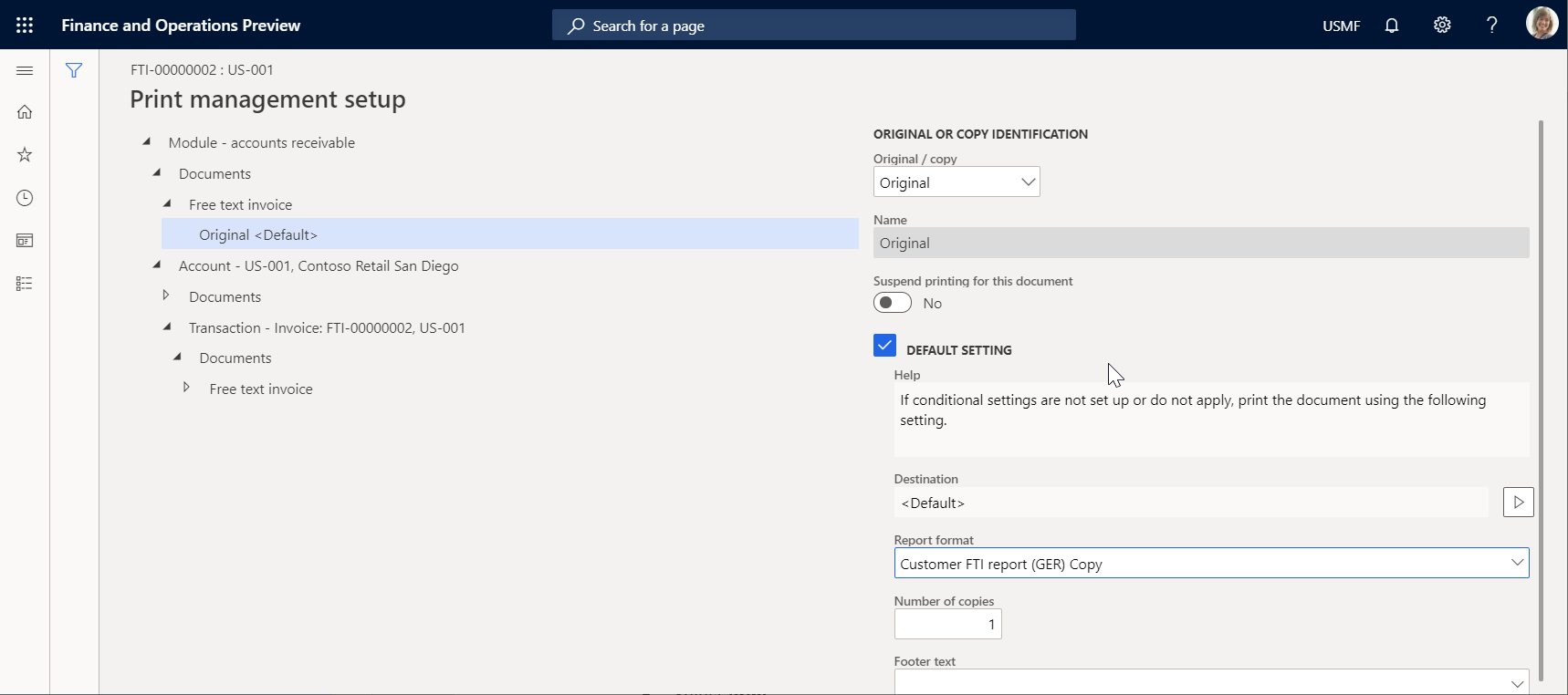
Press Escape to close the current page.
Select Print, and then select Selected.
Download the document and open it by using the Excel desktop application.
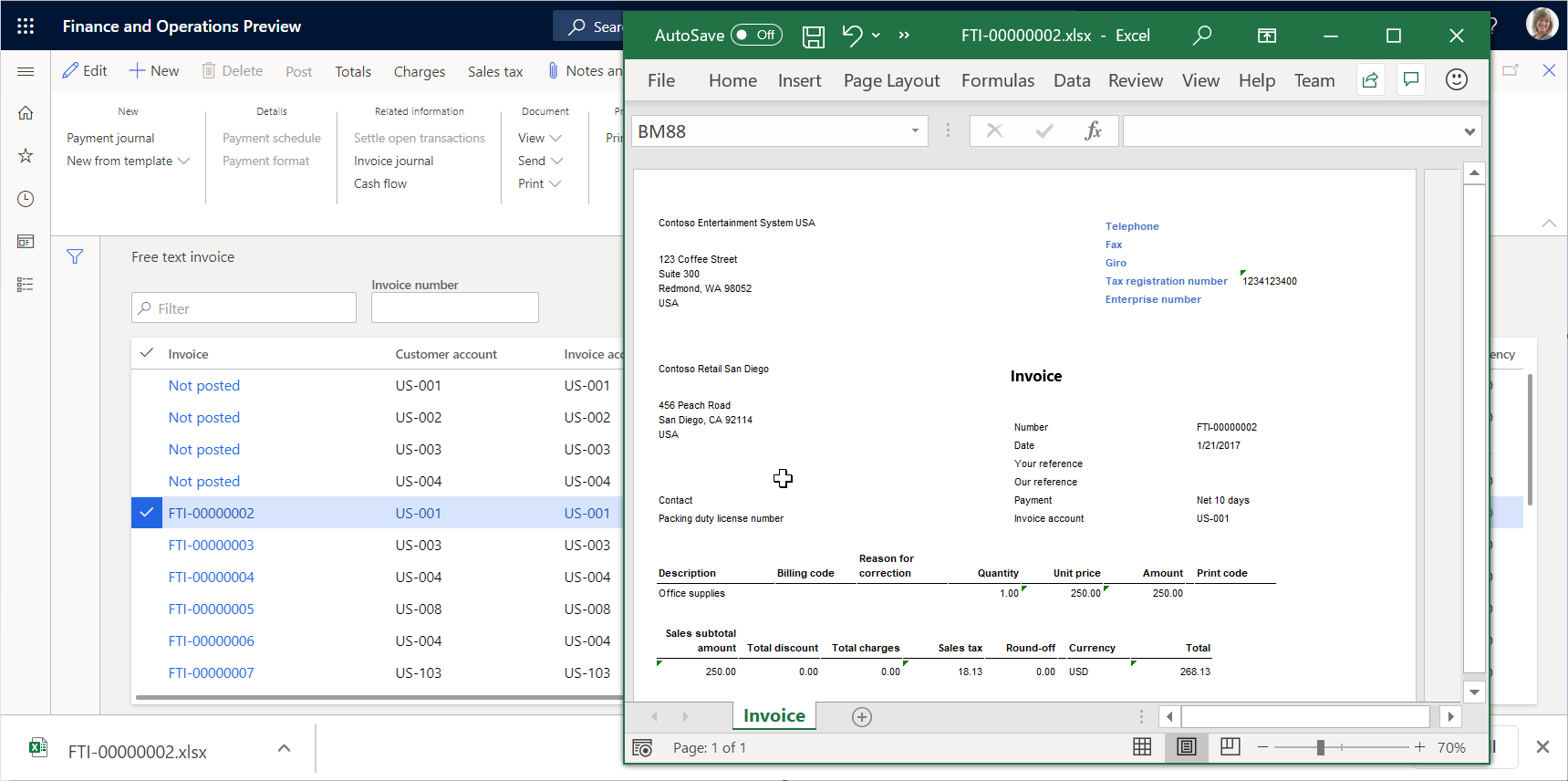
The modified template is used to generate the free text invoice report for the selected item. To analyze how this report is affected by the changes that you introduced to the template, you can run this report in one application session right after you modified the template in another application session.
Create an alternative template revision
To create an alternative template revision, follow these steps:
- Open the Business document management workspace and select the Customer FTI report (GER) Copy template.
- On the Revisions tab, select New.
- If needed, change the name of the second revision in the Name field. Base it on the currently active first revision.
- If needed, change the remark in the Comment field for the automatically created revision of the editable template. You created a new revision of your template that is stored in the permanent template's storage. Now you can continue editing the template of the second revision that is currently selected as active.
- Select the first revision and then select Set active. You can select another revision as active if you want to return to that revision of the template.
- Select the second revision, and then select Delete.
- Select OK to confirm that you want to delete the selected revision. You can delete any of the non-active revisions when they're no longer needed.
Delete a modified template
To delete a modified template, follow these steps:
- In the Business document management workspace, select the Template tab.
- Select Delete.
- If you select OK to confirm deletion, the Customer FTI report (GER) Copy ER format with the modified template is deleted. Select Cancel to explore other options.
Revoke changes of template
To revoke changes of template, follow these steps:
When you edit the template from an ER format that the current active provider owns, the option to revoke changes introduced for the template appears.
- In the Business document management workspace, select the Template tab.
- Select Undo.
- If you select OK to revoke the changes introduced for the template, the modified template is replaced by the original template and all changes are removed. When you revoke changes to the template, you can delete the template. Select Cancel to explore other options.
Publish a modified template
To publish a modified template, follow these steps:
- In the Business document management workspace, on the Template tab, select Publish.
- Select OK to confirm publishing. The draft version of the derived Customer FTI report (GER) Copy ER format that contains the modified template is marked as completed. The modified template becomes available for other users. The completed versions of this ER format keep only the last active revision of your template. Other revisions are deleted. Select Cancel to explore other options.