Note
Access to this page requires authorization. You can try signing in or changing directories.
Access to this page requires authorization. You can try changing directories.
[This article is prerelease documentation and is subject to change.]
The self-service environment migration feature moves management of an existing finance and operations apps environment from Microsoft Dynamics Lifecycle Services to the Microsoft Power Platform admin center. Migration is performed separately for each environment in a Lifecycle Services project. It doesn't migrate the Lifecycle Services project itself.
Important
This feature is in public preview. During public preview, Microsoft recommends that you migrate sandbox environments first and don't use the feature for production environments. Validate your migrated sandboxes and the Power Platform application lifecycle management (ALM) process before you plan a production migration.
Migration is a one-way operation. After an environment is migrated, its management experience is read-only in Lifecycle Services, and you can't move its management back to Lifecycle Services through a customer-initiated operation.
What happens during migration
Migration changes the control plane that manages the environment. The process updates environment metadata across Microsoft services so that lifecycle operations are managed through the Power Platform admin center instead of Lifecycle Services. The database isn't moved, and the environment infrastructure isn't materially changed.
The finance and operations apps environment is unavailable during part of the migration. Plan for approximately 15 minutes of downtime for each Application Object Server (AOS) instance. Environments that have more AOS instances take longer. Schedule the migration outside business hours and reserve extra time in the maintenance window in case the operation takes longer than the estimate.
After migration:
- The Power Platform admin center is the management experience for environment lifecycle operations such as copy, backup, restore, servicing, updates, and monitoring.
- Use Azure Pipelines and Power Platform deployment capabilities for ALM and code deployment.
- The environment consumes capacity under the Power Platform capacity model.
- The Lifecycle Services environment slot isn't returned or made available for another environment. Future environment provisioning is based on available Power Platform capacity instead of Lifecycle Services environment slots.
Supported environments and limitations
| Environment or workload | Migration support |
|---|---|
| Self-service sandbox | Supported. Migrate and validate sandboxes before you plan a production migration. |
| Self-service production | The migration action might be available, but production migration isn't recommended during public preview. |
| Cloud-hosted developer environment | Not supported. Deploy a Unified Developer Environment or use a downloadable virtual hard disk (VHD) for local development. |
| Environment that uses Dynamics 365 Commerce functionality | Not supported during public preview. The migration prerequisite check doesn't currently detect Commerce usage. Don't migrate an environment that uses Commerce functionality. |
Prerequisites
Before you migrate an environment, complete the following preparation steps:
- Confirm that the environment doesn't use Commerce functionality.
- Ensure that the environment is healthy and has a status of Deployed in Lifecycle Services.
- Link the environment to a Power Platform environment. For more information, see Enable the Power Platform integration.
- Resolve any Power Platform storage capacity deficit. Available database capacity is validated before migration.
- Ensure that the person who starts the migration is an administrator of the linked Power Platform environment.
- Prepare your development and ALM processes in parallel:
- Deploy Unified Developer Environments to replace cloud-hosted developer environments that you won't migrate.
- Create and test Azure Pipelines that produce Power Platform unified packages and deploy them to unified environments. For more information, see Continuous integration and deployment.
- Review the unified admin experience overview and its related environment-management articles.
- Plan a maintenance window based on the number of AOS instances. Allow approximately 15 minutes per AOS instance, and reserve extra time.
- Notify users that the environment is unavailable during migration and that the migration can't be reversed through Lifecycle Services.
You don't have to enable dual-write to migrate an environment.
Recommended migration sequence
Use the following sequence to reduce risk and validate the new management and ALM experiences before production:
- Deploy Unified Developer Environments and create Power Platform and Azure Pipelines in parallel with your existing Lifecycle Services processes.
- Migrate a less critical sandbox environment.
- Validate sign-in, environment operations, custom code deployment, integrations, and add-ins in the migrated sandbox.
- Perform an environment copy in the Power Platform admin center to validate the lifecycle operation.
- Migrate and validate the remaining sandbox environments.
- Plan production last, after sandbox validation is complete and production migration is recommended for your release stage.
Coordinate the last sandbox migrations with your ALM cutover. After a sandbox is migrated, Lifecycle Services deployment and promotion workflows no longer manage that environment. Use the Power Platform and Azure Pipelines that you prepared before migration.
Migrate an environment
Complete these steps separately for every environment that you want to migrate. To migrate an environment, follow these steps:
Sign in to Lifecycle Services and open the project that contains the environment.
In the Environments section, find the sandbox that you want to migrate, and then select Full details.
On the environment details page, expand Power Platform migration (Preview).
Verify that all the following prerequisite checks have a green check mark:
- Environment is in Deployed status.
- Power Platform environment is linked.
- Database storage capacity is available.
- You are an administrator of the linked Power Platform environment.
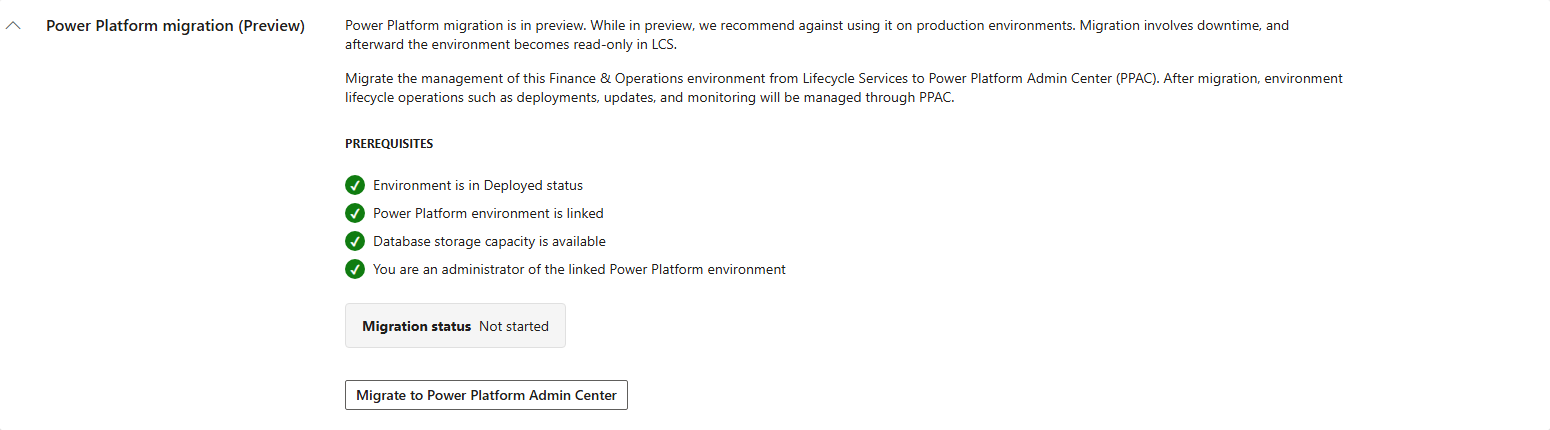
Select Migrate to Power Platform Admin Center.
In the Confirm environment migration dialog, review the downtime and one-way migration warning.
Enter the environment name exactly as shown, and then select Start migration.
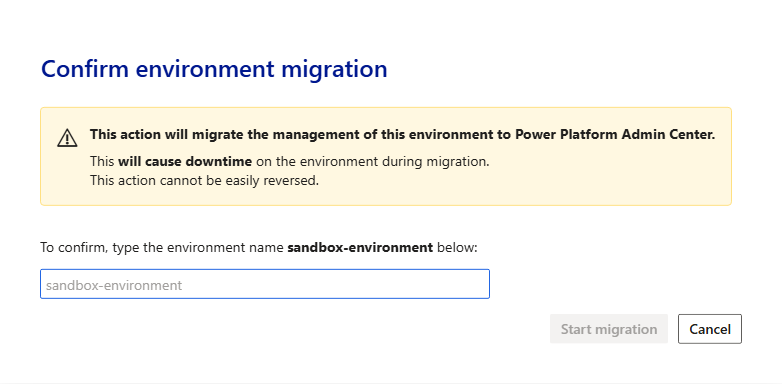
Keep the maintenance window open while the migration runs. Don't start other lifecycle operations for the environment.
Wait until Migration status is Migrated, and then select Open in Power Platform Admin Center.
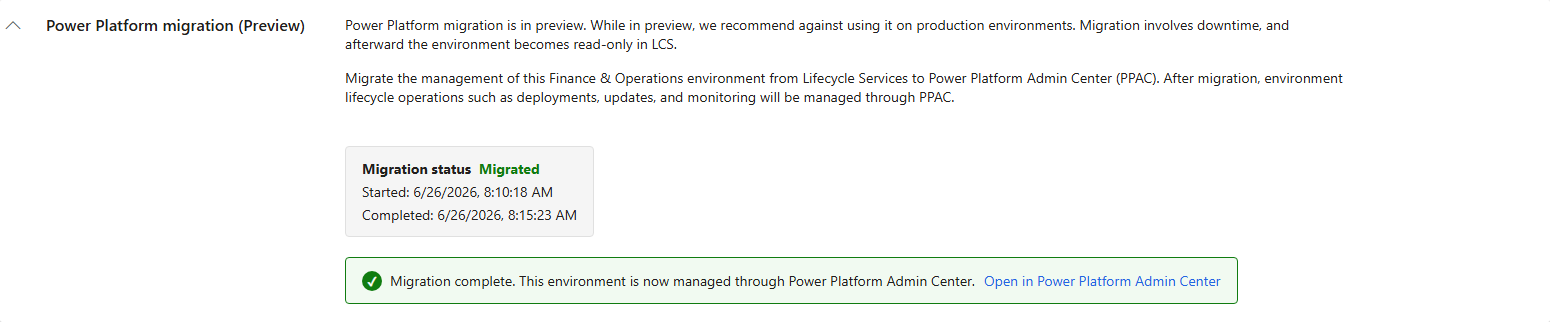
Validate the migrated environment
Before you migrate another environment, complete the following validation in the migrated sandbox:
- Confirm that users can sign in to finance and operations apps.
- In the Power Platform admin center, verify that environment details, monitoring, backup, restore, copy, and update operations are available as expected.
- Deploy a validated customization by using the Azure DevOps and Power Platform ALM process that you prepared before migration.
- Verify integrations, add-ins, and business processes that are critical to the environment.
- Perform an environment copy and validate the target environment.
If validation identifies an issue, don't migrate another environment until you resolve the issue. Because migration is one-way, you can't return environment management to Lifecycle Services as a rollback action.
Resolve prerequisite check failures
| Failed check | Resolution |
|---|---|
| Environment is in Deployed status | Wait for any lifecycle operation to finish, and resolve environment health issues until the status returns to Deployed. |
| Power Platform environment is linked | Complete Power Platform integration for the environment. |
| Database storage capacity is available | Review finance and operations storage capacity, and free or purchase enough capacity to clear the deficit. |
| You are an administrator of the linked Power Platform environment | Have an existing administrator assign you an appropriate environment admin role, and then refresh the Lifecycle Services page. |