Note
Access to this page requires authorization. You can try signing in or changing directories.
Access to this page requires authorization. You can try changing directories.
Note
Community interest groups have now moved from Yammer to Microsoft Viva Engage. To join a Viva Engage community and take part in the latest discussions, fill out the Request access to Finance and Operations Viva Engage Community form and choose the community you want to join.
France e-reporting (transmission des données de transaction) is part of the French continuous transaction control (Réforme de la facturation électronique) reform that requires companies to report specific business transactions to the French tax authorities through an approved intermediary platform. In Dynamics 365 Finance, the France e-reporting feature enables organizations to:
- Collect required transaction data from Finance documents
- Transform data into the French-compliant formats by using Electronic reporting (ER)
This feature complements electronic invoicing (e-invoicing) requirements and relies on the same core concepts, including registration identifiers and establishment-based reporting.
Scope of e-reporting
France e-reporting applies to the electronic transmission of data for transactions that are outside the scope of mandatory e-invoicing. This restriction includes:
- B2C (business-to-consumer) transactions
- Cross-border B2B and B2C transactions
- Payment data for transactions where VAT is due upon payment
E-reporting complements e-invoicing by ensuring that the tax authorities receive data for all VAT-relevant transactions.
Feature availability
France e-reporting functionality is available starting from Finance version 10.0.49.
The feature is also available in earlier versions 10.0.47 and 10.0.48 through specific application builds. Availability in these versions depends on the deployed build and update level.
| Finance version | Build |
|---|---|
| 10.0.48 | 10.0.2645.55 |
| 10.0.47 | 10.0.2527.135 |
Registration IDs and establishments
Accurate identification of legal entities and their establishments is required for compliant reporting.
Before you configure e-reporting:
- Set up registration IDs, such as VAT ID, SIREN, and SIRET numbers.
- Configure the establishment structure.
- Ensure that transactions are associated with the correct establishment.
For more information, see Registration IDs set up for France and Use establishments in France.
Setup overview
To enable France e-reporting, complete the following steps:
- Import and configure ER configurations
- Configure application-specific parameters for the ER format
- Import a package of data entities that includes a predefined EM setup
- Set up EM parameters for the France e-reporting
Optionally, you can set up France e-Reporting to report in multiple VAT registrations legal entity if applicable.
Import and configure ER configurations
To prepare Finance for France e-reporting, import the following ER configurations.
| ER configuration name | Type | Description |
|---|---|---|
| Invoices Communication Model | Model | A generic data model that standardizes how invoice-related information is structured and processed across electronic reporting scenarios based on Electronic Messages (EM) functionality. |
| e-Reporting Model mapping | Model mapping | A generic model mapping that provides model mapping for e-reporting based on Electronic Messaging (EM). |
| e-Reporting XML (FR) | Format (exporting) | XML format for France e-reporting. |
Import the latest versions of these configurations. The version description usually includes the number of the Microsoft Knowledge Base (KB) article that explains the changes that were introduced in the configuration version.
Use the number of the KB in the Dynamics 365 Lifecycle Services Issue search portal to learn more about the changes introduced. If the latest configuration version contains references to the objects that aren't available in your Finance version, the import process locks for that configuration version. In this case, import the latest version of the configuration that's available for your Finance version.
Note
After you import all the ER configurations from the preceding table, set the Default for model mapping option to Yes for the e-Reporting Model mapping configuration.
Learn more about how to import ER configurations in Import Electronic reporting (ER) configurations from Dataverse.
Configure application-specific parameters for the e-Reporting XML (FR) format
To correctly populate the TransactionReportType > Transaction > CategoryCode field in the France e-reporting XML output, you must configure application-specific parameters for the format.
The CategoryCode identifies the type of reported transaction according to the French regulatory classification. The correct value must be derived based on the transaction characteristics in your system.
The TransCategoryCodeLookup application-specific parameter enables flexible determination of the CategoryCode in the report. You can configure this lookup to align your business data with the required reporting classifications.
The following values are supported:
- TLB1: Transactions – Goods (B2C aggregated / sales of goods)
- TPS1: Transactions – Services
- TNT1: Transactions – Non-territorial / outside VAT scope
- TMA1: Transactions – Mixed / aggregated categories
To configure the TransCategoryCodeLookup, follow these steps:
- In the configuration tree, under the Invoices Communication Model, select the e-Reporting XML (FR) format.
- On the Action Pane, on the Configurations tab, in the Application specific parameters group, select Setup.
- On the Application specific parameters page, select the latest version of the format that you want to define conditions for.
- On the Lookups FastTab, select the TransCategoryCodeLookup lookup, and define the appropriate conditions.
- On the Conditions FastTab, define which combination of Tax code, Sales tax group, Item sales tax group must correspond to a specific lookup result.
- Assign the appropriate TransactionCategoryCode value for each combination.
- After you finish setting up conditions, in the State field, select Completed. Then save the configuration.
Import a package of data entities that includes a predefined EM setup
Setting up the Electronic messages (EM) functionality for France e-reporting involves many steps. Because the ER configurations use the names of some predefined entities, use a set of predefined values that are delivered in a package of data entities for the related tables. Some records in the data entities in the package include a link to ER configurations. Before you start to import the data entities package, import ER configurations into Finance.
To import a package of data entities, follow these steps:
- In Lifecycle Services, go to the Shared asset library, and select Data package as the asset type. Then find
FR eReporting EM setup v.1 ID1103856.zipin the list of data package files, and download it to your computer. - After the
FR eReporting EM setup v.1 ID1103856.zipfile is downloaded, in Finance, select the company that you want to work with France e-reporting, and then go to Workspaces > Data management. - Before you import setup data from the package of data entities, make sure that the data entities in your application are refreshed and synced. In the Data management workspace, go to Framework parameters > Entity settings, and then select Refresh entity list. Wait for confirmation that the refresh is complete. For more information about how to refresh the entity list, see Entity list refresh.
- Validate that the source data and target data are correctly mapped. For more information, see Validate that the source data and target data are mapped correctly.
- Import data from the
FR eReporting EM setup v.1 ID1103856.zipfile into the selected company. In the Data management workspace, select Import, and then, on the Import FastTab, in the Group name field, select a value. - On the Selected entities FastTab, select Add file.
- In the Source data format field, select Package, and then select Upload and add.
- Find and select the
FR eReporting EM setup v.1 ID1103856.zipfile that you downloaded in step 1. - Wait until the data entities from the file are listed in the grid on the Selected entities FastTab, and then select Close.
- On the Action Pane, select Import or Import now to start the import.
For more information, see Data management.
The FR eReporting EM setup v.1 ID1103856.zip package provides a setup for the FR e-Reporting electronic messages processing that you can use.
Electronic message definitions in France e-reporting
In the context of France e-reporting processing, an electronic message represents a single generated reporting document for a defined reporting period.
Each electronic message:
- Corresponds to one structured XML report.
- Contains a collection of transactions and payment data.
- Is generated based on the selected reporting scope and period.
- Serves as the unit of processing within the Electronic Messages framework.
Within the system:
- The electronic message acts as a container for reporting data.
- Individual transactions and payment records are represented as message items.
- All message items are aggregated into one output file during report generation.
This structure allows you to:
- Group transactions into a single report.
- Track processing status at the report level.
- Maintain traceability between source transactions and the generated reporting output.
Set up EM parameters for the France e-reporting
To enable France e-reporting processing, you must configure Electronic Messages (EM) parameters. This setup defines how the data is collected, how messages are structured, how they're enriched with extra data, and how they're processed during report generation.
The configuration includes:
- Message additional fields
- Message item additional fields
- Action parameters
- Security roles for the electronic message processing
- Executable class settings
Set up message additional fields
Message additional fields define values that apply to the entire electronic message and are included in the generated output.
To set up message additional fields, follow these steps:
Open the Electronic messages processing setup.
Select the FR e-Reporting processing.
Go to the Message additional fields section.
Set the default values for the following additional fields:
- FR-eRep SenderId: specifies the identifier of the reporting entity.
- FR-eRep SenderName: specifies company name of the issuer of the transmission document.
- FR-eRep TypeCode: specifies the type of report. The following values are available: IN - Initiale (default value), RE - Rectificative.
Enter the appropriate default values based on your reporting requirements. The system uses these values as header-level information in the generated report.
Set up message item additional fields
Message item additional fields define values at the transaction level (message item level).
To set up message item additional fields, follow these steps:
In the same processing setup, go to the Message item additional fields section.
Set fields for each relevant message item type. The default configuration defines the following values:
Message item type Field name Default value FR-eRep Transactions B2C FR-eRep TaxDueDateTypeCode 3 FR-eRep Transactions Invoice FR-eRep TaxDueDateTypeCode 3
The FR e-Reporting processing supports the following values for FR-eRep TaxDueDateTypeCode:
- 3: Invoice issue date
- 432: Payment date (VAT on cash receipts)
These fields populate transaction-level attributes in the generated output.
Set up parameters for actions
Electronic Messages uses processing actions that require parameter configuration.
To set up parameters for actions, follow these steps:
Open the Electronic message processing page and select the FR e-reporting processing.
Select Action parameters to configure parameters for the following actions:
- FR-eRep Generate Full Report
- FR-eRep Generate Payments Report
- FR-eRep Generate Transactions Report
- FR-eRep Regenerate Report File
| Parameter name | Parameter value |
|---|---|
| Additional field for Sender ID | FR-eRep SenderId |
| Additional field for Sender name | FR-eRep SenderName |
| Additional field for VAT payment type | FR-eRep TaxDueDateTypeCode |
| Additional field for Type code | FR-eRep TypeCode |
| Message item type for Payments report type - Invoice | FR-eRep Payments Invoice |
| Message item type for Payments report type - Transactions | FR-eRep Payments B2C |
| Message item type for Transactions report type - Invoice | FR-eRep Transactions Invoice |
| Message item type for Transactions report type - Transactions | FR-eRep Transactions B2C |
Proper configuration ensures that the system correctly collects and processes data during report generation.
Security roles for the electronic message processing
Different groups of users might require access to different electronic message processing. You can limit access to each type of processing, based on security groups that you define in the system.
To limit access to the FR e-reporting processing, follow these steps:
- In Finance, go to Tax > Setup > Electronic messages > Electronic message processing.
- Select the FR e-reporting processing.
- On the Security roles FastTab, add the security groups that must work with this processing for testing purposes. If you don't define a security group for the processing, only a system administrator can see the processing on the Electronic messages page.
Note
If you don't define security roles for electronic message processing, only a system admin can see the electronic message processing by going to Tax > Inquiries and reports > Electronic messages > Electronic messages.
Set up executable class settings
Executable class settings define how the system executes processing logic during EM actions.
Two executable classes are involved in FR e-reporting processing:
| Executable class | Description | Executable class name | Action type |
|---|---|---|---|
| FR-eRep PopulateMessageItems | Generate message elements for e-reporting | EReportingEMCreateItemsController_FR | Populate records |
| FR-eRep GenerateReportFile | Generate a message for e-reporting | EReportingEMExportController_FR | Electronic reporting export |
Set up FR-eRep PopulateMessageItems executable class parameters
The FR‑eRep PopulateMessageItems executable class performs the data collection and preparation step of the process. It:
- Retrieves transaction and payment data from multiple data sources in Finance.
- Aggregates and organizes the data according to reporting requirements.
- Creates and populates electronic message items based on the collected data.
- Defines relevant values of additional fields for created message items.
During execution, the class:
- Reads data from multiple tables and transaction sources, including:
- Customer invoices
- Vendor invoices
- Payment transactions
- Tax transactions
- Applies selection criteria based on the executable class parameters
- Calculates and assigns relevant values to the message item additional fields
- Assigns to electronic message items types:
- FR‑eRep Transactions Invoice – Invoice-based transactions subject to reporting
- FR‑eRep Transactions B2C – Aggregated B2C transactions
- FR‑eRep Payments Invoice – Payments related to invoices
- FR‑eRep Payments B2C – Payments related to B2C transactions
Each message item type represents a specific reporting scenario and determines how the data is processed and included in the final report.
Within the FR e-reporting processing:
- The FR‑eRep PopulateMessageItems executable class is triggered during the data collection action.
- It produces the message items that serve as the input for report generation.
- The generated message items are later used to produce the structured output.
After this class executes:
- The system creates electronic message items in the Electronic message items table based on the FR‑eRep PopulateMessageItems executable class parameters.
- Each message item represents a transaction or aggregated data set.
- The system calculates all relevant values for message item additional fields for the created message items.
- The system is ready to proceed to the report generation step.
To set up FR-eRep PopulateMessageItems executable class parameters, select the Parameters button on the Action pane.
| Report type | Parameter name | Parameter value |
|---|---|---|
| Transactions report type | Invoice | FR-eRep Transactions Invoice |
| Transactions report type | Transaction | FR-eRep Transactions B2C |
| Transactions report type | Status to Created | FR-eRep Transaction Entry Created |
| Transactions report type | Additional field for VAT payment | FR-eRep TaxDueDateTypeCode |
| Transactions report type | Paid to date value | 432 |
| Payments report type | Invoice | FR-eRep Payments Invoice |
| Payments report type | Transaction | FR-eRep Payments B2C |
| Payments report type | Status to Created | FR-eRep Payment Entry Created |
During execution of the FR‑eRep PopulateMessageItems executable class, filters define which records are selected and included in electronic message items. Configure these filters in the Records to include sections to control how data is retrieved from source tables.
Filters are available for the four sections of France e-report:
- Payments report type – Invoice
- Transactions report type – Transaction
- Transactions report type – Invoice
- Payments report type – Transaction
When the process runs, it evaluates the filters during data selection and retrieves only records that meet all filter conditions. The process assigns these records to the appropriate message item type.
Set up FR-eRep GenerateReportFile executable class parameters
The FR‑eRep GenerateReportFile executable class generates the e‑reporting XML output based on the data collected in electronic message items. This class performs the report generation step of the process. It:
- Reads electronic message items created during the data collection step.
- Organizes the data according to the reporting structure.
- Produces a structured output file that represents the electronic message in XML format.
During execution, the FR‑eRep GenerateReportFile class:
- Retrieves the electronic message items to process.
- Applies the reporting structure and mappings.
- Generates a structured XML output file.
The generated file represents:
- One reporting document for the reporting period.
- A collection of transactions and/or payment data.
Within the FR e-reporting processing:
- The generate report action triggers the class.
- It transforms message items into a consumable report format.
- It prepares the output file for further processing outside the system.
After this class executes:
- A structured XML output file is generated for the electronic message.
- The file contains all relevant transactions and payment data.
The settings of this class control the execution of logic that drives data collection, processing, and output generation.
| Report type | Parameter name | Parameter value |
|---|---|---|
| Transactions report type | Invoice | FR-eRep Transactions Invoice |
| Transactions report type | Transaction | FR-eRep Transactions B2C |
| Transactions report type | Status to Pending | FR-eRep Transaction Entry Pending |
| Transactions report type | Status to Excluded | FR-eRep Transaction Entry Excluded |
| Payments report type | Invoice | FR-eRep Payments Invoice |
| Payments report type | Transaction | FR-eRep Payments B2C |
| Payments report type | Status to Pending | FR-eRep Payment Entry Pending |
| Payments report type | Status to Excluded | FR-eRep Payment Entry Excluded |
Set up FR e-Reporting to report in multiple VAT registrations legal entity
The multiple VAT registrations legal entity scenario applies to organizations that operate with multiple VAT registration numbers within the same legal entity. This scenario is supported if you're using the Tax Calculation functionality and enabled the Support multiple VAT registration numbers parameter in the Tax calculation parameters page.
In this scenario, you must group and report transactions per VAT registration, rather than for the whole legal entity. When you enable multiple VAT registrations, you assign each transaction (for example, customer invoice, vendor invoice, or tax transaction) a tax registration number.
As a result:
- All reporting-relevant records contain the VAT registration context.
- The system can distinguish transactions belonging to different registrations.
To report data for a specific VAT registration, configure filters in the FR‑eRep PopulateMessageItems executable class parameters. For example, apply a filter on fields that contain the VAT registration identifier or use conditions that correspond to your tax registration setup.
Only records that match the filter criteria are:
- Retrieved from source tables.
- Converted into electronic message items.
- Included in the generated report.
Use Electronic messages (EM) functionality to report France e-reporting
You execute the France e‑reporting process through the Electronic messages framework. The process consists of a sequence of actions that allow you to:
- Collect and prepare reporting data
- Review transactions and payments to be reported
- Generate the reporting output in XML format
- Manage corrections and reprocessing
- Finalize the reporting process
Process overview
The preceding diagram shows the overall process flow.
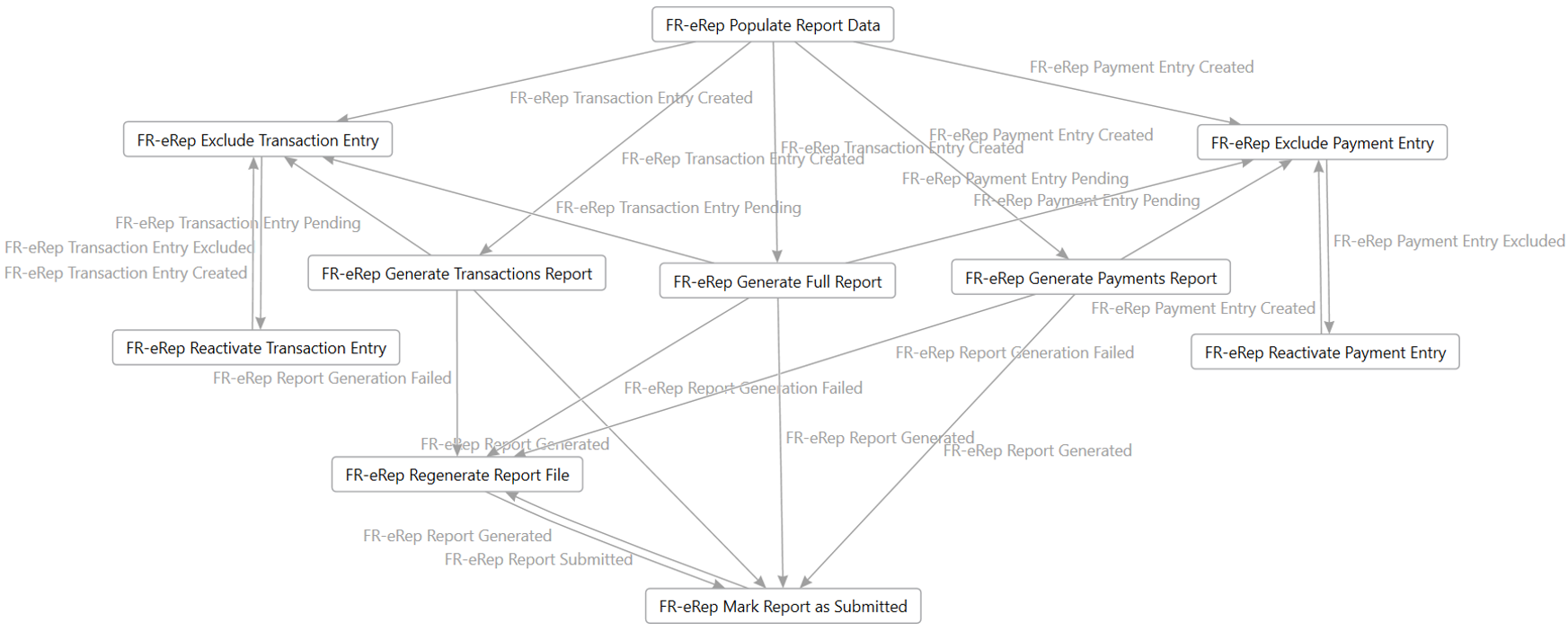
The reporting process typically follows these steps:
- Populate message items by collecting transaction and payment data.
- Optionally exclude or reactivate specific entries.
- Generate the report (transactions, payments, or full report).
- Optionally regenerate the report if corrections are required.
- Mark the report as submitted after final validation.
Note
The France e‑reporting process supports reporting for multiple VAT registrations that use the same Electronic Messages (EM) processing flow as described in this section. No additional processing actions are required. The difference lies in how data is selected during the execution of the FR‑eRep PopulateMessageItems executable class. For more information, see the Set up FR e-Reporting to report in multiple VAT registrations legal entity.
The following actions are available in the France e‑reporting process:
| Action name | Description | Parameters | Initial statuses | Result statuses |
|---|---|---|---|---|
| FR-eRep Populate Report Data | Collects transaction and payment data and creates message items | Action type: Message item execution level Executable class: FR-eRep PopulateMessageItems |
- | |
| FR-eRep Exclude Transaction Entry | Excludes a transaction entry from the reporting process | Action type: User processing | ||
| FR-eRep Exclude Payment Entry | Excludes a payment entry from the reporting process | Action type: User processing | ||
| FR-eRep Reactivate Transaction Entry | Restores a previously excluded transaction entry | Action type: User processing | ||
| FR-eRep Reactivate Payment Entry | Restores a previously excluded payment entry | Action type: User processing | ||
| FR-eRep Generate Transactions Report | Generates a report containing only transaction data | Action type: Message execution level Format mapping: e-Reporting XML (FR) Executable class: FR-eRep GenerateReportFile Show dialog: No Hide action class parameters: Yes |
||
| FR-eRep Generate Payments Report | Generates a report containing only payment data | Action type: Message execution level Format mapping: e-Reporting XML (FR) Executable class: FR-eRep GenerateReportFile Show dialog: No Hide action class parameters: Yes |
||
| FR-eRep Generate Full Report | Generates a complete report including both transactions and payments | Action type: Message execution level Format mapping: e-Reporting XML (FR) Executable class: FR-eRep GenerateReportFile Show dialog: No Hide action class parameters: Yes |
||
| FR-eRep Regenerate Report File | Regenerates the report after data changes or corrections | Action type: Electronic reporting export message Format mapping: e-Reporting XML (FR) Show dialog: No |
||
| FR-eRep Mark Report as Submitted | Marks the report as submitted after completion of the reporting process | Action type: Message level user processing |
Action flow details
To report France e-reporting data, follow these steps.
Populate data
To populate data, follow these steps:
- In Finance, go to Tax > Inquiries and reports > Electronic messages > Electronic message items.
- On the Action Pane, select Run processing.
- In the dialog, in the Processing field, select FR e-Reporting.
- Select the Choose action checkbox, and then, in the Action field, select the FR-eRep Populate Report Data action.
- Expand the Run in the background FastTab and specify the Recurrence settings for the FR-eRep Populate Report Data action. For example, if you want the system to collect data for e-reporting on a daily basis, define the recurrence pattern as every weekday.
- Mark the Batch processing checkbox to execute the FR-eRep Populate Report Data action in the background according to defined recurrence settings.
Review e-reporting entries
After data is populated, you can control which records are included in the report output:
- Use FR-eRep Exclude Transaction Entry or FR-eRep Exclude Payment Entry actions to remove entries from the report or postpone their reporting.
- Use FR-eRep Reactivate Transaction Entry or FR-eRep Reactivate Payment Entry to include entries again in the report to be generated.
To review e-reporting entries, follow these steps:
- In Finance, go to Tax > Inquiries and reports > Electronic messages > Electronic message items.
- On the Action Pane, select Update status.
- In the dialog, in the Processing field, select FR e-Reporting.
- In the Action field, select relevant action.
- In the New status field, select the status to apply to the selected message items.
This step ensures that only relevant data is included in the final report.
Generate reports
You can generate different report outputs depending on your reporting needs:
- FR-eRep Generate Transactions Report – transactions only
- FR-eRep Generate Payments Report – payments only
- FR-eRep Generate Full Report – combined report
To generate reports, follow these steps:
- In Finance, go to Tax > Inquiries and reports > Electronic messages > Electronic message items.
- On the Action Pane, select Run processing.
- In the dialog, in the Processing field, select FR e-Reporting.
- Select the Choose action checkbox, and then, in the Action field, select one of the actions: FR-eRep Generate Full Report, FR-eRep Generate Transactions Report, or FR-eRep Generate Payments Report.
- Expand the Run in the background FastTab and specify the Recurrence settings for the selected action. For example, if you want the system to generate a report once every 10 days, define the recurrence pattern as every 10 days.
- Mark the Batch processing checkbox to execute the selected action in the background according to defined recurrence settings.
The action log related to the electronic message log information about the user who generated the FR e-Reporting and performed other actions with the electronic message.
When you generate an XML file for the FR e-Reporting, you attach it to the electronic message. To view the file, select the electronic message, and select the Attachments button (paper clip symbol) in the upper-right corner of the page. On the Attachments for Message page, select the attachment, and then, on the Action Pane, select Open.
Regenerate reports
Use FR-eRep Regenerate Report File if you need to submit a corrected report after you already submitted the original report.
To regenerate reports, follow these steps:
- In Finance, go to Tax > Inquiries and reports > Electronic messages > Electronic messages.
- For the FR e-Reporting processing, find and select the electronic message that you previously submitted.
- Expand the Additional fields FastTab and select the FR-eRep TypeCode additional field. Select RE value (Rectificative) for the FR-eRep TypeCode additional field.
- Select Generate report button on the Messages FastTab to regenerate the report.
When you generate an XML file for the FR e-Reporting, you attach it to the electronic message. To view the file, select the electronic message, and select the Attachments button (paper clip symbol) in the upper-right corner of the page. On the Attachments for Message page, select the attachment, and then, on the Action Pane, select Open.
Finalize reporting
Use FR-eRep Mark Report as Submitted to complete the process. This action changes the electronic message status to FR-eRep Report Submitted, indicating that the report is successfully submitted to the French tax authorities through an approved intermediary platform.
To finalize reporting, follow these steps:
- In Finance, go to Tax > Inquiries and reports > Electronic messages > Electronic message.
- On the Action Pane, select Update status.
- In the dialog, in the Processing field, select FR e-Reporting.
- In the Action field, select the FR-eRep Mark Report as Submitted action.
- In the New status field, select the FR-eRep Report Submitted status to apply to the selected message.