Note
Access to this page requires authorization. You can try signing in or changing directories.
Access to this page requires authorization. You can try changing directories.
Applies To: Project Operations Integrated with ERP, Project Operations Core
Microsoft Dynamics 365 Project Operations lets project managers import their Microsoft Project desktop client files (.mpp files) to create projects.
Import a file to create a new project
To import a new project from a Project desktop client file, follow these steps.
Open the Projects view.
On the toolbar, select Import > Import from MPP.

Update the Work hour template, Project manager, Schedule mode, and Contracting Unit fields as required.
Select Choose File, browse to the .mpp file that you want to import, and then select Open.
Select Import to start the import process.
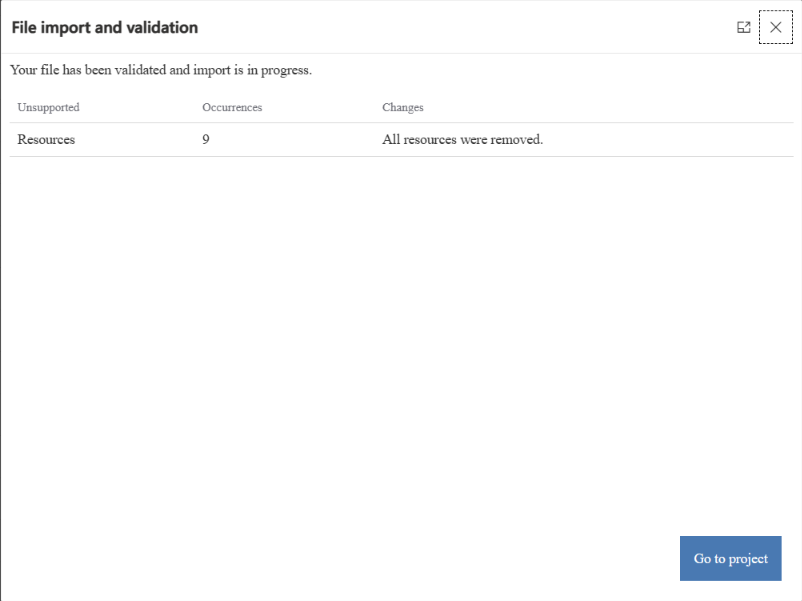
After the project is successfully created, review the validation summary. The summary indicates whether any items in the file were excluded from the import. For example, the following screenshot shows an example where nine resources were removed from the import.
Select Go to project to view the project.
Import a file to an existing project with no WBS
A project without a WBS indicates that you created the project but didn't access the Task tab. Opening the Task tab automatically generates a blank WBS.
To import to an existing project with no WBS from a Project desktop client file, follow these steps.
Open the Projects view.
On the toolbar, select Import > Import from MPP.
Select the project you want to import into. Only eligible projects appear in the list.
As the project is already created, all fields are locked and can't be edited.
Select Choose File, browse to the .mpp file that you want to import, and then select Open.
Select Import to start the import process.
After the project is successfully created, review the validation summary. The summary indicates whether any items in the file were excluded from the import. For example, the following screenshot shows an example where nine resources were removed from the import.
Select Go to project to view the project.
Limitations
The following sections describe limitations of Import from MPP.
Unsupported desktop client capabilities in the import
Project for the web is great for most projects, but it isn't a complete replacement for Project desktop. Some features aren't supported and can't be migrated. Therefore, before you begin, evaluate your project and make sure it doesn't rely on them. For a list of these features, see Features that don't migrate.
Note
This list might not be exhaustive. If your new Project for the web project is missing elements or data, they might rely on an unsupported feature that isn't listed.
Work breakdown structure limits
In addition to the unsupported capabilities described in the previous section, the work breakdown structure (WBS) must conform to the existing limits.
Project custom fields
If you customize the project main page by adding required fields, you must provide default values for those fields. Otherwise, errors occur when you import files to create new projects. Customization of the import dialog box isn't currently supported.
Existing projects with WBS
If a project already contains a WBS—even if it's blank—you can't import tasks from an MPP file.