Note
Access to this page requires authorization. You can try signing in or changing directories.
Access to this page requires authorization. You can try changing directories.
Sales agent in Microsoft 365 Copilot (also referred to as Sales agent) enhances the summary insight banner on account and opportunity records in Dynamics 365 Sales with rich and actionable summaries. This article explains the prerequisites for enabling the feature and how to see Sales agent insights in the banner.
The summaries are displayed at the top of the record in a banner. The banner is designed to surface relevant insights to help you understand your accounts and deals, decide what to do next, and connect you to deeper assistance in Sales agent chat.
Important points to note
- The Sales agent summary insight banner is only available for account and opportunity records. To learn more about the summary insight banner for other CRM records, see Summarize records with Copilot.
- If your environment doesn't meet the prerequisites listed in this article, the record continues to show the summary insight in the banner powered by Copilot in Dynamics 365 Sales. To learn more, see Summarize records with Copilot.
- If other summary agents are enabled for your organization, those agents continue to power the banner and point to their research pages. For example, on an opportunity record, if the Sales Opportunity Agent is enabled, the banner shows the Opportunity Research summary and links to the opportunity research page.
- If your admin previously configured fields to include in the account or opportunity record summary in Dynamics 365 Sales, the banner respects those instructions and displays the summary generated by Copilot in Dynamics 365 Sales.
Prerequisites
- You must have an appropriate Dynamics 365 Sales license that includes access to Microsoft 365 Copilot. If your license doesn't include access to Microsoft 365 Copilot, you need a separate Microsoft 365 Copilot license. To learn more, see Dynamics 365 licensing guide.
- Your admin must complete the following steps:
- Provide consent for sales agent data movement across geographies in Sales agent administrator settings.
- Provide consent for data movement across geographies for Copilot in Power Platform admin center.
- Install the Sales agent in your environment.
- Turn on Microsoft 365 Copilot for Sales Hub.
View account or opportunity summary in the summary insight banner
Follow these steps to view the summary insight banner:
Open an account or opportunity record.
Wait a few seconds for the summary insight banner to appear at the top of the record. When the prerequisites for Sales agent are met, Sales agent generates the banner content.
Review the short preview of the summary that appears when you first open the record. This preview highlights the most actionable insight about the record. The following screenshot shows an example of the summary insight banner on an account record:
Note
The screenshots in this section show examples of the summary insight banner on an account record. The banner on opportunity records looks similar but includes opportunity-specific insights.
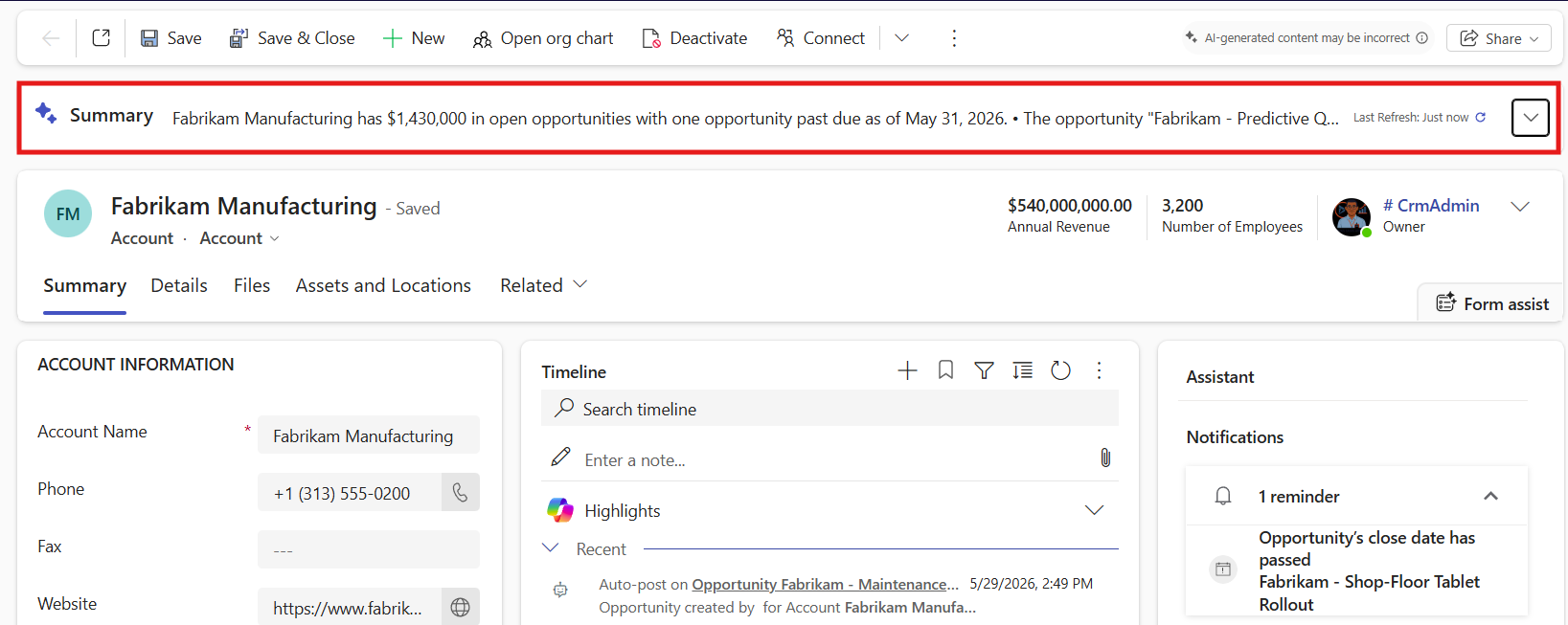
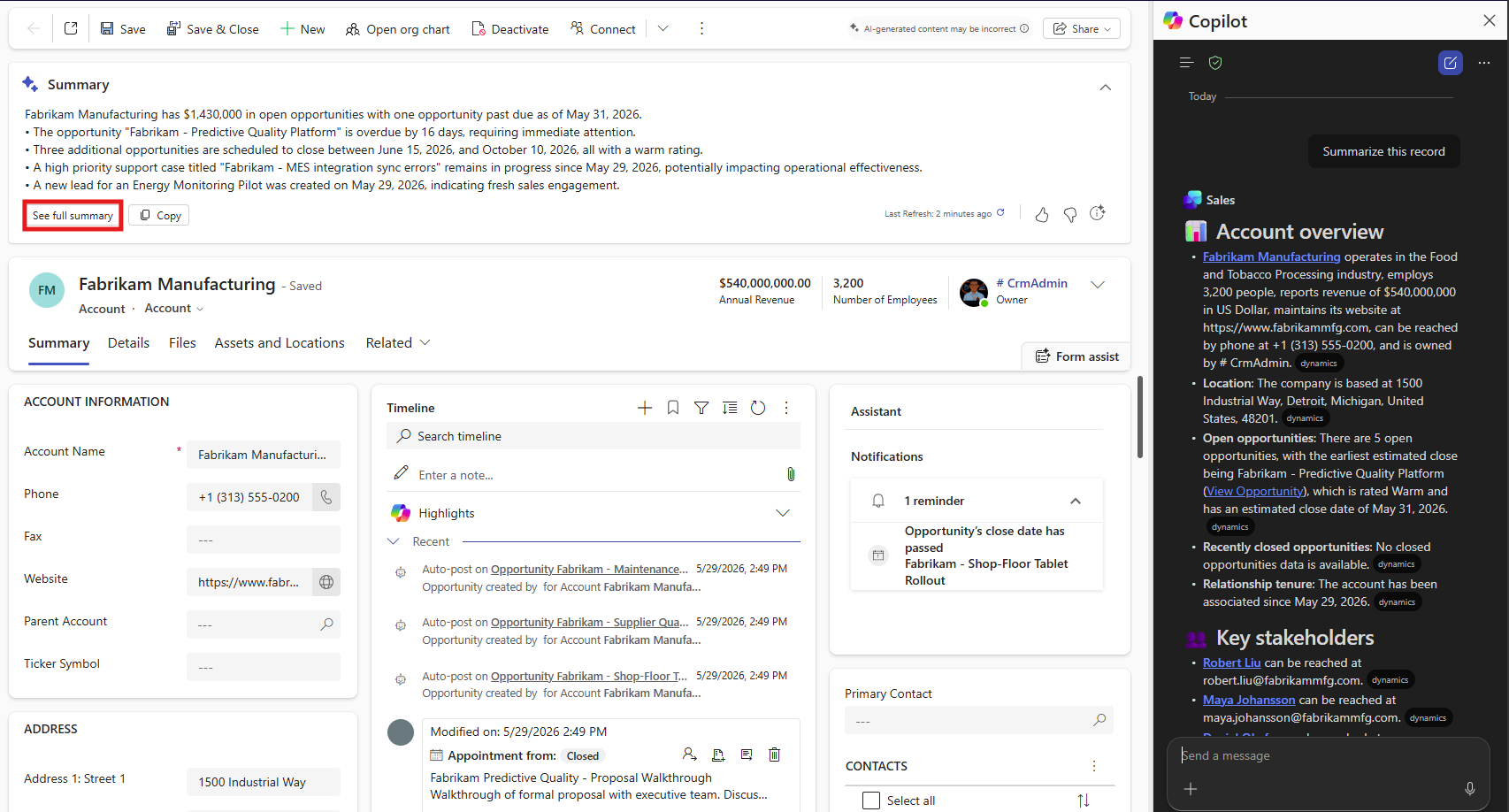
Expand the banner to view a quick summary of the account, including actionable insights and key context that helps you prepare to engage with the account.
Select See full summary to open Sales agent chat in Microsoft 365 Copilot and view the complete account summary, including key stakeholders, top open opportunities, top leads, engagement health, and more. If the summary opens in a different experience, refer to the prerequisites section and Important points to note section to learn what might be causing the experience to differ. The following screenshot shows an example of the expanded summary insight banner with the Sales agent chat open on the right:
Your admin can customize the summary and format of the information shown in the banner by configuring the default summary prompt. For more information, see Configure account and opportunity summary.
Note
The summary insights in the banner use the same summary that Sales agent generates in chat. If you ask Sales agent in Microsoft 365 Copilot to summarize the same account, the summary is consistent with the banner.
Related information