Note
Access to this page requires authorization. You can try signing in or changing directories.
Access to this page requires authorization. You can try changing directories.
[This article is prerelease documentation and is subject to change.]
Manufacturers of pharmaceuticals, food, chemicals, and other perishable or regulated goods must periodically retest batch-controlled inventory to verify that products remain within specification over their shelf life. Batch stability testing automates this process by generating quality orders on a recurring cadence for each inventory batch, based on rules that you define.
Important
- This is a preview feature.
- Preview features aren’t meant for production use and might have restricted functionality. These features are subject to supplemental terms of use, and are available before an official release so that customers can get early access and provide feedback.
Overview
Quality management in Supply Chain Management already generates quality orders automatically when transactions occur (for example, when goods are received, shipped, or transferred). However, stability testing requires a time-based approach—batches must be retested on a fixed schedule regardless of whether any transaction occurs.
Batch stability testing adds a new time-based generation type to quality associations. Instead of waiting for a transaction event, a recurring batch job evaluates each inventory batch against the defined schedule and creates quality orders for batches that are due for testing.
This feature provides:
- Automated scheduling – A batch job creates quality orders for each batch that's due, based on the configured interval and test window.
- One order at a time – The system guarantees that only one stability quality order is ever open for a given batch. A new order isn't created until the previous one is resolved.
- A dedicated workspace – The batch stability testing workspace gives quality operators a real-time view of which batches need attention.
Important
Batch stability testing is a scheduler only. It creates quality orders on a cadence, but it never evaluates pass or fail results and never changes a batch's disposition code. Non-compliance handling (for example, blocking a batch after a failed test) is managed through standard quality order processing and disposition codes.
Prerequisites
To use the features described in this article, your system must meet the following requirements:
- You must be running Microsoft Dynamics 365 Supply Chain Management version 10.0.50 or later.
- The feature named (Preview) Batch stability testing must be turned on in feature management.
How the testing cadence works
The system tracks each batch's testing history using a concept called a lineage. A lineage is the unique combination of a quality association, an item, and a batch. For each lineage, the system calculates when the next test is due and whether the current moment falls within the allowed test window.
Determine the next due date
The system calculates the next due date for a batch as follows:
- Steady state – The completion date of the last passed test for that lineage, plus the configured interval (for example, three months after the last test passed).
- First cycle – If a batch was never tested, the system uses the batch's manufacturing date as the anchor. If no manufacturing date exists or the first interval already elapsed, the system generates an order immediately.
Understand the test window
Each testing schedule defines a test window around the next due date. The window has two components:
- Early window – How far before the due date the quality order can be created. This window gives operators time to prepare for the test.
- Late window – A grace period after the due date. If the batch isn't tested within this grace period, it becomes overdue. The workspace highlights overdue batches, but the system doesn't create new quality orders for them.
The following illustration shows how the testing timeline works for a batch with a 90-day interval, a 10-day early window, and a 5-day late window. The anchor is January 1 (the date the last test passed).

You can configure when within this window the system creates the quality order by using the Generate order timing setting:
- Start of test window (default) – The order is created at the beginning of the early window, giving operators maximum lead time.
- End of interval – The order is created on the due date itself.
| Date | Designation | Description |
|---|---|---|
| Jan 1 | Anchor | The system starts counting the interval from this date. It's usually either the manufacturing date or the date of the last passed test for this batch. |
| Mar 22 | Anchor + Interval – Early window | Earliest the system will create the quality order. Start of test window creates it here. |
| Apr 1 | Anchor + Interval | The due date for creating a quality order. End of interval creates it here. |
| Apr 6 | Anchor + Interval + Late window | End of the testing grace period. After this date the batch is overdue (surfaced in the workspace, never auto-created). |
So the two Generate order timing settings just pick which green point the order is created at—everything between Mar 22 and Apr 6 is the valid creation window.
Set up a quality association for batch stability testing
Batch stability testing uses quality associations to define what to test and how often. Create a quality association by using the new time-based generation type, and then configure the testing schedule directly on the Batch stability testing FastTab.
To set up a quality association for batch stability testing, follow these steps.
- Go to Inventory management > Setup > Quality control > Quality associations.
- Select New to create a quality association.
- Set the Reference type field to Inventory.
- Set the Generation type field to Time-based.
- In the Item code field, select either Table (for a specific item) or Group (for an item group). Time-based associations don't support the All scope.
- Set the Site field. Site is mandatory for time-based associations.
- Configure the test group, acceptable quality level (AQL), and sampling plan as you would for any quality association. The item sampling must include the batch dimension so that the system creates separate quality orders per batch. Learn more in Quality associations.
- On the Batch stability testing FastTab, configure the following fields:
- Interval (days) – The number of days between the previous test and the next due date (for example, 90).
- Generate order timing – When the quality order is created within each interval. Choose one of the following values:
- Start of test window – Create the quality order at the start of the early test window.
- End of interval – Create the quality order on the due date.
- Early test window (days) – How many days before the due date the quality order can be created (for example, 10). This field is only editable when Generate order timing is set to Start of test window.
- Late test window (days) – The grace period in days after the due date (for example, 5). After this point, the batch is considered overdue.
- Select Save.
Note
A time-based association is saved as a draft until you fully configure its stability testing schedule. The generation batch job doesn't process draft associations.
Configure batch disposition codes to skip retesting
In some cases, you might want to exclude certain batches from stability testing. For example, you might exclude batches that are quarantined, under investigation, or intentionally removed from the testing cycle. You can configure specific batch disposition codes to skip time-based retesting.
To configure a disposition code, follow these steps:
- Go to Inventory management > Setup > Batch attributes > Batch disposition codes.
- Select the disposition code that excludes batches from stability testing, such as Quarantine or Investigation.
- Set the Skip time-based retesting option to Yes.
- Select Save.
The stability testing generator skips any batch currently assigned to a disposition code with this option set to Yes.
Run the stability testing batch job
The batch stability testing generator is a recurring batch job that evaluates all active time-based quality associations and creates quality orders for batches that are due.
To run the generator, follow these steps.
- Go to Inventory management > Periodic tasks > Batch stability management > Create stability testing schedule.
- Optionally, select Filter to narrow the scope to specific products or batches. If you don't apply a filter, the generator evaluates all batches that are in scope of active time-based associations.
- Select OK to run the job, or configure it as a recurring batch job on the Run in the background FastTab.
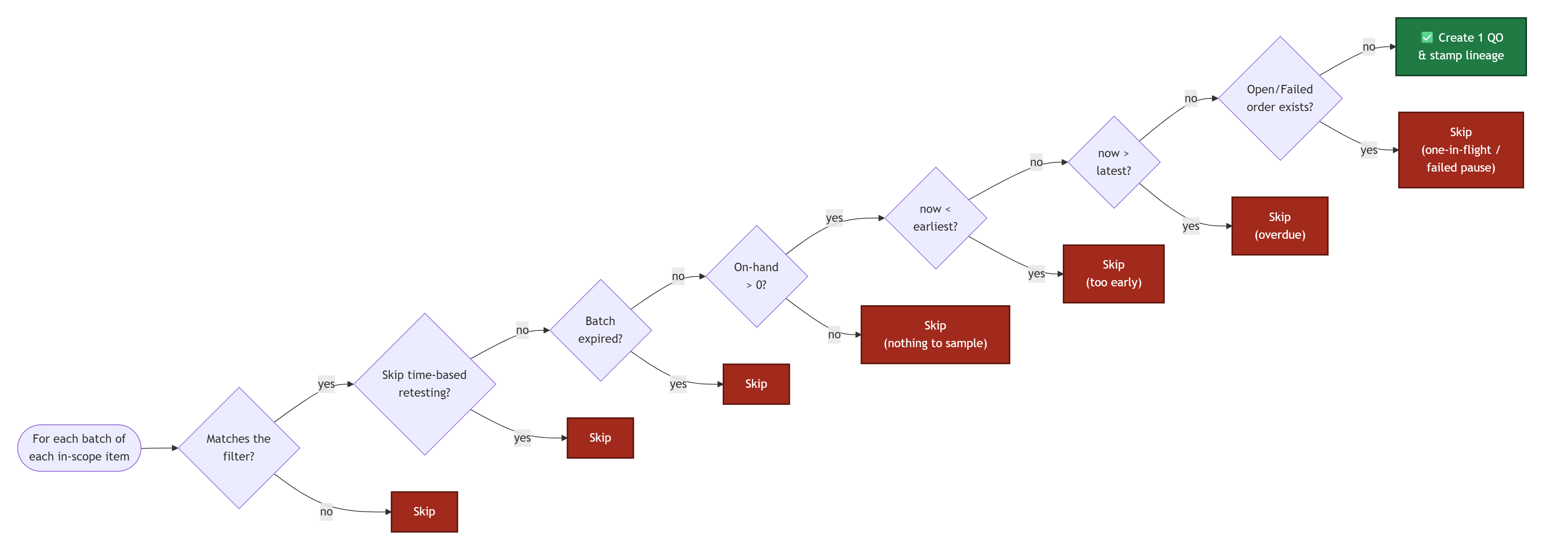
For each batch, the generator evaluates the following conditions in order. If any condition fails, the batch is skipped:
- Is the batch's disposition code configured to skip time-based retesting?
- Is the batch expired?
- Does the batch have physical on-hand inventory?
- Is it too early (before the test window)?
- Is it overdue (past the grace period)?
- Does an open or failed quality order already exist for this lineage?
If all conditions pass, the system creates exactly one quality order and stamps the lineage reference on it.
The following illustration shows the decision flow that the generator applies to each batch.
Important
If a quality order fails for a batch, the generator doesn't create a new order for that lineage until the failed order is resolved (either validated as passed, or deleted). This condition prevents the system from silently creating replacement orders when a test failure requires human attention.
Use the batch stability testing workspace
The batch stability testing workspace gives quality operators a real-time overview of where each batch stands in its testing cycle. The workspace combines KPI tiles with tabbed list views, so you can both monitor high-level counts and drill into details.
To open the workspace, go to Inventory management > Workspaces > Batch stability management.
Workspace tiles
At the top of the workspace, four KPI tiles display the count of batches in each condition:
- Ready for test – Batches whose test window is currently open. These batches have (or are scheduled to have) quality orders and are ready for testing.
- Soon overdue – A subset of ready-for-test batches whose test window closes within the configured threshold (default 7 days). These batches need immediate attention.
- Overdue – Batches whose test window closed without a passed test. These batches require investigation.
- Blocked – Batches whose current disposition code has Skip time-based retesting set to Yes. These batches are intentionally excluded from the testing cycle.
When you select a tile, it opens a separate batch list page that shows the full details for the batches in that condition. Use this page to investigate specific batches, drill into their quality order history, or take action.
Workspace tabs
Below the tiles, the workspace includes a Batches by test condition section with tabs that provide inline filtered views of the same data. Each tab shows a list of batches filtered similarly to its corresponding tile, but displayed directly within the workspace so you can quickly scan multiple conditions without navigating away.
Use the tabs to get a quick overview of batch status across conditions. Use the tiles when you need to open a dedicated page where you can work with the batch records in detail.
Note
The tiles and tabs represent conditions, not exclusive statuses. A batch can appear under more than one tile or tab. For example, a batch approaching its deadline appears under both Ready for test and Soon overdue. A blocked batch can also appear in a window tab at the same time. Each tile counts distinct batches, so no batch is double-counted within a single tile.
Configure the workspace
You can configure the workspace threshold that determines when a batch is considered "soon overdue."
To configure the workspace, select Configure workspace on the Action Pane. Set the Upcoming test threshold (days) field to the number of days before a batch's window closes that you want it to appear under the Soon overdue tile (default: 7 days).
Work with stability quality orders
Quality orders created by the batch stability testing generator are standard quality orders. You process them using the same procedures as any other quality order—record test results, validate, and either pass or fail. Learn more in Quality orders.
When a stability quality order passes:
- The batch's lineage anchor updates to the completion date of the passed order.
- The next testing cycle begins, and the system calculates a new due date based on the configured interval.
When a stability quality order fails:
- The generator pauses creation for that lineage until the failed order is resolved.
- The batch might appear in the workspace under the Overdue tile if its window is closed.
- You can configure disposition codes and quality order fail actions to handle non-compliance through standard quality management processes.