Note
Access to this page requires authorization. You can try signing in or changing directories.
Access to this page requires authorization. You can try changing directories.
Create a Device Access traffic forwarding profile for Microsoft Entra Private Access in Microsoft Global Secure Access. Windows devices use the profile to connect to private resources before a user signs in.
Use the profile to reach domain controllers, Network Time Protocol (NTP) services, Microsoft Configuration Manager, and Windows Server Update Services (WSUS). Devices can reach these resources during startup and from the Windows sign-in screen.
This guide helps IT administrators enable applications, create and assign a profile, and verify connectivity. Review the client, device, and role prerequisites before you begin. Device Access is in preview and supports Windows and Private Access traffic only.
Prerequisites
- A Microsoft Entra tenant onboarded to Global Secure Access.
- A Windows device that's Microsoft Entra joined or Microsoft Entra hybrid joined.
- The Device Access-compatible Global Secure Access client installed on the device. You can deploy the client by using Microsoft Intune or another mobile device management (MDM) solution. A user doesn't need to be signed in during installation.
- Private network connectors deployed for the private network that hosts your resources.
- Application segments defined for each private application that the device needs to reach.
- The Global Secure Access Administrator and Application Administrator roles, or equivalent permissions, to manage traffic forwarding profiles and private applications.
Device Access doesn't support domain join scenarios. The device needs to be Microsoft Entra joined or Microsoft Entra hybrid joined before you begin.
For Active Directory Domain Services scenarios, also configure the following items:
- Enable Private DNS and add the DNS suffix for the on-premises Active Directory domain. Windows uses the suffix to locate domain controllers.
- Publish domain controllers as a separate private application. For related configuration guidance, see Configure Kerberos single sign-on for Private Access.
- If your Private DNS definitions are part of Quick Access, enable Device Access on the Quick Access application and include Quick Access in the Device Access profile. In this configuration, Quick Access provides the Private DNS definitions but doesn't publish other resources to the device tunnel.
Enable private applications for Device Access
Private applications don't allow Device Access by default. Enable the setting on each application that a device needs to reach before a user signs in.
Sign in to the Microsoft Entra admin center with the required roles.
Browse to Global Secure Access > Applications > Enterprise applications.
Select the private application.
Open the application's network access properties.
Select Enable Device Access with Global Secure Access, and then save the change.
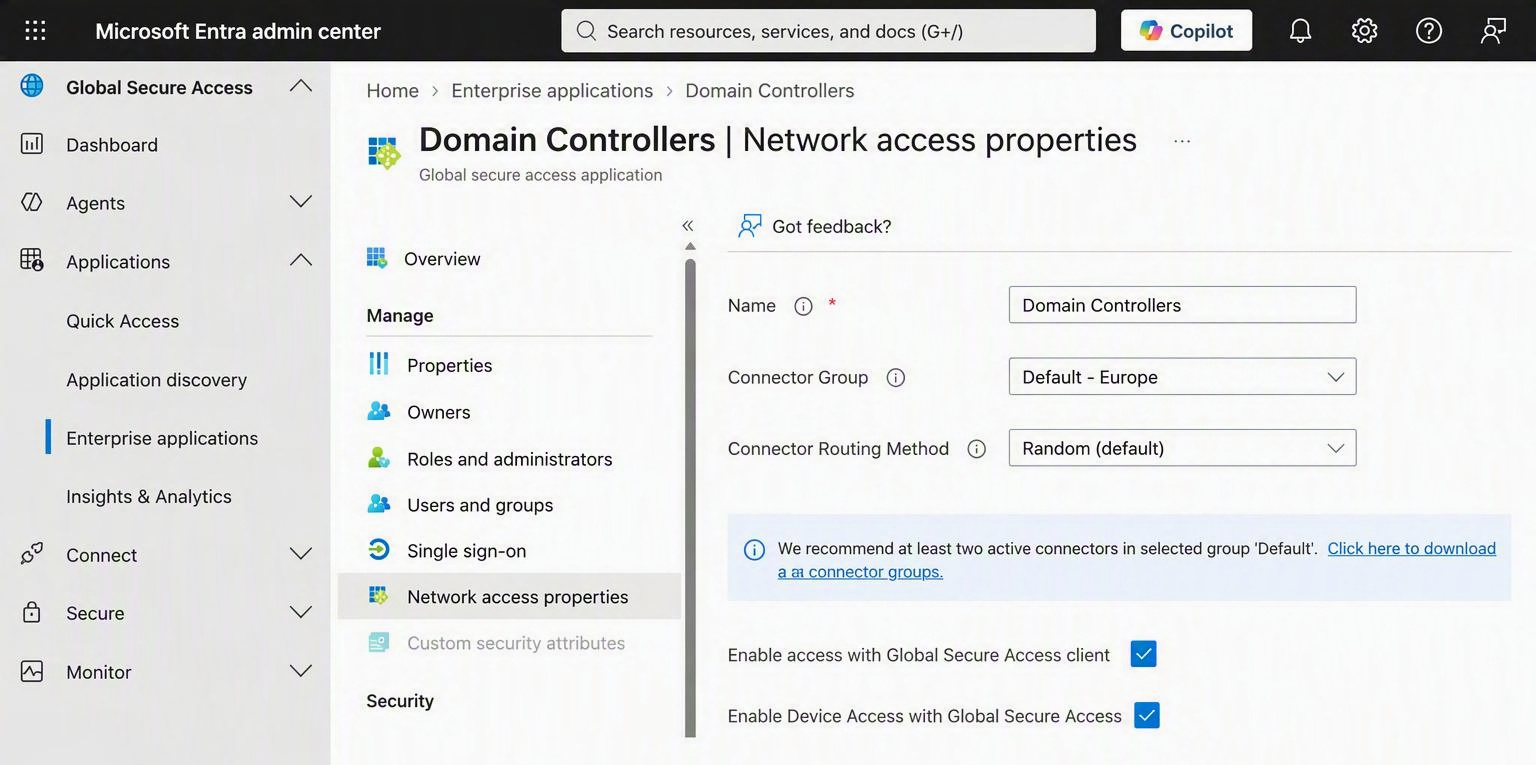
Repeat these steps for each required application, such as domain controllers, Configuration Manager, WSUS, and on-premises identity services.
Enable only the private applications that devices require without a signed-in user. Limiting the applications reduces the resources available through the device tunnel.
Create a Device Access profile
Device Access forwarding profiles are separate from user-context traffic forwarding profiles. Their assignments are based on devices instead of users.
In the Microsoft Entra admin center, browse to Global Secure Access > Connect > Traffic forwarding.
Select the Device Access profiles tab.
Select Create Device Access profile > Private Device Access profile.
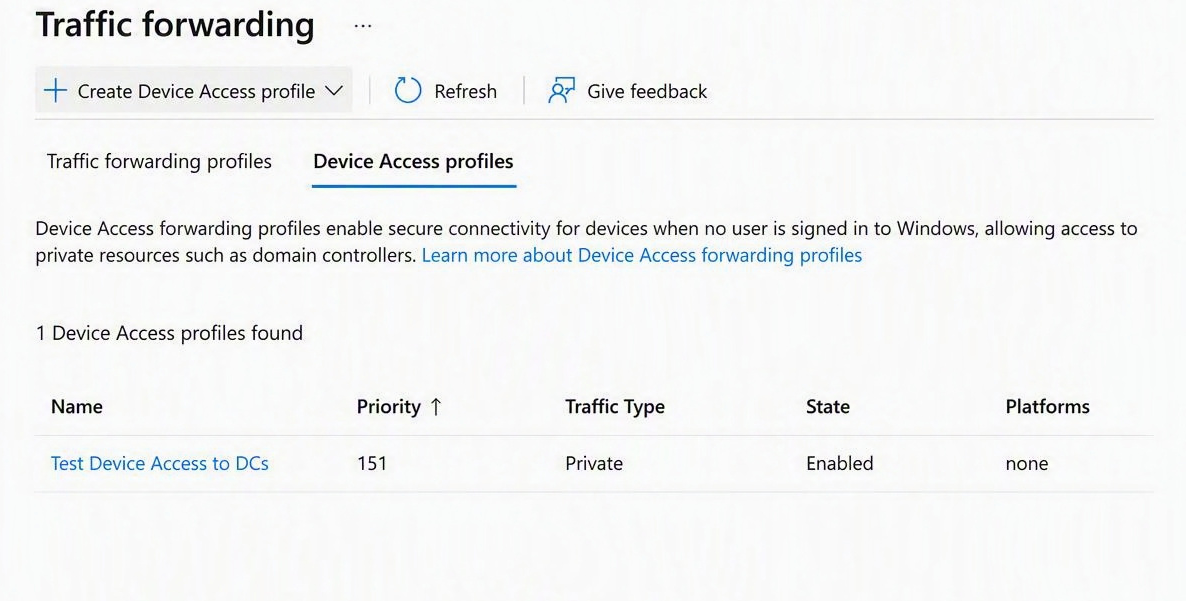
On the Basics tab, configure the following settings:
Setting Description Profile name Enter a descriptive name for the profile. Description Optionally describe the devices and resources covered by the profile. Priority Set the evaluation priority. Device Access profiles have priorities that are independent of user-context profiles. Status Select Enabled, or select Disabled to stage the profile without applying it. The traffic forwarding type is set to Private access and can't be changed.
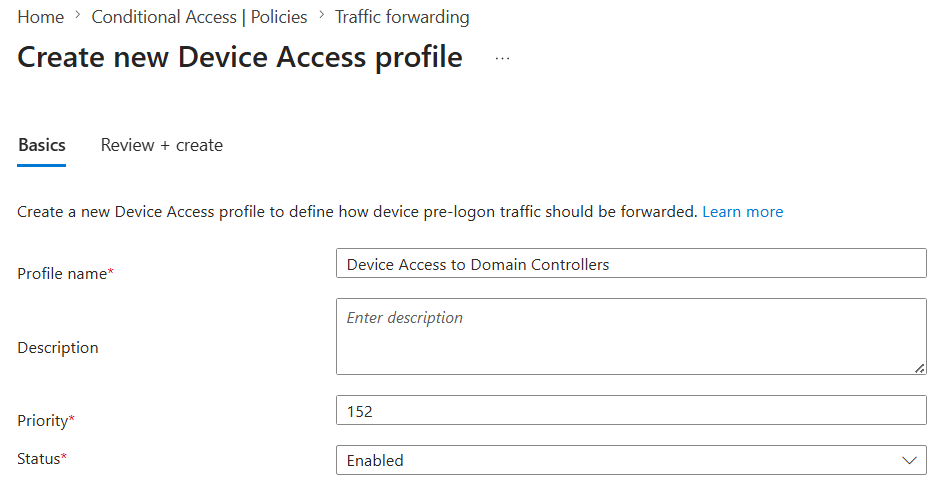
Select Next, review the settings, and then select Create.
Add acquisition rules
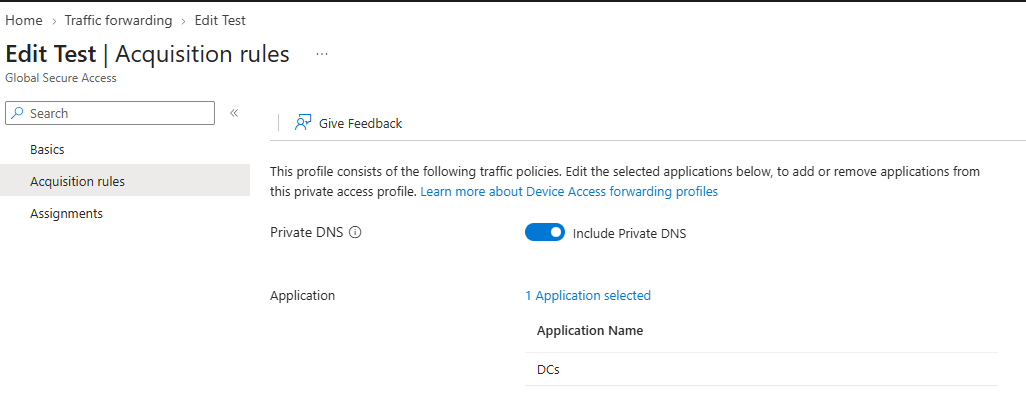
Acquisition rules determine which private applications a device can reach through the Device Access tunnel.
Open the Device Access forwarding profile.
Select Acquisition rules.
If your configuration uses Quick Access for Private DNS definitions, ensure that Device Access is enabled on the Quick Access application, and then turn on Include Private DNS.
Only the Private DNS definitions from Quick Access are used. Application segments configured in Quick Access aren't added to Device Access.
Select Add applications.
Select the private applications that the profile should cover, and then save the rule.
The application picker shows only private applications that have Device Access enabled.
Assign the profile to devices
A Device Access forwarding profile needs both a device assignment and a Windows platform assignment.
In the Device Access forwarding profile, select Assignments.
Next to Device assignments, select View.
Choose one of the following assignment scopes:
- No devices: Stage the profile without applying it to devices.
- All devices: Apply the profile to all eligible Windows devices in the tenant.
- Selected devices: Apply the profile to selected devices or groups that contain devices.
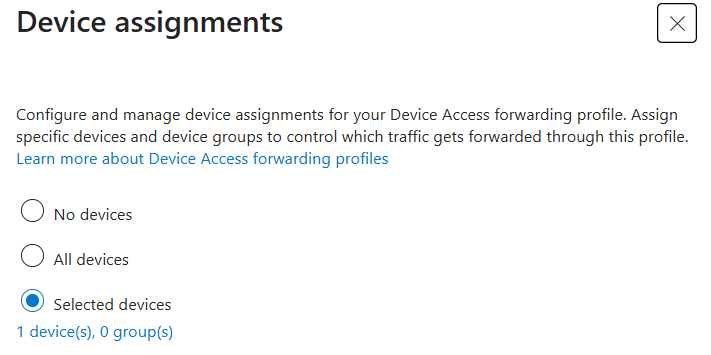
Save the device assignment.
Next to Device platform assignments, select View, select Windows, and then save the platform assignment.
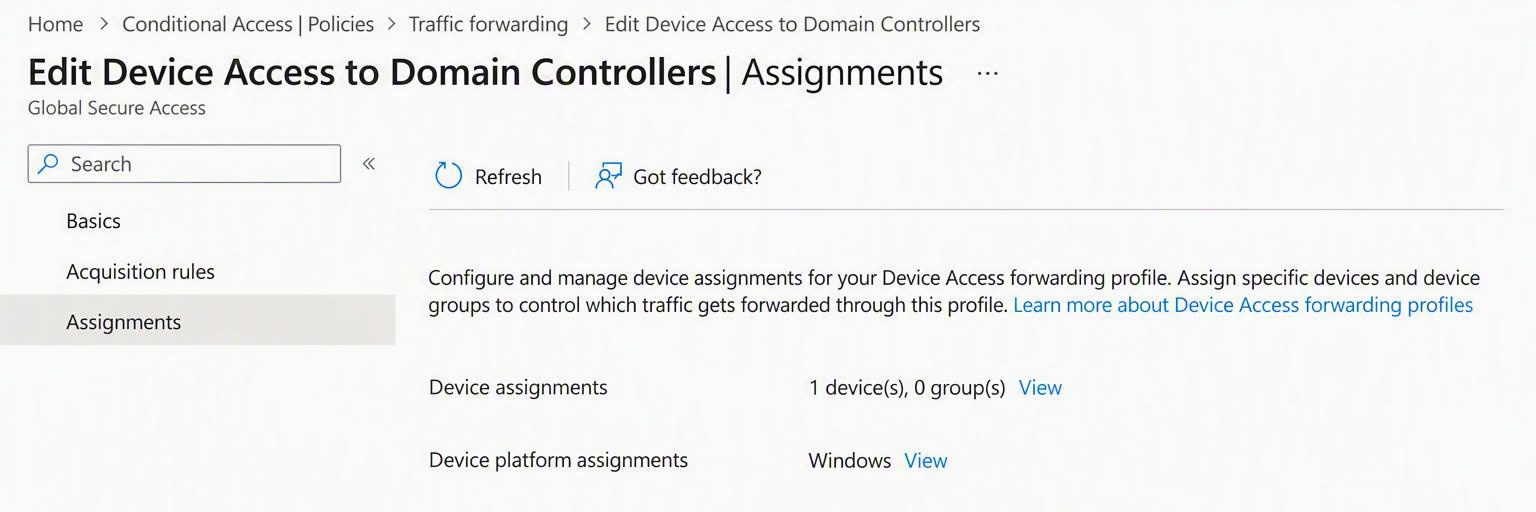
For a gradual rollout, assign the profile to a pilot group of devices first. For example, target only Microsoft Entra hybrid joined devices that require connectivity to domain controllers during Windows sign-in.
Verify Device Access
Allow several minutes for the configuration to propagate, and then verify the profile and a pre-sign-in scenario on a target device.
On an assigned Windows device, open the Global Secure Access client.
Open Advanced diagnostics.
Select Forwarding profile > Device.
Confirm that the expected private pre-sign-in rules, Private DNS definitions, and private network definitions are present.
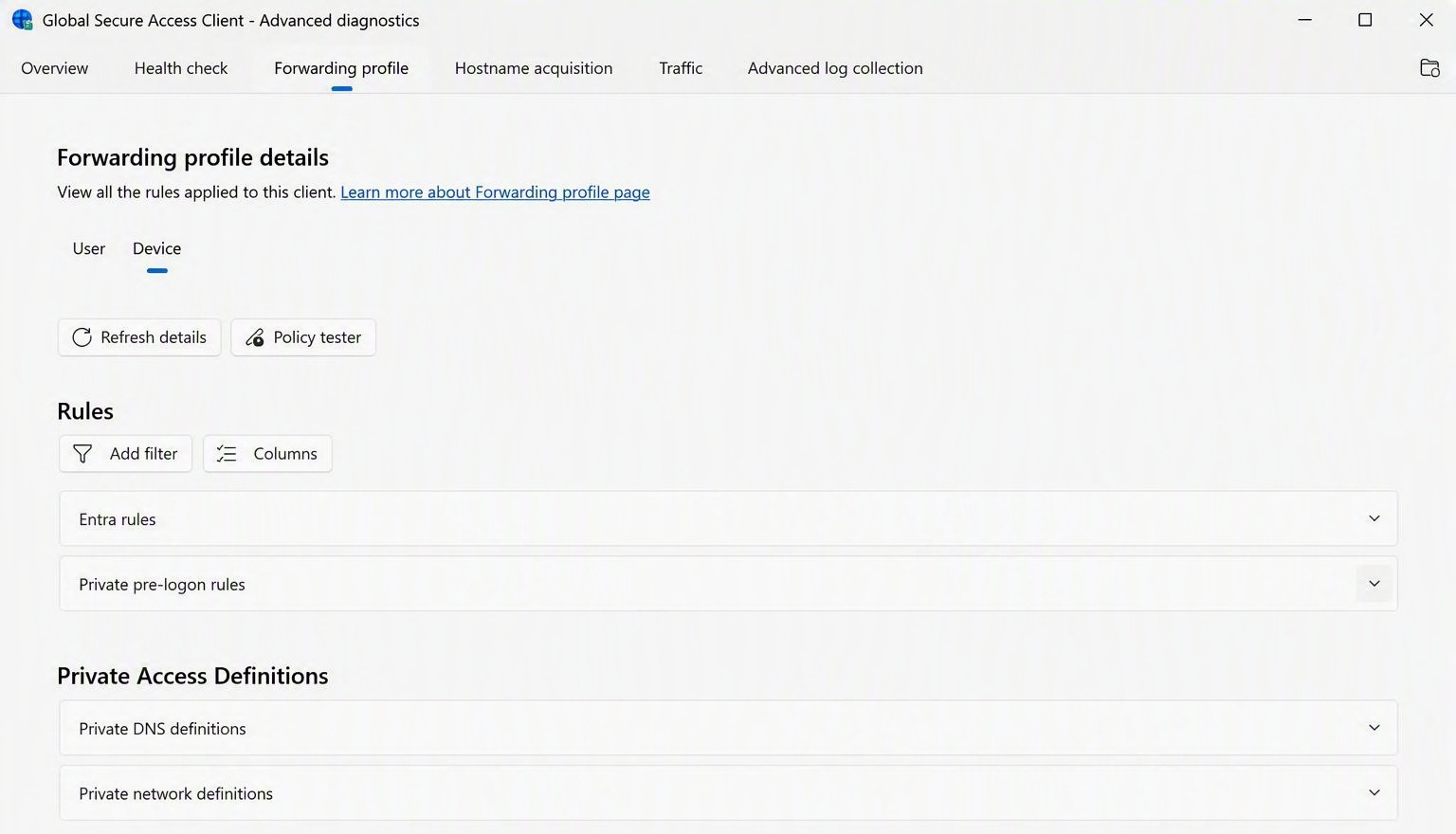
Restart the device and remain on the Windows sign-in screen.
Test access to a private resource included in the Device Access profile. For example, sign in with an account whose credentials aren't cached on the device.
For a domain-controller scenario, confirm that sign-in succeeds and that Group Policy is applied. Review Group Policy events in Event Viewer under Applications and Services Logs > Microsoft > Windows > GroupPolicy > Operational.
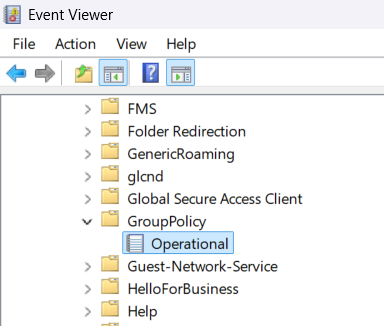
Monitor Device Access
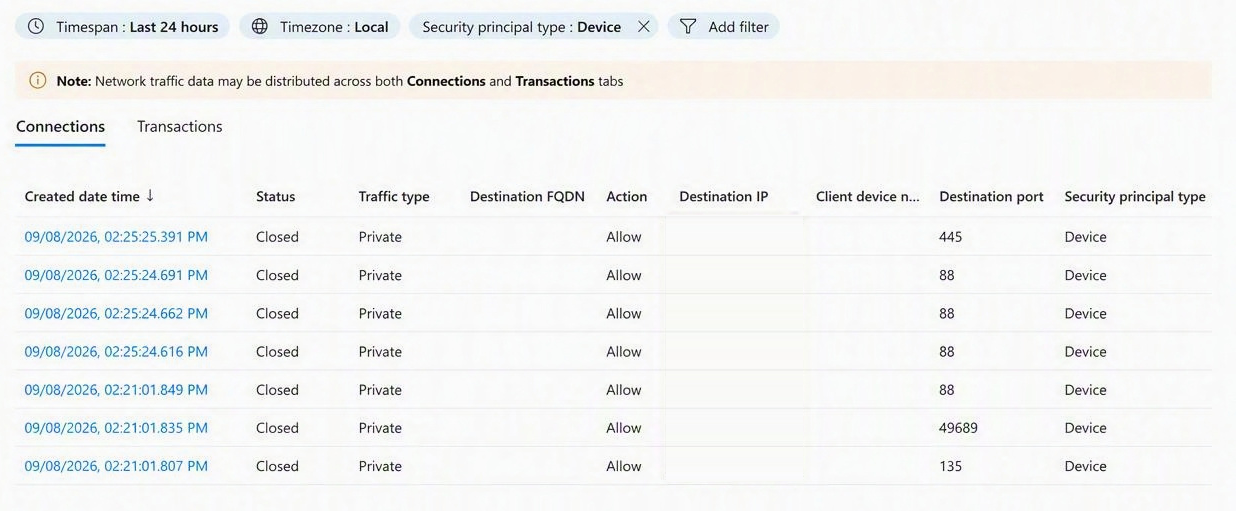
Use audit logs, traffic logs, and client diagnostics to monitor connections that use the device context.
Review audit logs for creation and deletion of Device Access forwarding profiles, assignment changes, application-list changes, and changes to Device Access enablement.
In traffic logs, filter Security principal type to Device and review the Security principal type column.
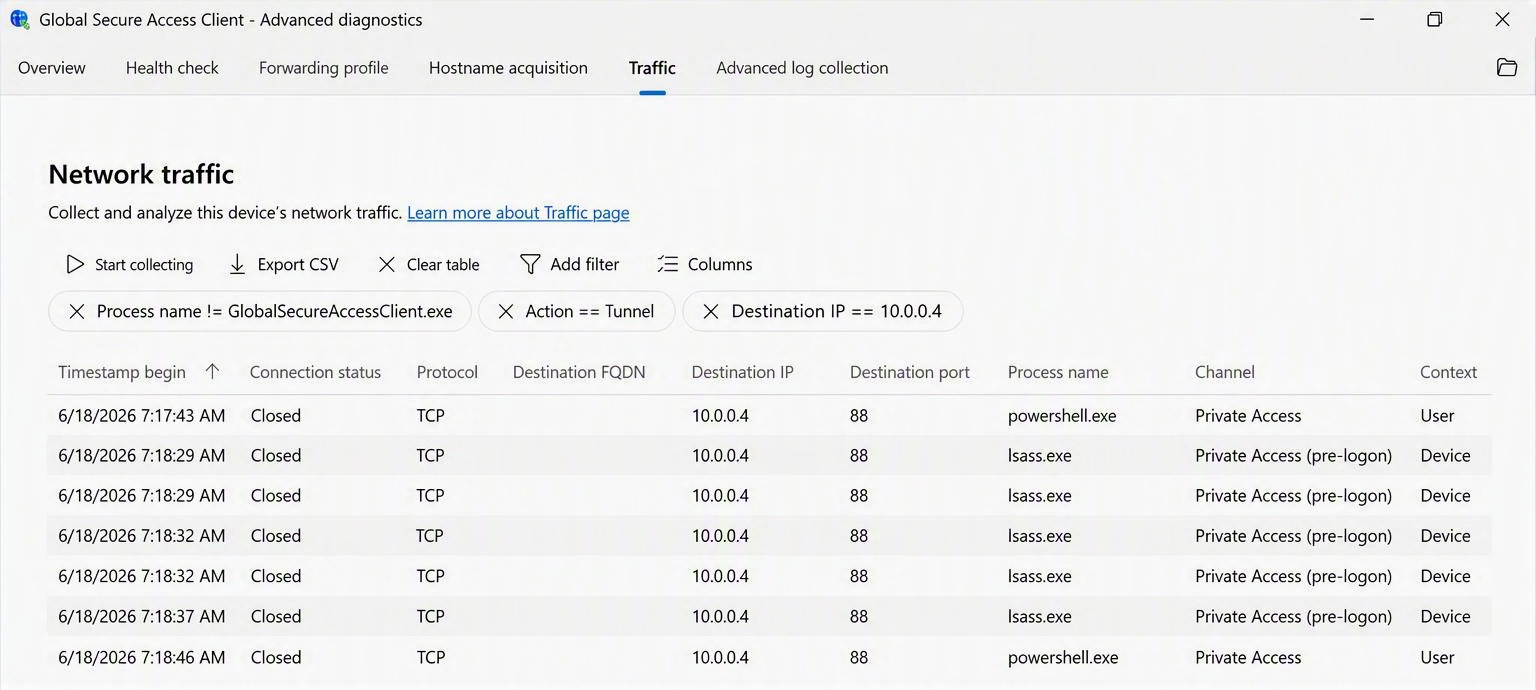
In Advanced diagnostics, open the Traffic tab to identify whether a tunneled connection used the Device or User context.
Client logs for the device context are written to Event Tracing for Windows (ETW) and Event Viewer and are included in the standard client log collection. For more information, see Troubleshoot the Global Secure Access client for Windows: Advanced diagnostics.
Understand device and user contexts
Device Access becomes active in the following situations:
- After the device restarts and before a user signs in.
- After a user signs out.
- While the user session is locked.
- After the device resumes from sleep or hibernation.
When the device starts, the Global Secure Access client services authenticate the device to Global Secure Access. The client receives a Device Access forwarding profile and establishes a device tunnel for the private applications in that profile.
After a user signs in and the user tunnels are established, the client switches to the user context. Existing connections drain over the device tunnel, and new connections use the user tunnel.
The client switches back to the device context when a user context is no longer available.
Device Access supports scenarios such as:
- Signing in with credentials that aren't cached on the device.
- Reaching domain controllers for authentication and Group Policy processing.
- Connecting to on-premises device-management services at startup.
- Changing an expired password when connectivity to a domain controller is required.
Internet Access and Microsoft 365 traffic aren't tunneled in the device context. If you enable those traffic forwarding profiles, their traffic continues to use the user context after a user signs in.
Remove access for a lost or compromised device
If a device is lost, retired, or compromised, remove its access to the Device Access tunnel.
The minimum role required to disable a device is Cloud Device Administrator.
- Disable the device object in Microsoft Entra ID.
- Remove the device from any assignment to a Device Access traffic forwarding profile.
Disabling the device object prevents the Global Secure Access client from authenticating the device to the service, which blocks the device tunnel. It also prevents the device from authenticating to other Microsoft Entra applications.