Note
Access to this page requires authorization. You can try signing in or changing directories.
Access to this page requires authorization. You can try changing directories.
You can delete a custom Private Access traffic forwarding profile when your organization no longer needs its acquisition rules or assignments.
Default traffic forwarding profiles are created by the service and can't be deleted. Deleted custom profiles can't be restored.
Important
Before deleting a custom profile, review its application, user, group, device, and device-platform assignments. Move any required configuration to another profile before you delete it.
Prerequisites
To delete a custom Private Access traffic forwarding profile, you must have:
- A Global Secure Access Administrator role in Microsoft Entra ID.
- A custom Private Access traffic forwarding profile.
Delete a custom profile
Sign in to the Microsoft Entra admin center as a Global Secure Access Administrator.
Browse to Global Secure Access > Connect > Traffic forwarding.
Select the custom Private Access traffic forwarding profile that you want to delete.
Select Delete from the command bar.
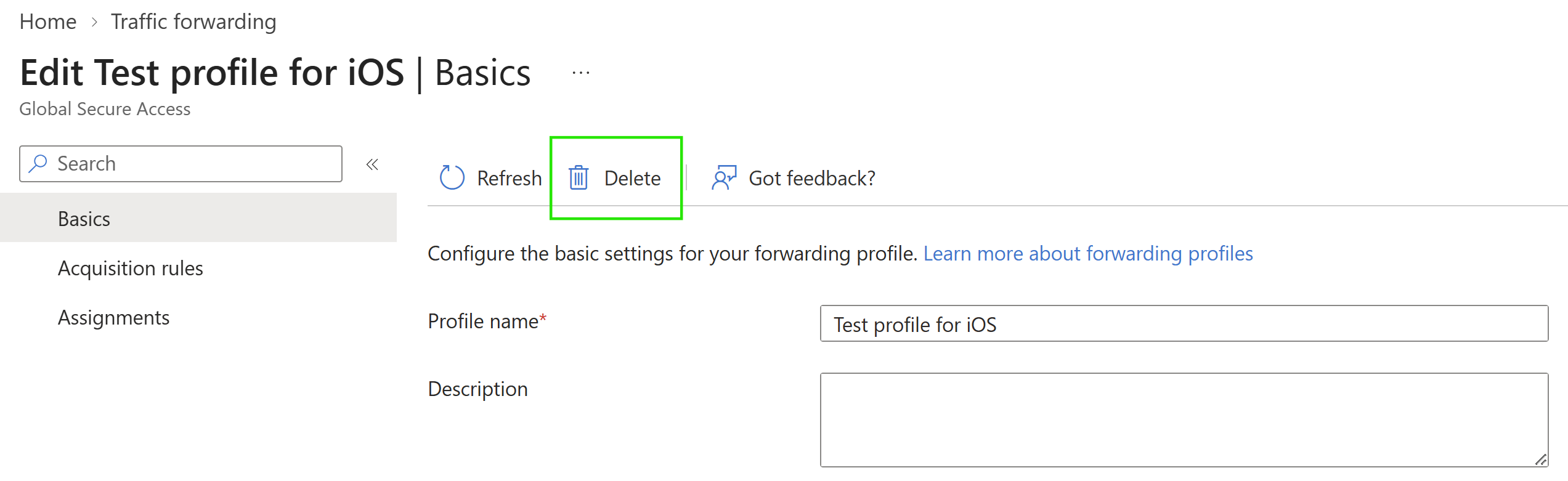
Review the confirmation, and then confirm the deletion.
The deleted profile no longer applies to its assigned users or devices.