Note
Access to this page requires authorization. You can try signing in or changing directories.
Access to this page requires authorization. You can try changing directories.
The Microsoft traffic profile routes supported Microsoft 365 and Microsoft Entra ID traffic through Global Secure Access. Enabling this profile helps you apply controls such as source IP restoration, compliant network checks, and universal tenant restrictions to Microsoft traffic.
In this tutorial, you learn how to:
- Enable the Microsoft traffic profile.
- Assign users and groups to the profile.
- Install the Global Secure Access client on a Windows device.
- Verify that the traffic forwarding profile is configured.
Key concepts
Traffic forwarding profiles tell the Global Secure Access client which traffic to capture and route through Microsoft's security service edge (SSE).
| Profile | Traffic type | Purpose |
|---|---|---|
| Microsoft traffic | Microsoft 365 and Microsoft Entra ID services | Optimized routing for supported Microsoft services, universal tenant restrictions, and compliant network checks. |
| Private Access | Internal corporate resources | Zero Trust access to private resources without requiring a legacy VPN. |
| Internet Access | All other internet traffic | Web filtering, threat protection, and Transport Layer Security (TLS) inspection. |
When you enable the Microsoft traffic profile, the Global Secure Access client acquires supported Microsoft traffic and forwards it to Microsoft's SSE proxy. Microsoft traffic is never routed through the Internet Access profile. Traffic available for acquisition in the Microsoft traffic profile can only be acquired in the Microsoft traffic profile.
Step 1: Enable the Microsoft traffic profile
Sign in to the Microsoft Entra admin center as a Global Secure Access Administrator and Application Administrator.
Browse to Global Secure Access > Connect > Traffic forwarding.
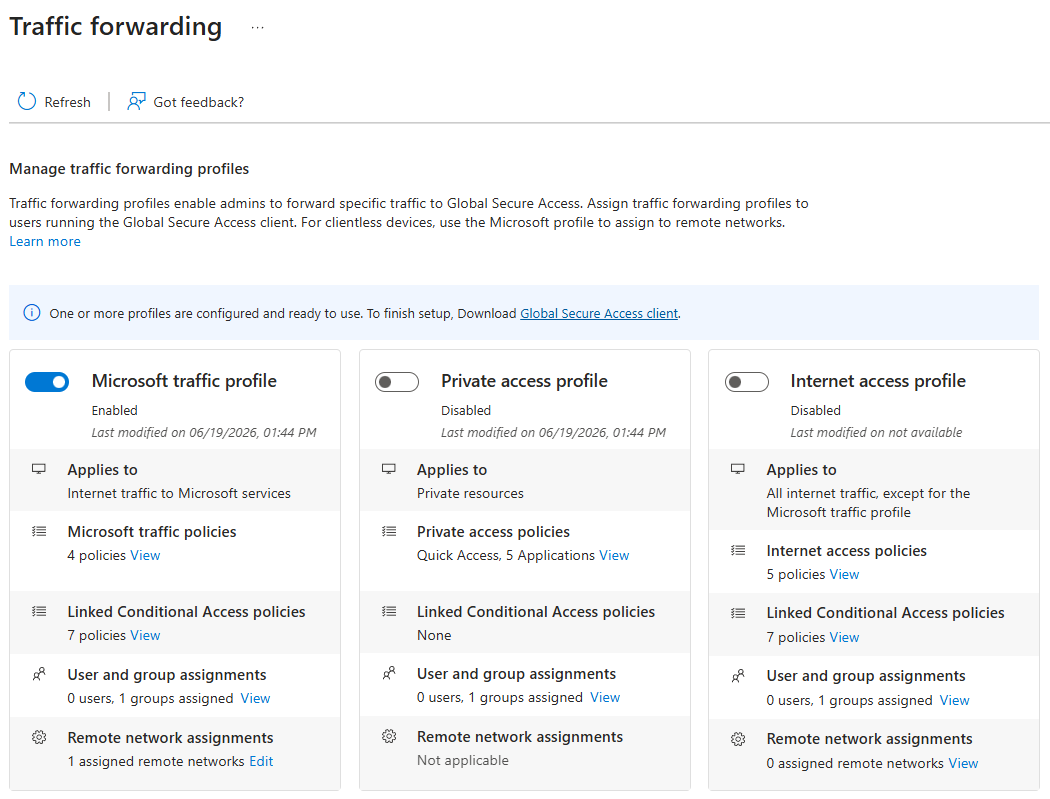
Enable the Microsoft traffic profile.
Step 2: Assign users and groups
The Microsoft traffic profile must be assigned to users before it takes effect. You need the Application Administrator role to assign the traffic profile to selected users and groups. You can assign the profile to all users or scope it to specific users and groups for a phased rollout or proof-of-concept testing.
- On the Traffic forwarding page, locate the Microsoft traffic profile section.
- Under User and group assignments, select View.
- Under Assigned, select the current user and group assignment link, such as 0 users, 0 groups assigned.
- Select Add user/group.
- Search for and select the pilot users or groups that you want to include.
- Select Assign.
Microsoft 365 and Microsoft Entra ID traffic is now forwarded from client devices to Microsoft's SSE proxy for users who have the Global Secure Access client installed and are assigned to the Microsoft traffic profile.
Step 3: Install the Global Secure Access client
Download the Global Secure Access client for Windows 11.
- For standard Windows 11 devices, use the Global Secure Access Windows client.
- For Arm-based Windows 11 devices, use the Global Secure Access Windows client for Arm.
Select the downloaded file and complete the wizard to install the Global Secure Access client.
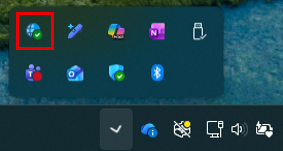
After installation is complete, verify that the Global Secure Access client icon appears in the Windows system tray.
Step 4: Verify results
- Right-click the Global Secure Access icon in the Windows system tray and select Advanced Diagnostics.
- Select Forwarding profile.
- Verify that the Microsoft Entra rules and Microsoft 365 rules are present.
- Optionally, review the Health check tab results.
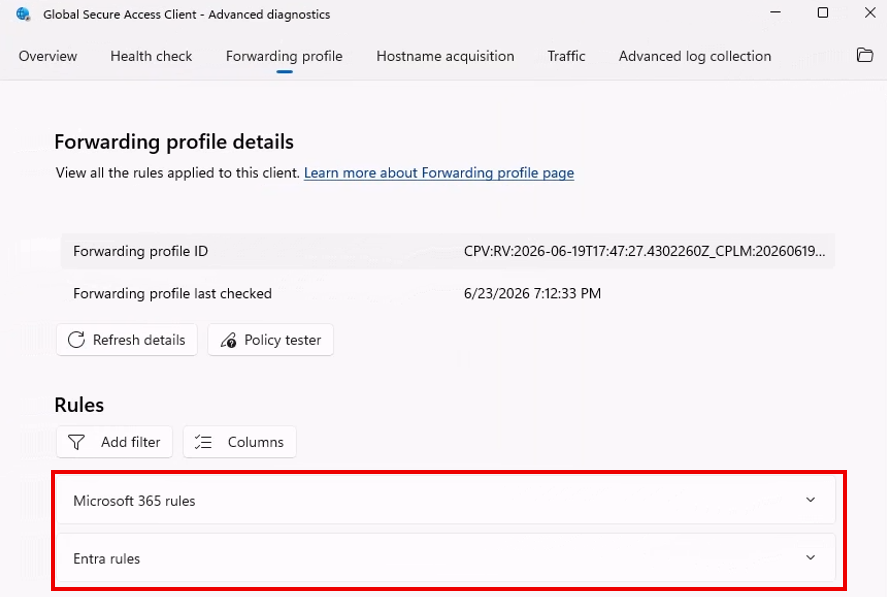
The Global Secure Access client automatically checks for traffic forwarding profile updates every five minutes. You can see the date and time of the last check next to the Forwarding profile last checked field on the Forwarding profile tab. If you don't see the results you expect, wait five minutes and then select Refresh.
Review Microsoft traffic policies
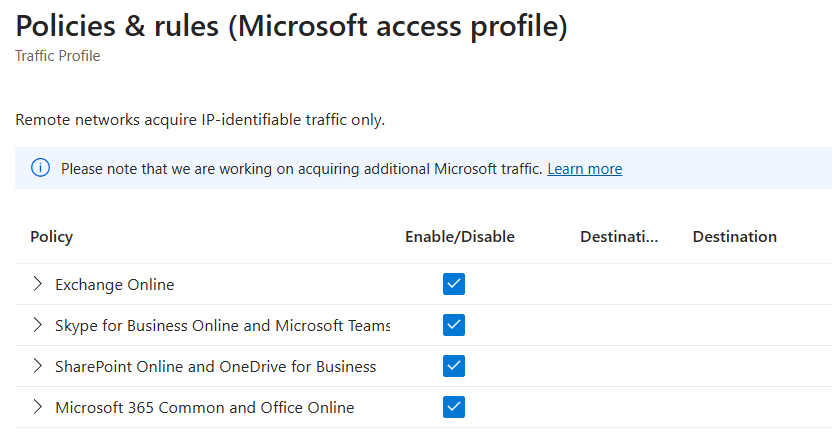
The Microsoft traffic profile includes the following policy groups:
- Exchange Online.
- SharePoint Online and Microsoft OneDrive.
- Microsoft Teams.
- Microsoft 365 Common and Office Online.
To view the policy groups, select View for Microsoft traffic policies.
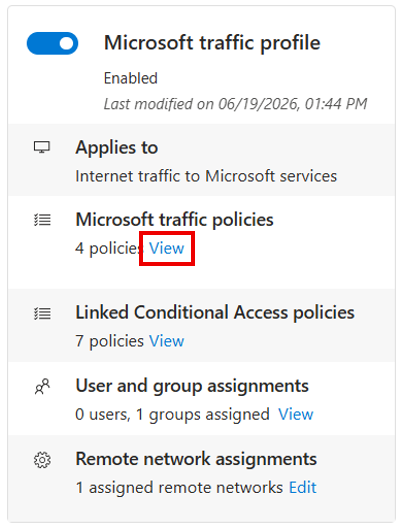
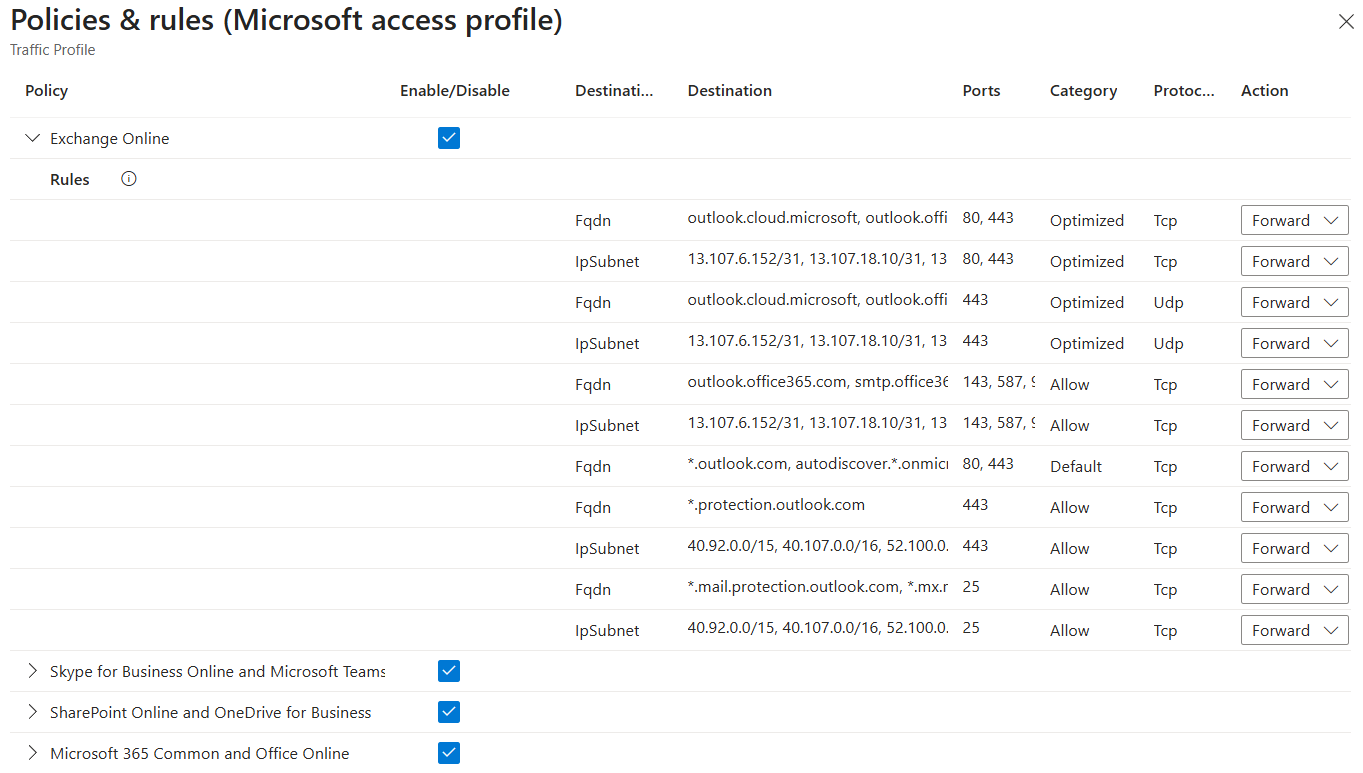
The policy groups are listed with a checkbox that indicates whether the policy group is enabled. Expand a policy group to view the IP addresses and FQDNs included in the group.
The following example shows the Exchange Online policy group expanded with its rules.
What you learned
In this exercise, you accomplished the following tasks:
- Enabled the Microsoft traffic profile: You activated the Global Secure Access client's ability to acquire supported Microsoft traffic.
- Scoped the deployment: You assigned the profile to pilot users or groups.
- Installed the client: You prepared a Windows device to acquire Microsoft traffic.
- Verified the profile: You confirmed that Microsoft traffic forwarding rules are present on the client.