Note
Access to this page requires authorization. You can try signing in or changing directories.
Access to this page requires authorization. You can try changing directories.
When users connect through a cloud-based proxy or security service edge (SSE) solution, downstream services can see the egress IP address of the cloud proxy instead of the user's original source IP. Without the original source IP, IP-based Conditional Access policies, risk detections, audit logs, and sign-in logs can be less accurate.
Source IP restoration detects and securely communicates the original egress IP address of the end user to Microsoft Entra ID and Microsoft Graph.
In this tutorial, you learn how to:
- Recognize what source IP restoration does and why it matters.
- Enable Global Secure Access signaling for Microsoft Entra ID and Microsoft Graph.
- Verify that Microsoft Entra sign-in logs show the user's actual source IP.
Key concepts
Source IP restoration helps your organization:
- Continue to enforce IP-based location policies in Microsoft Entra Conditional Access.
- Improve the accuracy of Microsoft Entra ID Protection risk detections.
- Record accurate source IP information in Microsoft Entra sign-in logs and audit logs.
Source IP restoration is enabled by default for new tenants. If you enabled Global Secure Access features in your tenant before June 2025, you might need to explicitly enable source IP restoration.
Step 1: Enable Global Secure Access signaling for Microsoft Entra ID and Microsoft Graph
Sign in to the Microsoft Entra admin center as a Global Secure Access Administrator.
Browse to Global Secure Access > Settings > Session management > Adaptive Access.
Select the toggle to Enable Conditional Access Signaling for Microsoft Entra ID.
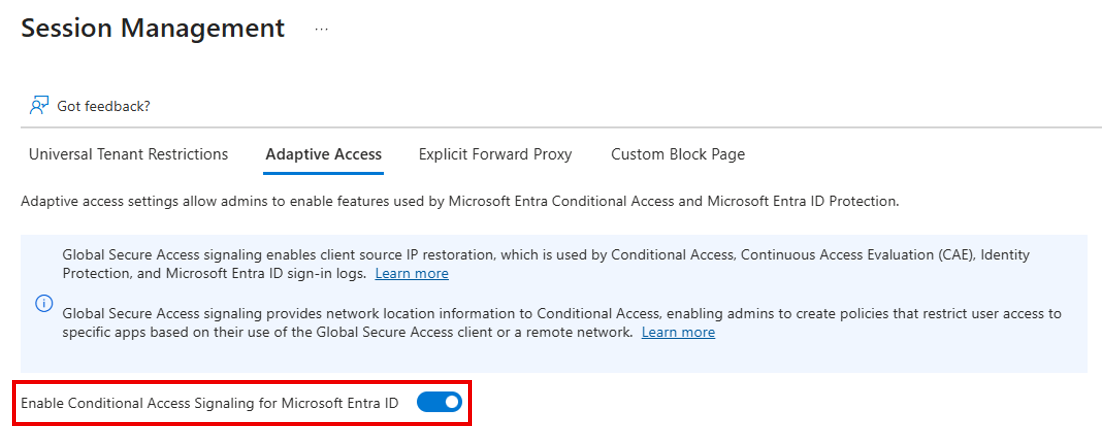
By enabling this setting, Microsoft Entra ID and Microsoft Graph receive the public egress source IP address of the user.
Caution
If your organization has active Conditional Access policies based on IP location checks, and you later disable Global Secure Access signaling, you might unintentionally block targeted end users from accessing resources. If you must disable this feature, first delete any corresponding Conditional Access policies.
Step 2: Generate a sign-in log
- On the device with the Global Secure Access client installed and running, open a browser.
- Go to any application that's integrated with your Microsoft Entra ID tenant.
- Complete the sign-in.
Step 3: Verify sign-in log behavior
Sign in to the Microsoft Entra admin center as at least a Security Reader.
Browse to Entra ID > Users.
Select your test user.
Select Sign-in logs.
Select the sign-in event that you generated in the previous step.
Verify that the sign-in log includes the user's actual public egress IP address.
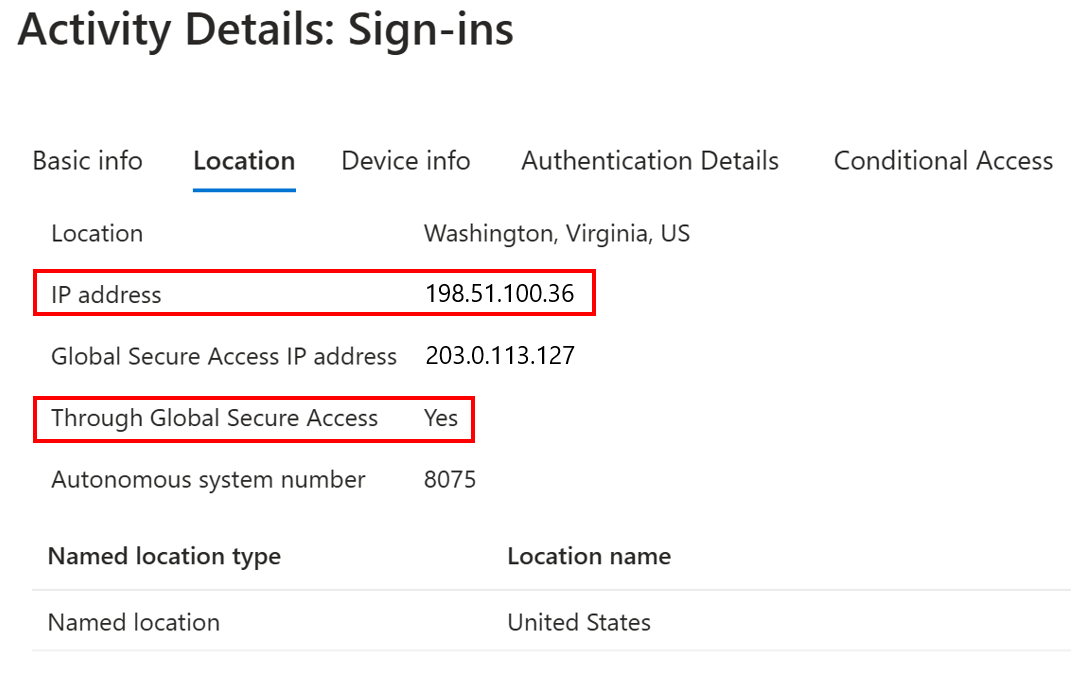
Sign-in log data might take some time to appear. This delay is normal because the data undergoes processing before it appears.
What you learned
In this exercise, you accomplished the following tasks:
- Enabled Conditional Access signaling for Microsoft Entra ID: Microsoft Entra ID and Microsoft Graph can receive the user's actual public egress IP.
- Verified source IP restoration in sign-in logs: You confirmed that Microsoft Entra sign-in logs reflect source IP information for sessions that use the Microsoft traffic profile.