Note
Access to this page requires authorization. You can try signing in or changing directories.
Access to this page requires authorization. You can try changing directories.
The compliant network check ensures users connect through the Global Secure Access service for your tenant before they access protected resources. This tenant-bound network signal lets you use location-based Conditional Access policies without maintaining egress IP address lists or routing traffic through a VPN for source IP anchoring.
In this tutorial, you learn how to:
- Recognize what the compliant network check does and why it matters.
- Create a Conditional Access policy that blocks access from anywhere except the compliant network.
- Validate that protected apps are blocked when the Global Secure Access client is disabled.
Key concepts
Compliant network enforcement reduces the risk of token theft and replay attacks. Microsoft Entra ID performs authentication-plane enforcement when a user authenticates. If an adversary steals a session token and tries to replay it from a device that isn't connected to your organization's compliant network, Microsoft Entra ID denies the request and blocks further access.
The compliant network check is tenant-specific. If you define a policy that requires compliant network in one tenant, only users who connect through the Global Secure Access service for that tenant can satisfy the control.
The compliant network is different from IPv4, IPv6, or geographic named locations that you configure in Conditional Access. You don't need to review or maintain compliant network IP addresses or ranges.
Note
You must enable source IP restoration in order to target the compliant network in Conditional Access.
Step 1: Create the compliant network Conditional Access policy
A typical policy blocks all network locations except compliant networks. Start with a pilot group and a specific test application before you apply the policy broadly.
- Sign in to the Microsoft Entra admin center as at least a Conditional Access Administrator.
- Browse to Entra ID > Conditional Access.
- Select Create new policy.
- Enter a meaningful policy name, such as Require compliant network - Pilot.
- Under Assignments, select Users or workload identities.
- Under Include, select a test user or pilot group.
- Under Target resources > Include, select a specific test application.
- Under Network:
- Set Configure to Yes.
- Under Include, select Any location.
- Under Exclude, select All Compliant Network locations.
- Under Access controls > Grant, select Block access, and then select Select.
- Confirm your settings and set Enable policy to On.
- Select Create.
Step 2: Validate the compliant network policy
On a pilot device with the Global Secure Access client installed and running, attempt to sign in to an app included in the Conditional Access policy configured in step 1. You should be able to sign in normally.
Pause the Global Secure Access client by right-clicking the application in the Windows system tray and selecting Disable.
Open a new browser session and try to sign in again.
Confirm that Microsoft Entra ID blocks access.
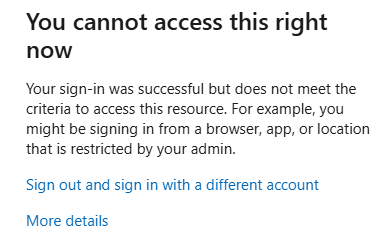
Re-enable the Global Secure Access client and confirm that access is restored.
If you're already signed in to an application, access isn't interrupted immediately. Microsoft Entra ID reevaluates the compliant network check the next time sign-in is required, such as when the application session expires. Use a fresh browser session or sign out first when you validate.
What you learned
In this exercise, you accomplished the following tasks:
- Confirmed Conditional Access signaling: You verified that Microsoft Entra ID can evaluate the compliant network signal.
- Created a compliant network Conditional Access policy: Your pilot users must connect through Global Secure Access before they can reach apps integrated with Microsoft Entra ID.
- Validated enforcement: You confirmed that access succeeds with the Global Secure Access client running and is blocked when the client is disabled.