Note
Access to this page requires authorization. You can try signing in or changing directories.
Access to this page requires authorization. You can try changing directories.
Universal tenant restrictions enhance tenant restrictions v2 by using Global Secure Access to tag authentication traffic. When you enable universal tenant restrictions, Global Secure Access adds tenant restrictions v2 policy information to authentication-plane traffic for Microsoft Entra ID and Microsoft Graph.
In this tutorial, you learn how to:
- Recognize what universal tenant restrictions do and why they matter.
- Configure the underlying tenant restrictions v2 policy.
- Enable Global Secure Access signaling for tenant restrictions.
- Validate that sign-ins to unauthorized tenants are blocked.
Key concepts
Universal tenant restrictions help prevent data exfiltration across browsers, devices, and networks by enabling Microsoft Entra ID, Microsoft accounts, and Microsoft applications to look up and enforce the associated tenant restrictions v2 policy.
Universal tenant restrictions support devices with the Global Secure Access client and remote network connectivity. This tutorial validates the experience with the Global Secure Access client.
Step 1: Configure the tenant restrictions v2 policy
Universal tenant restrictions enforce the tenant restrictions v2 policy. Before you turn on signaling, define the default policy and any partner-specific exceptions.
- Sign in to the Microsoft Entra admin center as an administrator with the Security Administrator role.
- Browse to Entra ID > External Identities > Cross-tenant access settings.
- On the Default settings tab, configure the default tenant restrictions v2 policy. For example, block all external users and external apps.
- On the Organizational settings tab, add any partner tenants that you want to allow and configure tenant restrictions v2 for those partners.
For step-by-step guidance, see Set up tenant restrictions v2.
Step 2: Enable Universal tenant restrictions
Sign in to the Microsoft Entra admin center as an administrator with the Global Secure Access Administrator role.
Go to Global Secure Access > Settings > Session Management.
On the Universal Tenant Restrictions tab, turn on the Enable Tenant Restrictions for Microsoft Entra ID and Microsoft Graph toggle.
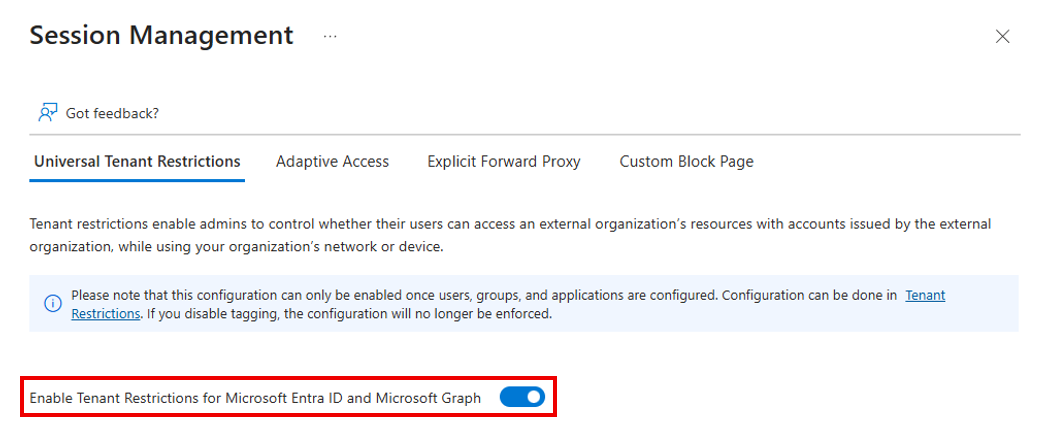
Global Secure Access now adds tenant restrictions v2 headers to authentication-plane traffic for users who connect through the Microsoft traffic profile.
Step 3: Validate authentication-plane protection
With the Global Secure Access client running, attempt to sign in using an identity from a different tenant that isn't on the allow list.
Confirm that Microsoft Entra ID blocks authentication to the external tenant.


What you learned
In this exercise, you accomplished the following tasks:
- Configured a tenant restrictions v2 policy: You defined which external tenants your users can access.
- Enabled Global Secure Access signaling for tenant restrictions: Global Secure Access can tag authentication-plane traffic with tenant restrictions v2 policy information.
- Validated authentication-plane protection: You confirmed that an identity from a tenant not on the allow list was blocked.