Note
Access to this page requires authorization. You can try signing in or changing directories.
Access to this page requires authorization. You can try changing directories.
Lifecycle Workflows allows administrators to cancel in-progress or queued workflow runs to prevent or mitigate the widespread impact of automation errors and misconfigurations.
When you cancel a workflow run, keep the following behavior in mind:
- In-progress runs: Canceling an in-progress workflow run cancels any tasks that haven't been processed yet. Tasks that already completed aren't affected.
- Queued runs: Queued workflows are runs where execution hasn't started yet. Canceling a queued run cancels the upcoming execution of all tasks for that run.
- No rollback: Previously completed changes aren't reversed. Only execution of upcoming changes is halted.
- Single run selection: Currently, you can only select a single run to cancel at a time.
- Run-level cancellation only: You can't cancel specific tasks or specific users within a run. Cancellation applies to the entire run.
Prerequisites
Using this feature requires Microsoft Entra ID Governance or Microsoft Entra Suite licenses. To find the right license for your requirements, see Microsoft Entra ID Governance licensing fundamentals.
Cancel a workflow run in the Microsoft Entra admin center
To cancel a workflow run:
Sign in to the Microsoft Entra admin center as at least a Lifecycle Workflows Administrator.
Browse to ID Governance > Lifecycle workflows > Workflows.
Select the workflow that contains the run you want to cancel.
On the workflow page, select Workflow History.
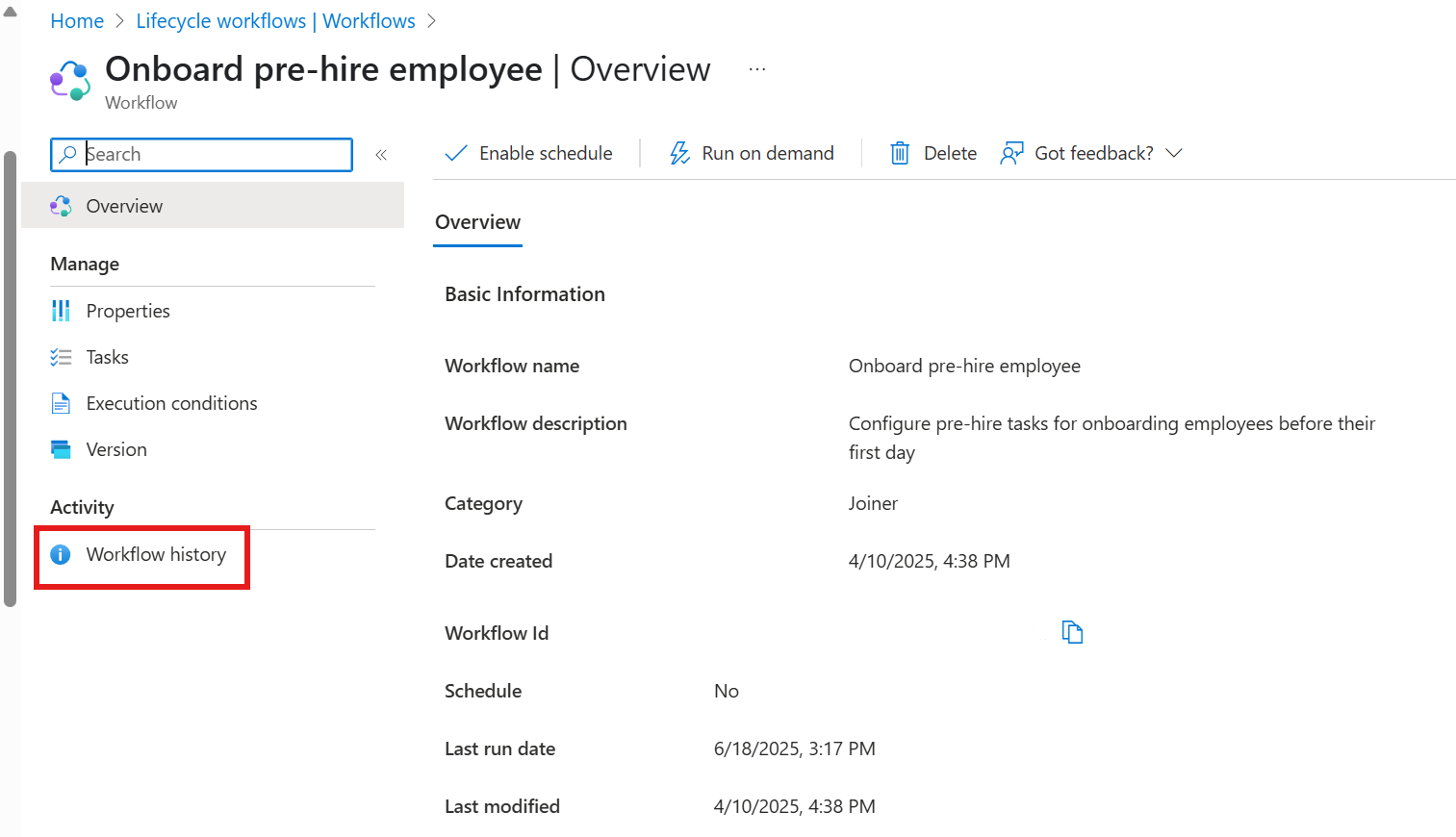
Select the Runs tab.
Select a run that has a status of In progress or Queued.
Note
The Cancel button is only enabled after you select a run that has a status of In progress or Queued. The Cancel button isn't available on the Users or Tasks tabs because only runs can be canceled.
Select Cancel.