Note
Access to this page requires authorization. You can try signing in or changing directories.
Access to this page requires authorization. You can try changing directories.
Lifecycle Workflows lets you run your workflows with confidence by using built-in guardrails. You can set tenant-wide or per-workflow execution limits and require admin approval to resume execution after a limit is reached. These limits protect your organization from large-scale impact caused by misconfigurations.
When a scheduled run exceeds a configured limit, Lifecycle Workflows places the workflow in quarantine and notifies administrators. A quarantined workflow doesn't run again until an administrator approves its execution.
This article shows you how to set tenant-wide execution limits, set workflow-specific execution limits, and review and clear quarantined workflows in the Microsoft Entra admin center.
Execution limits apply only to scheduled workflow runs. Limits are checked automatically before a workflow runs at its scheduled time. On-demand runs aren't subject to execution limits.
Prerequisites
Using this feature requires Microsoft Entra ID Governance or Microsoft Entra Suite licenses. To find the right license for your requirements, see Microsoft Entra ID Governance licensing fundamentals.
Set tenant-wide execution limits
Tenant-wide limits apply to all workflows that don't have their own workflow-specific limits. Set a tenant-wide limit as a percentage of your user population, a fixed number of users, or both.
Sign in to the Microsoft Entra admin center as at least a Lifecycle Workflows Administrator.
Browse to ID Governance > Lifecycle workflows > Workflow settings.
Select Enable execution threshold.
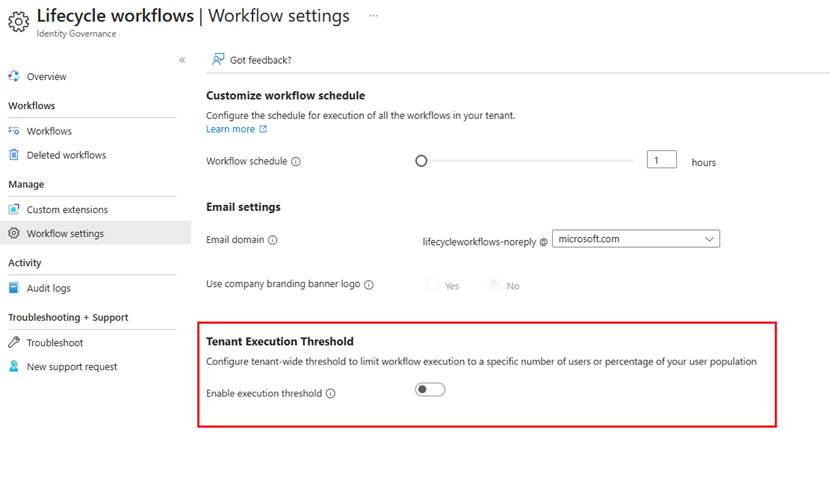
Select one or both of the following limit options:
- Limit to percentage of user population: Enter the percentage of users you want to allow.
- Limit to specific number of users: Enter the fixed number of users you want to allow.
Select Save.
When you set both limit options, Lifecycle Workflows evaluates them using OR logic. If either limit is exceeded, the workflow is quarantined.
Set workflow-specific execution limits
Workflow-specific limits apply to a single workflow and override any tenant-wide limits for that workflow. Only the workflow-specific limits are enforced for that workflow.
Sign in to the Microsoft Entra admin center as at least a Lifecycle Workflows Administrator.
Browse to ID Governance > Lifecycle workflows > Workflows, and then select the workflow you want to update.
On the workflow page, select Settings.
Select Enable execution threshold.
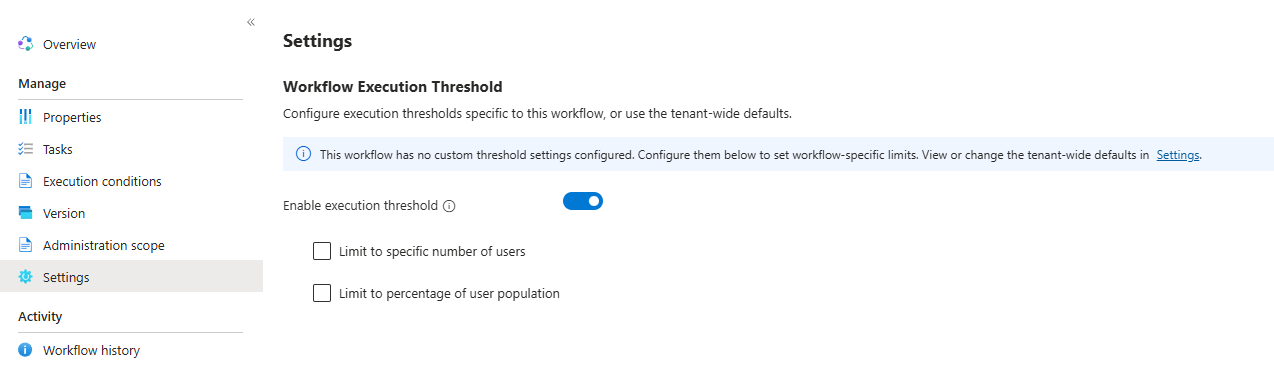
Select one or both of the following limit options:
- Limit to percentage of user population: Enter the percentage of users you want to allow.
- Limit to specific number of users: Enter the fixed number of users you want to allow.
Select Save.
Note
Updating workflow execution limits creates a new workflow version. The new version appears in the Microsoft Entra admin center, but isn't currently reflected in the API.
View and clear quarantined workflows
When a workflow exceeds its execution limit, Lifecycle Workflows quarantines the workflow and automatically sends an email notification to Lifecycle Workflows administrators. You don't need to configure an email task to receive these notifications. Review the quarantined workflow and approve its execution when you're ready for it to run again.
Sign in to the Microsoft Entra admin center as at least a Lifecycle Workflows Administrator.
To view quarantined workflows, do one of the following:
- Browse to ID Governance > Lifecycle workflows > Quarantined workflows.
- On the Lifecycle workflows Overview page, in the Alerts section, select View quarantined workflows.
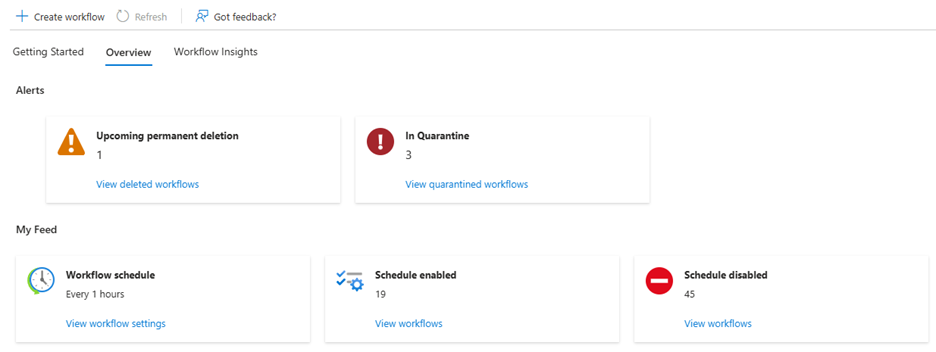
Select one or more workflows from the quarantined workflows list.
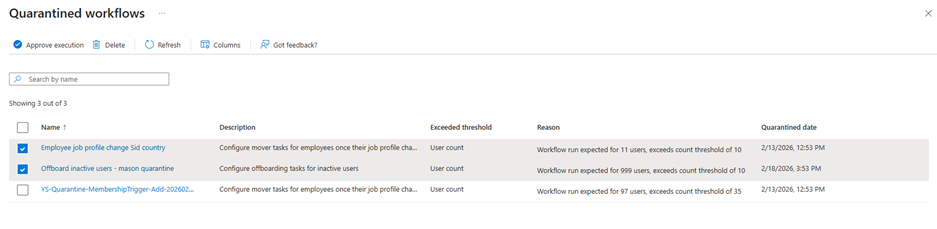
Select Approve execution.
Note
If a workflow is no longer needed, you can delete it from the tenant instead of approving its execution.
Approving execution doesn't trigger an immediate run. The workflow follows its existing schedule:
- If you approve execution before the next scheduled run time and the workflow still meets its execution conditions, it runs at the scheduled time.
- If you approve execution after the scheduled run time, the workflow is evaluated at the next scheduled run.
You can also run a quarantined workflow on demand, which bypasses execution limits. From the workflow history, you can reprocess all users for a specific run while the workflow remains quarantined. Reprocessing individual users isn't supported.
Frequently asked questions
Do execution limits apply to on-demand workflow runs?
No. Execution limits apply only to scheduled workflow runs. Limits are checked automatically before a workflow runs at its scheduled time.
What happens if I set both a percentage limit and a user count limit?
Lifecycle Workflows evaluates the limits using OR logic. If either limit is exceeded, the workflow is quarantined.
What happens if I set both tenant-wide limits and a workflow-specific limit?
Workflow-specific limits override tenant-wide limits for that workflow. Only the workflow-specific limits are enforced.
Can quarantine be cleared automatically without approval?
No. Clearing quarantine requires approval. A quarantined workflow doesn't run until it's cleared.
Can I put a workflow into quarantine manually?
No. Quarantine is automatic and is triggered only when execution limits are exceeded.