Note
Access to this page requires authorization. You can try signing in or changing directories.
Access to this page requires authorization. You can try changing directories.
The What-if tool in Lifecycle Workflows lets you evaluate workflow execution before it runs for your users. Using the What-if tool, you can:
- View which users are currently in the execution scope of a workflow.
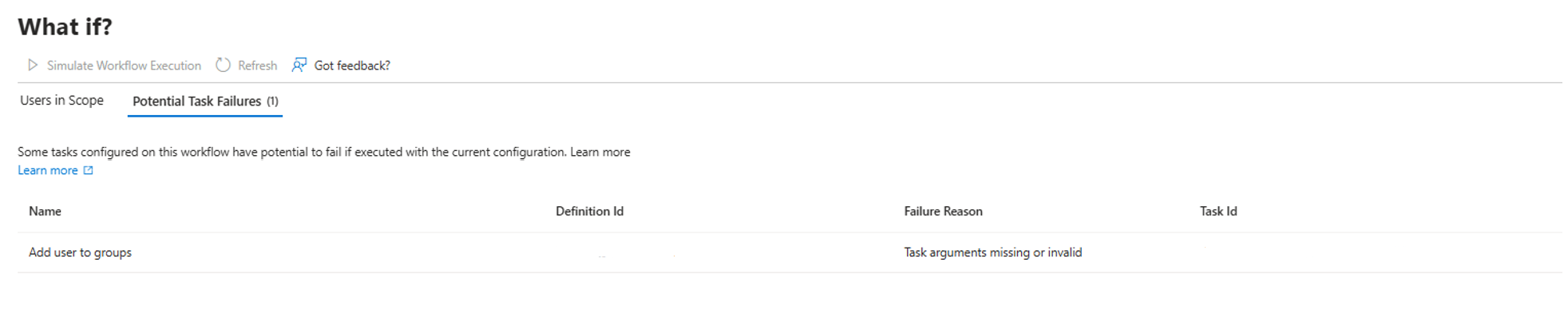
- Preview which workflow tasks might fail based on the current configuration.
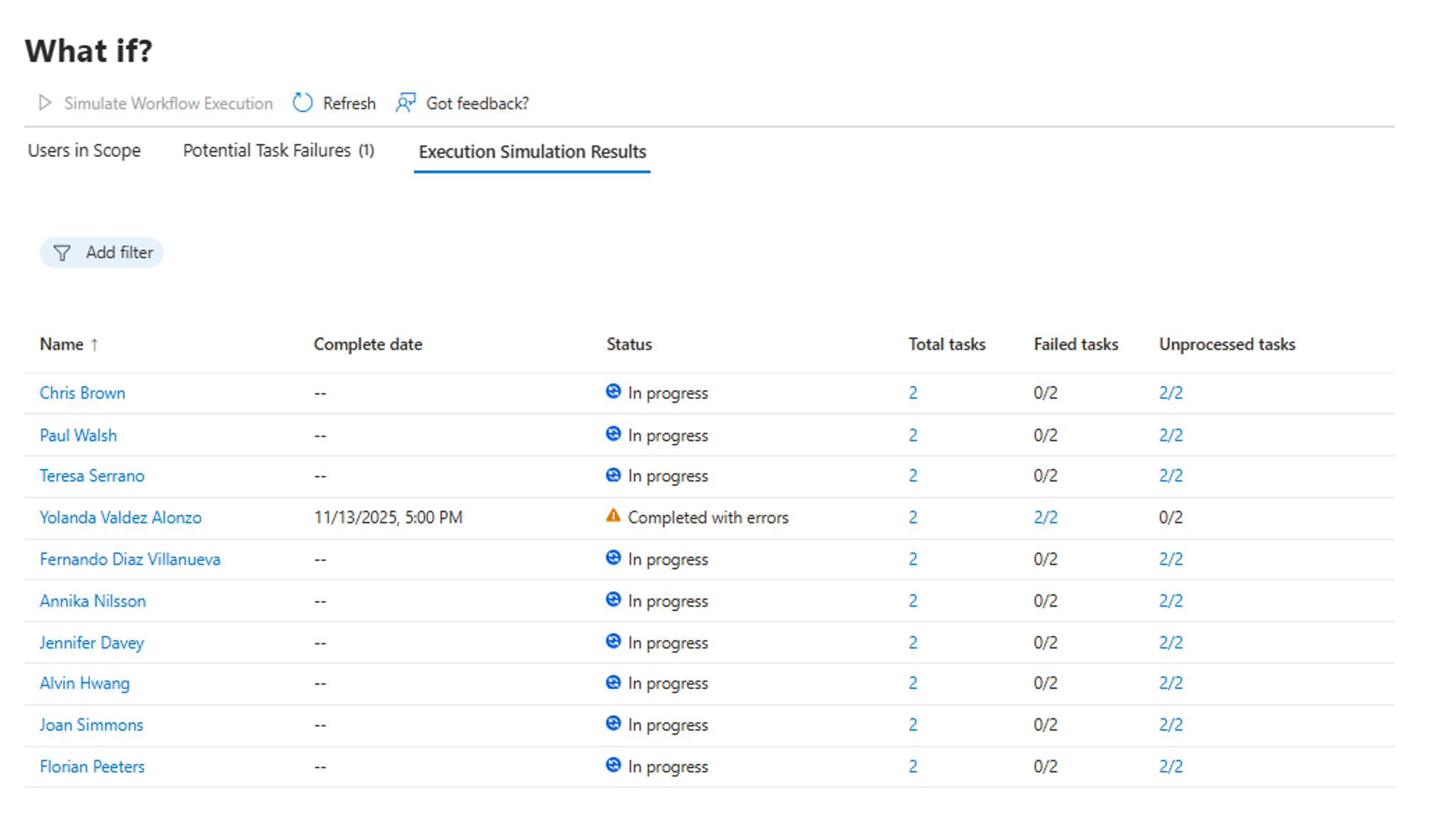
- Simulate workflow execution for up to 10 users and review results without impacting actual users.
The primary goal of the What-if tool is to help you identify and resolve misconfigurations and prevent accidental workflow executions before processing begins.
Note
The What-if tool is currently in public preview. Workflows with change-based trigger types, such as attribute changes and group membership changes, aren't currently supported.
Prerequisites
Using this feature requires Microsoft Entra ID Governance or Microsoft Entra Suite licenses. To find the right license for your requirements, see Microsoft Entra ID Governance licensing fundamentals.
Access the What-if tool
To access the What-if tool for a workflow:
Sign in to the Microsoft Entra admin center as at least a Lifecycle Workflows Administrator.
Browse to ID Governance > Lifecycle workflows > Workflows.
Select the workflow you want to evaluate.
Note
Workflows that use attribute changes or group membership changes as trigger types aren't currently supported by the What-if tool.
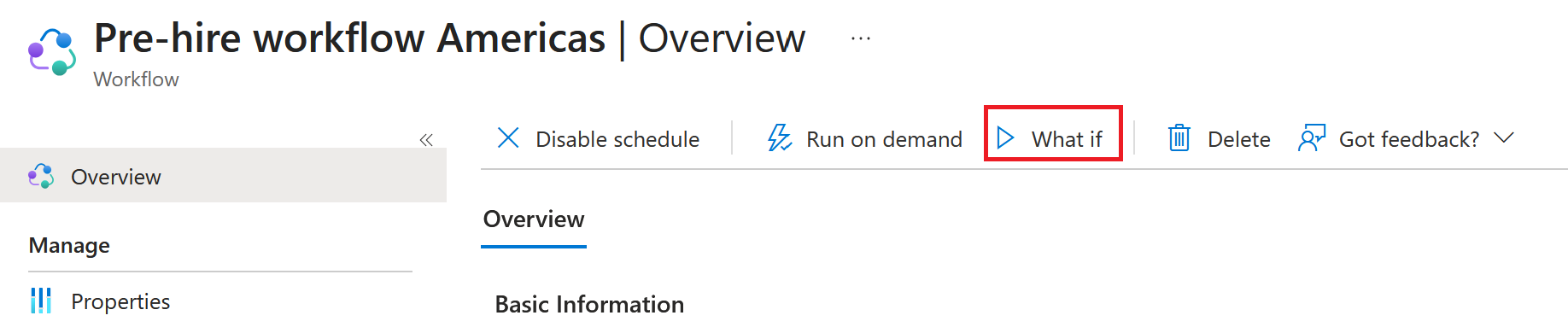
On the workflow overview page, select What if from the command bar.
Review users in scope
Within the What-if tool, select the Users in Scope tab to see the list of users that would be included in the current execution scope for the selected workflow. This list reflects the users who meet the workflow's execution conditions at the time the tool is run.
Review potential task failures
Within the What-if tool, you can also review the tasks listed on the What-if page to see which workflow tasks might fail based on the current configuration.
Run a workflow execution simulation
To simulate workflow execution and preview results for specific users:
On the What-if page, select the Users in Scope tab.
Select up to 10 users from the list.
Note
The Simulate Workflow Execution button is disabled if more than 10 users are selected.
Select Simulate Workflow Execution from the command bar.
The simulation starts automatically. Results appear on the Execution Simulation Results tab once they're available.
Note
Depending on the workflow tasks, results might take a few seconds up to a couple of minutes to appear. If no results appear after a brief period, select Refresh to check for updated results. The Execution Simulation Results tab appears only after you run a simulation for the first time. Results are cleared when you run another simulation.