Note
Access to this page requires authorization. You can try signing in or changing directories.
Access to this page requires authorization. You can try changing directories.
Use Conditional Access to require identity verification for protected resource access or to add security to onboarding and account recovery. Choose the policy's scenario, configure an eligible verification profile, and test the user journey and policy outcome before rollout.
Prerequisites
Prepare the following before configuring a pilot:
A test environment with the identity verification control and intended target available.
The applicable identity verification licenses.
An eligible identity verification profile, with the provider or issuer setup required for your scenario.
To review users' verification status and history, enable verification data collection.
Note
Creating an identity verification profile automatically enables Collect identity verification history; otherwise, enable it in the authentication methods policy under Verified ID > Configure > Data collection.
For onboarding or recovery, a configured Lifecycle Workflows onboarding journey or account recovery journey. A Conditional Access policy doesn't replace that setup.
Approved pilot users, selected resources or actions, a support owner, and a recorded policy baseline and rollback plan.
Working emergency access accounts excluded from the pilot, following Manage emergency access accounts.
For journeys that use Microsoft Authenticator, meet the requirements in Enable passkeys in Microsoft Authenticator. If the journey includes passkey registration, also complete the platform-specific passkey-provider setup.
Choose the scenario and target
Use the scenario to select the policy boundary:
| Scenario | Policy intent | Configuration guidance |
|---|---|---|
| Resource access | Require verification after initial authentication for a protected resource. | Configure a resource-access policy. |
| Onboarding and recovery | Protect the bootstrap journey before the user has established or restored credentials. | Configure an onboarding and recovery policy. |
| Risk-based verification | Require verification when a supported user-risk or sign-in-risk condition applies. | Configure a risk-based policy. |
- Identify the protected resources or journey and the pilot users who need it.
- Check credential and profile eligibility. A profile or credential accepted for one scenario isn't necessarily eligible for another.
- Review all applicable policies, including policies targeting all resources. Identify requirements users can't satisfy before onboarding or recovery completes.
- Record inclusions, exclusions, and other applicable grant and session controls. Use only combinations supported for the selected target.
For resource-access policies, identity verification follows initial authentication and precedes additional MFA or authentication-strength requirements. That ordering doesn't establish support for authentication strength in onboarding and recovery policies.
Configure a resource-access policy
Start with a small pilot scope.
Select the approved pilot users and test resources. Record inclusions and exclusions, including emergency access.
Confirm the profile is eligible for resource-access verification and assigned to the intended users.
Configure Require identity verification for the selected resource scope. Don't substitute Require risk remediation, which has separate behavior.
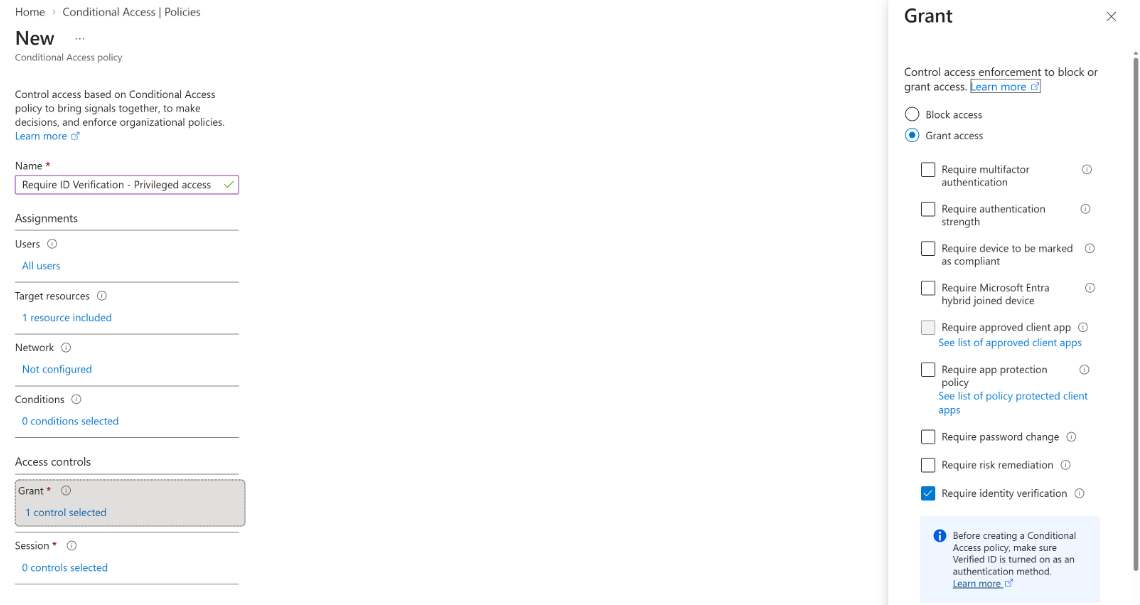
Under Conditions > Client apps, set Configure to Yes and select only Browser and Mobile apps and desktop clients. Don't leave the policy targeting all client app types.
Review the effective policy set. Confirm other policies don't prevent completion of the verification or supported inline issuance journey.
Use report-only mode for initial impact evaluation where supported. Keep the policy out of production enforcement until the pilot review is complete.
Important
New Conditional Access policies apply to all client app types by default, including legacy clients. Legacy client types aren't supported for identity verification step-up, and including them can cause the flow to fail. Explicitly configure the client apps condition before testing the policy.
When testing, check whether existing verification satisfies the policy and when a new challenge is required. Don't infer verification reuse, freshness, expiration, or revocation behavior from credential issuance alone.
Link to Windows compatibility
Note
Identity verification step-up and recovery aren't currently supported when initiated from a mobile app while Link to Windows is the active broker on the device. Support for both features is planned in Link to Windows version 1.26111.xxx, starting November 30. Update Link to Windows to that version when it becomes available.
Android work-profile compatibility during preview
Before enabling identity verification step-up for Android users whose Conditional Access policies also use Require device to be marked as compliant, identify whether work-profile enrollment uses Android Management API (AM API) or Enterprise Mobility Management API (EMM API).
During AM API work-profile setup, users can be required to sign in before work apps are installed. Verified ID presentation can't complete in that setup context, which can block enrollment when both policies apply. Don't apply the identity verification step-up policy to AM API work-profile setup flows during preview. Retain the required device protection.
| Work-profile enrollment | Identity verification step-up with a device-compliance requirement | Deployment guidance |
|---|---|---|
| Android Management API (AM API) | This combination isn't supported during preview. | Don't enable the identity verification step-up policy for this group of users. |
| Enterprise Mobility Management API (EMM API) | Supported when prerequisites are met. | Use Intune to deploy Microsoft Authenticator and a supported browser into the work profile before enabling the identity verification step-up policy. Users might be unable to complete verification if either app is unavailable. |
This restriction doesn't mean that onboarding and recovery are unsupported for Android Management API (AM API) users. Configure those journeys to issue a Temporary Access Pass (TAP) at completion instead of requiring passkey setup. A device-bound passkey created in the personal profile can't currently be used from the work profile. See Enable passkeys in Microsoft Authenticator.
The TAP guidance addresses passkey registration, not the step-up block during work-profile setup. The global onboarding and recovery exclusion doesn't establish support for this resource-access step-up combination.
Configure an onboarding and recovery policy
Use the Account onboarding and recovery user action to protect bootstrap separately from ordinary resource access. Identity-verified onboarding and account recovery require identity verification regardless of whether a Conditional Access policy requires it.
Identify whether the pilot covers onboarding, recovery, or both. Confirm the available action scope; don't assume the combined action supports independent assignments for each journey.
Record the pilot group, emergency access exclusions, and approved handling of noninteractive accounts.
Under Target resources, select User actions, then select Account onboarding and recovery, as shown in the following screenshot.
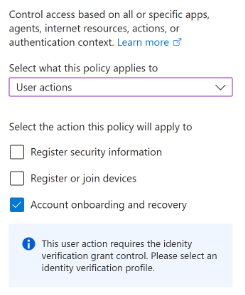
Under Conditions > Client apps, set Configure to Yes, explicitly select Browser and Mobile apps and desktop clients, and select Done.
Configure the intended verification journey and eligible profile. Recovery requires identity verification; scoping the policy isn't a replacement for recovery setup.
Review the prerequisites in Enable passkeys in Microsoft Authenticator. For users enrolled through Android Management API (AM API), configure TAP issuance at completion instead of requiring passkey setup.
Review the control limitations. Don't require unsupported controls for this action.
Review applicable resource policies together with the action policy. To exclude the onboarding and recovery action from All resources policies, review and approve the tenant-wide impact, then enable the global exclusion. Policies targeting the user action still apply.
Save the configuration and rollback record before conducting an enforcement test.
The action boundary isn't a general-purpose access bypass. After onboarding or recovery, ordinary resource-access policies still protect application access. Don't exempt users from those policies merely to make bootstrap work.
Before enabling onboarding or account recovery, review the applicable Conditional Access policies and test each intended journey with a small group of users. Successful identity verification alone doesn't confirm that credential registration or recovery can complete. If a saved policy blocks the journey, review the Conditional Access results in the sign-in logs to identify the blocking policy.
Enable the global onboarding and recovery exclusion (preview)
Without this exclusion, policies targeting All resources also apply to onboarding and account recovery events. Those policies can prevent users from establishing or restoring credentials. Enabling the exclusion removes the Account onboarding and recovery user action from All resources policies; policies that directly target the user action still apply.
Important
This setting affects all policies targeting All resources, not just the policy used in your pilot. Review and approve the tenant-wide impact before changing it. Configure and test the intended user-action policy rather than treating the exclusion as a replacement for protecting onboarding and recovery.
Review the excluded apps and permissions
The global exclusion covers the following client-to-resource requests and explicit scopes or permissions for onboarding and account recovery. Review both the client app and resource app when assessing the exclusion's impact.
| Client app | Resource app | Scopes or permissions |
|---|---|---|
My Sign-Ins (19db86c3-b2b9-44cc-b339-36da233a3be2) |
Microsoft Graph (00000003-0000-0000-c000-000000000000) |
AuditLog.Read.All, Directory.Read.All, email, openid, Policy.Read.All, profile, User.Read, UserAuthenticationMethod.Read, UserAuthenticationMethod.ReadWrite, AgentIdentity.Read.All, CrossTenantInformation.ReadBasic.All, User.RevokeSessions.All, offline_access, Organization.Read.All, OrganizationalBranding.Read.All. |
My Sign-Ins (19db86c3-b2b9-44cc-b339-36da233a3be2) |
My Sign-Ins (19db86c3-b2b9-44cc-b339-36da233a3be2) |
UserAuthenticationMethod.Read, AuditLog.Read.All, Directory.Read.All, Policy.Read.All, User.Read, UserAuthenticationMethod.ReadWrite, AgentIdentity.Read.All, CrossTenantInformation.ReadBasic.All, User.RevokeSessions.All, Organization.Read.All, OrganizationalBranding.Read.All. |
Azure ESTS Service (00000001-0000-0000-c000-000000000000) |
Microsoft Graph (00000003-0000-0000-c000-000000000000) |
UserAuthMethod-TAP.ReadWrite. |
This table lists explicit scopes and permissions, not every request covered by the exclusion. It doesn't mean that all requests to Microsoft Graph or My Sign-Ins are excluded. The setting is a Conditional Access exclusion, not a grant of the listed API permissions.
This global user-action exclusion is separate from excluding a resource in an individual policy. For background on how resource exclusions affect scope evaluation, see Improved enforcement for All resources policies with resource exclusions. Don't use that article's baseline-scope list as the scope of the onboarding and recovery exclusion.
Enable and validate the exclusion
- Sign in to the Microsoft Entra admin center with an account permitted to manage Conditional Access settings.
- Browse to Entra ID > Conditional Access > Settings (Preview).
- Under Global exclusions, enable the Account onboarding and recovery (Preview) exclusion.
- Verify that the row's Policy state shows Enabled.
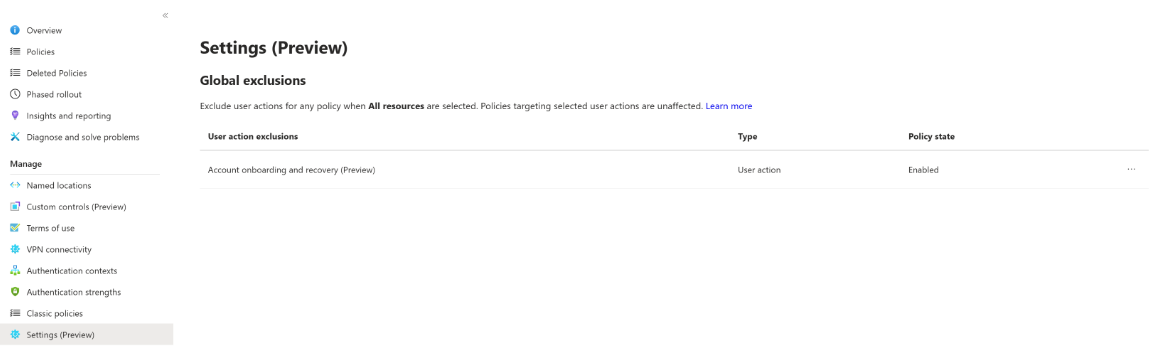
The settings page labels the exclusion Account onboarding and recovery (Preview). It applies to the Account onboarding and recovery user action used in policy targeting.
After enabling the exclusion, test onboarding and recovery with approved pilot users. Review Conditional Access results in the sign-in logs to confirm that:
- All resources policies no longer apply to the onboarding and recovery user action.
- Policies targeting the user action still apply, including when a user fails to meet their requirements.
- Ordinary application access after onboarding or recovery remains subject to applicable resource-access policies.
Record the exclusion's previous state in your rollback plan. If you disable the exclusion, All resources policies again apply to onboarding and recovery events.
Review control limitations
Policies targeting the onboarding and recovery user action don't support the full set of controls available for ordinary resource access. The following controls aren't supported for these journeys:
- Terms of use.
- Require authentication strength.
Most other Microsoft Entra-specific controls also aren't supported for this action. Don't assume a control is supported because you can configure it in a policy. These examples aren't a complete compatibility matrix.
Note
There's no current plan or timeline to add support for these controls. Don't design onboarding or recovery policies that depend on them.
For recovery, unsupported conditions or controls can block the journey or leave intended requirements unenforced. Test the applicable policies and resulting enforcement, not just whether the user can finish recovery.
These limitations apply to onboarding and recovery user-action policies. They don't remove support for these controls in ordinary resource-access policies.
Troubleshoot onboarding and recovery policy configuration errors
The following validation errors can occur when you create or update a Conditional Access policy for the Account recovery user action. A policy-save error is different from a saved policy blocking a user's recovery attempt. Don't assume that an error for the Account recovery action establishes the same restriction for an ordinary resource-access policy.
| Error | Message | What to check |
|---|---|---|
| 1329 | Account recovery user action only supports 'browser' and 'mobileAppsAndDesktopClients' client app types. | Explicitly configure the Client apps condition and select Browser and Mobile apps and desktop clients for the Account recovery user action. Don't leave this condition unconfigured. Confirm that you can save the policy before rollout. |
| 1248 | GPS based named locations are not supported for account recovery user action condition. | Check whether the named location uses GPS coordinates or IP addresses. If the location is IP-based but the same error appears, contact support with the policy validation details. The error alone doesn't establish that IP-based location exclusions are unsupported. |
Don't disable unrelated policies or broadly exclude users to work around a validation error. Review the intended recovery scope with your policy owner before changing the configuration.
Configure a risk-based policy
Use Require Identity Verification (preview) with a supported User risk or Sign-in risk condition. Successful verification remediates the risk targeted by the triggering policy: user risk or sign-in risk. Failed verification doesn't remediate risk.
Risk-based Conditional Access policies currently don't apply to onboarding actions.
- Choose the risk condition and users for the pilot. Keep user-risk and sign-in-risk conditions in separate policies.
- Create an identity verification profile with Profile purpose set to All or Verification, a credential type eligible for the risk scenario, and scope that includes the pilot users. For tenant-issued credentials, select Verification. Don't use an Onboarding- or Recovery-purpose profile for this resource-access policy.
- Configure the verification requirement and review the effective policy set.
- Define separate success criteria for completed verification, the access decision, and the applicable risk outcome.
- Test the supported remediation journey with approved pilot users before expanding scope.
Require risk remediation remains a distinct adaptive control. Selecting it doesn't automatically require identity verification. Don't copy its session revocation, password-change, or reauthentication behavior into an identity verification policy.
See Identity Protection policies and Configure risk policies for the product-owned remediation guidance.
Test verification and credential issuance
Report-only mode evaluates which policies could apply without enforcing them or triggering identity verification. Conduct a separately approved enforcement test with the pilot scope.
- Test a user who already has an eligible credential and a user who doesn't.
- Complete credential presentation and verification, then check the protected resource's access decision.
- Where supported, use Get Verified ID on the challenge to test inline issuance and presentation of the resulting credential.
- Test cancellation, timeout, provider failure, missing credentials, and retry. Confirm these outcomes don't grant access protected by an unsatisfied requirement.
- Review how the user returns to or restarts the original access attempt. Don't assume issuance guarantees automatic return or access.
- Review policy results and verification evidence independently. For risk-based policies, also inspect the relevant risk record.
Validate inline issuance separately
Presentation uses a credential the user holds; issuance gives the user a credential. Successful issuance alone doesn't satisfy the originating verification challenge.
- Tenant-issued custom Verified ID: The challenge redirects to the tenant-configured issuance site.
- Third-party identity verification: The challenge uses the inline integration pattern also used by onboarding and recovery.
- Verified Employee: Inline issuance is deferred. Employee ID presentation eligibility doesn't establish support for inline issuance or risk remediation.
Conditional Access step-up uses inline issuance rather than My Account as its issuance surface. My Account self-service issuance is a separate task. Don't add broad My Account or dependency exclusions to work around an issuance loop.
Test onboarding and recovery enforcement
Identity-verified onboarding and account recovery always require identity verification, independently of Conditional Access policy requirements. A report-only policy doesn't trigger that verification; the onboarding or recovery journey does.
Report-only mode excludes policies in the user-action scope from evaluation. Don't rely on it to validate this action unless support is confirmed in your environment.
- Evaluate ordinary resource-policy impact in report-only mode where supported.
- Use an approved, isolated enforcement pilot for action policies when report-only isn't supported. Missing results aren't a passing test.
- Test onboarding with a user who hasn't established the credentials required for ordinary access.
- Test recovery with a user who can't use existing credentials. Check that unrelated resource requirements don't prevent entry.
- For Android users enrolled through Android Management API (AM API), verify that onboarding and recovery complete with TAP issuance rather than requiring passkey setup. For an Enterprise Mobility Management API (EMM API) step-up pilot with a device-compliance requirement, verify that Authenticator and a supported browser are available in the work profile.
- Test failed verification, cancellation, and retry, then test application access after each successful journey.
- Verify that normal resource policies and emergency access remain effective.
Review the recovery setup guide and validate device and registration support for your pilot; don't apply recovery platform behavior to onboarding without checking its own requirements.
Review evidence and resolve failures
Use policy results, verification records, and the journey stage to narrow the investigation. During preview, credential provenance is recorded only for passkey credentials; provenance reporting doesn't provide credential-provenance policy enforcement.
| Symptom | Next check |
|---|---|
| Verification isn't offered. | Check policy scope, profile eligibility and assignment, and whether the policy is only in report-only mode. |
Sign-in fails with AADSTS10020005: No valid VidProfile data found for the tenant. |
Check whether a valid identity verification profile is available to the user for onboarding, recovery, or step-up. See Troubleshoot an unavailable identity verification profile. |
| Identity verification step-up fails with the default client-app selection. | Under Conditions > Client apps, select only Browser and Mobile apps and desktop clients. Legacy client types aren't supported for this step-up flow. |
| Identity verification step-up can't complete on an Android device with a work profile. | Check Android work-profile compatibility. The step-up and managed-device policy combination isn't supported for Android Management API (AM API) enrollment during preview. For Enterprise Mobility Management API (EMM API) enrollment, verify that both Authenticator and a supported browser are deployed in the work profile. |
| Issuance returns to another challenge or requests authentication again. | Check the approved issuer and return-path contract. Don't assume this proves verification failure. |
| Verification completes but access fails. | Review other applicable policies and the verification outcome separately. |
| Onboarding or recovery can't start. | Check whether All resources policies are preventing bootstrap and review the global onboarding and recovery exclusion. Policies targeting the user action still apply when the exclusion is enabled. Don't remove all-resource protection wholesale. |
| Recovery completes but an expected requirement isn't enforced. | Review the control limitations and all applicable policies. Completion isn't proof that every configured requirement was enforced. |
| Report-only has no action result. | Check evaluation scope. An absent result isn't evidence of successful enforcement. |
| Verification succeeds but risk remains. | Continue the risk investigation. Don't dismiss risk merely to make a pilot pass. |
| The user can't complete verification. | Use the approved support path; don't collect raw identity documents or biometric material in a support ticket. |
Review Conditional Access insights and reporting, sign-in log details, and audit activities for product-owned evidence guidance. Use authentication methods activity to review account verification evidence and passkeys (FIDO2) for credential-level evidence.
For possible journey events and their scenario markers, see Verified ID audit activities. A Verified ID verification completed event doesn't establish a Conditional Access grant or risk remediation. Review the sign-in and risk records separately.
Roll out or restore the pilot
Expand only after supported targeting, verification and issuance outcomes, remediation outcomes where applicable, resource protection, failure handling, and emergency access tests pass. Keep exclusions scoped, documented, and approved.
If testing fails, restore the recorded policy configuration and stop expansion. Remove pilot-only assignments or exclusions after testing while retaining approved emergency access. Don't weaken unrelated production policies as a recovery workaround.