Note
Access to this page requires authorization. You can try signing in or changing directories.
Access to this page requires authorization. You can try changing directories.
The following documentation is specific to monitoring Microsoft Entra Connect (Sync) with Microsoft Entra Connect Health. For information on monitoring AD FS with Microsoft Entra Connect Health see Using Microsoft Entra Connect Health with AD FS. Additionally, for information on monitoring Active Directory Domain Services with Microsoft Entra Connect Health see Using Microsoft Entra Connect Health with AD DS.
Important
Microsoft Entra Connect Health for Sync requires Microsoft Entra Connect Sync V2. If you are still using Azure AD Connect V1 you must upgrade to the latest version. Azure AD Connect V1 is retired on August 31, 2022. Microsoft Entra Connect Health for Sync no longer works with Azure AD Connect V1 in December 2022.
Alerts for Microsoft Entra Connect Health for sync
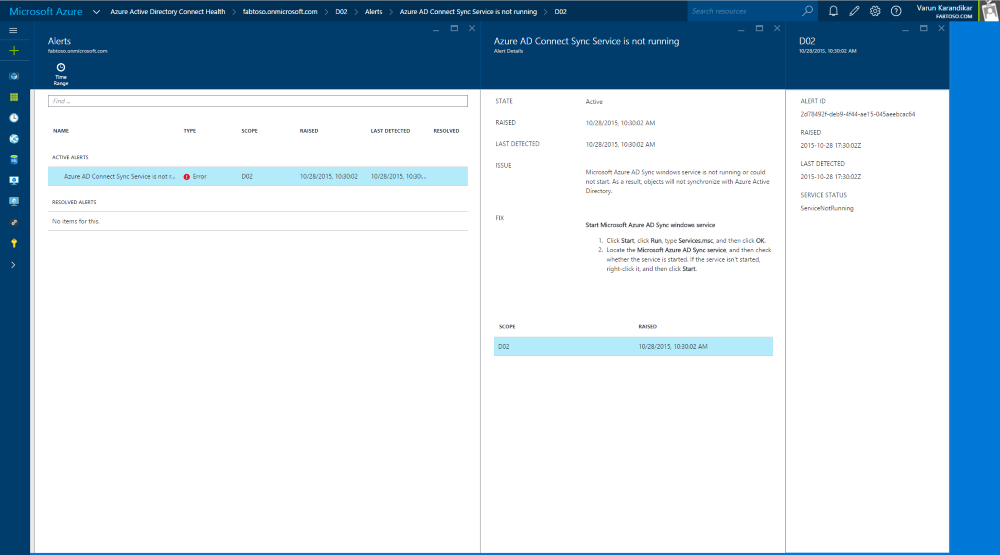
The Microsoft Entra Connect Health Alerts for sync section provides the list of active alerts. Each alert includes relevant information, resolution steps, and links to related documentation. By selecting an active or resolved alert you see a new blade with additional information and the steps you can take to resolve the alert, and links to additional documentation. You can also view historical data on alerts that were resolved in the past.
Limited Evaluation of Alerts
If Microsoft Entra Connect is NOT using the default configuration (for example, if Attribute Filtering is changed from the default configuration to a custom configuration), then the Microsoft Entra Connect Health agent won't upload the error events related to Microsoft Entra Connect.
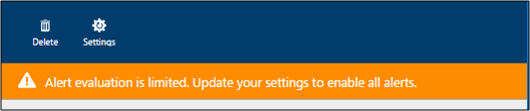
This limits the evaluation of alerts by the service. You'll see a banner that indicates this condition in the Microsoft Entra admin center under your service.
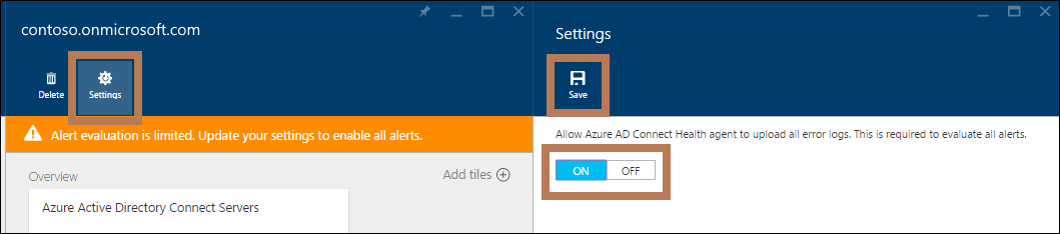
You can change this by selecting "Settings" and allowing Microsoft Entra Connect Health agent to upload all error logs.
Sync Insight
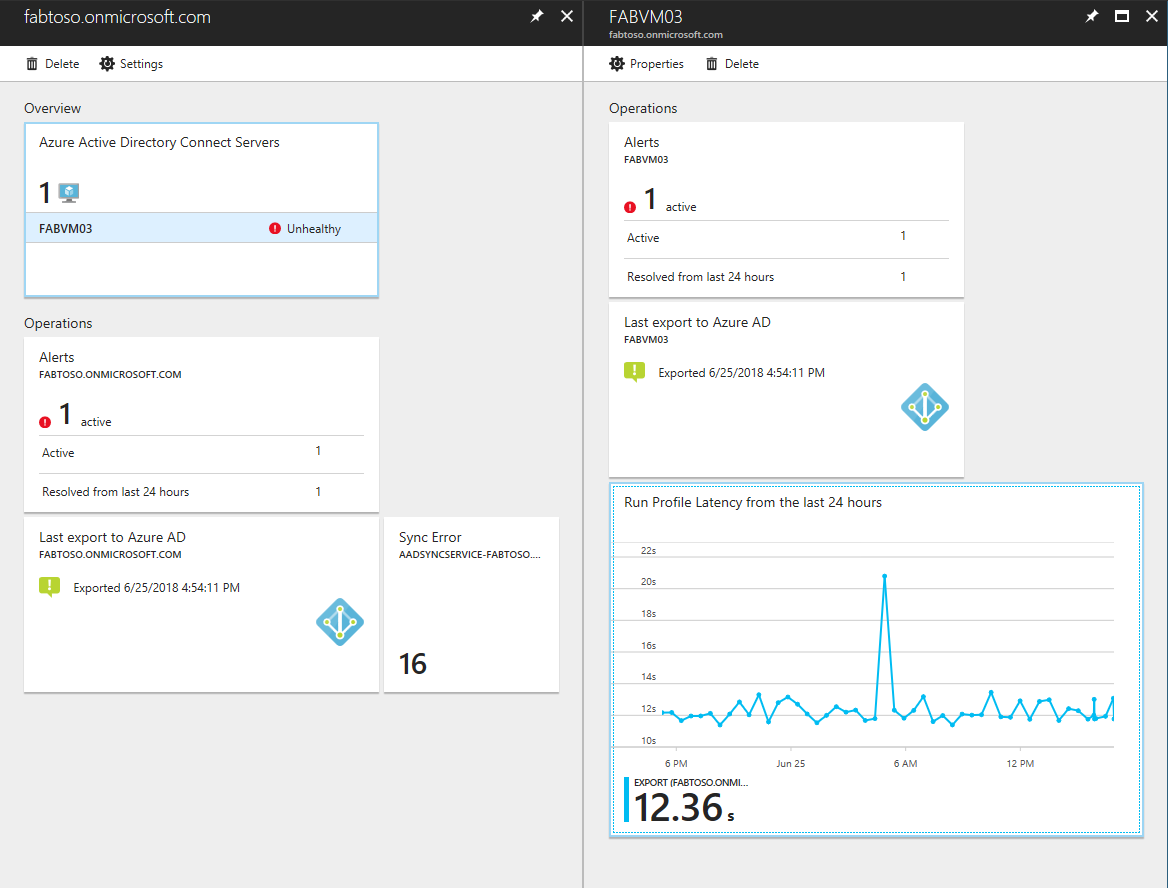
Admins Frequently want to know about the time it takes to sync changes to Microsoft Entra ID and the amount of changes taking place. This feature provides an easy way to visualize this using the below graphs:
- Latency of sync operations
- Object Change trend
Sync Latency
This feature provides a graphical trend of latency of the sync operations (such as import and export) for connectors. This provides a quick and easy way to understand the latency of your operations. The latency is larger if you have a large set of changes occurring. Additionally, it provides a way to detect anomalies in the latency that may require further investigation.
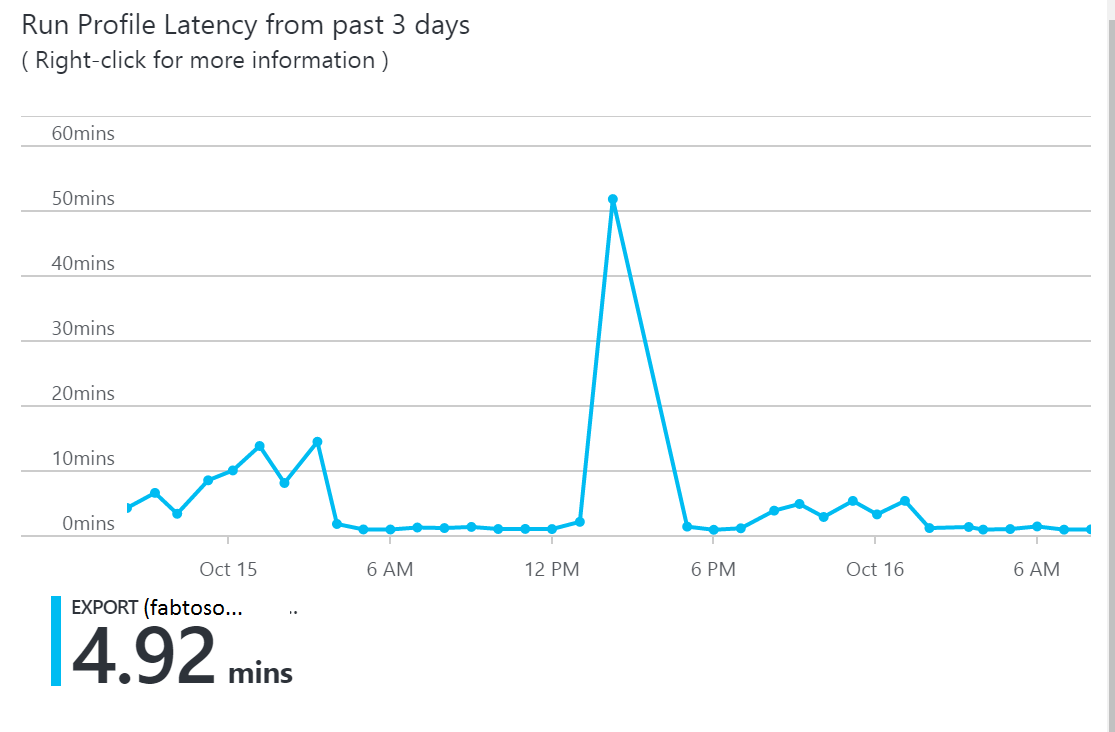
By default, only the latency of the 'Export' operation for the Microsoft Entra connector is shown. To see more operations on the connector or to view operations from other connectors, right-select on the chart, select Edit Chart or select on the "Edit Latency Chart" button and choose the specific operation and connectors.
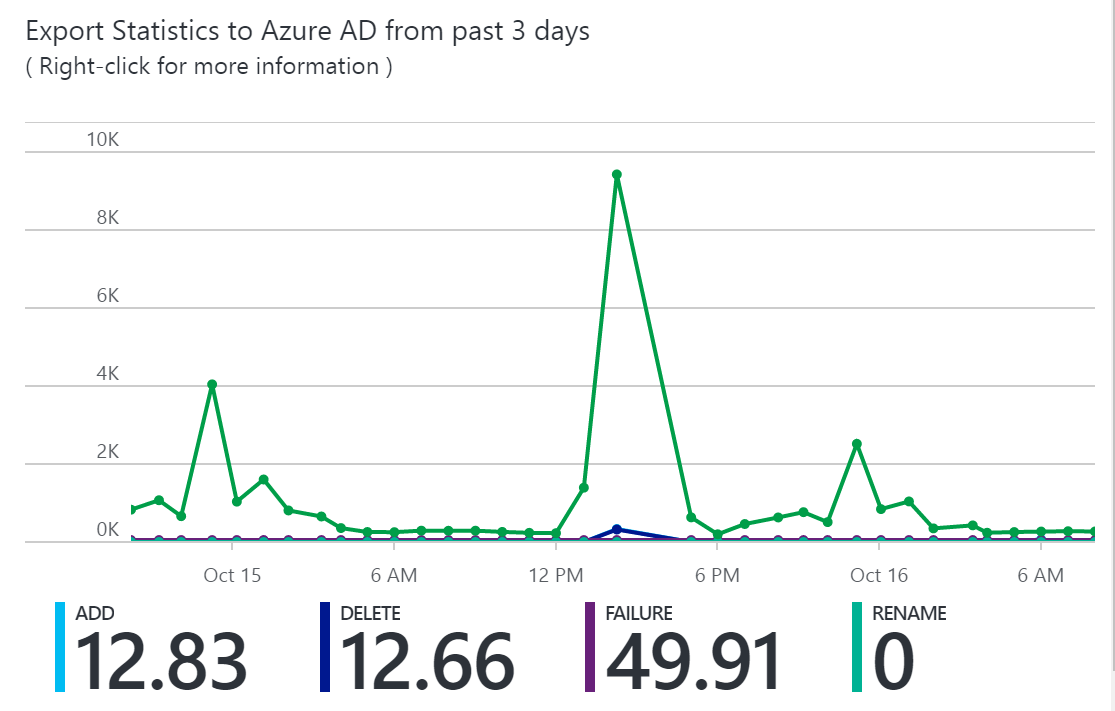
Sync Object Changes
This feature provides a graphical trend of the number of changes that are being evaluated and exported to Microsoft Entra ID. Today, trying to gather this information from the sync logs is difficult. The chart gives you, not only a simpler way of monitoring the number of changes that are occurring in your environment, but also a visual view of the failures that are occurring.
Object Level Synchronization Error Report
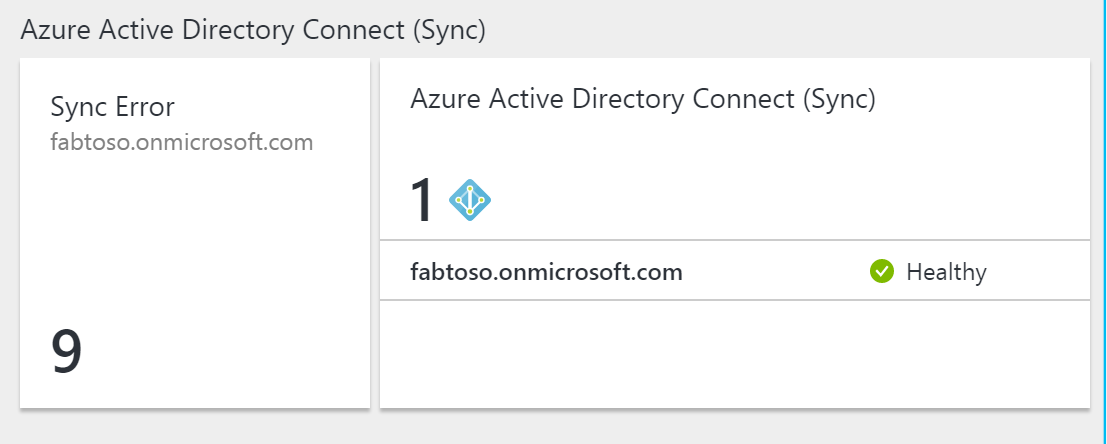
This feature provides a report about synchronization errors that can occur when identity data is synchronized between Windows Server AD and Microsoft Entra ID using Microsoft Entra Connect.
The report covers errors recorded by the sync client (Microsoft Entra Connect version 1.1.281.0 or higher)
It includes the errors that occurred in the last synchronization operation on the sync engine. ("Export" on the Microsoft Entra Connector.)
Microsoft Entra Connect Health agent for sync must have outbound connectivity to the required end points for the report to include the latest data.
The report is updated after every 30 minutes using the data uploaded by Microsoft Entra Connect Health agent for sync. It provides the following key capabilities
- Categorization of errors
- List of objects with error per category
- All the data about the errors at one place
- Side by side comparison of Objects with error due to a conflict
- Download the error report as a CVS
Categorization of Errors
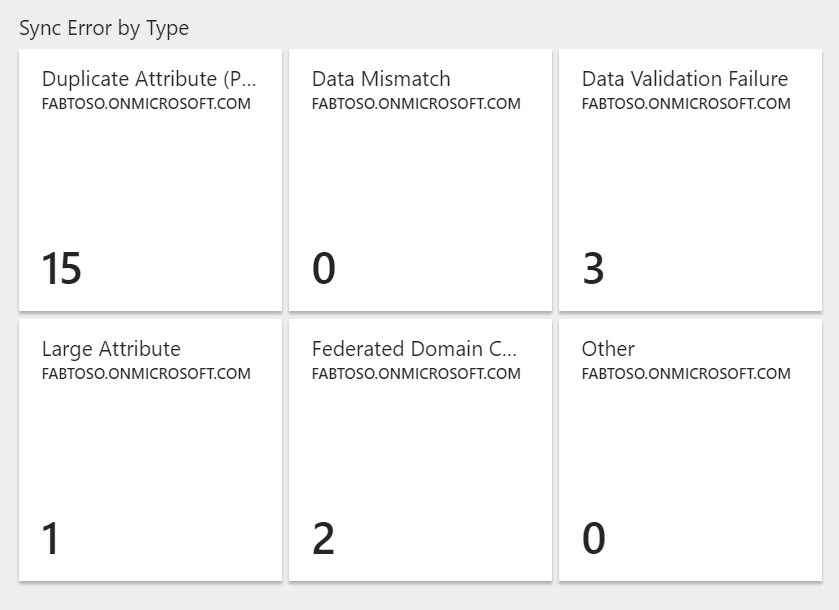
The report categorizes the existing synchronization errors in the following categories:
| Category | Description |
|---|---|
| Duplicate Attribute | Errors when Microsoft Entra Connect attempts create or update objects with duplicated values of one or more attributes in Microsoft Entra ID that must be unique in a Tenant, such as proxyAddresses, UserPrincipalName. |
| Data Mismatch | Errors when the soft-match fails to match objects that result in synchronization errors. |
| Data Validation Failure | Errors due to invalid data, such as unsupported characters in critical attributes such as UserPrincipalName, format errors that fail validation before being written in Microsoft Entra ID. |
| Federated Domain Change | Errors when accounts use a different federated domain. |
| Large Attribute | Errors when one or more attributes are larger than the allowed size, length or count. |
| Other | All other errors that don't fit in the above categories. Based on feedback, this category splits into sub categories. |
List of objects with error per category
Drilling into each category provides the list of objects having the error in that category.
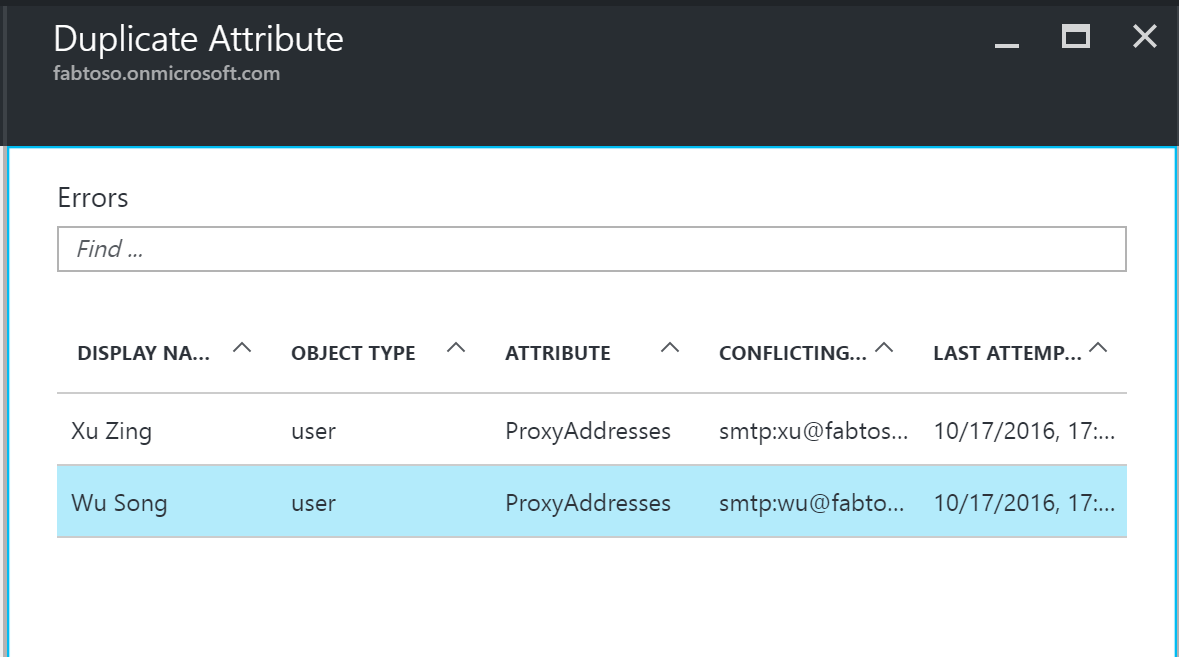
Error Details
Following data is available in the detailed view for each error
- Highlighted conflicting attribute
- Identifiers for the AD Object involved
- Identifiers for the Microsoft Entra Object involved (as applicable)
- Error description and how to fix
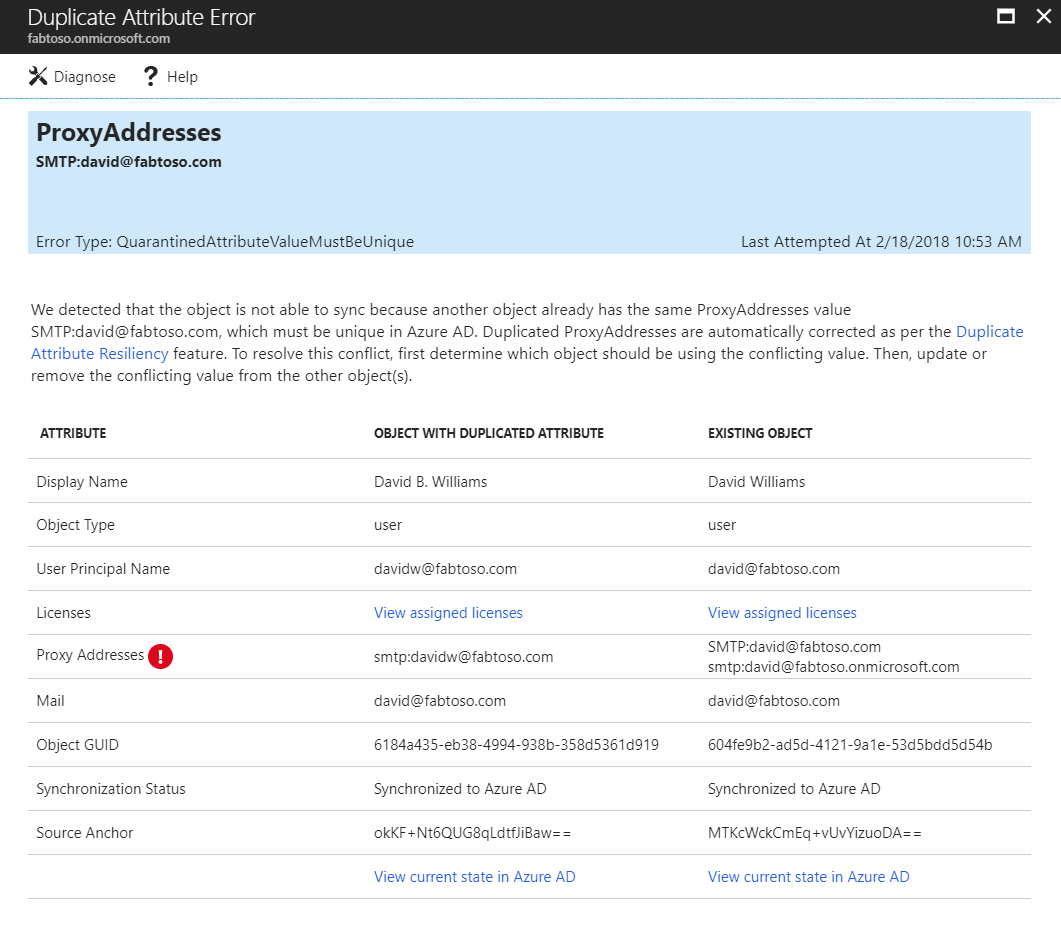
Download the error report as CSV
By selecting the "Export" button you can download a CSV file with all the details about all the errors.
Diagnose and remediate sync errors
For specific duplicated attribute sync error scenario involving user Source Anchor update, you can fix them directly from the portal. Read more about Diagnose and remediate duplicated attribute sync errors
Related links
- Troubleshooting Errors during synchronization
- Duplicate Attribute Resiliency
- Microsoft Entra Connect Health
- Microsoft Entra Connect Health Agent Installation
- Microsoft Entra Connect Health Operations
- Using Microsoft Entra Connect Health with AD FS
- Using Microsoft Entra Connect Health with AD DS
- Microsoft Entra Connect Health FAQ
- Microsoft Entra Connect Health Version History