Tutorial: Configure Cornerstone OnDemand for automatic user provisioning
This tutorial demonstrates the steps to perform in Cornerstone OnDemand and Microsoft Entra ID to configure Microsoft Entra ID to automatically provision and deprovision users or groups to Cornerstone OnDemand.
Warning
This provisioning integration is no longer supported. As a result of this, the provisioning functionality of the Cornerstone OnDemand application in the Microsoft Entra Enterprise App Gallery will be removed soon. The application's SSO functionality will remain intact. Microsoft is working with Cornerstone to build a new modernized provisioning integration, but there are no timelines on when this will be completed.
Note
This tutorial describes a connector that's built on top of the Microsoft Entra user provisioning service. For information on what this service does, how it works, and frequently asked questions, see Automate user provisioning and deprovisioning to software-as-a-service (SaaS) applications with Microsoft Entra ID.
Prerequisites
The scenario outlined in this tutorial assumes that you have:
- A Microsoft Entra tenant.
- A Cornerstone OnDemand tenant.
- A user account in Cornerstone OnDemand with admin permissions.
Note
The Microsoft Entra provisioning integration relies on the Cornerstone OnDemand web service. This service is available to Cornerstone OnDemand teams.
Add Cornerstone OnDemand from the Azure Marketplace
Before you configure Cornerstone OnDemand for automatic user provisioning with Microsoft Entra ID, add Cornerstone OnDemand from the Marketplace to your list of managed SaaS applications.
To add Cornerstone OnDemand from the Marketplace, follow these steps.
Sign in to the Microsoft Entra admin center as at least a Cloud Application Administrator.
Browse to Identity > Applications > Enterprise applications > New application.
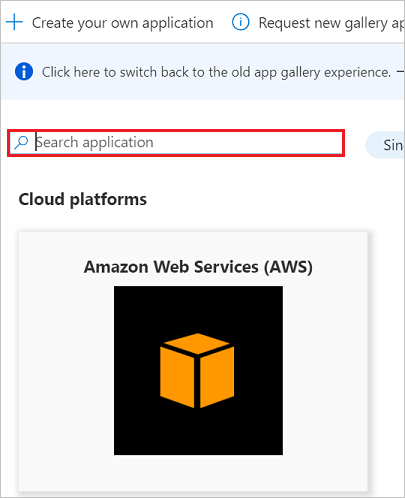
In the Add from the gallery section, type **Cornerstone OnDemand and select Cornerstone OnDemand from the result panel. To add the application, select Add.
Assign users to Cornerstone OnDemand
Microsoft Entra ID uses a concept called assignments to determine which users should receive access to selected apps. In the context of automatic user provisioning, only the users or groups that were assigned to an application in Microsoft Entra ID are synchronized.
Before you configure and enable automatic user provisioning, decide which users or groups in Microsoft Entra ID need access to Cornerstone OnDemand. To assign these users or groups to Cornerstone OnDemand, follow the instructions in Assign a user or group to an enterprise app.
Important tips for assigning users to Cornerstone OnDemand
We recommend that you assign a single Microsoft Entra user to Cornerstone OnDemand to test the automatic user provisioning configuration. You can assign additional users or groups later.
When you assign a user to Cornerstone OnDemand, select any valid application-specific role, if available, in the assignment dialog box. Users with the Default Access role are excluded from provisioning.
Configure automatic user provisioning to Cornerstone OnDemand
This section guides you through the steps to configure the Microsoft Entra provisioning service. Use it to create, update, and disable users or groups in Cornerstone OnDemand based on user or group assignments in Microsoft Entra ID.
To configure automatic user provisioning for Cornerstone OnDemand in Microsoft Entra ID, follow these steps.
Sign in to the Microsoft Entra admin center as at least a Cloud Application Administrator.
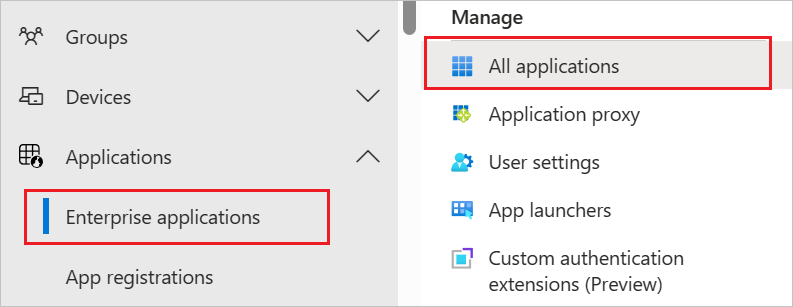
Browse to Identity > Applications > Enterprise applications > Cornerstone OnDemand.
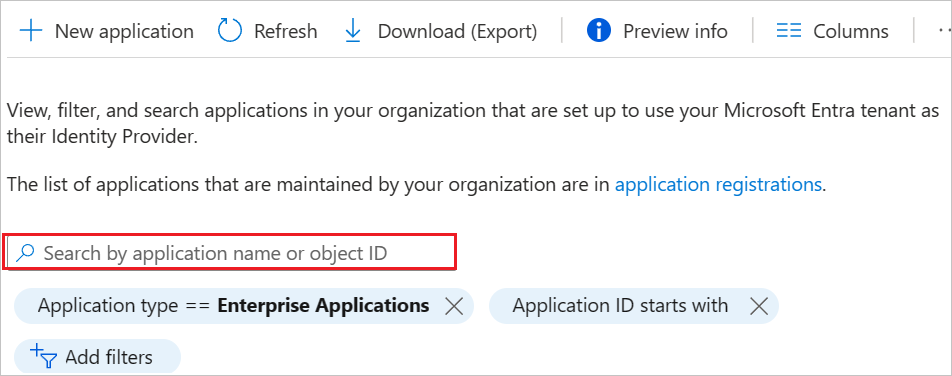
In the applications list, select Cornerstone OnDemand.
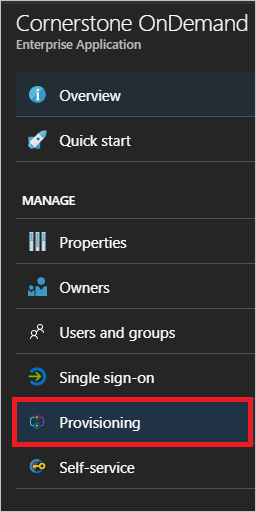
Select the Provisioning tab.
Set Provisioning Mode to Automatic.
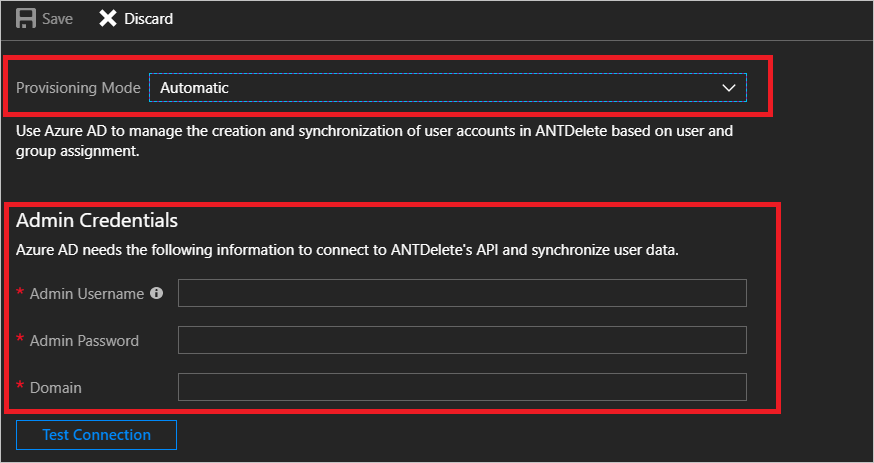
Under the Admin Credentials section, enter the admin username, admin password, and domain of your Cornerstone OnDemand's account:
In the Admin Username box, fill in the domain or username of the admin account on your Cornerstone OnDemand tenant. An example is contoso\admin.
In the Admin Password box, fill in the password that corresponds to the admin username.
In the Domain box, fill in the web service URL of the Cornerstone OnDemand tenant. For example, the service is located at
https://ws-[corpname].csod.com/feed30/clientdataservice.asmx, and for Contoso the domain ishttps://ws-contoso.csod.com/feed30/clientdataservice.asmx.
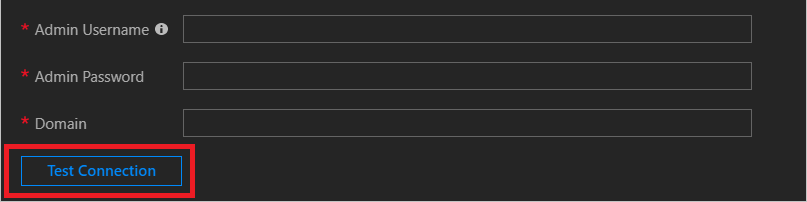
After you fill in the boxes shown in Step 5, select Test Connection to make sure that Microsoft Entra ID can connect to Cornerstone OnDemand. If the connection fails, make sure that your Cornerstone OnDemand account has admin permissions and try again.
In the Notification Email box, enter the email address of the person or group to receive the provisioning error notifications. Select the Send an email notification when a failure occurs check box.

Select Save.
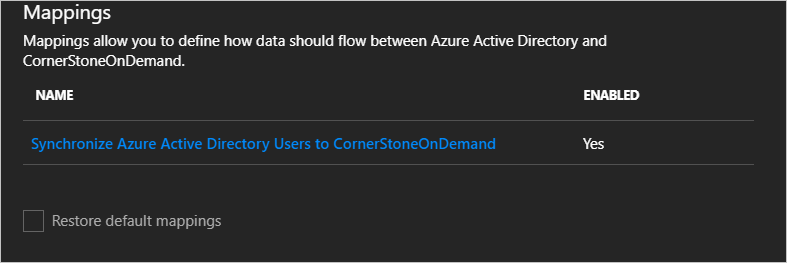
Under the Mappings section, select Synchronize Microsoft Entra users to Cornerstone OnDemand.
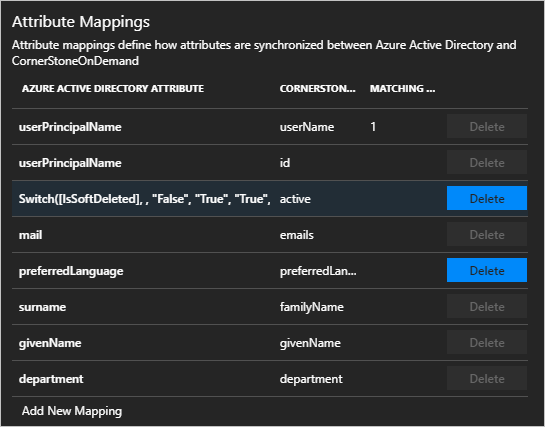
Review the user attributes that are synchronized from Microsoft Entra ID to Cornerstone OnDemand in the Attribute Mappings section. The attributes selected as Matching properties are used to match the user accounts in Cornerstone OnDemand for update operations. To save any changes, select Save.
To configure scoping filters, follow the instructions in the scoping filter tutorial.
To enable the Microsoft Entra provisioning service for Cornerstone OnDemand, in the Settings section, change Provisioning Status to On.

Define the users or groups that you want to provision to Cornerstone OnDemand. In the Settings section, select the values you want in Scope.

When you're ready to provision, select Save.

This operation starts the initial synchronization of all users or groups defined in Scope in the Settings section. The initial sync takes longer to perform than later syncs. They occur approximately every 40 minutes as long as the Microsoft Entra provisioning service runs.
You can use the Synchronization Details section to monitor progress and follow links to the provisioning activity report. The report describes all the actions performed by the Microsoft Entra provisioning service on Cornerstone OnDemand.
For information on how to read the Microsoft Entra provisioning logs, see Reporting on automatic user account provisioning.
Connector limitations
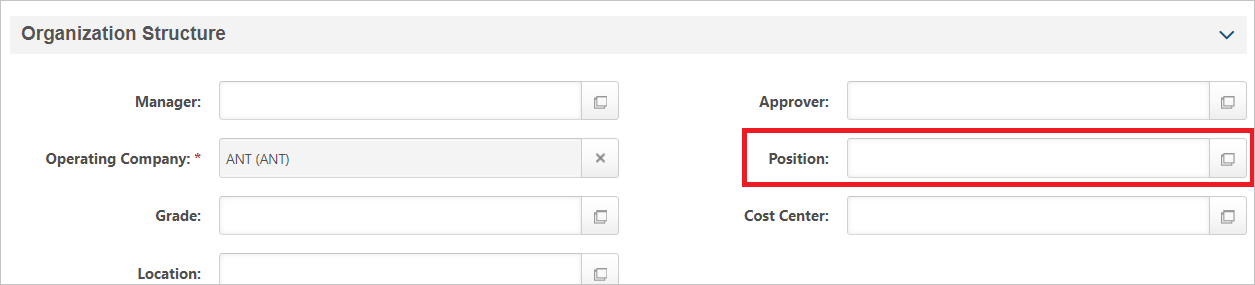
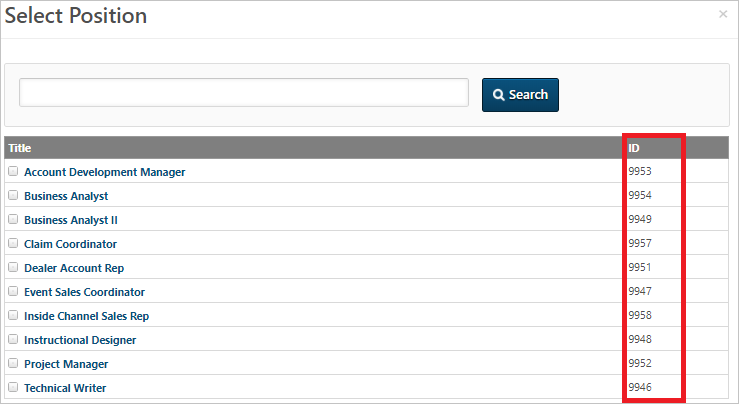
The Cornerstone OnDemand Position attribute expects a value that corresponds to the roles on the Cornerstone OnDemand portal. To get a list of valid Position values, go to Edit User Record > Organization Structure > Position in the Cornerstone OnDemand portal.

Additional resources
- Manage user account provisioning for enterprise apps
- What is application access and single sign-on with Microsoft Entra ID?
Next steps
Feedback
Coming soon: Throughout 2024 we will be phasing out GitHub Issues as the feedback mechanism for content and replacing it with a new feedback system. For more information see: https://aka.ms/ContentUserFeedback.
Submit and view feedback for