Note
Access to this page requires authorization. You can try signing in or changing directories.
Access to this page requires authorization. You can try changing directories.
In this article, you learn how to integrate ecFreight2 with Microsoft Entra ID. When you integrate ecFreight2 with Microsoft Entra ID, you can:
Use Microsoft Entra ID to control who can access ecFreight2. Enable your users to be automatically signed in to ecFreight2 with their Microsoft Entra accounts. Manage your accounts in one central location: the Azure portal.
Prerequisites
To get started, you need the following items:
- A Microsoft Entra subscription. If you don't have a subscription, you can get a free account.
- ecFreight2 single sign-on (SSO) enabled subscription.
Add ecFreight2 from the gallery
To configure the integration of ecFreight2 into Microsoft Entra ID, you need to add ecFreight2 from the gallery to your list of managed SaaS apps.
Sign in to the Microsoft Entra admin center as at least a Cloud Application Administrator.
Browse to Entra ID > Enterprise apps > New application.
In the Add from the gallery section, enter ecFreight2 in the search box.
Select ecFreight2 in the results panel and then add the app. Wait a few seconds while the app is added to your tenant.
Configure Microsoft Entra SSO
Follow these steps to enable Microsoft Entra SSO in the Microsoft Entra admin center.
Sign in to the Microsoft Entra admin center as at least a Cloud Application Administrator.
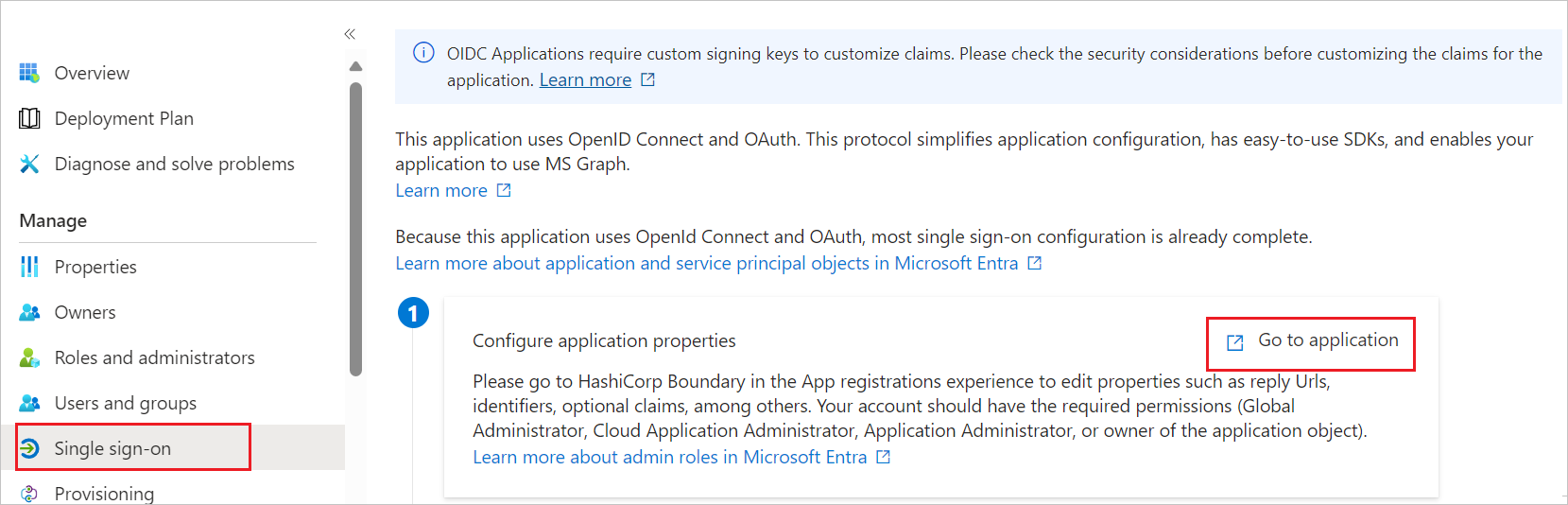
Browse to Entra ID > Enterprise apps > ecFreight2 > Single sign-on.
Perform the following steps in the below section:
Select Go to application.
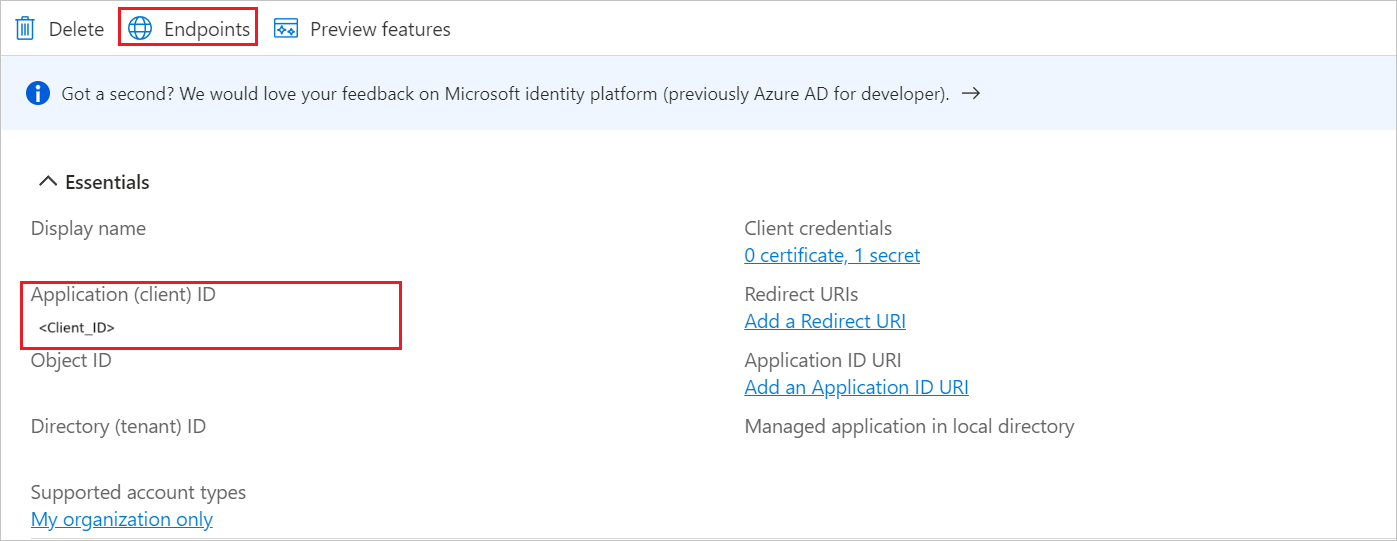
Copy Application (client) ID and use it later in the ecFreight2 side configuration.
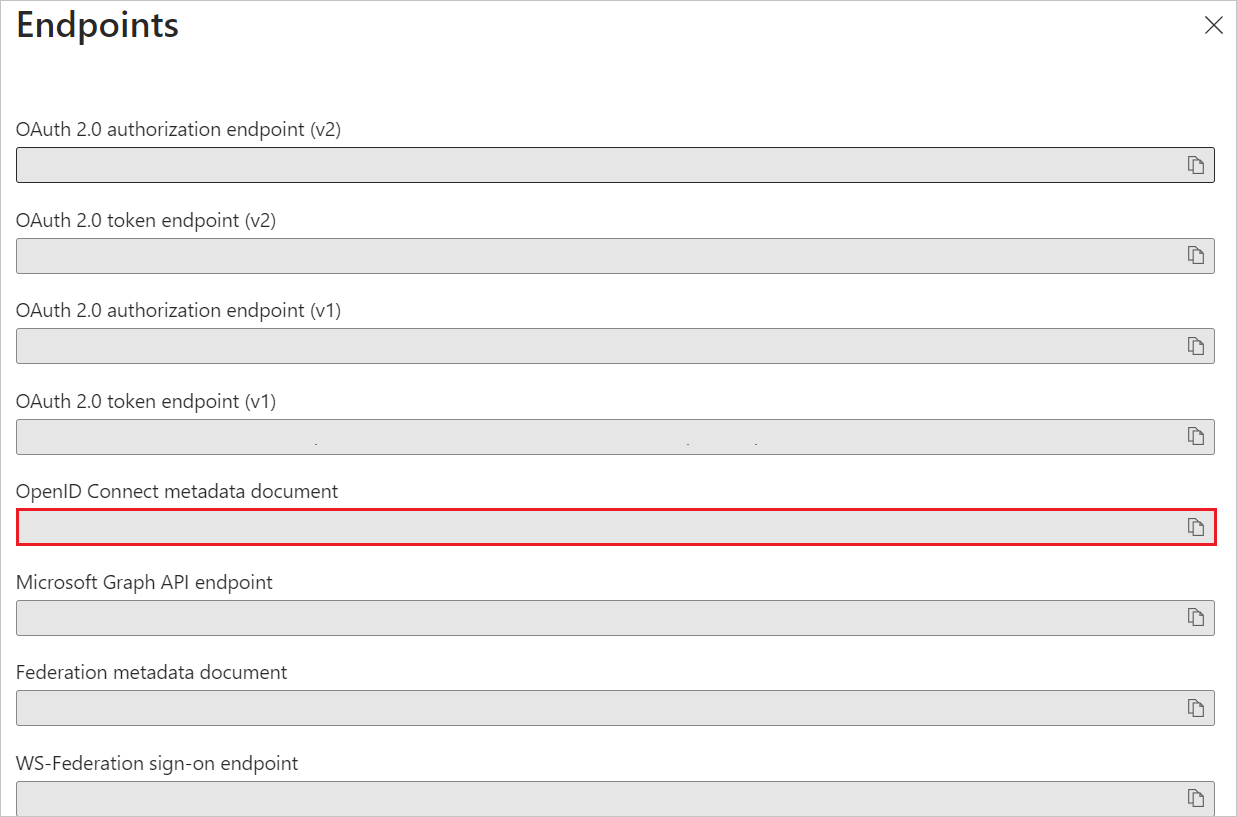
Under Endpoints tab, copy OpenID Connect metadata document link and use it later in the ecFreight2 side configuration.
Navigate to Authentication tab on the left menu and perform the following steps:
In the Redirect URIs textbox, type a URL using the following pattern:
https://<HOST_NAME>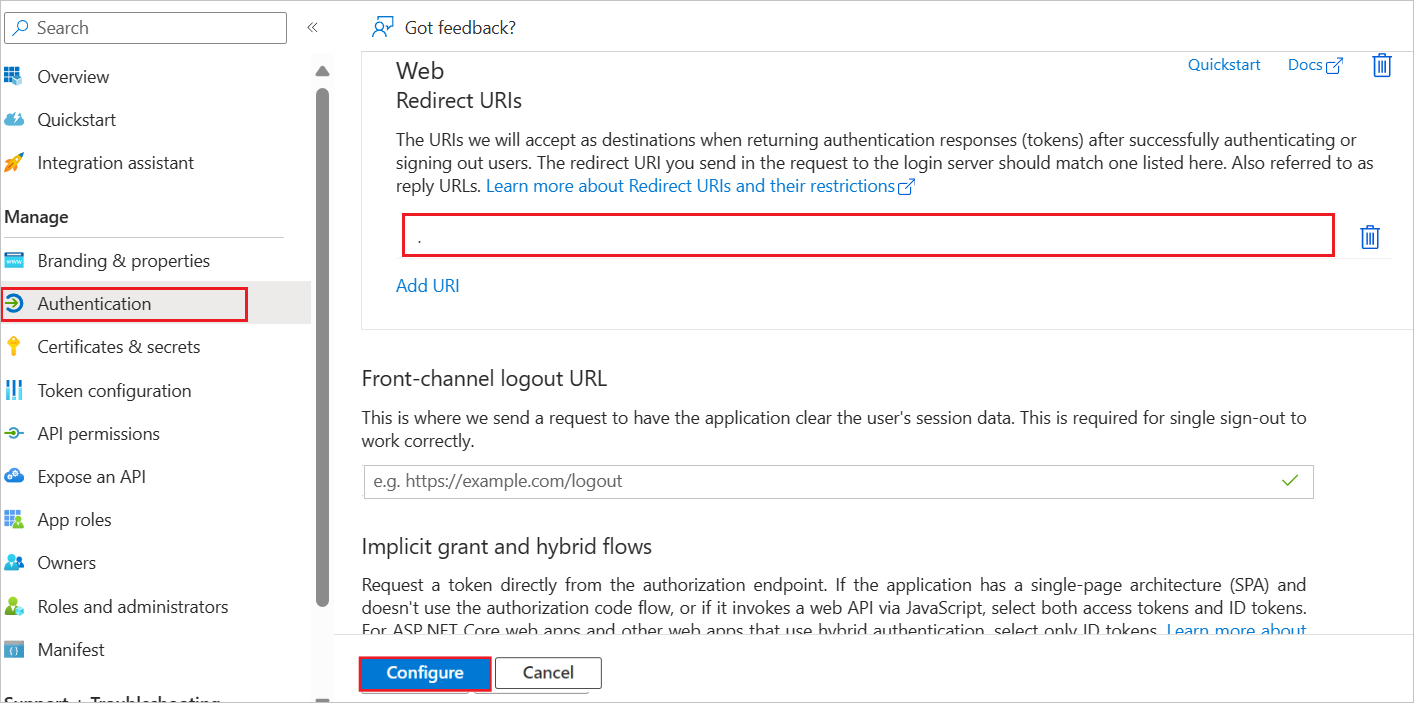
Select Configure button.
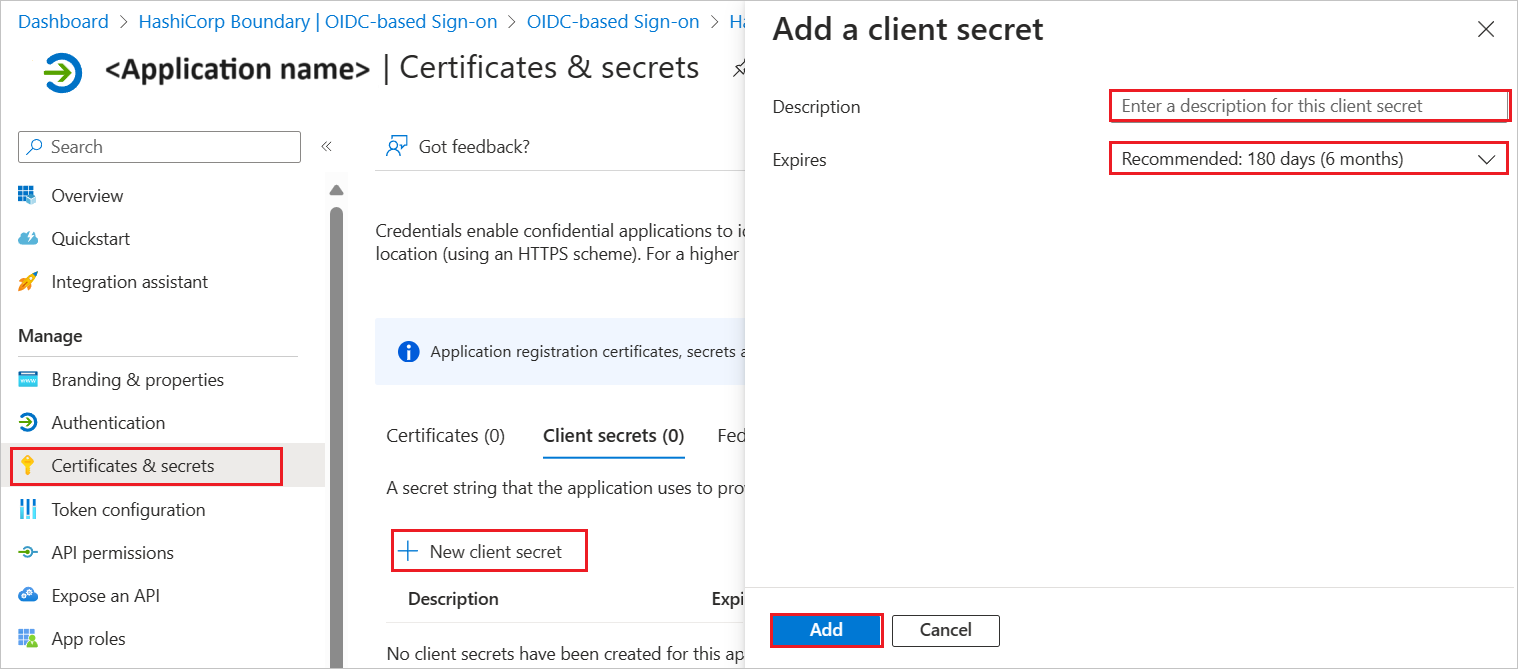
Navigate to Certificates & secrets on the left menu and perform the following steps:
Go to Client secrets tab and select +New client secret.
Enter a valid Description in the textbox and select Expires days from the drop-down as per your requirement and select Add.
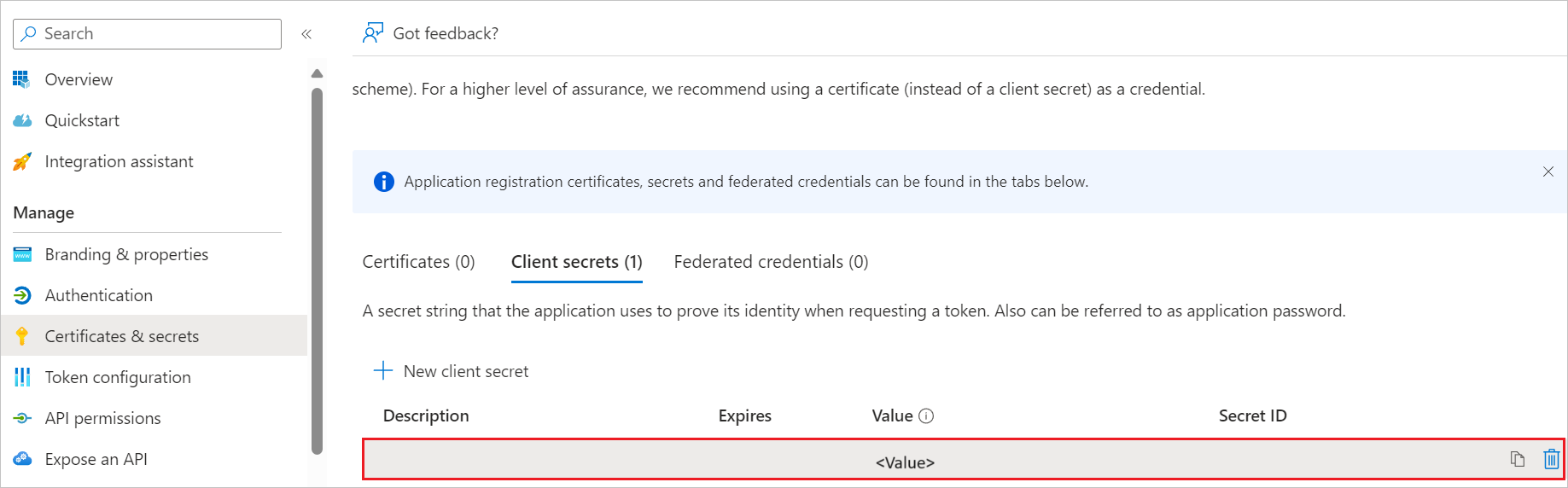
Once you add a client secret, Value is generated. Copy the value and use it later in the ecFreight2 side configuration.
Create a Microsoft Entra test user
In this section, you create a test user called B.Simon.
- Sign in to the Microsoft Entra admin center as at least a User Administrator.
- Browse to Entra ID > Users.
- Select New user > Create new user, at the top of the screen.
- In the User properties, follow these steps:
- In the Display name field, enter
B.Simon. - In the User principal name field, enter the username@companydomain.extension. For example,
B.Simon@contoso.com. - Select the Show password check box, and then write down the value that's displayed in the Password box.
- Select Review + create.
- In the Display name field, enter
- Select Create.
Assign the Microsoft Entra test user
In this section, you enable B.Simon to use single sign-on by granting access to ecFreight2.
- Sign in to the Microsoft Entra admin center as at least a Cloud Application Administrator.
- Browse to Entra ID > Enterprise apps > ecFreight2.
- In the app's overview page, select Users and groups.
- Select Add user/group, then select Users and groups in the Add Assignment dialog.
- In the Users and groups dialog, select B.Simon from the Users list, then select the Select button at the bottom of the screen.
- If you're expecting a role to be assigned to the users, you can select it from the Select a role dropdown. If no role has been set up for this app, you see "Default Access" role selected.
- In the Add Assignment dialog, select the Assign button.
Configure ecFreight2 SSO
Log in to ecFreight2 Application as an administrator.
Go to Admin > System Parameter > Single Sign On and perform the following steps:
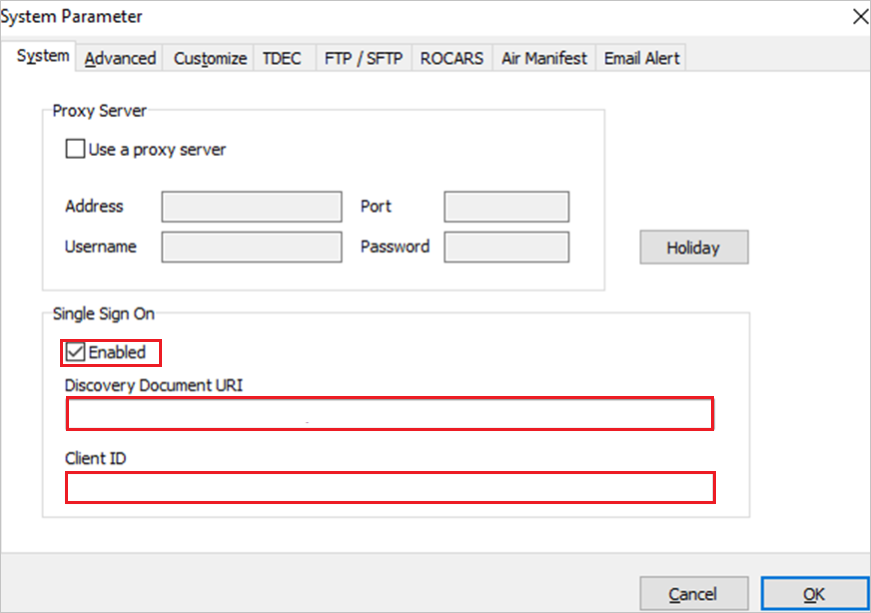
Check the Enabled box.
In the Discovery Document URI textbox, paste the OpenID Connect metadata document link, which you have copied from Microsoft Entra admin center.
In the Client ID textbox, paste the Application (client) ID, which you have copied from Microsoft Entra admin center.
Note
For more details, please contact ecFreight2 support team.