Note
Access to this page requires authorization. You can try signing in or changing directories.
Access to this page requires authorization. You can try changing directories.
In this article, you learn how to integrate SumoLogic with Microsoft Entra ID. When you integrate SumoLogic with Microsoft Entra ID, you can:
- Control in Microsoft Entra ID who has access to SumoLogic.
- Enable your users to be automatically signed-in to SumoLogic with their Microsoft Entra accounts.
- Manage your accounts in one central location.
Prerequisites
The scenario outlined in this article assumes that you already have the following prerequisites:
- A Microsoft Entra user account with an active subscription. If you don't already have one, you can Create an account for free.
- One of the following roles:
- SumoLogic single sign-on (SSO) enabled subscription.
Scenario description
In this article, you configure and test Microsoft Entra SSO in a test environment.
- SumoLogic supports IDP initiated SSO.
Add SumoLogic from the gallery
To configure the integration of SumoLogic into Microsoft Entra ID, you need to add SumoLogic from the gallery to your list of managed SaaS apps.
- Sign in to the Microsoft Entra admin center as at least a Cloud Application Administrator.
- Browse to Entra ID > Enterprise apps > New application.
- In the Add from the gallery section, type SumoLogic in the search box.
- Select SumoLogic from results panel and then add the app. Wait a few seconds while the app is added to your tenant.
Alternatively, you can also use the Enterprise App Configuration Wizard. In this wizard, you can add an application to your tenant, add users/groups to the app, assign roles, and walk through the SSO configuration as well. Learn more about Microsoft 365 wizards.
Configure and test Microsoft Entra SSO for SumoLogic
Configure and test Microsoft Entra SSO with SumoLogic using a test user called B.Simon. For SSO to work, you need to establish a link relationship between a Microsoft Entra user and the related user in SumoLogic.
To configure and test Microsoft Entra SSO with SumoLogic, perform the following steps:
- Configure Microsoft Entra SSO - to enable your users to use this feature.
- Create a Microsoft Entra test user - to test Microsoft Entra single sign-on with B.Simon.
- Assign the Microsoft Entra test user - to enable B.Simon to use Microsoft Entra single sign-on.
- Configure SumoLogic SSO - to configure the single sign-on settings on application side.
- Create SumoLogic test user - to have a counterpart of B.Simon in SumoLogic that's linked to the Microsoft Entra representation of user.
- Test SSO - to verify whether the configuration works.
Configure Microsoft Entra SSO
Follow these steps to enable Microsoft Entra SSO.
Sign in to the Microsoft Entra admin center as at least a Cloud Application Administrator.
Browse to Entra ID > Enterprise apps > SumoLogic > Single sign-on.
On the Select a single sign-on method page, select SAML.
On the Set up single sign-on with SAML page, select the pencil icon for Basic SAML Configuration to edit the settings.
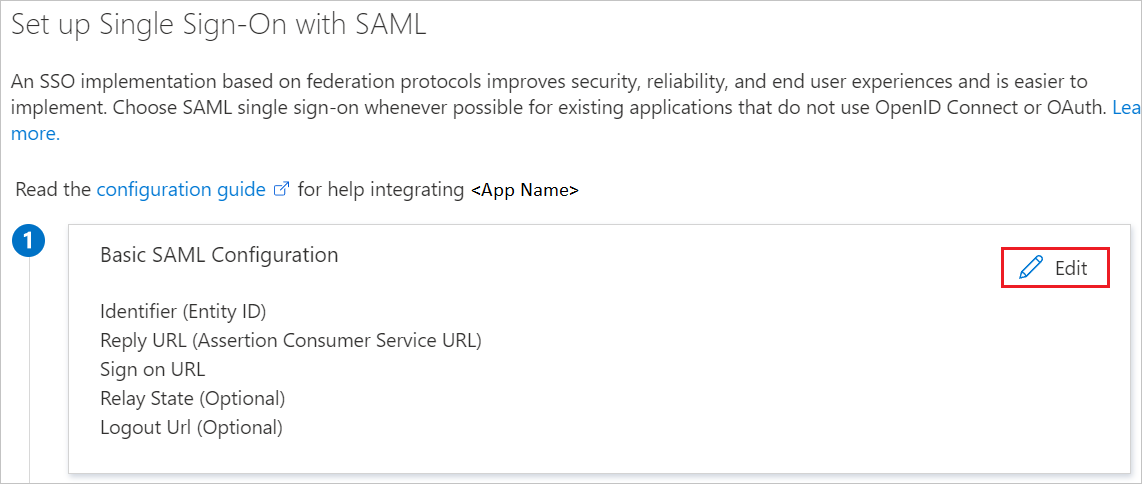
On the Set up single sign-on with SAML page, perform the following steps:
a. In the Identifier text box, type a URL using one of the following patterns:
Identifier URL https://service.sumologic.comhttps://<tenantname>.us2.sumologic.comhttps://<tenantname>.us4.sumologic.comhttps://<tenantname>.eu.sumologic.comhttps://<tenantname>.jp.sumologic.comhttps://<tenantname>.de.sumologic.comhttps://<tenantname>.ca.sumologic.comb. In the Reply URL text box, type a URL using one of the following patterns:
Reply URL https://service.sumologic.com/sumo/saml/consume/<tenantname>https://service.us2.sumologic.com/sumo/saml/consume/<tenantname>https://service.us4.sumologic.com/sumo/saml/consume/<tenantname>https://service.eu.sumologic.com/sumo/saml/consume/<tenantname>https://service.jp.sumologic.com/sumo/saml/consume/<tenantname>https://service.de.sumologic.com/sumo/saml/consume/<tenantname>https://service.ca.sumologic.com/sumo/saml/consume/<tenantname>https://service.au.sumologic.com/sumo/saml/consume/<tenantname>Note
These values aren't real. Update these values with the actual Identifier and Reply URL. Contact SumoLogic Client support team to get these values. You can also refer to the patterns shown in the Basic SAML Configuration section.
SumoLogic application expects the SAML assertions in a specific format, which requires you to add custom attribute mappings to your SAML token attributes configuration. The following screenshot shows the list of default attributes.
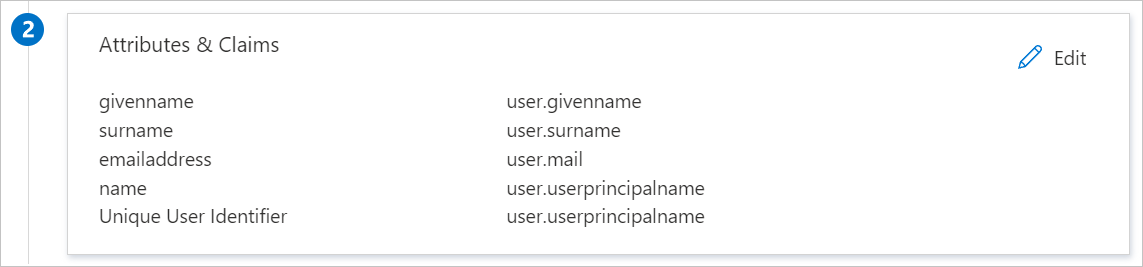
In addition to above, SumoLogic application expects few more attributes to be passed back in SAML response which are shown below. These attributes are also pre populated but you can review them as per your requirements.
Name Source Attribute FirstName user.givenname LastName user.surname Roles user.assignedroles Note
Please select here to know how to configure Role in Microsoft Entra ID.
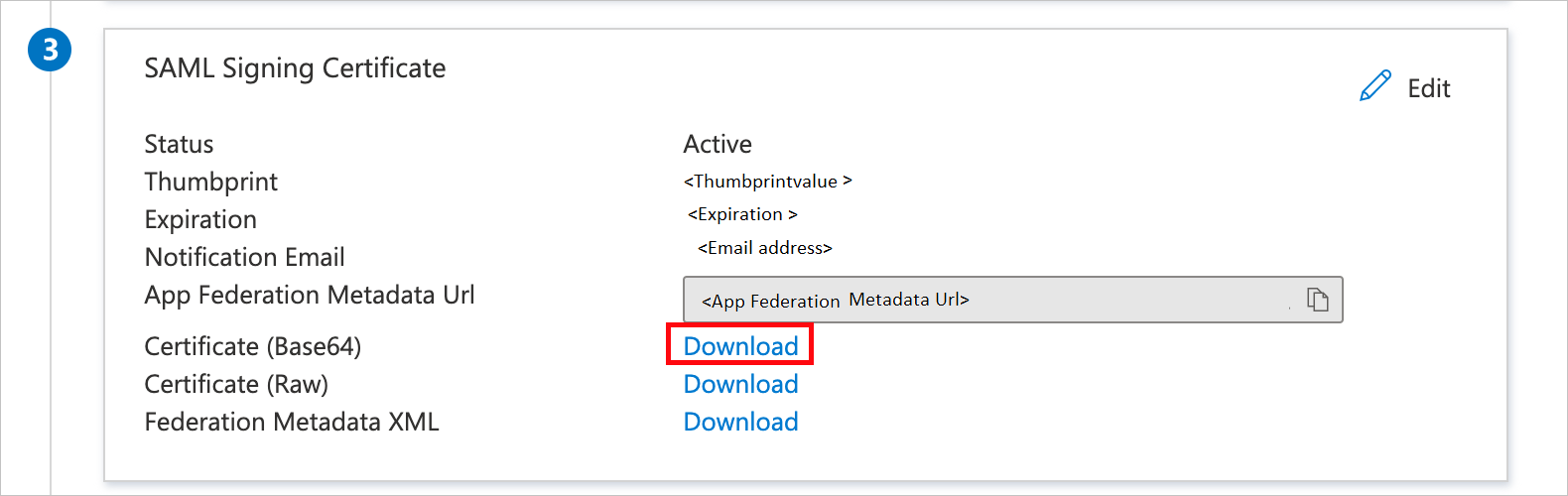
On the Set up single sign-on with SAML page, in the SAML Signing Certificate section, find Certificate (Base64) and select Download to download the certificate and save it on your computer.
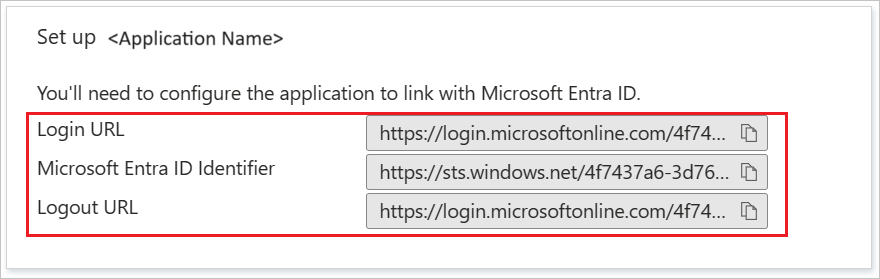
On the Set up SumoLogic section, copy the appropriate URL(s) based on your requirement.
Create and assign Microsoft Entra test user
Follow the guidelines in the create and assign a user account quickstart to create a test user account called B.Simon.
Configure SumoLogic SSO
In a different web browser window, sign in to your SumoLogic company site as an administrator.
Go to Manage > Security.
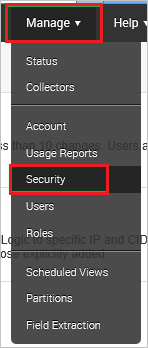
Select SAML.

From the Select a configuration or create a new one list, select Microsoft Entra ID, and then select Configure.
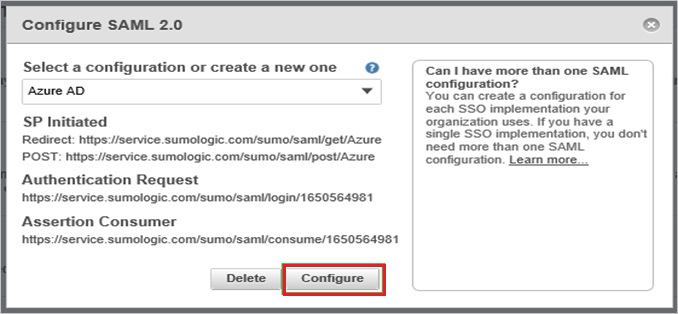
On the Configure SAML 2.0 dialog, perform the following steps:
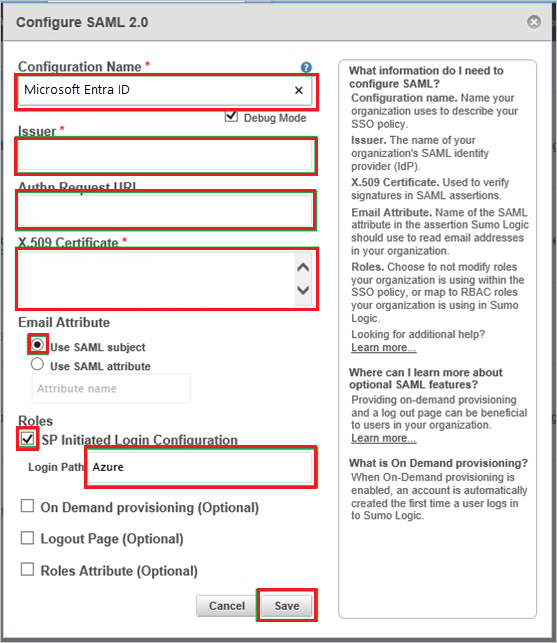
a. In the Configuration Name textbox, type Microsoft Entra ID.
b. Select Debug Mode.
c. In the Issuer textbox, paste the value of Microsoft Entra Identifier.
d. In the Authn Request URL textbox, paste the value of Login URL.
e. Open your base-64 encoded certificate in notepad, copy the content of it into your clipboard, and then paste the entire Certificate into X.509 Certificate textbox.
f. As Email Attribute, select Use SAML subject.
g. Select SP initiated Login Configuration.
h. In the Login Path textbox, type Azure and select Save.
Create SumoLogic test user
In order to enable Microsoft Entra users to sign in to SumoLogic, they must be provisioned to SumoLogic. In the case of SumoLogic, provisioning is a manual task.
To provision a user account, perform the following steps:
Sign in to your SumoLogic tenant.
Go to Manage > Users.
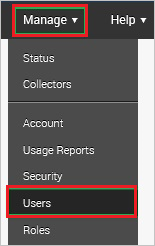
Select Add.

On the New User dialog, perform the following steps:
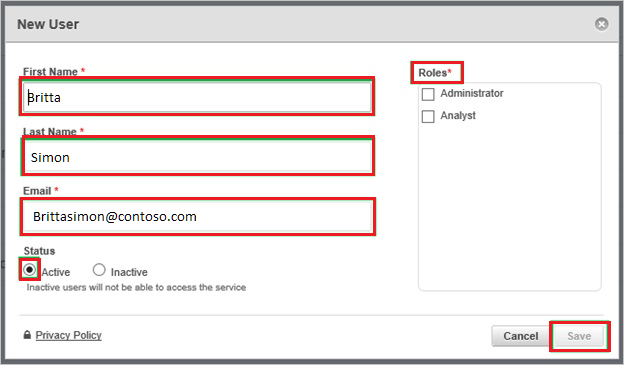
a. Type the related information of the Microsoft Entra account you want to provision into the First Name, Last Name, and Email textboxes.
b. Select a role.
c. As Status, select Active.
d. Select Save.
Note
You can use any other SumoLogic user account creation tools or APIs provided by SumoLogic to provision Microsoft Entra user accounts.
Test SSO
In this section, you test your Microsoft Entra single sign-on configuration with following options.
Select Test this application, and you should be automatically signed in to the SumoLogic for which you set up the SSO.
You can use Microsoft My Apps. When you select the SumoLogic tile in the My Apps, you should be automatically signed in to the SumoLogic for which you set up the SSO. For more information about the My Apps, see Introduction to the My Apps.
Related content
Once you configure SumoLogic you can enforce session control, which protects exfiltration and infiltration of your organization’s sensitive data in real time. Session control extends from Conditional Access. Learn how to enforce session control with Microsoft Defender for Cloud Apps.