Tutorial: Integrate Viareport (Europe) with Microsoft Entra ID
In this tutorial, you'll learn how to integrate Viareport (Europe) with Microsoft Entra ID. When you integrate Viareport (Europe) with Microsoft Entra ID, you can:
- Control in Microsoft Entra ID who has access to Viareport (Europe).
- Enable your users to be automatically signed-in to Viareport (Europe) with their Microsoft Entra accounts.
- Manage your accounts in one central location.
To learn more about SaaS app integration with Microsoft Entra ID, see What is application access and single sign-on with Microsoft Entra ID.
Prerequisites
To get started, you need the following items:
- A Microsoft Entra subscription. If you don't have a subscription, you can get a free account.
- Viareport (Europe) single sign-on (SSO) enabled subscription.
Scenario description
In this tutorial, you configure and test Microsoft Entra SSO in a test environment.
- Viareport (Europe) supports SP and IDP initiated SSO
Adding Viareport (Europe) from the gallery
To configure the integration of Viareport (Europe) into Microsoft Entra ID, you need to add Viareport (Europe) from the gallery to your list of managed SaaS apps.
- Sign in to the Microsoft Entra admin center as at least a Cloud Application Administrator.
- Browse to Identity > Applications > Enterprise applications > New application.
- In the Add from the gallery section, type Viareport (Europe) in the search box.
- Select Viareport (Europe) from results panel and then add the app. Wait a few seconds while the app is added to your tenant.
Alternatively, you can also use the Enterprise App Configuration Wizard. In this wizard, you can add an application to your tenant, add users/groups to the app, assign roles, as well as walk through the SSO configuration as well. Learn more about Microsoft 365 wizards.
Configure and test Microsoft Entra single sign-on
Configure and test Microsoft Entra SSO with Viareport (Europe) using a test user called B.Simon. For SSO to work, you need to establish a link relationship between a Microsoft Entra user and the related user in Viareport (Europe).
To configure and test Microsoft Entra SSO with Viareport (Europe), complete the following building blocks:
- Configure Microsoft Entra SSO - to enable your users to use this feature.
- Configure Viareport (Europe) SSO - to configure the Single Sign-On settings on application side.
- Create a Microsoft Entra test user - to test Microsoft Entra single sign-on with B.Simon.
- Assign the Microsoft Entra test user - to enable B.Simon to use Microsoft Entra single sign-on.
- Create Viareport (Europe) test user - to have a counterpart of B.Simon in Viareport (Europe) that is linked to the Microsoft Entra representation of user.
- Test SSO - to verify whether the configuration works.
Configure Microsoft Entra SSO
Follow these steps to enable Microsoft Entra SSO.
Sign in to the Microsoft Entra admin center as at least a Cloud Application Administrator.
Browse to Identity > Applications > Enterprise applications > Viareport (Europe) application integration page, find the Manage section and select Single sign-on.
On the Select a Single sign-on method page, select SAML.
On the Set up Single Sign-On with SAML page, click the edit/pen icon for Basic SAML Configuration to edit the settings.
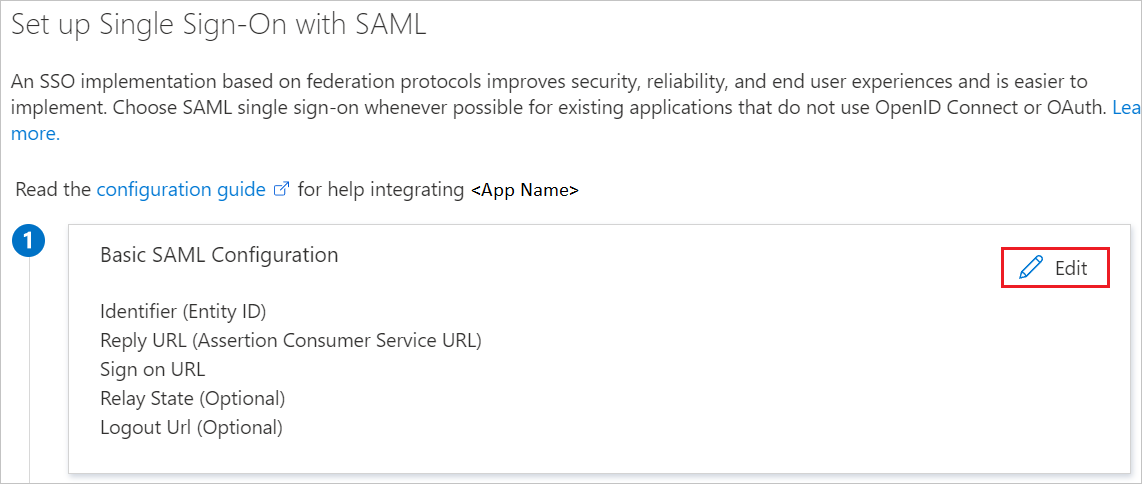
On the Basic SAML Configuration section, if you wish to configure the application in IDP initiated mode, enter the values for the following fields:
In the Reply URL text box, type a URL using the following pattern:
https://inativ.viareport.com/SSO/<tenant_id>/callbackClick Set additional URLs and perform the following step if you wish to configure the application in SP initiated mode:
In the Sign-on URL text box, type a URL using the following pattern:
https://inativ.viareport.com/SSO/<tenant_id>/loginNote
These values are not real. Update these values with the actual Reply URL and Sign-On URL. Contact Viareport (Europe) Client support team to get these values. You can also refer to the patterns shown in the Basic SAML Configuration section.
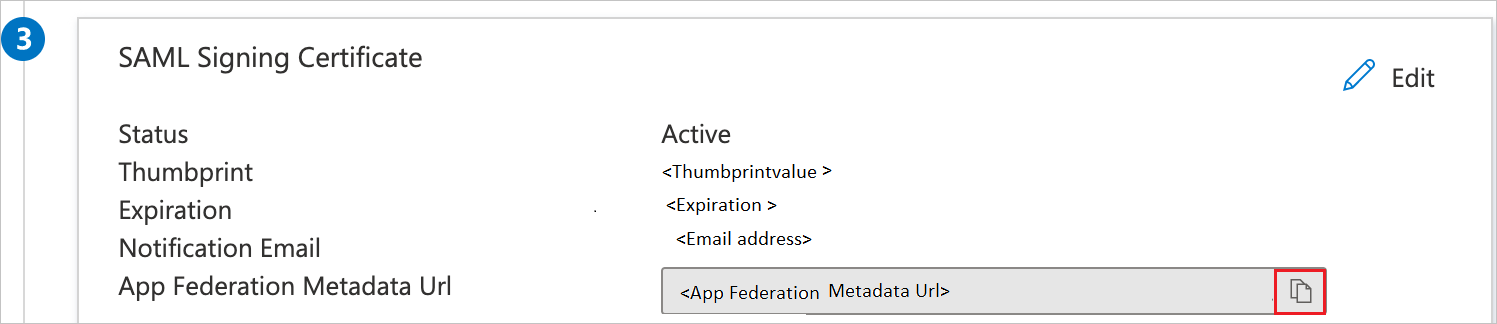
On the Set up Single Sign-On with SAML page, In the SAML Signing Certificate section, click copy button to copy App Federation Metadata Url and save it on your computer.
Configure Viareport (Europe) SSO
To configure single sign-on on Viareport (Europe) side, you need to send the App Federation Metadata Url to Viareport (Europe) support team. They set this setting to have the SAML SSO connection set properly on both sides.
Create a Microsoft Entra test user
In this section, you'll create a test user called B.Simon.
- Sign in to the Microsoft Entra admin center as at least a User Administrator.
- Browse to Identity > Users > All users.
- Select New user > Create new user, at the top of the screen.
- In the User properties, follow these steps:
- In the Display name field, enter
B.Simon. - In the User principal name field, enter the username@companydomain.extension. For example,
B.Simon@contoso.com. - Select the Show password check box, and then write down the value that's displayed in the Password box.
- Select Review + create.
- In the Display name field, enter
- Select Create.
Assign the Microsoft Entra test user
In this section, you'll enable B.Simon to use single sign-on by granting access to Viareport (Europe).
Sign in to the Microsoft Entra admin center as at least a Cloud Application Administrator.
Browse to Identity > Applications > Enterprise applications > Viareport (Europe).
In the app's overview page, find the Manage section and select Users and groups.
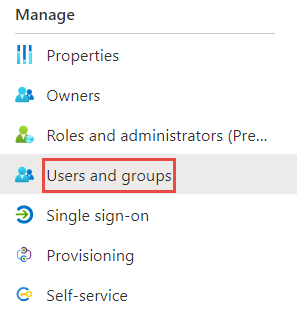
Select Add user, then select Users and groups in the Add Assignment dialog.

In the Users and groups dialog, select B.Simon from the Users list, then click the Select button at the bottom of the screen.
If you're expecting any role value in the SAML assertion, in the Select Role dialog, select the appropriate role for the user from the list and then click the Select button at the bottom of the screen.
In the Add Assignment dialog, click the Assign button.
Create Viareport (Europe) test user
In this section, you create a user called B.Simon in Viareport (Europe). Work with Viareport (Europe) support team to add the users in the Viareport (Europe) platform. Users must be created and activated before you use single sign-on.
Test SSO
In this section, you test your Microsoft Entra single sign-on configuration using the Access Panel.
When you click the Viareport (Europe) tile in the Access Panel, you should be automatically signed in to the Viareport (Europe) for which you set up SSO. For more information about the Access Panel, see Introduction to the Access Panel.
Additional Resources
Feedback
Coming soon: Throughout 2024 we will be phasing out GitHub Issues as the feedback mechanism for content and replacing it with a new feedback system. For more information see: https://aka.ms/ContentUserFeedback.
Submit and view feedback for