Note
Access to this page requires authorization. You can try signing in or changing directories.
Access to this page requires authorization. You can try changing directories.
The Conditional Access Optimization Agent helps organizations plan and deploy campaigns that guide users toward stronger authentication methods. The agent supports deploying passkey adoption campaigns to help organizations roll out phishing-resistant authentication in a structured, intelligent, and automated way.
The agent is designed to reduce manual effort for large scale campaigns. The agent can:
- Assess user and device readiness
- Generate a recommended deployment plan
- Guide users through required steps
- Enforce Conditional Access policies once users are ready
The agent continuously evaluates progress and advances users through the campaign as prerequisites are met.
Prerequisites
- You must have at least the Microsoft Entra ID P1 license.
- You must have available security compute units (SCU).
- On average, each agent run consumes less than one SCU.
- You must have passkeys enabled in the Authentication methods policy.
- Security Administrator is required to manage passkey campaigns.
- The Conditional Access Administrator role doesn't have sufficient privileges to manage passkey campaigns.
How the agent identifies passkey campaign candidates
The agent automatically analyzes your tenant to identify eligible privileged administrators and generates a campaign targeting up to 200 users. For the full list of targeted roles, see Supported admin roles.
If you don't want to act on a passkey campaign suggestion, you can dismiss it like any other agent suggestion.
Note
Initial analysis can take several minutes. If Review campaign doesn't appear, you can select Run analysis on the suggestion card or wait for the agent's next scheduled run.
View the campaign overview
When a passkey campaign is available, it appears as a suggestion on the Conditional Access Optimization Agent overview.
To review the campaign:
Browse to the Conditional Access Optimization Agent.
Under Recent suggestions, locate the Deploy passkey adoption campaign for admins suggestion.
Select Review campaign.
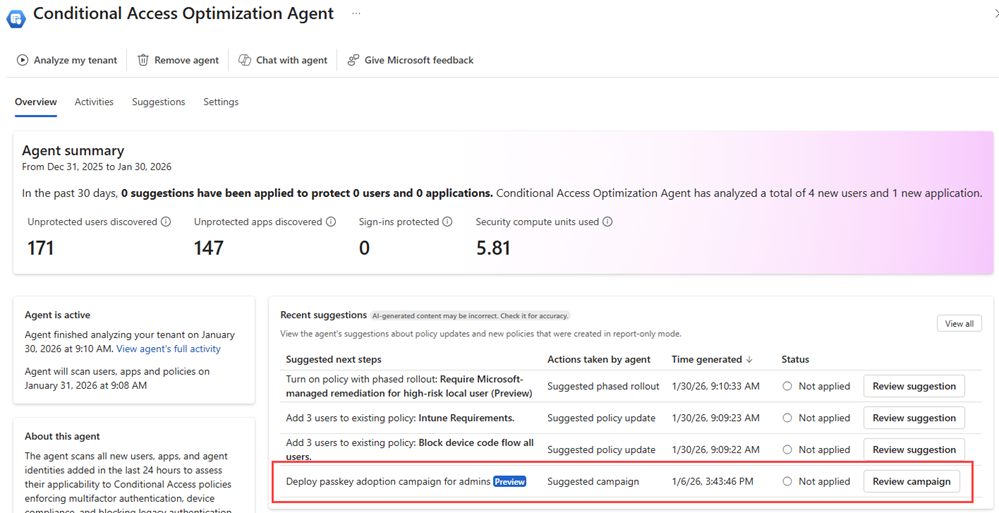
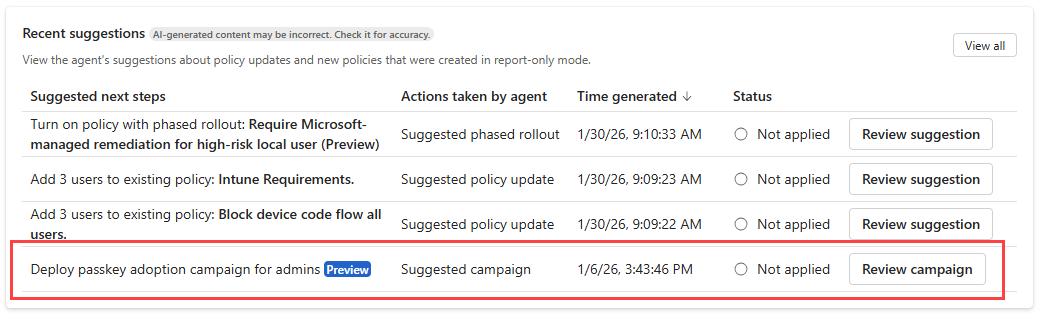
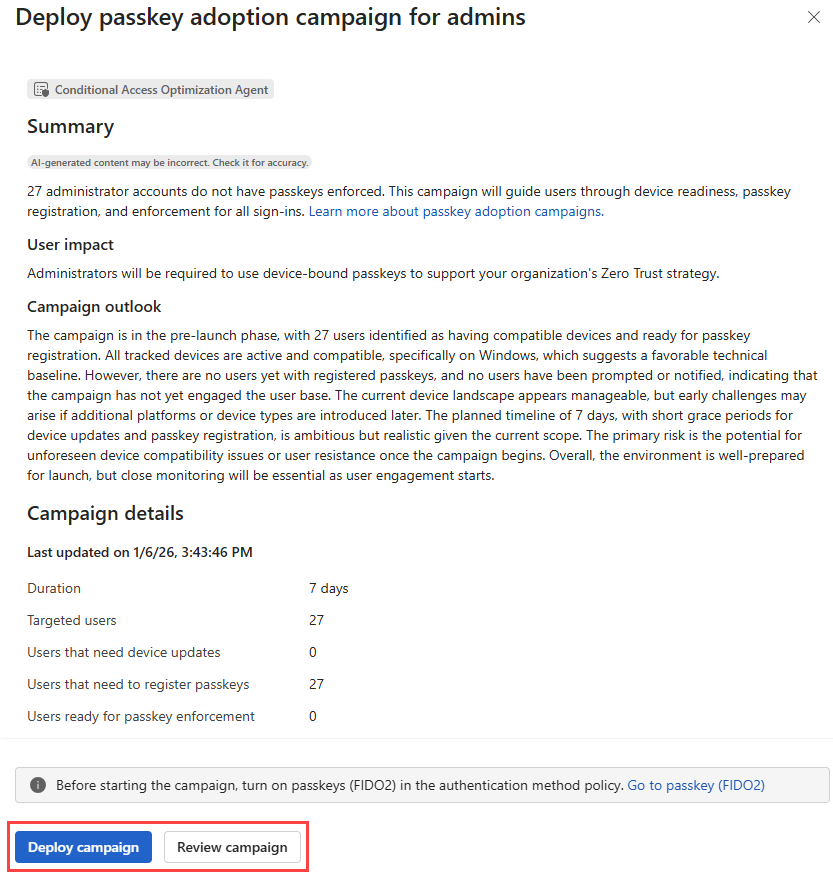
The initial campaign overview provides a summary of the agent's proposed plan, including:
- The campaign goal
- An AI-generated readiness outlook for the targeted users
- Key campaign metrics, such as:
- Estimated campaign duration
- Number of targeted users
- A breakdown of user readiness:
- Users needing device updates: users with at least one device registered with Microsoft Entra but doesn't meet the minimum OS requirements for passkeys.
- Users needing to register a passkey: users with compatible devices but no registered passkey.
- Users ready for enforcement: users with compatible devices and a registered passkey.
From this view, you can deploy the campaign immediately or open the detailed campaign experience. We recommend reviewing the detailed campaign plan before deploying the campaign.
Review and customize the detailed campaign plan
Select Review campaign to open the detailed campaign experience, where you can review user readiness in more depth and customize the campaign configuration before deployment. The passkey campaign includes four stages:
- Target users for passkey campaign
- Check device readiness
- Require passkey registration
- Enforce passkey usage
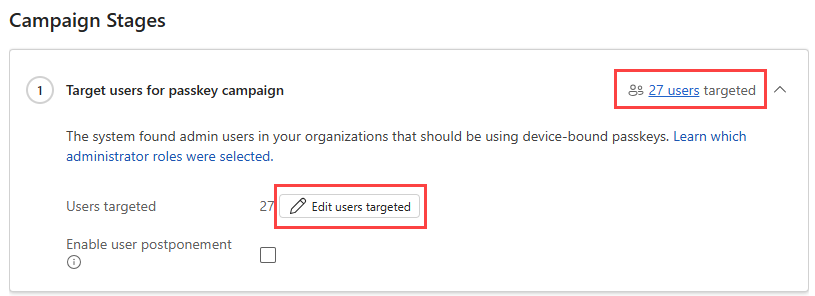
Review targeted users
The detailed campaign view allows you to review all users targeted for the campaign and make adjustments before deployment. Campaign customization is only available while the campaign is in the Not started state. Once deployment begins, these settings can't be modified.
- To view the users targeted for the campaign: Select the aggregate user count link for that category.
- To edit the users targeted for the campaign: Select the Edit users targeted button.
Tip
We recommend excluding any break glass or emergency access admin accounts from the campaign.
The Check device readiness stage might not have the same number of users as the total targeted users for the campaign. If all users have current devices with the latest operating system that supports passkeys, they won't be included in this stage. If there are no users for this stage, the campaign automatically moves to the next stage.
Adjust grace periods
Grace periods define how long users have to complete a required action. Grace periods can apply to updating a device, registering a passkey, or the time between informational notifications and enforcement.
To view and adjust the grace periods for a stage of the campaign:
Select the arrow in the upper-right corner of the stage to expand the details.
Adjust the grace period by adjusting the slider or entering a number in the text box.
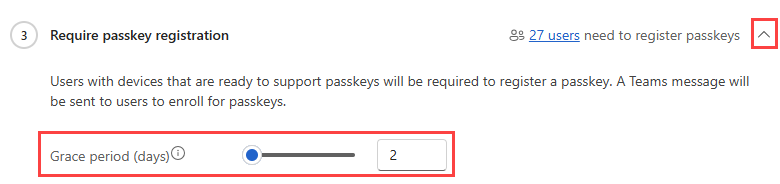
If a user exceeds a grace period to complete a required action, the agent doesn't continue progressing that user through the campaign. To view these users, select the aggregate user count for the relevant campaign category. The Exceeded grace period column indicates when a user has exceeded their grace period.
Configure postponement options
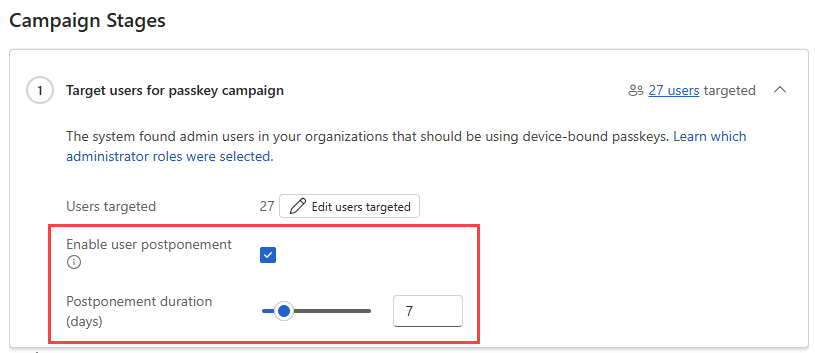
Postponement can be enabled in addition to grace periods to give users more flexibility. When postponement is enabled:
- Users can choose to defer a required action or enforcement notification for a limited time.
- Once the postponement duration ends, the agent resumes reminders and notifications for the required action or upcoming enforcement.
To configure postponement details:
Select Review campaign for the passkey campaign deployment suggestion.
Select the Enable user postponement checkbox.
From the new options that appear, set the number of days.
Filter inactive devices
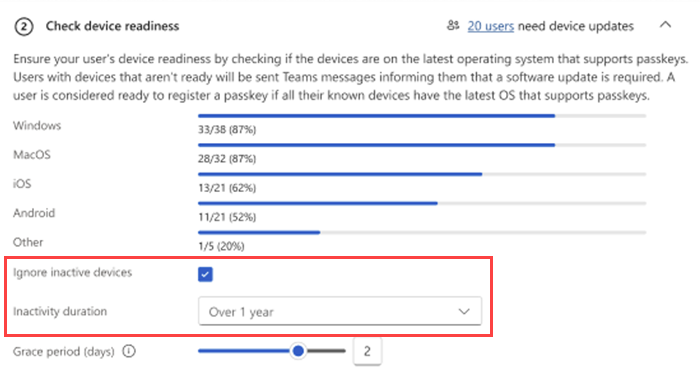
Filter inactive devices to help prevent users with old or unused devices from remaining stuck in the Check device readiness stage.
This setting applies at the campaign level and allows admins to define what qualifies as an active device. The agent excludes devices that haven't been used within the specified time window, helping ensure users are evaluated based on devices they actively sign in with. By default, the agent considers devices used within the last one year.
Deploy and run the campaign
After reviewing and customizing the detailed campaign plan, you can deploy the campaign.
To start the campaign, select Deploy campaign from the campaign overview or detailed campaign view.
Campaign deployment typically completes within a few minutes. During deployment, the agent creates the required resources and prepares to guide users through the campaign. You receive progress notifications as deployment continues. In the rare event that a deployment times out, the action buttons are re-enabled so you can retry.
Once deployment completes, the campaign status changes to In progress on the Conditional Access Optimization Agent overview page.
Monitor and manage campaign execution
After you deploy a campaign, the status changes to In progress on the Conditional Access Optimization Agent overview page. The agent then manages campaign execution automatically and updates progress as users complete required actions. The campaign overview and detailed campaign views always reflect the latest campaign status, user category breakdowns, and user-level details, allowing administrators to monitor progress and investigate issues as needed.
While a campaign is running:
- Campaign configuration settings are locked (except for Conditional Access policy edits).
- Execution can be managed from the detailed campaign view.
Available actions include:
- Pause: Temporarily stops all agent actions. No new users are contacted or advanced.
- End: Permanently stops the campaign and resets its state to Not started.
Pausing or ending a campaign doesn't reverse actions that were already completed.
How the agent guides users
While the campaign is active, the Conditional Access Optimization Agent runs automatically every 24 hours to evaluate progress and advance users based on their current readiness.
During execution:
- Users needing device updates
- Receive Microsoft Teams notifications prompting them to update their devices to meet minimum OS requirements
- Receive reminder notifications during the configured grace period
- Users needing to set up a passkey
- Receive Teams notifications with passkey setup guidance
- Receive reminder notifications during the grace period
- Users ready for enforcement
- Receive a notification informing them about upcoming enforcement
- After the enforcement grace period ends, users are added to a Conditional Access policy group that requires phishing-resistant authentication
- The Conditional Access policy is created in report-only mode
Conditional Access policy behavior
When users become eligible for enforcement, the agent creates a Conditional Access policy to require phishing-resistant authentication.
- The policy is created only after at least one user completes the enforcement notification grace period.
- The policy is initially created in report-only mode, allowing administrators to monitor impact before enforcing authentication requirements.
- Policy configuration can be reviewed and managed directly from Conditional Access.
Known limitations
- The Conditional Access Optimization Agent doesn't currently verify whether targeted users are enabled for passkeys in the Authentication methods policy. Ensure this prerequisite is configured before deploying a campaign.
- Campaign settings such as targeting, grace periods, and postponement configuration can't be modified after campaign execution begins.
- Conditional Access policies are created only after at least one user completes the enforcement notification grace period.
- Policy management options appear only after the policy is created.
- Postponement is currently supported only for users who have either the Security Copilot Owner or Security Copilot Contributor role. Admins can verify which users have these roles in the Security Copilot admin portal.
Supported admin roles
- Authentication Administrator
- Billing Administrator
- Cloud Application Administrator
- Conditional Access Administrator
- Exchange Administrator
- Global Administrator
- Helpdesk Administrator
- Intune Service Administrator
- Password Administrator
- Privileged Authentication Administrator
- Privileged Role Administrator
- Security Administrator
- SharePoint Administrator
- Teams Administrator
- User Administrator